
1. Introduction
This manual provides detailed instructions for the ZYK RF402A Universal Voice Remote Control, designed as a replacement for various Philips Android Smart TV models. It covers setup, pairing procedures, button functionalities, and troubleshooting tips to ensure optimal use of your new remote.
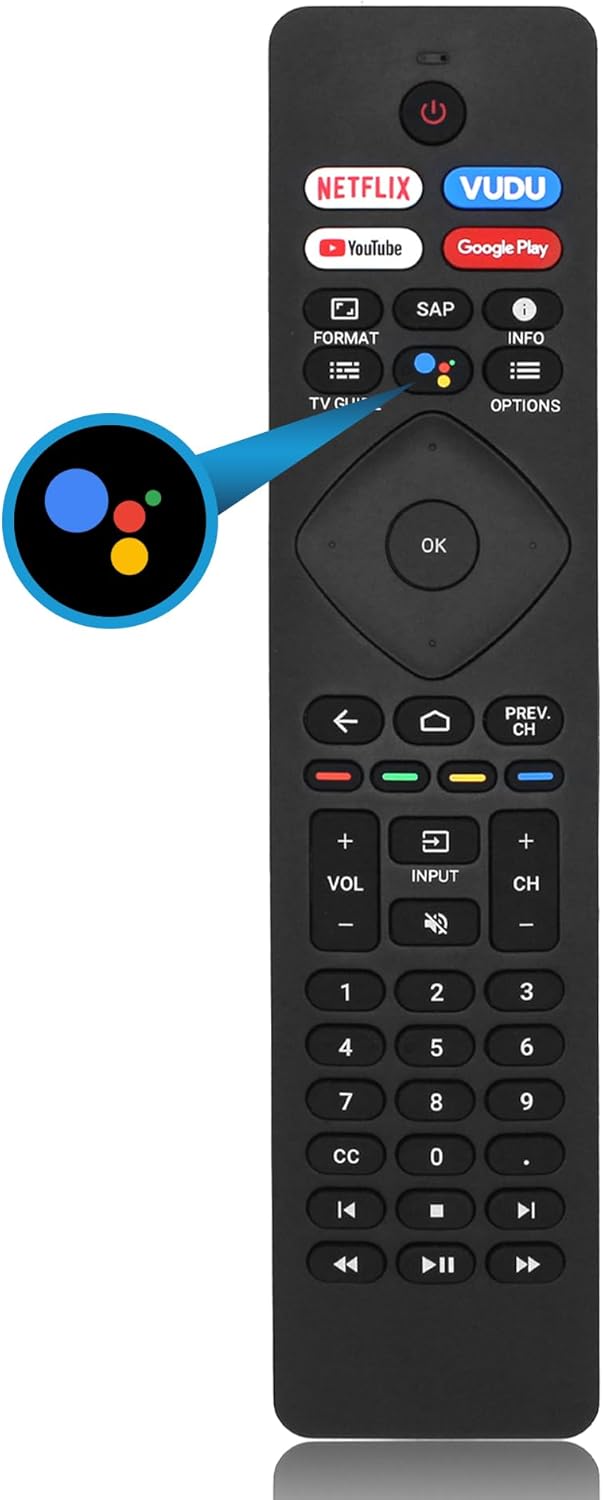
Image 1.1: The ZYK RF402A Universal Voice Remote Control.
2. Compatibility
The ZYK RF402A remote control is compatible with a range of Philips Android Smart TV models. Please verify your TV model against the list below:
Compatible TV Series:
- Philips Android TV 5504 Series
- Philips Android TV 5604 Series
- Philips Android TV 5704 Series
Specific Compatible Models (RF402A, URMT26RST004, NH800UP, BT800, URMT47CND0):
- 50PFL5704, 55PFL5704, 43PFL5704, 75PFL5704/F7, 65PFL5704/F7
- 55PFL5604, 50PFL5604, 43PFL5604, 75PFL5604, 65PFL5604/F7, 55PFL5604/F7, 50PFL5604/F7, 43PFL5604/F7, 65PFL5604/F7A, 75PFL5604/F7A, 55PFL5604/F7A, 50PFL5604/F7A
- 65PFL5504/F6, 43PFL5704/F7, 65PFL5504/F7, 32PFL5505/F7, 65PFL5504F7, 65PFL5504F6
This remote is designed for Philips 2K/4K/UHD/LED/LCD Smart TVs of various sizes, including 28, 29, 32, 39, 40, 43, 46, 49, 50, 55, 58, 65, and 75 inches.

Image 2.1: Overview of RF402A remote compatibility with Philips Smart TVs.
3. Setup and Pairing
3.1. Battery Installation
The remote control requires two (2) AAA batteries (not included). To install:
- Open the battery compartment cover on the back of the remote.
- Insert two AAA batteries, ensuring correct polarity (+ and -).
- Close the battery compartment cover securely.
3.2. Simple Pairing (For a New Remote)
Before using the remote, it must be paired with your Philips Android TV. Follow these steps:
- Ensure your TV is powered on. If not, press the "Power" button on the remote or TV.
- Press and hold the Google Assistant button and the VOL- (Volume Down) button simultaneously for 3 seconds or more.
- After 3 seconds, the indicator light on the remote will start to flash, and the pairing screen should appear on your TV.
- Once pairing is complete, a success message will display on the TV, and the indicator light on the remote will turn off. The remote is now ready for use.
3.3. Connecting a New Remote with an Already Paired Remote
If you are adding this remote while another remote is already paired, use the following method:
- Press the Home button on your existing remote or the new remote (if it has basic functionality).
- Navigate to "Settings", then select "Remotes & Accessories".
- Select "Add accessory" and press the OK button to confirm.
- On the new ZYK remote, press and hold the Google Assistant button and the VOL (Volume) button simultaneously for 3-5 seconds.
- The indicator light on the remote will flash, indicating it is in pairing status.
- After successful pairing, the indicator light will go out.

Image 3.1: Visual guide for pairing and unpairing the remote control.
4. Button Functions
The ZYK RF402A remote control features a comprehensive set of buttons for navigating your Philips Android Smart TV. Below is a description of each key function:

Image 4.1: Diagram illustrating the function of each button on the remote.
| Button | Function |
|---|---|
| Power | Turns the TV on and off. |
| VUDU | Direct access to VUDU streaming service. |
| INFO | Displays current program information. |
| Google Assistant | Activates voice control for search and commands. |
| OPTIONS | Displays a list of menu options applicable to the current screen. |
| OK | Confirms selections or enters menus. |
| Navigation Buttons (Up, Down, Left, Right) | Navigates through on-screen menus and content. |
| HOME | Accesses the Home screen, apps, Live TV, input devices, settings, and Google Play Store. |
| PREV. CH | Returns to the previous channel. |
| Color Buttons (Red, Green, Yellow, Blue) | Functions vary according to on-screen directions or HDMI-CEC function. |
| INPUT | Changes the input source (e.g., HDMI, AV). |
| CH +/- | Changes the TV channel. |
| VOL +/- | Adjusts the volume level. |
| Number Buttons (0-9) | Directly selects channels or enters numerical input. Use with 0-9 to select digital channels (e.g., 2-1 for channel 2.1). |
| HDMI-CEC Keys (Play, Pause, Stop, Rewind, Fast Forward, Previous, Next) | Controls playback of media devices connected via HDMI-CEC. |
| MUTE | Mutes or unmutes the TV sound. |
| CC | Activates or deactivates Closed Captions. |
| BACK | Returns to the previous menu or screen. |
| TV GUIDE | Opens the Electronic Program Guide (EPG). |
| FORMAT | Adjusts the picture size on the TV screen. |
| SAP | Selects audio mode (MONO / STEREO / SAP) / audio language. |
| Netflix | Direct access to Netflix streaming service. |
| YouTube | Direct access to YouTube streaming service. |
| Google Play | Direct access to Google Play Store. |
Note: Dedicated shortcut buttons (Netflix, VUDU, YouTube, Google Play) function only if the corresponding software is pre-installed on your Philips TV.
5. Troubleshooting
If you encounter issues with your ZYK RF402A remote control, please refer to the following common solutions:
- Remote Not Responding:
- Check if the batteries are correctly inserted and have sufficient charge. Replace with new AAA batteries if necessary.
- Ensure there are no obstructions between the remote and the TV's infrared receiver.
- Re-pair the remote control with your TV using the instructions in Section 3.2 or 3.3.
- Voice Control Not Working:
- Ensure the remote is properly paired via Bluetooth, as voice functionality requires a Bluetooth connection.
- Check your TV's settings to ensure Google Assistant is enabled and configured.
- Shortcut Buttons Not Working:
- Verify that the respective streaming applications (Netflix, VUDU, YouTube, Google Play) are installed and updated on your Philips TV.
- Short Transmission Distance:
- Replace batteries with fresh ones.
- Ensure no strong interference sources are nearby. The remote is designed for a transmission distance of over 12 meters (40 feet).
For further assistance, please contact customer support as detailed in the "Warranty and Support" section.
6. Specifications
| Feature | Detail |
|---|---|
| Model Number | RF402A |
| Brand | ZYK |
| Compatible Devices | Philips Android Smart TVs (5504, 5604, 5704 Series) |
| Connectivity | Infrared (IR) & Bluetooth (for Voice Control) |
| Power Source | 2 x AAA Batteries (not included) |
| Material | Premium and recyclable ABS material and silicone |
| Color | Black |
| Dimensions (L x W x H) | 211mm (8.3 inches) x 47mm (1.9 inches) x 17mm (0.7 inches) |
| Item Weight | 3.52 ounces |
| Transmission Distance | Over 12 meters (40 feet) |
| Response Time | 0.2 seconds |
| Special Feature | Ergonomic design, Shortcut buttons for streaming services, Voice control |
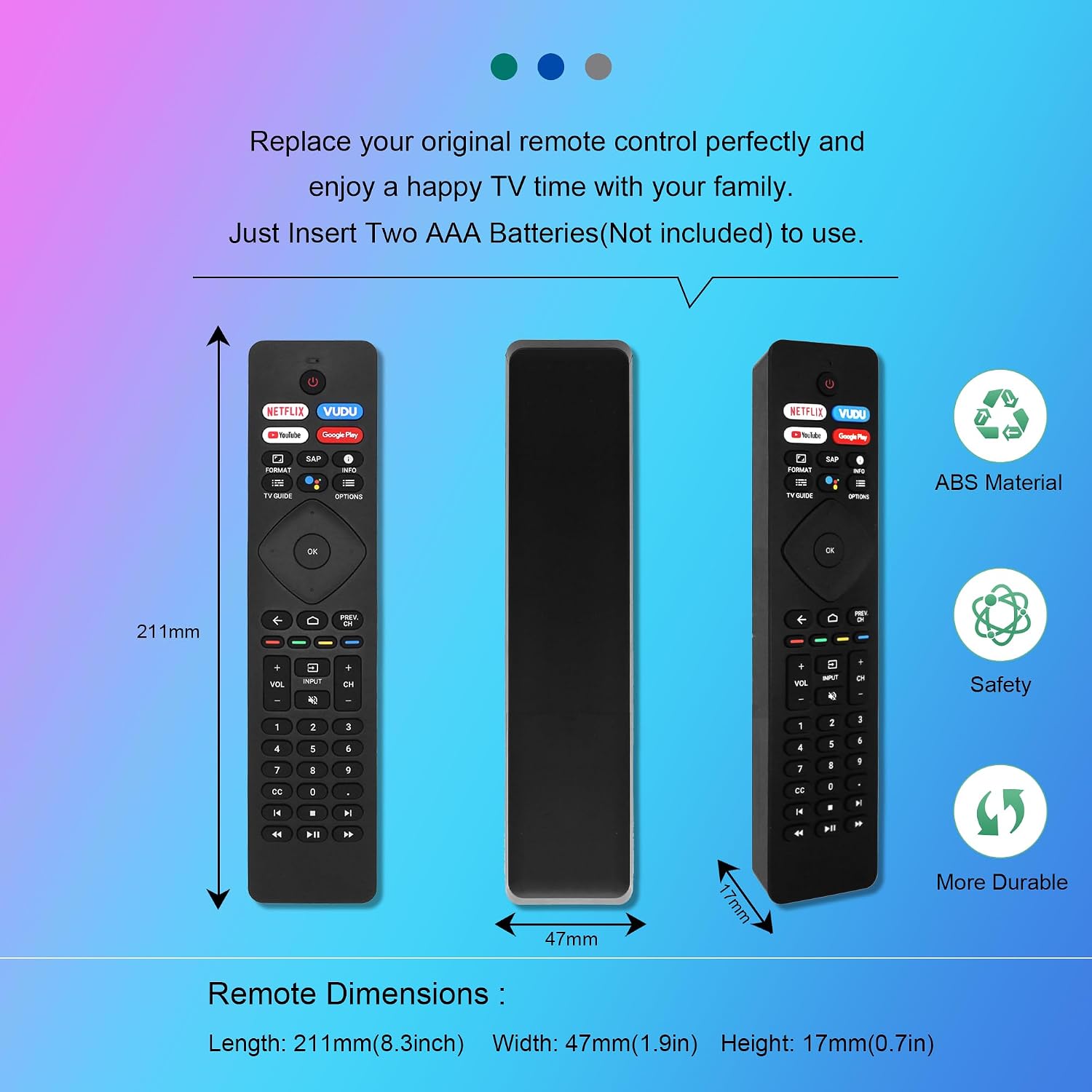
Image 6.1: Physical dimensions and material properties of the remote control.
7. Warranty and Support
ZYK is committed to customer satisfaction. Your remote control comes with the following support:
- Return and Refund Policy: Unlimited return and refund service within 30 days of purchase.
- Customer Service: We strive for 100% customer satisfaction. If you have any questions or concerns, please contact us. We aim to respond within 24 hours.
- Compatibility Inquiries: If your TV model number is not explicitly listed in this manual, please email us before ordering to confirm compatibility.
For support, please refer to the contact information provided with your purchase or visit the ZYK store page on Amazon.