
1. Introduction
This manual provides essential instructions for setting up, operating, and maintaining your JIMTAB F11 11-inch Android 14 Tablet. Please read this manual thoroughly before using your device to ensure proper function and longevity.

The JIMTAB F11 tablet is designed for versatile use, supporting activities such as work, studying, reading, gaming, and media consumption.
2. What's in the Box
Verify that all items are present in the package:
- JIMTAB F11 11-inch Tablet
- Bluetooth Keyboard
- Stylus
- 3-Position Free Angle Leather Case
- HD Screen Protector
- USB-C Data Cable
- Power Adapter
- Type C 3.0 Data Adapter
- SIM Card Ejector Tool
- Operation Manual (this document)

The JIMTAB F11 package includes the tablet and a range of accessories for enhanced functionality.
3. Setup
3.1 Charging the Tablet
Before first use, fully charge the tablet. Connect the USB-C data cable to the tablet's USB-C port and the power adapter. Plug the power adapter into a wall outlet. The charging indicator will show the charging status.

The tablet supports USB fast charging via its Type-C port.
3.2 Power On/Off
- To Power On: Press and hold the Power button until the JIMTAB logo appears.
- To Power Off: Press and hold the Power button, then select "Power off" from the options on the screen.
- To Restart: Press and hold the Power button, then select "Restart" from the options.
3.3 Initial Setup
Upon first power-on, follow the on-screen prompts to:
- Select your language.
- Connect to a Wi-Fi network.
- Sign in with your Google Account or create a new one.
- Set up screen lock (PIN, pattern, password, or Face Recognition).
- Review and accept terms and conditions.
3.4 SIM Card and TF Card Installation
The tablet supports Nano SIM cards for cellular connectivity and TF (microSD) cards for expandable storage.
- Locate the SIM/TF card tray on the side of the tablet.
- Insert the SIM card ejector tool into the small hole next to the tray and press gently until the tray pops out.
- Place the Nano SIM card(s) and/or TF card into the designated slots on the tray, ensuring correct orientation.
- Carefully push the tray back into the tablet until it clicks into place.
4. Operating Instructions
4.1 Basic Navigation
- Tap: Select an item or activate a button.
- Long Press: Access contextual menus or move icons.
- Swipe: Navigate through screens, scroll lists, or dismiss notifications.
- Pinch-to-Zoom: Enlarge or reduce content on the screen.
4.2 Display Settings
Adjust display settings for optimal viewing:
- Go to Settings > Display.
- Adjust Brightness Level (up to 850 nits).
- Enable Eye Comfort Shield (TÜV blue light eye protection certified) for reduced eye strain.
- Set Screen Timeout.

The 2K IPS display offers up to 850 nits brightness for a clear visual experience.
4.3 Audio Settings
The tablet features 4 Hi-Res Stereo Box Speakers for immersive audio.
- Go to Settings > Sound & Vibration.
- Adjust media, call, ring, and alarm volumes.
- Select notification sounds and vibration patterns.

Experience rich audio with the tablet's four stereo speakers.
4.4 Camera Usage
The tablet is equipped with a 5MP front camera and a 13MP + 5MP dual rear camera system.
- Open the Camera application.
- Tap the shutter button to take photos.
- Switch between front and rear cameras using the camera toggle icon.
- Select video mode to record videos.

The tablet's multiple cameras are suitable for photography, video recording, and video conferencing.
4.5 Connectivity (Wi-Fi, Bluetooth)
- Wi-Fi: Go to Settings > Network & internet > Wi-Fi to connect to available networks. Supports 2.4G and 5G Wi-Fi.
- Bluetooth: Go to Settings > Connected devices > Bluetooth to pair with Bluetooth accessories like the included keyboard.

The tablet supports Bluetooth for connecting to various devices, including the provided keyboard.
4.6 Face Recognition
Set up Face Recognition for convenient and secure unlocking:
- Go to Settings > Security & privacy > Face unlock.
- Follow the on-screen instructions to register your facial data.
- Once registered, you can unlock your tablet by looking at the front camera.

Face Unlock provides a secure and quick way to access your tablet.
4.7 Split Screen Functionality
Android 14 allows for split-screen multitasking:
- Open the first application.
- Tap the recent apps button (usually a square icon) to view open applications.
- Long-press the icon of the first app at the top of its card, then select "Split screen".
- Choose the second application from the recent apps list or app drawer to occupy the other half of the screen.
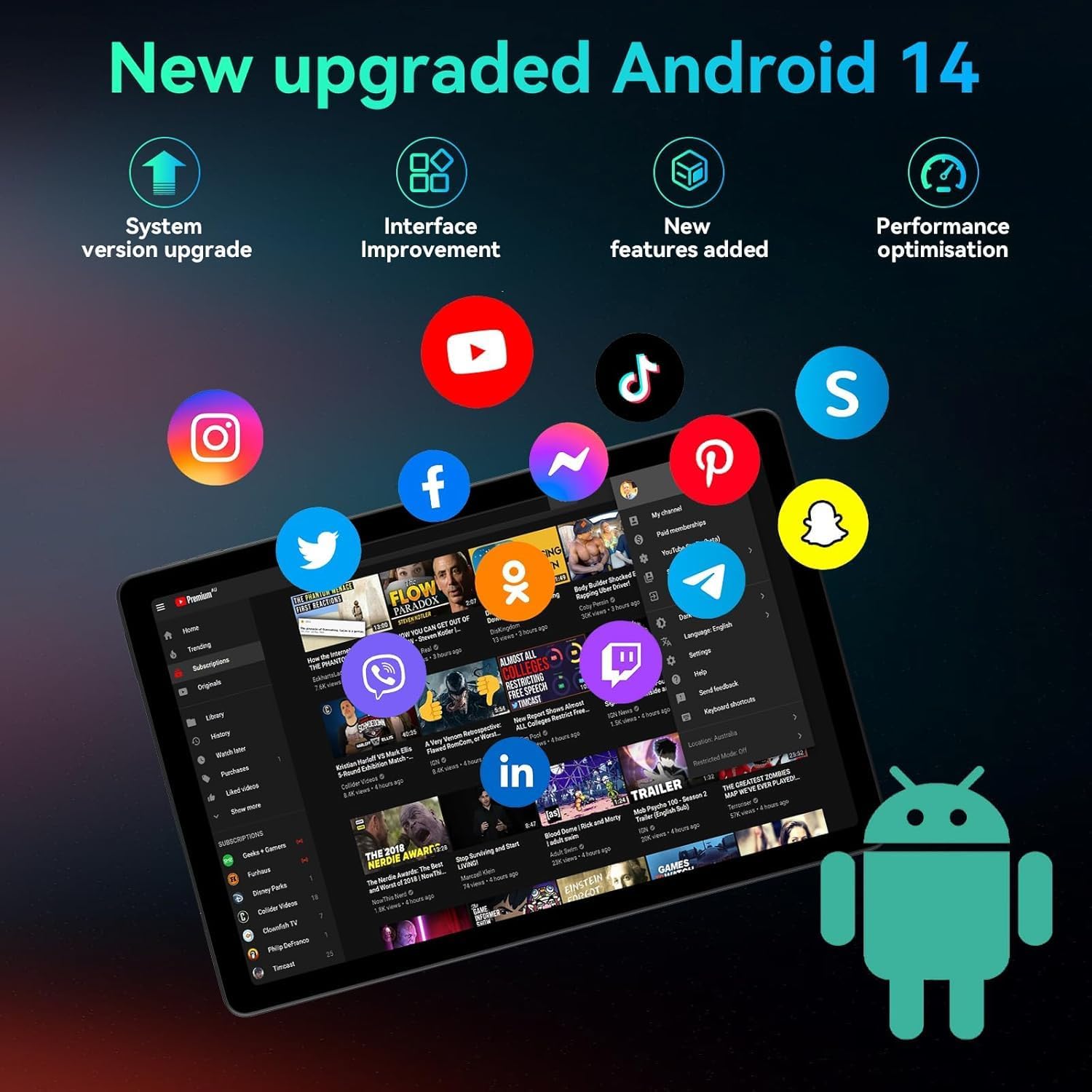
The Android 14 operating system offers enhanced features like split-screen for improved productivity.
4.8 Using the Bluetooth Keyboard and Stylus
The included Bluetooth keyboard and stylus enhance productivity.
- Bluetooth Keyboard:
- To pair, turn on the keyboard and enable Bluetooth on your tablet. Search for the keyboard in Bluetooth settings and connect.
- The keyboard supports fast charging via USB-C.
- To switch input systems: Android: FN + A, Windows: FN + S, iOS: FN + D.
- To switch languages: Android: Shift + Space key, Windows: Alt + Shift, iOS: Control + Space key.
- Stylus: Use the stylus for precise input, drawing, or navigation on the touchscreen. No pairing is required for basic stylus functionality.
- Leather Case: The 3-position free angle leather case allows for various viewing and typing angles (30°, 60°, 150°).

The Bluetooth keyboard offers extended use and fast charging.

The multi-angle protective leather case provides versatile viewing and typing positions.
5. Maintenance
- Cleaning: Use a soft, lint-free cloth to clean the screen and body of the tablet. Avoid abrasive materials or harsh chemicals.
- Battery Care:
- Avoid extreme temperatures, which can degrade battery life.
- Do not let the battery completely drain frequently.
- Use the provided charger for optimal charging.
- Software Updates: Regularly check for and install system updates to ensure optimal performance and security. Go to Settings > System > System update.
- Storage Management: Periodically clear unnecessary files and apps to maintain performance. Expand storage with a TF card if needed (up to 2TB).
6. Troubleshooting
| Problem | Solution |
|---|---|
| Tablet does not power on. | Ensure the battery is charged. Connect the charger and wait a few minutes before attempting to power on again. If unresponsive, perform a force restart by holding the Power button for 10-15 seconds. |
| Wi-Fi connection issues. | Check if Wi-Fi is enabled in Settings. Restart your router and the tablet. Forget the network and reconnect. Ensure you are within range of the Wi-Fi signal. |
| Slow performance or apps crashing. | Close unnecessary background apps. Clear cache for problematic apps (Settings > Apps > [App Name] > Storage & cache > Clear cache). Restart the tablet. Ensure sufficient storage space is available. |
| Bluetooth keyboard not connecting. | Ensure the keyboard is charged and powered on. Check if Bluetooth is enabled on the tablet. Unpair and re-pair the keyboard. Try restarting both devices. |
| Screen is unresponsive. | Perform a force restart. If the issue persists, contact customer support. |
7. Specifications
| Feature | Detail |
|---|---|
| Model | F11 |
| Operating System | Android 14 |
| Display | 11-inch 2K IPS INCELL (2000x1200 pixels), Max 850 nits brightness, TÜV blue light eye protection certified |
| Processor | Unisoc T616 Octa-Core (2 GHz) |
| RAM | 18GB (6GB physical + 12GB virtual) |
| Internal Storage | 128GB |
| Expandable Storage | Up to 2TB via TF (microSD) card |
| Cameras | Front: 5MP, Rear: 13MP + 5MP |
| Battery | 9000mAh, Type-C fast charging, up to 20 hours average battery life |
| Audio | 4 Hi-Res Stereo Box Speakers |
| Connectivity | Wi-Fi (802.11g, 2.4G+5G), Bluetooth, Nano SIM card slot |
| Dimensions (LxWxH) | 10 x 2.9 x 6.6 inches (256x168x7.6mm) |
| Weight | 1.1 pounds (500g) |
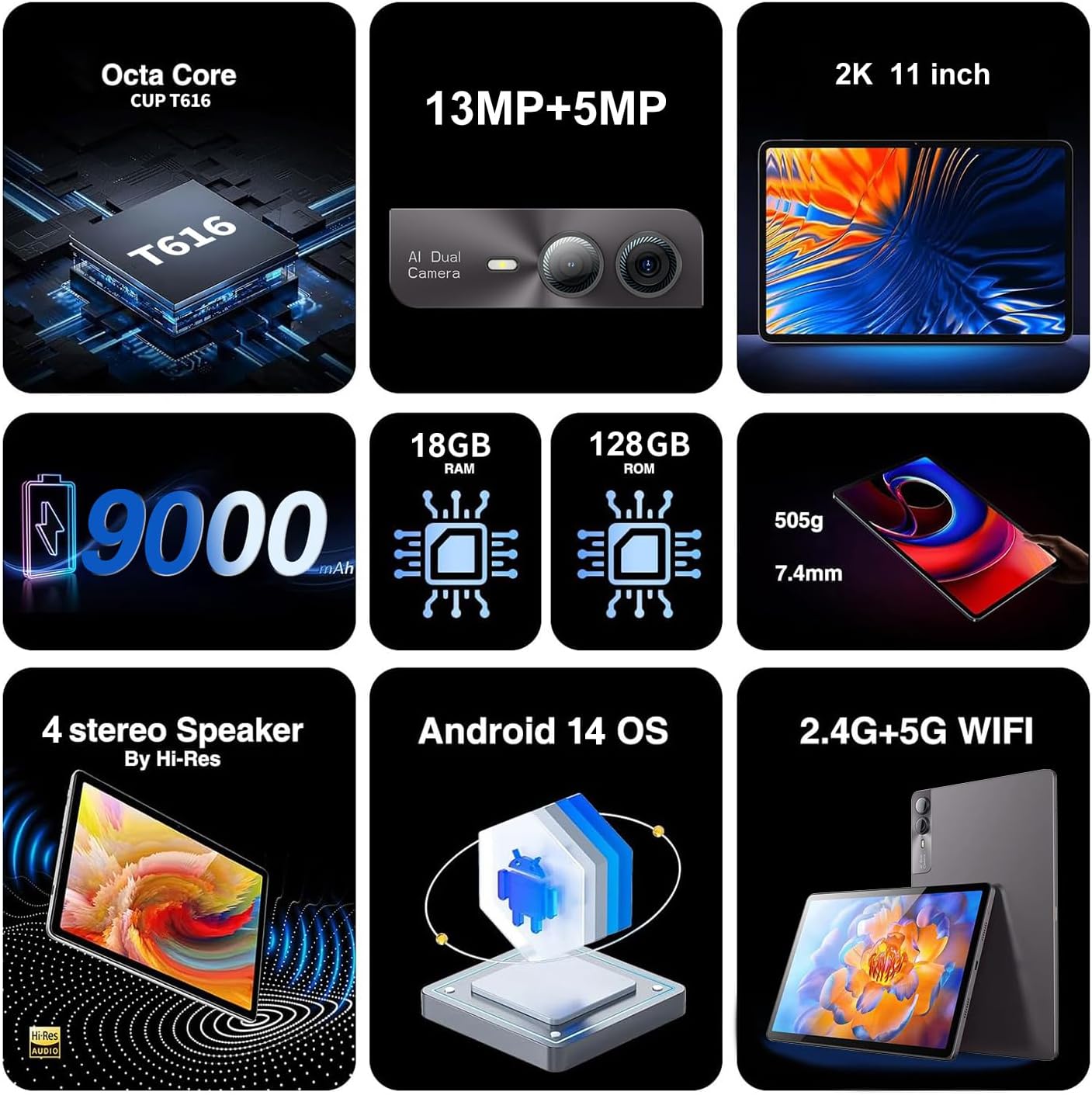
Key features and specifications of the JIMTAB F11 tablet.
8. Safety Information
- Do not expose the tablet to extreme temperatures, direct sunlight, or moisture.
- Avoid dropping or subjecting the tablet to severe impact.
- Use only approved chargers and accessories.
- Do not attempt to disassemble or repair the tablet yourself. This may void the warranty and cause damage.
- Keep the tablet away from children and pets.
- Dispose of the tablet and its battery responsibly according to local regulations.
9. Warranty and Support
For warranty information, please refer to the documentation included with your purchase or contact JIMTAB customer support.
If you encounter any issues or have questions regarding your JIMTAB F11 tablet, please contact our customer support team for assistance.
- Facebook Official Homepage: iJimtab
- YouTube Official Homepage: Jimtab (Placeholder URL, please verify official channel)

JIMTAB offers 24/7 customer support for product assistance.


