
1. Introduction
Thank you for choosing the Baseus 12-in-1 Laptop Docking Station. This versatile hub is designed to expand the connectivity of your laptop, providing a comprehensive solution for multitasking, data transfer, and charging. Please read this manual carefully to ensure proper installation and optimal performance of your device.
2. Product Overview
The Baseus 12-in-1 Laptop Docking Station is an all-in-one expansion device that transforms your laptop into a powerful workstation. It features multiple ports including USB-A, USB-C, HDMI, DisplayPort, Gigabit Ethernet, and card readers, allowing for seamless connectivity and enhanced productivity. Its ergonomic design also serves as a laptop stand, promoting better posture and improved heat dissipation.

Image: The Baseus 12-in-1 Laptop Docking Station in use, connected to a laptop and various peripherals.
3. Key Features
- 12-in-1 All-in-One Expansion: Equipped with 3 USB-A 3.0 ports, 1 USB-C 3.0 port, Gigabit Ethernet, 4K HDMI, 4K DP, TF/SD card readers, audio jack, and a 100W PD charging port.
- Triple 4K Display Support: Connect both HDMI and DP displays to enjoy ultra-clear 4K resolution on up to three monitors, ideal for multitasking and immersive entertainment.
- Gigabit Ethernet for Stable Speed: Provides a fast and reliable wired internet connection, perfect for video calls and large downloads.
- 100W PD Fast Charging: The USB-C PD port supports up to 100W input and delivers up to 85W output to your laptop, ensuring efficient charging.
- Ergonomic Stand Design: Innovative design improves heat dissipation and elevates your device for better posture, keeping your workspace organized.
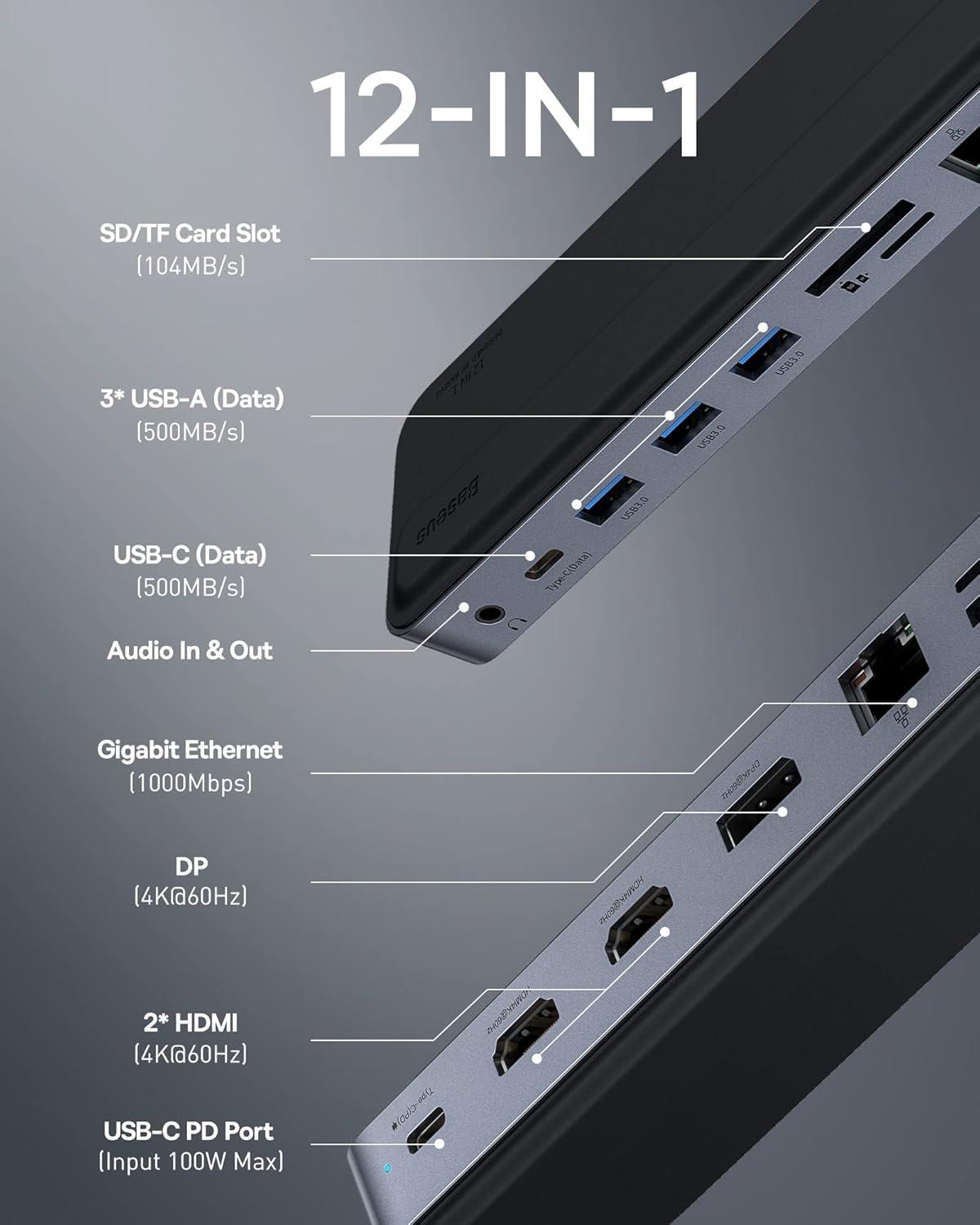
Image: Detailed diagram illustrating all 12 ports and their functions on the docking station.
4. Package Contents
Please check the package contents upon opening. If any items are missing or damaged, please contact customer support.
- Baseus 12-in-1 Laptop Docking Station
- User Manual
5. Setup Guide
Follow these steps to set up your Baseus 12-in-1 Laptop Docking Station:
- Connect to Laptop: Plug the integrated USB-C cable from the docking station into a compatible USB-C port on your laptop.
- Power Connection (Optional but Recommended): For stable performance and laptop charging, connect your laptop's power adapter to the 100W PD USB-C port on the docking station.
- Connect External Displays: Use HDMI or DisplayPort cables to connect your monitors to the corresponding ports on the docking station. Ensure your cables support 4K resolution if desired.
- Connect Peripherals: Plug in your USB devices (keyboard, mouse, external hard drives) into the USB-A or USB-C data ports.
- Network Connection: For a stable internet connection, connect an Ethernet cable from your router to the Gigabit Ethernet port on the docking station.
- Audio Devices: Connect headphones or speakers to the 3.5mm audio jack.
- Memory Cards: Insert SD or TF cards into the respective slots for data transfer.

Image: A laptop connected to three external monitors, demonstrating the triple 4K display capability.
6. Operating Instructions
Once connected, your operating system should automatically detect the docking station and connected devices. No additional drivers are typically required for most functions (Plug and Play).
6.1. Display Modes
The docking station supports various display configurations for both macOS and Windows operating systems.
6.1.1. Mac OS Display Modes
Mac OS only supports Single-Stream Transport (SST) and does not support Multi-Stream Transport (MST) in extended mode. This means that while you can extend your display across multiple monitors, the content on the extended monitors will be mirrored or a single extended desktop, not independent extended desktops for each monitor.
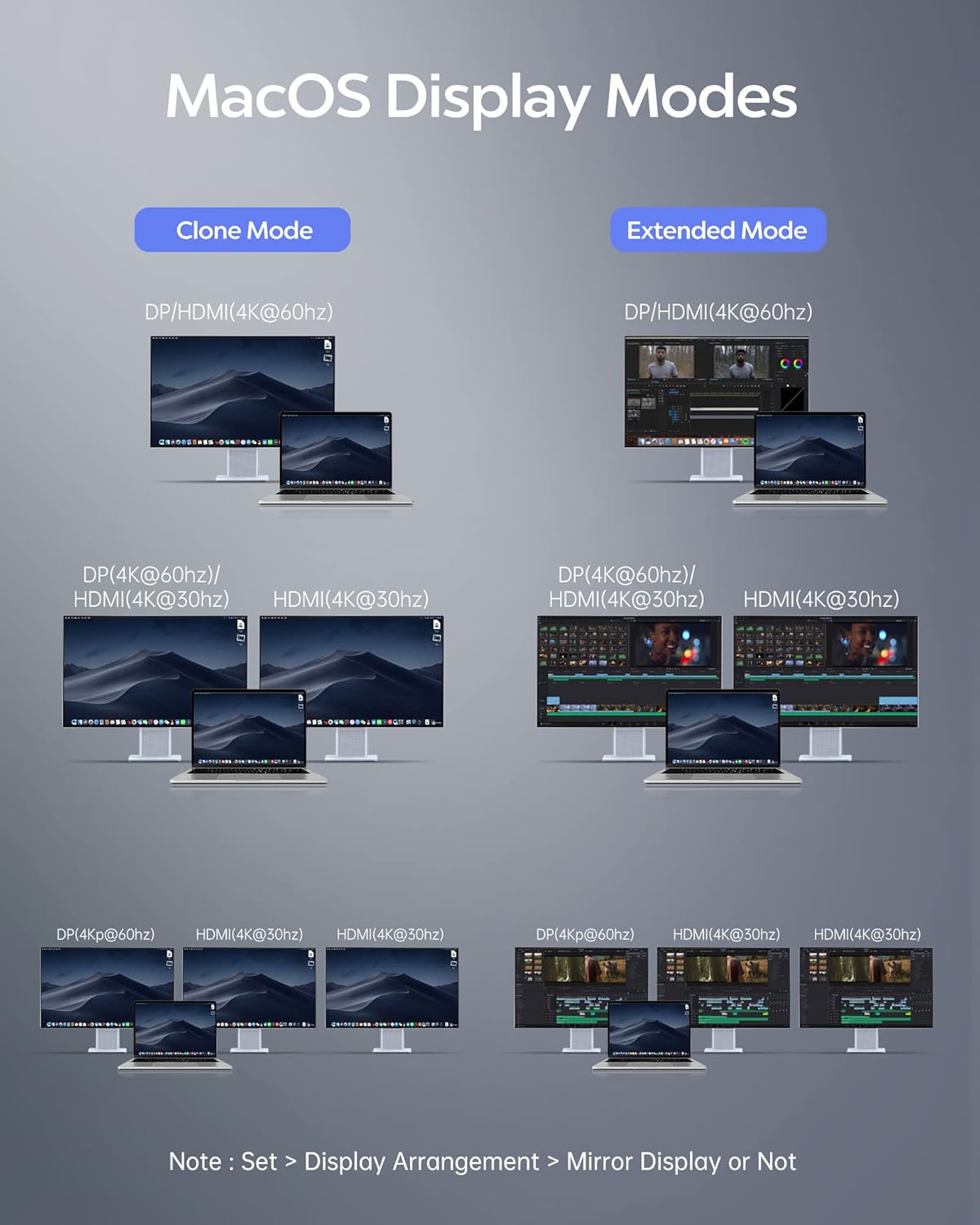
Image: Visual guide for configuring display modes on Mac OS, showing mirror and extended display options.
6.1.2. Windows Display Modes
Only computers with DP1.4 and AMD processor can realize 4 screens when using WIN system. Resolution (AMD + DP1.4), the video output will be 4K. For Intel graphics cards, you can achieve up to 3 screens.

Image: Visual guide for configuring display modes on Windows, showing mirror and extended display options.
To quickly select the display mode on Windows, press "WIN + P".
6.2. Port Functionality
- SD/TF Card Slot: Supports high-speed data transfer up to 104MB/s for SD and TF (MicroSD) cards.
- USB-A (Data) & USB-C (Data): Three USB-A 3.0 ports and one USB-C 3.0 port provide data transfer speeds up to 500MB/s for connecting various peripherals.
- Audio In & Out: A 3.5mm audio jack for connecting headphones, speakers, or microphones.
- Gigabit Ethernet: RJ45 port for a stable 1000Mbps wired internet connection.
- DP (4K@60Hz) & 2* HDMI (4K@60Hz): Multiple video output ports for connecting external monitors with high resolution.
- USB-C PD Port (Input 100W Max): Power Delivery port for charging your laptop while using the docking station.

DP and HDMI Ports

USB 3.0 Ports

3.5mm Audio Jack

SD/TF Card Slots

100W PD Charging Port

Gigabit Ethernet Port
7. Maintenance
- Cleaning: Use a soft, dry cloth to clean the surface of the docking station. Avoid using liquid cleaners or aerosols.
- Storage: Store the device in a cool, dry place away from direct sunlight and extreme temperatures.
- Handling: Avoid dropping or subjecting the docking station to strong impacts. Do not attempt to disassemble or modify the device.
- Heat Dissipation: Ensure proper airflow around the docking station, especially when used as a laptop stand, to prevent overheating.
8. Troubleshooting
If you encounter issues with your docking station, please refer to the following common problems and solutions:
- No Display Output:
- Ensure the docking station is securely connected to your laptop's USB-C port.
- Check that the HDMI/DP cables are firmly connected to both the docking station and the monitors.
- Verify that your laptop's display settings are configured correctly for extended or mirror mode.
- Try restarting your laptop.
- Peripherals Not Detected:
- Ensure USB devices are properly plugged into the docking station's USB ports.
- Try connecting the device to a different USB port on the docking station or directly to your laptop to rule out device issues.
- Ensure the docking station is receiving sufficient power, especially if multiple power-hungry devices are connected.
- Slow Charging or No Charging:
- Confirm that your laptop's original power adapter is connected to the PD USB-C port on the docking station.
- Check if the power adapter and cable are functioning correctly.
- Ensure your laptop supports USB-C Power Delivery.
- Ethernet Connection Issues:
- Verify the Ethernet cable is securely connected to both the docking station and your router/modem.
- Check your network settings on your laptop.
- Try a different Ethernet cable.
- Device Overheating:
- Ensure the docking station is placed on a flat, stable surface with adequate ventilation.
- Avoid blocking the ventilation holes.
- Reduce the number of connected power-hungry devices if possible.
9. Specifications
| Attribute | Value |
|---|---|
| Brand | Baseus |
| Model | B0D7GX6FMS |
| Operating System Compatibility | Linux, Windows, macOS |
| Item Weight | 12.6 ounces |
| Package Dimensions | 12.48 x 3.11 x 1.06 inches |
| Color | Silver |
| Special Features | Anti-Slip, Fast Charging, Fast Data Transfer, Heat Resistant, Plug and Play |
| Compatible Devices | Laptops |
| Total USB Ports | 4 (3 USB-A 3.0, 1 USB-C 3.0) |
| Video Output | 2x HDMI (4K@60Hz), 1x DisplayPort (4K@60Hz) |
| Ethernet | Gigabit Ethernet (RJ45) |
| Card Reader | TF/SD Card Reader |
| Audio | 3.5mm Audio Jack |
| Power Delivery | 100W PD Input (85W Output to Laptop) |
10. Warranty and Support
Baseus products come with a limited warranty. For detailed warranty information, please refer to the warranty card included with your product or visit the official Baseus website. If you require technical assistance or have any questions, please contact Baseus customer support through their official channels.
Customer Support: Please refer to the contact information provided on the product packaging or the official Baseus website for support.


