
1. Introduction
Thank you for choosing the TISHLED TM015-P Wireless Tri-Mode Gaming Mouse. This manual provides detailed instructions for setting up, operating, and maintaining your mouse to ensure optimal performance. Please read this manual thoroughly before use.
2. Package Contents
- TISHLED TM015-P Wireless Tri-Mode Gaming Mouse
- USB-C Charging Cable
- 2.4GHz USB Receiver
- User Manual
3. Product Overview
Familiarize yourself with the various components and controls of your TISHLED TM015-P mouse.

Image 3.1: Mouse Component Diagram. This diagram illustrates the various buttons and ports on the TISHLED TM015-P mouse, including the Left-Click, Right-Click, Middle Button, DPI+ and DPI- buttons, Mode Switch, Mode Indicator, Side Scroll Wheel, Forward Button, Back Button, USB-C Port, Power Switch, Optical Sensor, and PTFE Pads. The 2.4G Receiver Storage is also indicated.
- Left-Click Button: Standard primary click function.
- Right-Click Button: Standard secondary click function.
- Middle Button (Scroll Wheel 1): Vertical scrolling and clickable for middle-click functions.
- DPI+ / DPI- Buttons: Adjust the mouse sensitivity (DPI levels).
- Mode Switch: Cycles between 2.4GHz, Bluetooth 1, Bluetooth 2, and Bluetooth 3 connection modes.
- Mode Indicator: Displays the current connection mode and charging status.
- Side Scroll Wheel (Scroll Wheel 2): Horizontal scrolling functionality.
- Forward Button: Navigates forward in web browsers or applications.
- Back Button: Navigates backward in web browsers or applications.
- USB-C Port: For wired connection and charging.
- Power Switch: Turns the mouse On/Off.
- Optical Sensor: Tracks mouse movement.
- PTFE Pads: Provide smooth gliding on surfaces.
- 2.4G Receiver Storage: Compartment for storing the USB receiver.
4. Setup
4.1. Charging the Mouse
Before initial use, fully charge the mouse. The RGB LED lighting will flash red when the battery is low, indicating a need for charging.

Image 4.1: Mouse Charging. This image shows the TISHLED TM015-P mouse being charged via its USB Type-C port using the included USB A-C charging cable. The image highlights the 800mAh battery capacity and indicates that a 3-hour charge provides approximately 53 hours of continuous use.
- Connect the supplied USB-C charging cable to the mouse's USB-C port.
- Connect the other end of the cable to a USB power source (e.g., computer USB port, USB wall adapter).
- A full charge takes approximately 3 hours and provides about 53 hours of continuous use.
4.2. Connecting the Mouse
The TISHLED TM015-P mouse supports three connection modes: 2.4GHz Wireless, Bluetooth 5.2, and Wired USB-C.

Image 4.2: Connection Methods. This diagram illustrates the three connection methods for the TISHLED TM015-P mouse: 2.4G Wireless, Bluetooth 5.2, and Wired USB-C. It provides a step-by-step guide for each connection type.
4.2.1. 2.4GHz Wireless Connection
- Turn on the mouse using the Power Switch on the bottom.
- Plug the 2.4GHz USB receiver into an available USB port on your computer.
- Press the Mode Switch Button on the left side of the mouse to select the 2.4G mode. The mode indicator light will confirm the selection.
4.2.2. Bluetooth 5.2 Connection
The mouse can connect to up to three Bluetooth devices (BT1, BT2, BT3).
- Turn on the mouse using the Power Switch on the bottom.
- Press the Mode Switch Button to cycle to the desired Bluetooth mode (BT1, BT2, or BT3).
- Hold the Mode Switch Button for approximately 3 seconds until the blue mode indicator light starts flashing, indicating pairing mode.
- On your device (computer, laptop, smartphone, tablet), go to Bluetooth settings and search for new devices.
- Select "MS BT5.2-1" (or -2, -3 depending on the selected mode) from the list to connect.
4.2.3. Wired USB-C Connection
When connected via cable, the mouse operates in wired mode only.
- Connect the USB-C charging cable to the mouse's USB-C port.
- Connect the other end of the cable to a USB port on your computer.
- The mouse will automatically switch to wired mode.
5. Operating Instructions
5.1. DPI Adjustment
Adjust the mouse sensitivity (DPI) to match your preference and task requirements.

Image 5.1: DPI Levels. This image illustrates the four adjustable DPI levels (1200, 1600, 2000, 2400) and their corresponding indicator light colors (Red, Green, Blue, Yellow) on the TISHLED TM015-P mouse.
- The mouse has 4 adjustable DPI levels: 1200, 1600, 2000, and 2400. The default setting is 1200 DPI.
- Press the DPI+ or DPI- buttons located near the main scroll wheel to cycle through the DPI settings.
- The indicator light will flash a specific color to show the current DPI level:
- 1200 DPI: Red
- 1600 DPI: Green
- 2000 DPI: Blue
- 2400 DPI: Yellow
5.2. RGB Lighting Effects
Customize the aesthetic of your mouse with various RGB lighting effects.
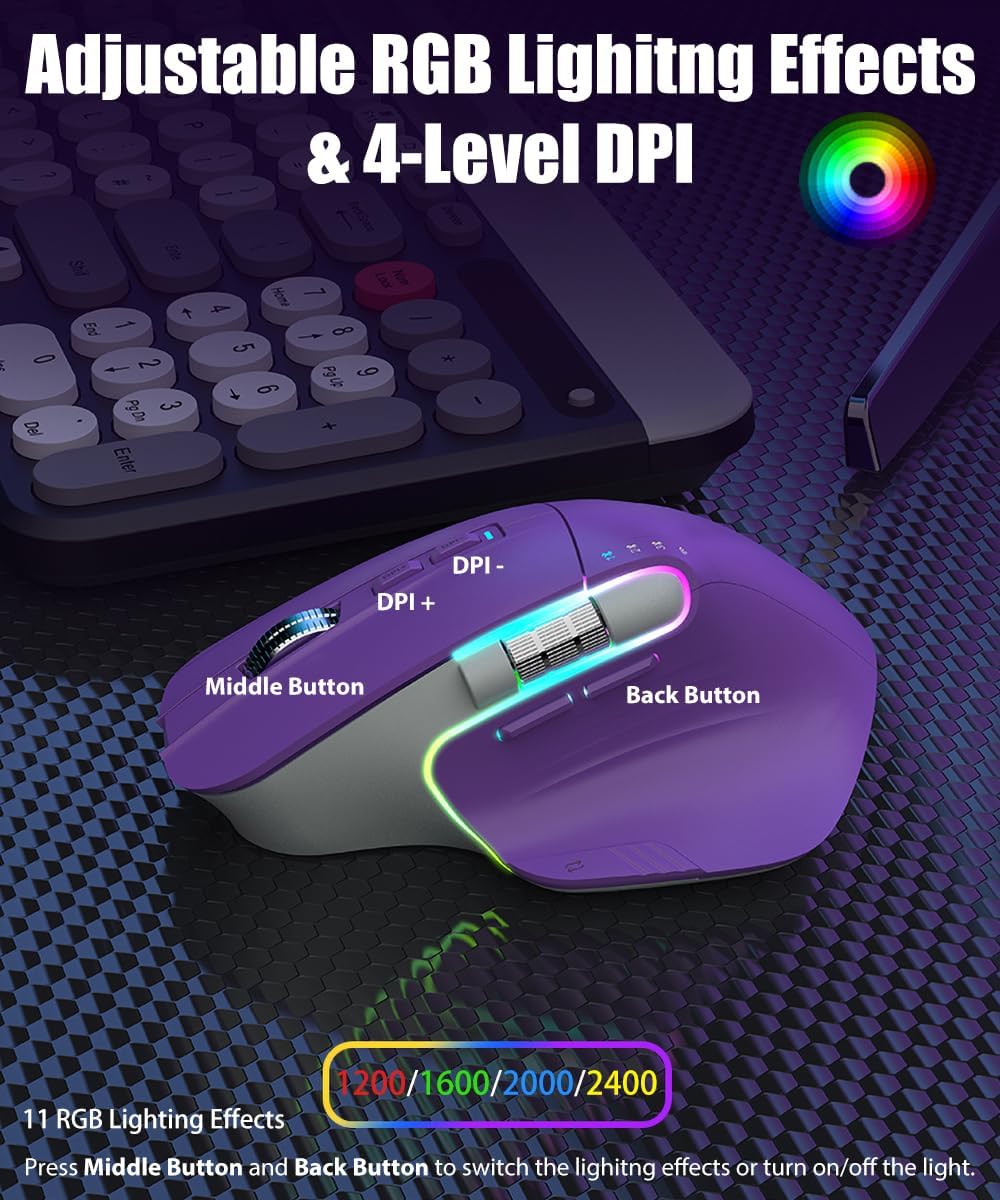
Image 5.2: RGB Lighting. This image shows the TISHLED TM015-P mouse with its RGB LED backlighting active. It highlights the Middle Button and Back Button, which are used to switch between the 11 available RGB lighting effects or to turn the lighting on/off.
- The mouse features up to 11 RGB lighting effects.
- To switch between lighting effects or to turn the lighting on/off, press the Middle Button and the Back Button simultaneously.
5.3. Dual Scroll Wheels
The mouse is equipped with two scroll wheels for enhanced navigation.
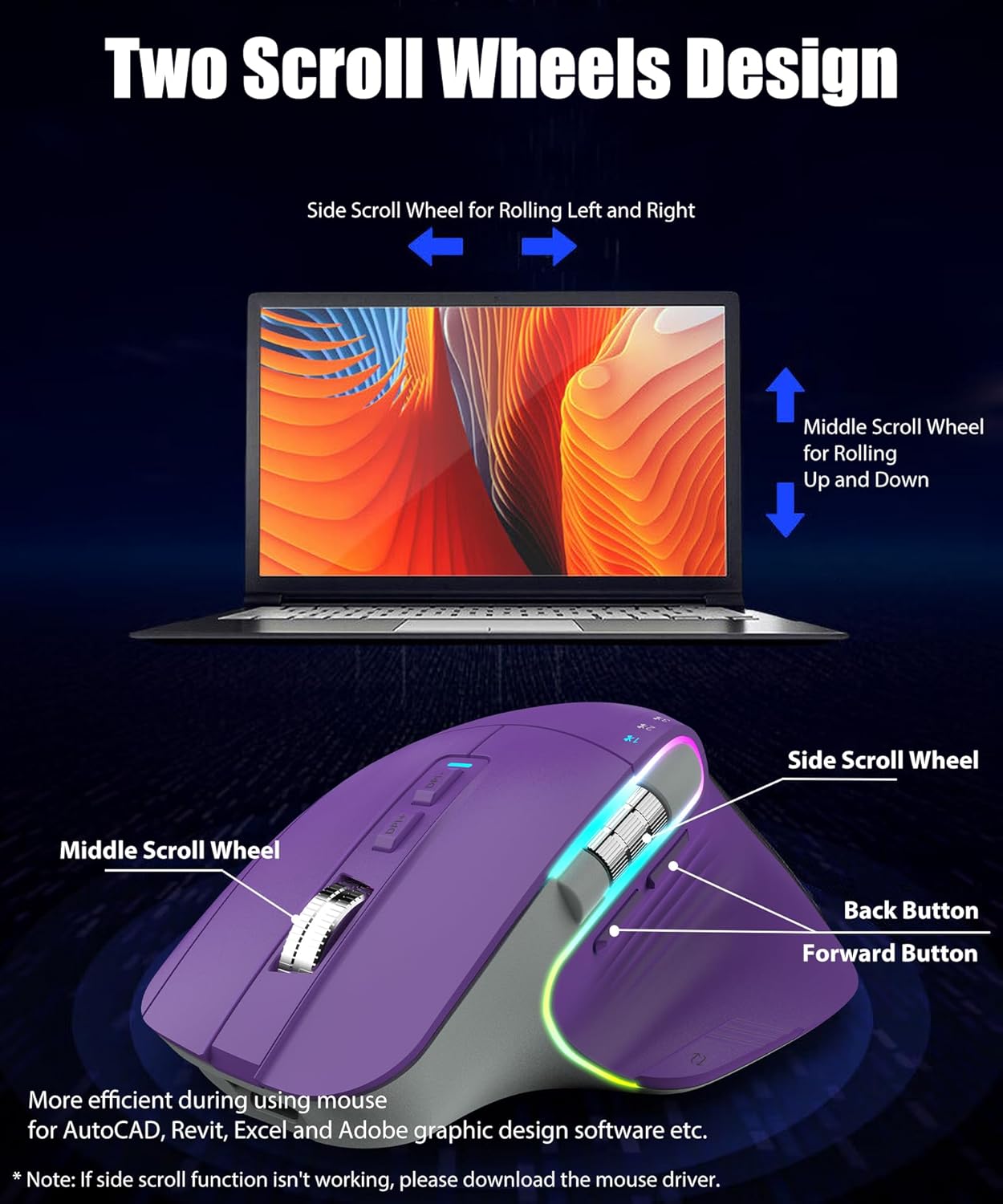
Image 5.3: Dual Scroll Wheels. This diagram highlights the functionality of the two scroll wheels on the TISHLED TM015-P mouse. The middle scroll wheel is for vertical scrolling (up and down), while the side scroll wheel is for horizontal scrolling (left and right). This feature is particularly useful for applications like AutoCAD, Revit, Excel, and graphic design software.
- Middle Scroll Wheel: Used for vertical scrolling (up and down).
- Side Scroll Wheel: Used for horizontal scrolling (left and right). This is beneficial for navigating wide documents or timelines in software like AutoCAD, Revit, Excel, and Adobe graphic design applications.
5.4. Programmable Buttons
The mouse features 9 programmable buttons that can be customized using the dedicated driver software.

Image 5.4: Driver Software Interface. This image displays the user interface of the driver software for the TISHLED TM015-P mouse. It shows options to set DPI, lighting effects, report rate, and macros, allowing for comprehensive customization of the mouse's 9 programmable buttons.
- To customize the 9 buttons, download and install the mouse driver software. The driver allows you to set DPI, lighting effects, report rate, and create macros.
- Refer to the product description or manufacturer's website for the driver download link.
- The driver software requires Windows 10 or later.
6. Maintenance
Proper maintenance ensures the longevity and optimal performance of your mouse.
- Cleaning: Use a soft, dry cloth to clean the mouse surface. For stubborn dirt, slightly dampen the cloth with water or a mild cleaning solution. Avoid harsh chemicals or abrasive materials.
- Storage: When not in use, store the mouse in a cool, dry place away from direct sunlight and extreme temperatures.
- Battery Care: To prolong battery life, avoid fully discharging the mouse frequently. Charge it when the low battery indicator appears.
- Receiver Storage: Store the 2.4GHz USB receiver in its dedicated compartment on the mouse's underside when traveling or not in use to prevent loss.
7. Troubleshooting
If you encounter issues with your TISHLED TM015-P mouse, refer to the following common solutions:
| Problem | Possible Cause | Solution |
|---|---|---|
| Mouse not responding (2.4GHz/Bluetooth) | Low battery, incorrect mode, receiver not plugged in, pairing issue. | Charge the mouse. Ensure the correct mode (2.4G or BT) is selected. Re-insert the 2.4GHz receiver. Re-pair Bluetooth device. |
| Bluetooth connection drops frequently | Interference, device compatibility, distance. | Move closer to the device. Try connecting via 2.4GHz wireless or wired mode for a more stable connection. Ensure device Bluetooth drivers are updated. |
| Side scroll wheel not working | Driver not installed or configured. | Download and install the mouse driver software from the manufacturer's website. Configure the side scroll wheel function within the driver. |
| RGB lighting not working or stuck | Software glitch, low battery. | Charge the mouse. Try pressing the Middle Button and Back Button simultaneously to reset or cycle effects. Restart the mouse. |
| Mouse cursor drifts or moves erratically | Dirty optical sensor, uneven surface, software issue. | Clean the optical sensor with a soft cloth. Use the mouse on a clean, even surface or a mouse pad. Restart your computer. |
8. Specifications
Detailed technical specifications for the TISHLED TM015-P Wireless Tri-Mode Gaming Mouse:
- Model Number: TM015-P
- Connectivity: 2.4GHz Wireless, Bluetooth 5.2, Wired USB-C
- Movement Detection Technology: Optical
- DPI Levels: 1200 / 1600 / 2000 / 2400 (Adjustable)
- Buttons: 9 (Programmable)
- Scroll Wheels: 2 (Middle for vertical, Side for horizontal)
- Lighting: RGB LED Backlit (11 effects)
- Battery: 800mAh Li-polymer rechargeable battery (included)
- Charging Time: Approximately 3 hours
- Usage Time: Approximately 53 hours (continuous use)
- Operating Distance: Up to 10 meters (wireless modes)
- Product Dimensions: 4.7 x 3.3 x 0.04 inches
- Item Weight: 9.9 ounces
- Compatibility: Windows, Mac OS, iOS, Android, Linux, Chrome OS (PC, laptop, Mac, smartphone, iPad, tablet)
- Manufacturer: TISHLED
9. Warranty and Support
TISHLED products are designed for reliability and performance. For warranty information, please refer to the documentation included with your purchase or visit the official TISHLED website. If you require technical assistance or have questions not covered in this manual, please contact TISHLED customer support through their official channels.
- Official Website: TISHLED Store on Amazon (for general product information)
- Customer Service: Refer to your product packaging or the TISHLED website for contact details.