
Xiaomi AX3000T
Xiaomi AX3000T Wireless Router User Manual
Comprehensive guide for setup, operation, and maintenance of your Xiaomi AX3000T Router.
1. Introduction
The Xiaomi AX3000T Wireless Router is designed to provide high-speed, stable, and wide-ranging Wi-Fi coverage for your home or office. Featuring Wi-Fi 6 technology, it delivers speeds up to 3000 Mbps, making it ideal for environments with multiple connected devices and demanding internet usage.
Key features include:
- Next-Generation Connectivity: Equipped with Wi-Fi 6 technology for speeds up to 3000 Mbps, perfect for homes with multiple devices and high internet demands.
- Wide and Stable Coverage: High-performance antennas and Beamforming technology ensure broad and stable Wi-Fi coverage throughout your home, eliminating dead zones.
- Powerful Processor: With a quad-core processor and multiple Digital Signal Processors (DSPs), it delivers powerful and stable performance even with multiple connected devices.
- Advanced Security: Integrates advanced security protocols like WPA3 to protect your network and devices from external threats.
- Easy Management and Configuration: Simple setup via the Mi Wi-Fi app, allowing you to manage parental controls, Quality of Service (QoS), and more from your smartphone.
2. Product Overview
Familiarize yourself with the components and indicators of your Xiaomi AX3000T Router.

Figure 2.1: Xiaomi AX3000T Router placed on a wooden table, showcasing its sleek white design and four external antennas.
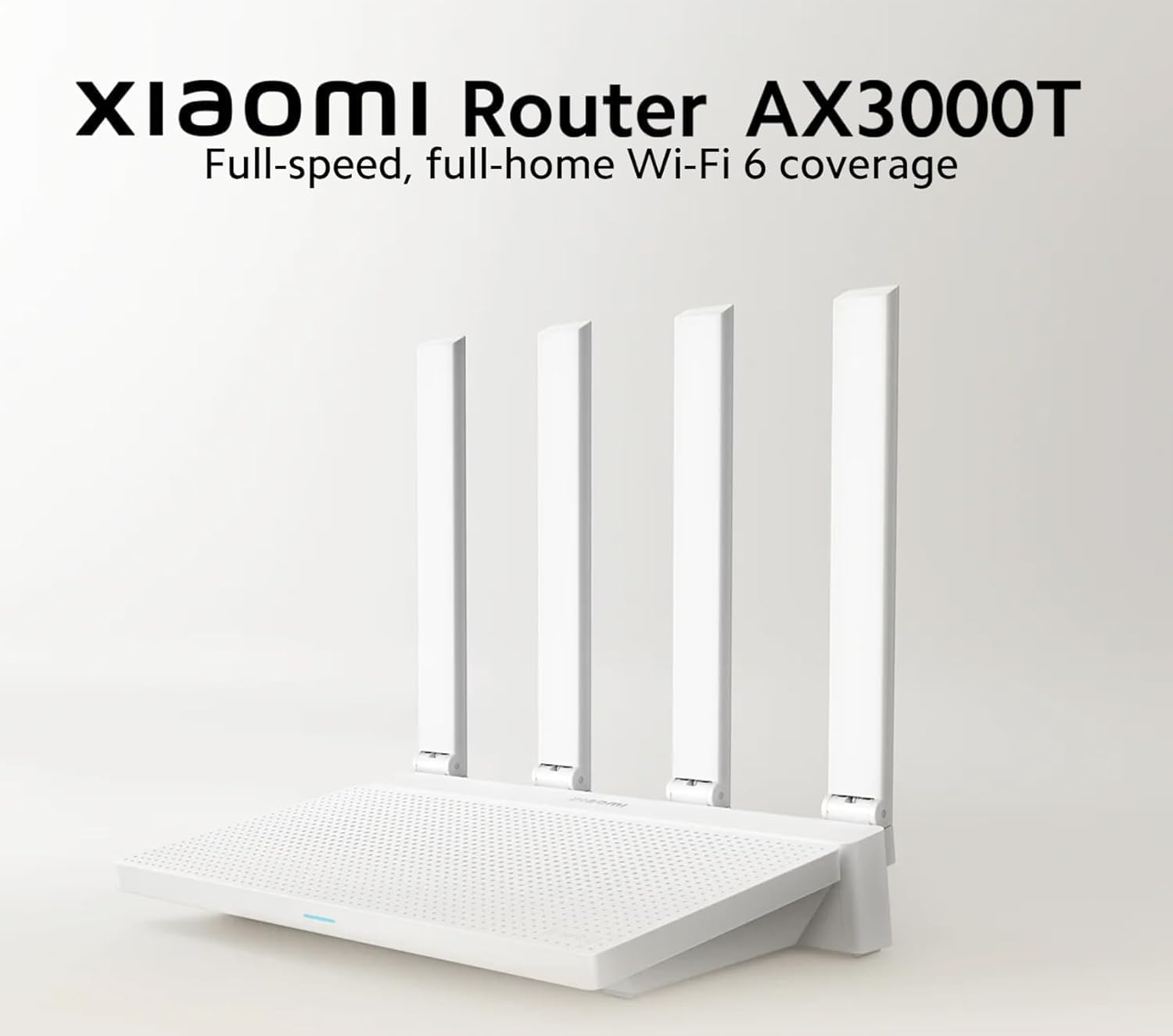
Figure 2.2: Front view of the Xiaomi AX3000T Router, highlighting its four antennas and the product name with a tagline emphasizing full-speed, full-home Wi-Fi 6 coverage.

Figure 2.3: An illustrative diagram demonstrating the extensive Wi-Fi coverage provided by the Xiaomi AX3000T Router across multiple rooms and floors within a typical home environment.

Figure 2.4: A visual representation indicating the router's 128MB memory capacity, capable of supporting stable connections for up to 128 devices simultaneously, suitable for smart home ecosystems.
3. Setup Guide
Follow these steps for the initial setup of your Xiaomi AX3000T Router.
- Unpack the Router: Carefully remove the router and its accessories from the packaging. Ensure all components are present: the router unit, power adapter, and Ethernet cable.
- Connect the Hardware:
- Connect the power adapter to the router's power port and plug it into a power outlet.
- Connect one end of the Ethernet cable to the WAN port (usually blue) on your router. Connect the other end to your modem's LAN port or the fiber optic network interface.
- (Optional) If connecting a wired device, use another Ethernet cable to connect it to any of the LAN ports (usually yellow) on the router.
- Power On: Wait for the router's indicator lights to stabilize. The system indicator should turn solid blue, indicating a successful boot-up.
- Connect to Wi-Fi:
- On your computer or smartphone, search for available Wi-Fi networks.
- Select the network name (SSID) that starts with "Xiaomi_" or "Mi_Router_" followed by some characters. There is no password for the initial connection.
- Initial Configuration:
- Open a web browser and type miwifi.com or 192.168.31.1 into the address bar.
- Follow the on-screen instructions to set up your Wi-Fi name (SSID) and password for both 2.4GHz and 5GHz bands. You can also choose to unify them into a single SSID.
- Set an administrator password for the router's management interface.
- Alternatively, download the "Mi Wi-Fi" app from your smartphone's app store and follow the in-app instructions for guided setup.
- Internet Connection Test: Once configured, ensure your devices can access the internet.
4. Operating Your Router
This section covers common operations and features of your Xiaomi AX3000T Router.
4.1 Connecting Devices
- Wireless Connection: Search for your configured Wi-Fi network name (SSID) on your device and enter the password you set during setup. The router supports both 2.4GHz and 5GHz bands for optimal performance.
- Wired Connection: Connect devices like desktop computers, gaming consoles, or smart TVs to the router's LAN ports using an Ethernet cable for a stable, high-speed connection.
4.2 Managing Network Settings via Mi Wi-Fi App
The Mi Wi-Fi app provides convenient control over your router's features.
- Guest Mode: Create a separate Wi-Fi network for guests, keeping your main network secure. This feature is useful for visitors who need temporary internet access without compromising your primary network's security.
- Quality of Service (QoS): Prioritize network traffic for specific applications or devices (e.g., gaming, video streaming) to ensure smooth performance even under heavy network load.
- Xiaomi Mesh: If you have multiple Xiaomi Mesh-compatible routers, you can expand your Wi-Fi coverage seamlessly throughout larger homes by creating a unified mesh network. Refer to the Mi Wi-Fi app for instructions on setting up a mesh network.
- Parental Controls: Manage internet access times and block specific websites for connected devices, ensuring a safe online environment for children.
- Connected Devices: View all devices connected to your network, monitor their usage, and manage their access.

Figure 4.1: An illustration showing the router broadcasting a unified Wi-Fi network name, simplifying connection for users by combining 2.4GHz and 5GHz bands under one SSID.
5. Maintenance
Proper maintenance ensures the longevity and optimal performance of your router.
- Firmware Updates: Regularly check for and install firmware updates via the Mi Wi-Fi app or the web management interface. Updates often include performance improvements, security patches, and new features.
- Cleaning: Gently wipe the router's exterior with a soft, dry cloth. Do not use liquid cleaners or abrasive materials. Ensure ventilation holes are free from dust accumulation to prevent overheating.
- Optimal Placement: Place the router in a central location in your home, away from obstructions like thick walls, large metal objects, and other electronic devices that may cause interference (e.g., microwaves, cordless phones). Elevating the router can also improve signal dispersion.
- Restarting: If you experience network issues, a simple restart of the router (by unplugging and replugging the power adapter after 10 seconds) can often resolve minor glitches.
6. Troubleshooting
This section addresses common issues you might encounter and their solutions.
| Problem | Possible Cause | Solution |
|---|---|---|
| No Internet Access | Incorrect cable connection, modem issue, ISP problem, incorrect router settings. |
|
| Weak Wi-Fi Signal or Dead Zones | Router placement, interference, large home size. |
|
| Cannot Connect to Wi-Fi | Incorrect password, router not broadcasting, device issue. |
|
| Slow Internet Speed | Too many devices, network congestion, outdated firmware, ISP speed. |
|
7. Specifications
Detailed technical specifications for the Xiaomi AX3000T Router.
| Model Name | Xiaomi Router AX3000T |
| Model Number | RD23 |
| Brand | Xiaomi |
| Color | White |
| Connectivity Technology | Ethernet, Wi-Fi |
| Wireless Communication Standard | 802.11a, 802.11ac, 802.11ax (Wi-Fi 6), 802.11g, 802.11n |
| Frequency Band Class | Dual-Band (2.4 GHz, 5 GHz) |
| Max Wireless Speed | Up to 3000 Mbps |
| Operating System | RouterOS (Xiaomi's custom OS) |
| Special Features | Guest Mode, QoS, Xiaomi Mesh |
| Compatible Devices | Tablets, Smartphones, Printers, Computers, AIoT devices |
| Memory | 128 MB (supports up to 128 devices) |
| Processor | Quad-core with multiple DSPs |
| Security Protocol | WPA3 |
| Included Components | Router, Power Adapter, Ethernet Cable |
| Country of Origin | China |
8. Warranty and Support
For warranty information and technical support, please refer to the official Xiaomi website or contact their customer service.
- Warranty: This product comes with a standard manufacturer's warranty. Please retain your proof of purchase for warranty claims. Specific warranty terms and duration may vary by region.
- Technical Support:
- Visit the official Xiaomi support website for FAQs, troubleshooting guides, and driver/firmware downloads.
- Use the Mi Wi-Fi app for in-app support and diagnostics.
- Contact Xiaomi customer service directly for personalized assistance.
Information regarding spare parts availability and software updates beyond the initial period is generally provided by the manufacturer on their official support channels.
Related documentsAX3000T


Ask a question about this manual
Ask about setup, troubleshooting, compatibility, parts, safety, or missing instructions. Manuals+ will review the question and use this page’s manual context to help answer it.