
Introduction
This manual provides essential information for setting up, operating, maintaining, and troubleshooting your HP 727pk 27-inch 4K UHD Monitor. This monitor features a 27-inch 4K UHD (3840 x 2160) display with IPS Black Technology, offering a 2,000:1 contrast ratio and wide viewing angles. It includes Thunderbolt 4 connectivity for high-resolution video, high-speed data, and up to 100W charging, along with factory-calibrated color accuracy (98% Display P3, 100% sRGB, VESA DisplayHDR 400).

Front view of the HP 727pk 27-inch 4K UHD Monitor, showcasing its slim bezels and stand.
What's in the Box
Verify that all components are present before proceeding with the setup.
- HP 727pk 27-inch 4K Thunderbolt 4 Monitor (8J9G2AA)
- Thunderbolt Cable
- DisplayPort Cable
- HDMI Cable
- 1 x USB Type-C to Type-A Cable
- AC Power Cord
- VESA Mount Adapter
- Quick Setup Poster
- Color Calibration Report
- Warranty Card
Setup
1. Unpacking and Stand Assembly
- Carefully remove the monitor and all components from the packaging.
- Attach the stand base to the stand column, ensuring it clicks securely into place.
- Align the stand assembly with the mounting slot on the back of the monitor and push until it locks.
2. Connecting Cables
Connect the necessary cables to the monitor and your computer. Ensure all connections are firm.

Rear view of the HP 727pk monitor, highlighting the power input, DisplayPort, HDMI, Thunderbolt, and USB ports.
- Power Cable: Connect the AC power cord to the monitor's power input and then to a wall outlet.
- Video Cable: Choose one of the following:
- Thunderbolt Cable: For 4K video, data, and power delivery (up to 100W) via a single cable. Connect to a compatible Thunderbolt port on your computer.
- DisplayPort Cable: Connect to the DisplayPort input on the monitor and the DisplayPort output on your computer.
- HDMI Cable: Connect to the HDMI input on the monitor and the HDMI output on your computer.
- USB Cables: Connect the USB Type-C to Type-A cable from your computer to the monitor's upstream USB-C port to enable the monitor's USB hub functionality.
3. Power On
Press the power button on the monitor. The power indicator light will illuminate. Turn on your computer.
Operating Instructions
1. Power Button and OSD Navigation
The power button is typically located on the bottom right bezel of the monitor. The On-Screen Display (OSD) menu is accessed via buttons or a joystick, usually located near the power button. Use these controls to navigate through the menu options.
2. Input Selection
To switch between connected video sources (Thunderbolt, DisplayPort, HDMI), access the OSD menu and navigate to the 'Input' or 'Source' section. Select the desired input.
3. Display Settings
The OSD menu allows adjustment of various display settings:
- Brightness/Contrast: Adjust the overall luminance and difference between light and dark areas.
- Color Settings: Modify color temperature, gamma, and color space (e.g., sRGB, Display P3).
- Picture Mode: Select predefined modes optimized for different content (e.g., Standard, Photo, Movie).
- Resolution: Ensure your computer's display settings are set to the monitor's native resolution of 3840 x 2160 for optimal clarity.
- Ambient Light Sensor: The monitor features an ambient light sensor that can automatically adjust brightness. This can be enabled or disabled in the OSD.
4. Ergonomic Adjustments
The monitor stand allows for various adjustments to optimize your viewing comfort:
- Height Adjustment: Gently push or pull the monitor up or down to your desired height.
- Tilt Adjustment: Tilt the screen forward or backward to find the best viewing angle.
- Swivel Adjustment: Rotate the monitor left or right on its base.
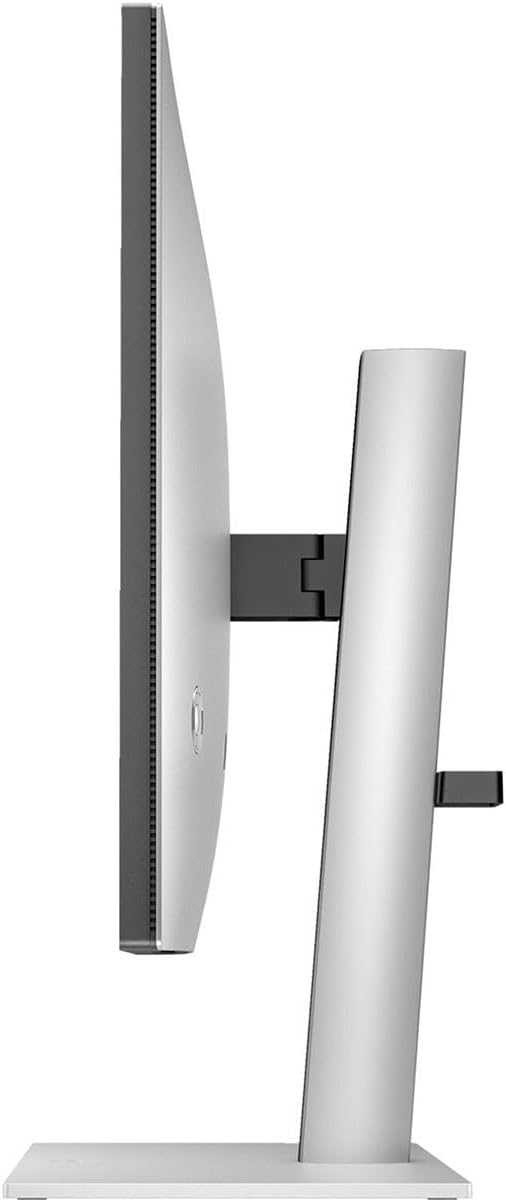
Side view of the HP 727pk monitor, illustrating its height adjustment capability.
5. Thunderbolt 4 Functionality
The Thunderbolt 4 port provides a versatile single-cable solution for:
- Video Transmission: Displaying 4K UHD content.
- Data Transfer: Connecting peripherals via the monitor's integrated USB hub.
- Power Delivery: Charging compatible laptops or devices up to 100W.
- Daisy Chaining: Connecting multiple compatible monitors in a series.
Maintenance
1. Cleaning the Screen
To clean the screen, power off the monitor and unplug the power cord. Use a soft, lint-free cloth lightly dampened with water or a non-abrasive screen cleaner. Do not spray liquid directly onto the screen.
2. Cleaning the Casing
Use a soft, dry cloth to wipe the monitor casing. Avoid using harsh chemicals or abrasive materials.
Troubleshooting
If you encounter issues with your monitor, refer to the following common solutions:
- No Image on Screen:
- Ensure the power cable is securely connected to both the monitor and the power outlet.
- Verify that the video cable (Thunderbolt, DisplayPort, or HDMI) is properly connected to both the monitor and your computer.
- Check the input source selection in the OSD menu to ensure it matches the connected cable.
- Confirm your computer is powered on and not in sleep mode.
- Flickering or Distorted Image:
- Ensure the video cable is securely connected.
- Try a different video cable or port.
- Adjust the display resolution and refresh rate on your computer to match the monitor's specifications (3840x2160 at 60Hz).
- No USB Device Functionality:
- Ensure the USB Type-C to Type-A upstream cable is connected from your computer to the monitor.
- If using Thunderbolt, ensure the Thunderbolt cable is properly connected and your computer supports Thunderbolt data transfer.
- Monitor Not Powering On:
- Check the power cable connection.
- Test the power outlet with another device.
Specifications
| Brand | HP |
| Model Number | 8J9G2AA |
| Screen Size | 27 Inches |
| Resolution | 4K UHD (3840 x 2160) |
| Display Technology | IPS Black Technology |
| Refresh Rate | 60 Hz |
| Response Time | 5 Milliseconds |
| Contrast Ratio | 2,000:1 (Static) |
| Brightness | 400 Nit (Typical) |
| Color Gamut | 98% Display P3, 100% sRGB |
| Connectivity | 1x Thunderbolt 4, 1x HDMI, 1x DisplayPort, USB Hub (6x USB ports), Ethernet |
| Power Consumption | 215 Watts (Max) |
| Ergonomics | Height, Tilt, Swivel Adjustment |
| Special Features | Ambient Light Sensor, Auto Brightness Control, Color Calibration, HDR400, Low Blue Light |
Warranty Information
This HP 727pk 27-inch 4K UHD Monitor is covered by a 3-year Manufacturer Warranty. Please refer to the included Warranty Card for detailed terms and conditions, including coverage specifics and how to make a claim.
Support
For further assistance, technical support, or to download the latest drivers and software, please visit the official HP support website:
Have your monitor's model number (8J9G2AA) and serial number ready when contacting support.