
1. Introduction
This manual provides comprehensive instructions for the safe and effective operation of your TKXEC SK90C Color Display Adjustable 90W DC DC Buck Boost Power Converter. This versatile power module is designed for various applications, including use as a buck/boost module with over-current protection, a high-power LED constant current driver, or for DIY solar power controllers and battery charging.
Key features include:
- Input voltage range: DC 6-36V; Output voltage range: DC 0.5-36V (arbitrarily adjustable).
- Output current: 0-5A; Maximum output power: 90W.
- Integrated safety protections: Anti-reverse connection protection at input, anti-backflow protection at output (no need for external anti-backflow diode when charging).
- Multiple software protection mechanisms with adjustable thresholds (automatic output shut-off if parameters exceed thresholds).
- 1.8-inch Color LCD Display with comfortable silicone buttons for enhanced user experience.
- Multifunction display: Shows Voltage, Current, Power, Amp-hours (Ah), Watt-hours (Wh), Time, and Temperature.
- Equipped with constant current (CC) and constant voltage (CV) functions.
2. Safety Information
Please read and understand all safety warnings and operating instructions before using this device. Failure to do so may result in electric shock, fire, or serious injury.
- Electrical Safety: Always ensure proper insulation and connections. Do not operate the device with wet hands or in damp environments.
- Voltage and Current Limits: Adhere strictly to the specified input (DC 6-36V) and output (DC 0.5-36V, 0-5A, 90W max) limits. Exceeding these limits can damage the device and connected equipment.
- Protection Features: The module includes Over-Voltage Protection (OVP), Over-Current Protection (OCP), Over-Power Protection (OPP), Over-Temperature Protection (OTP), Over-Amp-hour Protection (OAH), and Over-Watt-hour Protection (OWH). These are designed to protect the device and your load. Ensure protection thresholds are set appropriately for your application.
- Ventilation: Ensure adequate ventilation around the module, especially during high-power operation, to prevent overheating. The internal fan assists with cooling.
- Connections: Use appropriate gauge wiring for input and output connections. Ensure all connections are secure to prevent arcing or short circuits. The screw terminals are designed to accommodate up to 12 AWG wire.
- Charging Batteries: When charging batteries, the anti-backflow protection eliminates the need for an external diode, but always monitor the charging process.
3. Product Overview and Components
The SK90C power converter features a compact design with an intuitive color display and tactile buttons for easy operation. Below are illustrations of the device and its key components.
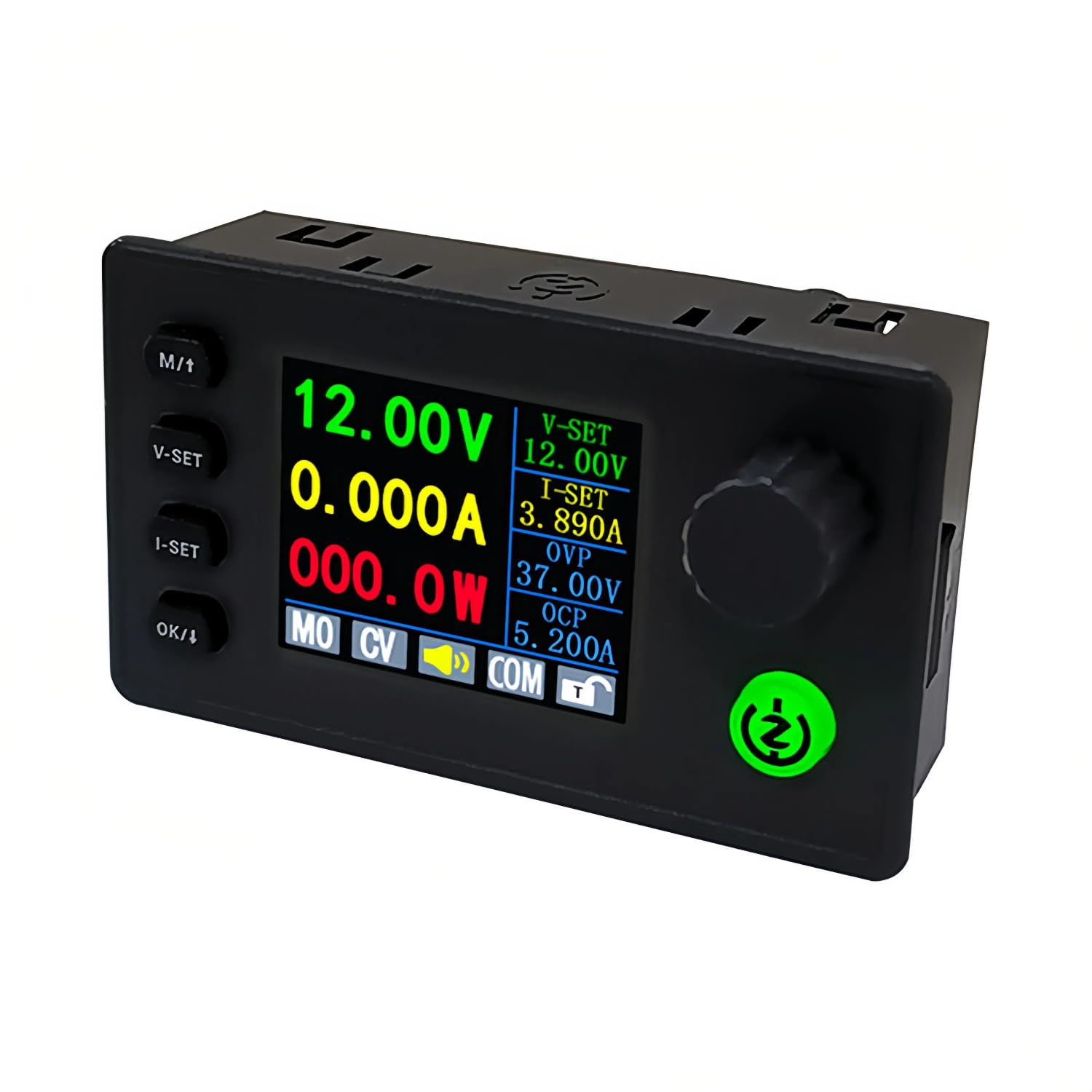
Figure 3.1: Front view of the TKXEC SK90C Color Display Adjustable 90W DC DC Buck Boost Power Converter, showing the 1.8-inch color LCD and control buttons.

Figure 3.2: Overview highlighting the third-generation upgrade, silicon rubber keypads, 1.8-inch large screen display, and key specifications: 6-36V input, 0.5-36V output, 0-5A output current, 90W output power, and 11 storage groups.
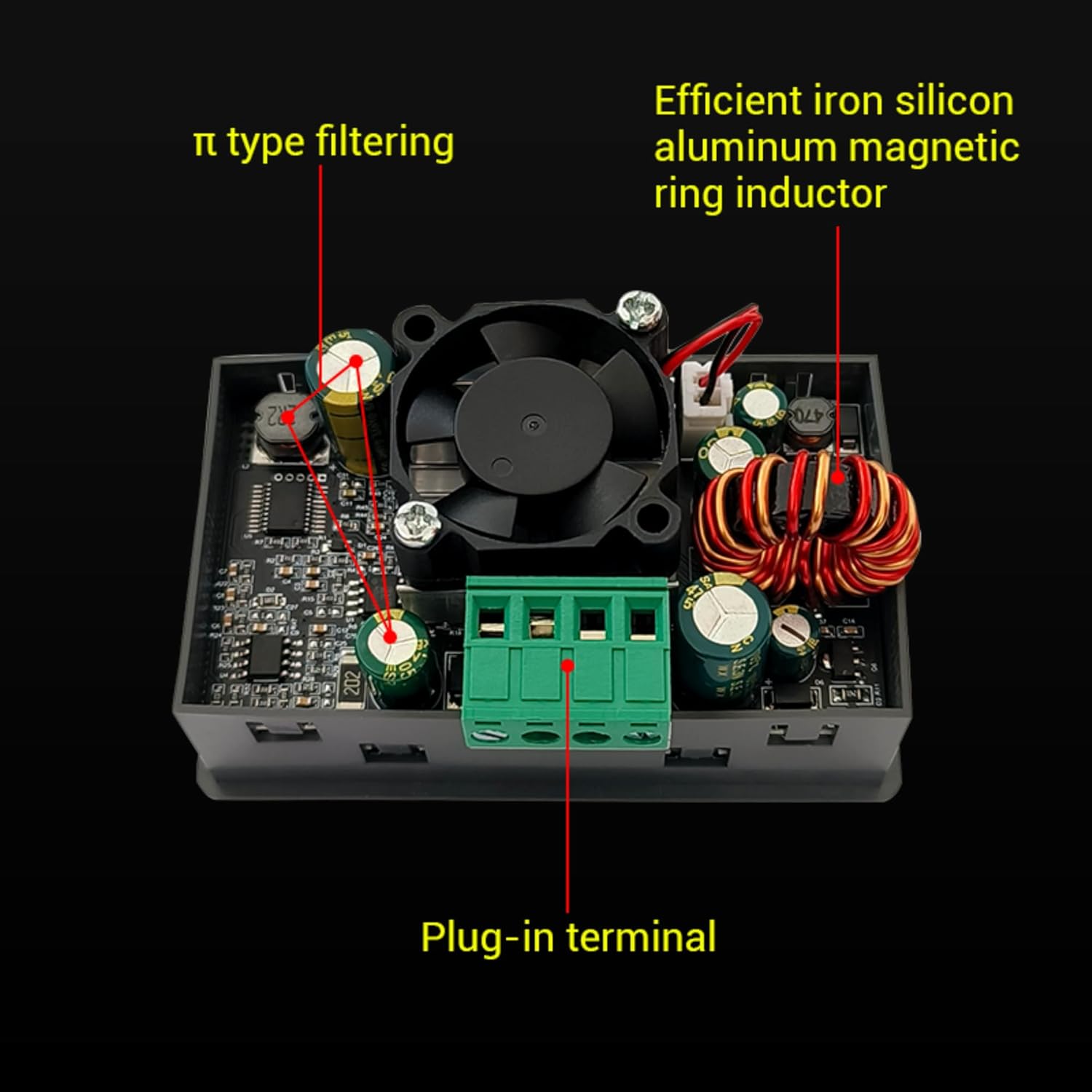
Figure 3.3: Internal view of the SK90C, showing the π-type filtering, efficient iron silicon aluminum magnetic ring inductor, and plug-in terminals for secure connections.

Figure 3.4: Detailed view of the 1.8-inch large screen and integrated knob with increased damping for better hand feel, along with approximate dimensions (36mm width, 29mm height for the display area).
4. Setup
Before operating the SK90C, ensure all connections are made correctly.
- Input Power Connection: Connect your DC power source (6-36V) to the input terminals. The terminals are clearly marked for positive (+) and negative (-) connections. Ensure the power source can supply sufficient current for your desired output power (e.g., for 90W output, a 100W input source is recommended). The screw terminals require a flat-head screwdriver. To open the wire clamp, turn the screw counter-clockwise. Insert the wire, then turn clockwise to tighten securely.
- Output Load Connection: Connect your load to the output terminals. Observe polarity.
- Initial Power-Up: Once connections are secure, apply power to the input. The device display will illuminate.
5. Operating Instructions
The SK90C features a user-friendly interface with a rotary encoder and dedicated buttons for various functions.
5.1 Button Functions

Figure 5.1: Diagram illustrating the functions of each button and the rotary encoder.
- M/↑ Button:
- Short press: Select setting bit (during parameter adjustment).
- Long press: Open/Cancel lock function.
- Short press (from main interface): Call up data group settings.
- V-SET Button:
- Short press: Voltage setting.
- Long press: Set Output Over-Voltage Protection (OVP).
- I-SET Button:
- Short press: Current setting.
- Long press: Set Over-Current Protection (OCP).
- OK/↓ Button:
- Short press: Confirm selection/OK.
- Rotary Encoder:
- Left rotation: Switch interface display; Decrease number during setup.
- Right rotation: Switch interface display; Increase number during setup.
- Output ON/OFF Button (Green button with 'Z' symbol):
- Short press: Turn output on/off.
- Long press: Shutdown.
5.2 Display Interfaces
The SK90C features multiple display interfaces accessible by rotating the encoder.

Figure 5.2: Overview of the Main, Statistics, Curve, and Menu interfaces.
- Main Interface: Displays output voltage, current, power, set voltage (V-SET), set current (I-SET), Over-Voltage Protection (OVP), Over-Current Protection (OCP), data storage group (MO), Constant Voltage (CV) / Constant Current (CC) status, button sound indication, and key lock status.
- Statistics Interface: Shows output capacity (Ah), output energy (Wh), statistical time, and input voltage (VN).
- Curve Display Interface: Provides a graphical representation of output voltage, current, and power over time. Note: The graph range may need adjustment for accurate display of higher voltages.
- Menu Interface: Allows access to system parameters and calibration settings.
5.3 Setting Parameters (Voltage, Current, Protections)
- Setting Output Voltage (V-SET):
- From the Main Interface, short press the V-SET button. The voltage setting will become active.
- Rotate the encoder to adjust the desired voltage.
- Short press the M/↑ button to select the digit you wish to change.
- Short press OK/↓ to confirm the setting.
- Setting Output Current (I-SET):
- From the Main Interface, short press the I-SET button. The current setting will become active.
- Rotate the encoder to adjust the desired current.
- Short press the M/↑ button to select the digit you wish to change.
- Short press OK/↓ to confirm the setting.
- Setting Over-Voltage Protection (OVP):
- From the Main Interface, long press the V-SET button. The OVP setting will appear.
- Adjust the OVP value using the rotary encoder.
- Short press OK/↓ to confirm.
- Setting Over-Current Protection (OCP):
- From the Main Interface, long press the I-SET button. The OCP setting will appear.
- Adjust the OCP value using the rotary encoder.
- Short press OK/↓ to confirm.
- Data Group Retrieval (M0-M10):
- From the Main Interface, short press the M/↑ button to enter the data group call-out menu.
- Rotate the encoder to select the desired data group (M0-M10).
- Short press OK/↓ to load the settings from the selected group.
- Lock Screen Function:
- To lock the screen and prevent accidental changes, long press the M/↑ button. A small lock icon will appear on the display.
- To unlock, long press the M/↑ button again.
5.4 System Parameter Settings and Calibration
Access the Menu Interface by rotating the encoder from the main display. Here you can adjust various system parameters and perform calibration.

Figure 5.3: Menu interface options for sound, backlight, screen stop, language, device address, baud rate, startup icon, startup output, zero calibration, voltage calibration, and current calibration.

Figure 5.4: Continued menu interface options, including factory reset and detailed calibration steps.
To navigate the menu, rotate the encoder to select an option. Short press M/↑ to select a setting option. Short press OK/↓ to confirm or enter a sub-menu.
- Sound (Sound): Rotate encoder to turn button sound on/off.
- Backlight (Backlight): Rotate encoder to adjust backlight brightness (0-5 levels).
- Screen Stop (Screen Stop): Rotate encoder to set screen rest time.
- Language (Lang): Rotate encoder to switch between Chinese and English display.
- Device Address (Addr): Set communication address for rotary encoder (if applicable for advanced use).
- Baud Rate (Baud): Set data communication baud rate.
- Startup Icon (Startup Icon): Set the display of the startup icon.
- Startup Output (Startup Output): Set default output state for startup (on/off).
- Restore Factory Settings (F. Rst): Short press OK/↓ to pop up the calibration and factory reset dialog box. Short press M/↑ to cancel and exit, short press OK/↓ to confirm and exit.
5.5 Calibration Steps
Calibration ensures the accuracy of voltage and current readings. A multimeter is required for this process.
Voltage Calibration (Cal.V):
- Use a multimeter to measure the actual voltage at the current output terminal (output terminal unloaded, measure the power terminal) and input it into the device.
- Short press OK/↓ to display voltage 2.
- Use a multimeter to measure the actual voltage at the current output terminal again and input it.
- Short press OK/↓ to complete the calibration.
- If calibration is successful, it will display "CALI Success"; otherwise, it will display "CALI Failed" and exit. If it fails, you can try calibrating again.
Current Calibration (Cal.I):
- Use a multimeter current range or electronic load to short circuit the output terminals and measure the current actual current and input it.
- Short press OK/↓ to display current 2.
- Use a multimeter to measure the actual current at the current output terminal again and input it.
- Short press OK/↓ to complete the calibration.
- If calibration is successful, it will display "CALI Success"; otherwise, it will display "CALI Failed" and exit. If it fails, you can try calibrating again.
5.6 Product Demonstration Video
Watch this official product video for a visual demonstration of the SK90C's features and operation, including accuracy checks, data group retrieval, and interface navigation.
Video 5.1: A comprehensive demonstration of the TKXEC SK90C power converter, showcasing its startup, voltage and current accuracy, data group retrieval (M0-M10), one-click voltage setting, current setting, output protection voltage (OVP) and overcurrent protection (OCP) settings, navigation through its five interfaces (main, statistical, curve, system parameter, and data group parameter settings), and lock screen functionality. The video highlights the ease of use and various display modes.
6. Maintenance
- Cleaning: Use a soft, dry cloth to clean the device. Do not use abrasive cleaners or solvents.
- Ventilation: Ensure the fan and ventilation openings remain clear of dust and debris to maintain optimal cooling performance. The fan is designed to run quietly under load.
- Storage: Store the device in a cool, dry place away from direct sunlight and extreme temperatures.
7. Troubleshooting
This section addresses common issues you might encounter with the SK90C power converter.
| Problem | Possible Cause | Solution |
|---|---|---|
| Device does not power on. | No input power; Incorrect input voltage; Loose connections. | Verify input power source (6-36V DC). Check all input wiring for secure connections and correct polarity. |
| No output voltage/current. | Output is turned off; Protection triggered (OVP, OCP, OPP, OTP); Incorrect settings. | Short press the green ON/OFF button to enable output. Check display for protection indicators (OVP, OCP, etc.) and adjust settings if necessary. Verify V-SET and I-SET are configured correctly. |
| Inaccurate voltage/current readings. | Device requires calibration. | Perform voltage and current calibration as described in Section 5.5 using a reliable multimeter. |
| Display shows unexpected characters or behavior. | Language setting incorrect; Firmware issue. | Navigate to the Menu Interface and check the Language setting. If issues persist, consider performing a factory reset (Section 5.4). |
| Cannot save/load presets. | Incorrect procedure for data group management. | Refer to Section 5.3 for detailed instructions on data group retrieval and saving. |
| Device becomes hot during operation. | High load; Insufficient ventilation. | Ensure adequate airflow around the device. Check if the internal fan is operating. Reduce load if necessary. The device has Over-Temperature Protection (OTP) to prevent damage. |
8. Specifications
| Parameter | Value |
|---|---|
| Brand | TKXEC |
| Model Number | SK90C |
| Input Voltage Range | DC 6-36V |
| Output Voltage Range | DC 0.5-36V |
| Output Current | 0-5A |
| Max Output Power | 90W |
| Display | 1.8-inch Color LCD |
| Protection Features | OVP, OCP, OPP, OTP, OAH, OWH, Anti-reverse input, Anti-backflow output |
| Product Dimensions | 3.27 x 0.98 x 1.89 inches |
| Item Weight | 4.16 ounces |
| Mounting Type | Rack Mount |
| Certifications | CE, UL, FCC |
| Country of Origin | China |
9. Warranty and Support
For warranty information and technical support, please contact TKXEC customer service through the retailer where the product was purchased. Refer to your purchase documentation for specific warranty terms and contact details.
Good customer feedback is the biggest driving force behind TKXEC's progress. TKXEC brand products undergo layers of inspection and screening to ensure that customers receive high-quality products.