
Introduction
This manual provides detailed instructions for the setup, operation, maintenance, and troubleshooting of your LuLabboard Wired Gaming Mouse. Please read this manual thoroughly before using the product to ensure optimal performance and longevity.
Product Overview
The LuLabboard Wired Gaming Mouse is designed for enhanced gaming and computing experiences, featuring adjustable DPI, silent click buttons, and vibrant LED lighting. Its ergonomic design ensures comfortable use over extended periods.

Figure 1: LuLabboard Wired Gaming Mouse. This image displays the overall design of the mouse, highlighting its ergonomic shape and the dynamic LED lighting pattern.
Key Features:
- Adjustable DPI: 3 levels (1200, 1600, 2400 DPI) for precise cursor control.
- Silent Click Buttons: Left and right click buttons operate silently, ideal for quiet environments.
- Vibrant LED Backlight: Flowing rainbow backlight mode with an option to turn off the lights.
- Ergonomic Design: Streamlined claw-grip design for comfortable, fatigue-free use.
- Durable Braided Cable: 59-inch fabric-wrapped cable for enhanced durability and tangle resistance.
- Wide Compatibility: Supports Windows, Mac OS, Android, iOS, and other systems.

Figure 2: Mouse Button Layout. This diagram illustrates the six programmable buttons: Left Button, Right Button, Scroll Wheel, DPI Button, Forward, and Backward, along with the optical sensor position.
Setup
The LuLabboard Wired Gaming Mouse is designed for plug-and-play functionality, requiring no additional drivers for basic operation.
Connecting the Mouse:
- Locate an available USB port on your computer (PC, Laptop, Desktop, Mac, etc.).
- Insert the USB connector of the mouse into the USB port.
- Wait for your operating system to recognize the device. This usually takes a few seconds.
- The mouse is now ready for use.

Figure 3: Plug and Play Connection. This image shows the USB wired gaming mouse connected to a laptop, demonstrating its simple plug-and-play setup.
Operating Instructions
Adjusting DPI (Sensitivity):
The mouse features 3 adjustable DPI levels to suit different tasks and preferences (e.g., precise aiming in games, fast browsing). The default DPI settings are 1200, 1600, and 2400.
- Press the DPI Button (located behind the scroll wheel) to cycle through the available DPI settings.
- Each press will switch to the next DPI level. Observe the cursor speed to determine the current setting.

Figure 4: DPI Adjustment. This graphic illustrates the different DPI settings (800, 1200, 1600, 2400) and how they affect cursor speed and accuracy, controlled by the DPI button.
Controlling LED Backlight:
The mouse features a vibrant flowing rainbow backlight that can be turned on or off.
- To turn ON/OFF the LED backlight, long press the DPI Button.

Figure 5: LED Backlight. This image showcases the mouse's 7-color breathing light, creating an immersive visual effect.
Silent Click Feature:
The left and right click buttons are designed for silent operation, minimizing noise in quiet environments.
- Note that the Forward, Backward, and DPI buttons are not silent.
Ergonomic Design and Grip:
The mouse features a classic symmetrical design that provides a comfortable grip for extended use, reducing fatigue.
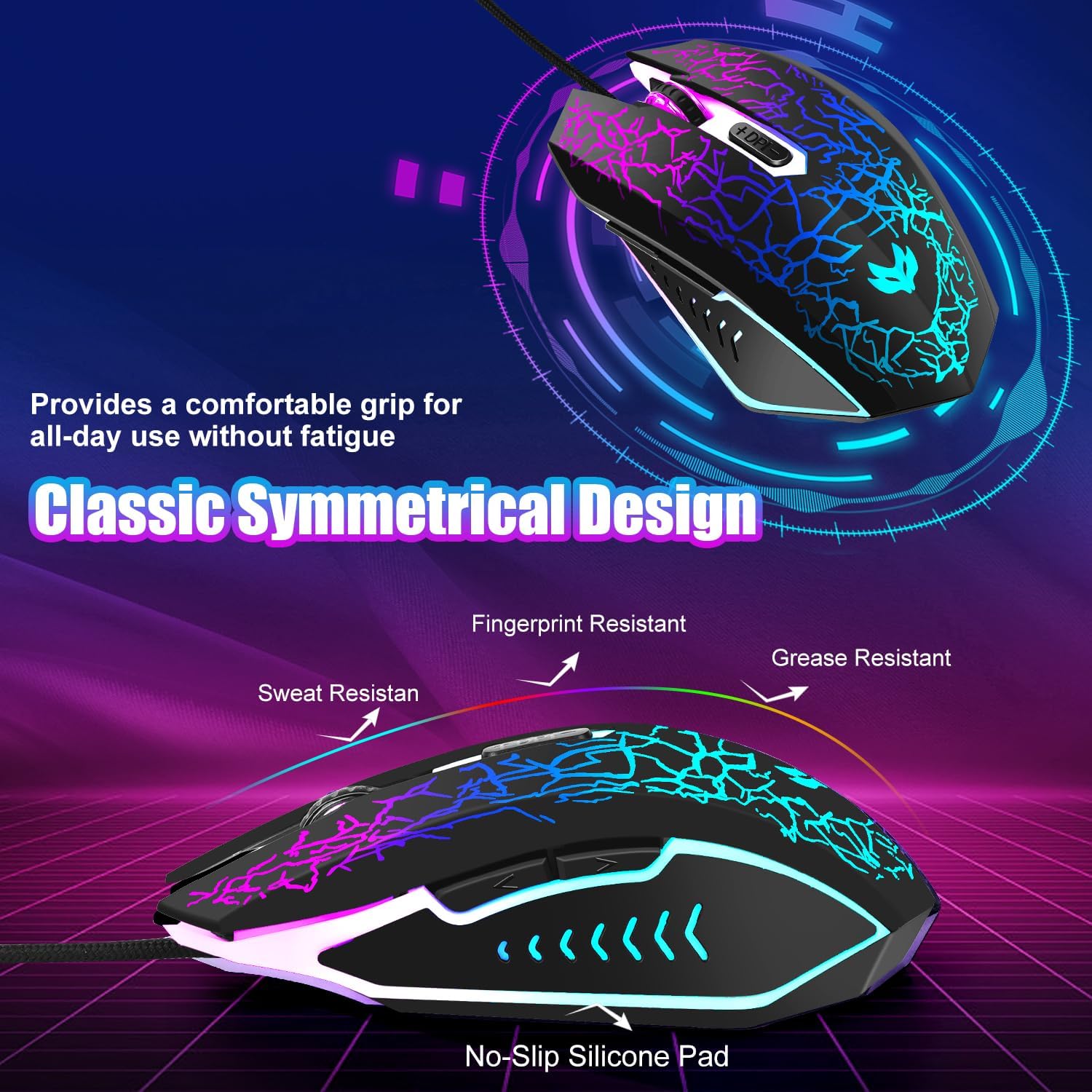
Figure 6: Ergonomic and Durable Design. This image highlights the mouse's classic symmetrical design, emphasizing its resistance to sweat, fingerprints, and grease, along with a non-slip silicone pad for comfortable, long-term use.
Maintenance
Proper maintenance ensures the longevity and optimal performance of your gaming mouse.
Cleaning:
- Use a soft, dry, lint-free cloth to wipe the surface of the mouse.
- For stubborn dirt, slightly dampen the cloth with water or a mild cleaning solution. Avoid harsh chemicals.
- Use a cotton swab or compressed air to clean around the buttons and scroll wheel.
- Ensure no liquid enters the mouse's internal components.
Cable Care:
The mouse features a durable braided cable. To prevent damage:
- Avoid sharp bends or kinks in the cable.
- Do not pull the mouse by its cable. Always grasp the mouse body or the USB connector when moving or unplugging.

Figure 7: Durable Braided Cable. This image highlights the robust, fabric-wrapped 59-inch cable, designed for interference-free and tangle-resistant performance.
Troubleshooting
If you encounter issues with your LuLabboard Wired Gaming Mouse, refer to the following common solutions:
| Problem | Possible Cause | Solution |
|---|---|---|
| Mouse not responding | Loose USB connection, faulty USB port, system driver issue. |
|
| LED lights are off | LEDs turned off, power saving mode. |
|
| Cursor movement is erratic or slow/fast | Incorrect DPI setting, dirty optical sensor, uneven surface. |
|
| Buttons not clicking or double-clicking unexpectedly | Dust/debris under buttons, wear and tear. |
|
Specifications
| Feature | Detail |
|---|---|
| Brand | LuLabboard |
| Model | Wired LED Black |
| Connectivity Technology | USB Wired |
| DPI Levels | 3 Adjustable (1200, 1600, 2400 DPI) |
| Buttons | 6 (Left, Right, Scroll Wheel, DPI, Forward, Backward) |
| Click Lifespan | Up to 5 million clicks |
| Cable Length | 59 inches (Braided) |
| LED Lighting | 4-Color LED Light (Flowing Rainbow Backlight) |
| Compatibility | Windows 7/8/10/XP/Vista, Mac OS, Android, iOS |
| Item Weight | 5.6 ounces |
| Dimensions | 6.14 x 3.78 x 1.93 inches |
Warranty and Support
LuLabboard is committed to providing high-quality products and customer satisfaction.
Warranty Information:
This product comes with an 18-month after-sale service. This includes a 100% refund or replacement for any issues encountered with the mouse.
Customer Support:
If you experience any problems or have questions regarding your LuLabboard Wired Gaming Mouse, please contact our customer support team. You can reach us by:
- Visiting our store page on Amazon: LuLabboard Amazon Store
- Clicking the "Ask a question" button on our store page.
Our team is dedicated to assisting you and resolving any concerns promptly.


