
Thomson RC112A
Thomson Android TV Remote Control User Manual
Model: RC112A
Product Overview
The Thomson RC112A Android TV Remote Control is designed to provide seamless control over your Thomson Android TV. This official replacement remote offers a blend of sophisticated design and practical functionality, ensuring a comfortable and intuitive user experience. It features an ergonomic design, backlit buttons for low-light conditions, integrated voice control via Google Assistant, and a customizable favorite apps button.

Image: Front view of the Thomson Android TV Remote Control, showcasing its sleek black design and button layout.
Setup and Initial Use
1. Battery Installation
The remote control requires two (2) AAA batteries for operation. Ensure correct polarity when inserting the batteries.
- Locate the battery compartment cover on the back of the remote control.
- Slide the cover downwards or in the direction indicated by an arrow to open it.
- Insert two AAA batteries, matching the positive (+) and negative (-) terminals as indicated inside the compartment.
- Replace the battery compartment cover, ensuring it clicks securely into place.
2. Pairing with your Android TV
This remote control connects to your Thomson Android TV via Bluetooth. The pairing process may vary slightly depending on your TV model. Generally, follow these steps:
- Ensure your Thomson Android TV is powered on.
- On your TV, navigate to Settings > Remotes & Accessories or Bluetooth Settings.
- Select Add accessory or Pair new device.
- On the Thomson remote control, press and hold the Home button and the Back button simultaneously for a few seconds until the LED indicator on the remote starts blinking, indicating it's in pairing mode.
- On your TV screen, select "Thomson RC112A" or a similar name from the list of available devices.
- Confirm the pairing on your TV if prompted. The LED on the remote will stop blinking and remain solid for a moment, indicating successful pairing.
If pairing fails, ensure the remote is close to the TV and repeat the steps. Refer to your TV's user manual for specific pairing instructions if needed.
Operating the Remote Control
The Thomson RC112A remote control features a comprehensive set of buttons for navigating your Android TV. Below are the primary functions:
- Power Button (●): Turns the TV on or off.
- Number Pad (0-9): Direct channel selection or input.
- Navigation Pad (Up, Down, Left, Right, OK): For menu navigation and selection.
- Back Button (←): Returns to the previous screen or menu.
- Home Button (⌂): Accesses the Android TV home screen.
- Volume Up/Down (V+/V-): Adjusts the TV volume.
- Channel Up/Down (P+/P-): Changes TV channels.
- Mute Button (🔇): Mutes or unmutes the TV audio.
- Google Assistant Button (🎤): Activates voice control. Press and hold to speak commands.
- Favorite Apps Button (⭐): Customizable button to quickly launch your preferred application. Refer to your TV's settings to assign an app to this button.
- Dedicated App Buttons (e.g., YouTube, Netflix, Prime Video, Disney+, Google Play): Direct access to these streaming services.
Special Features
Ergonomic Design
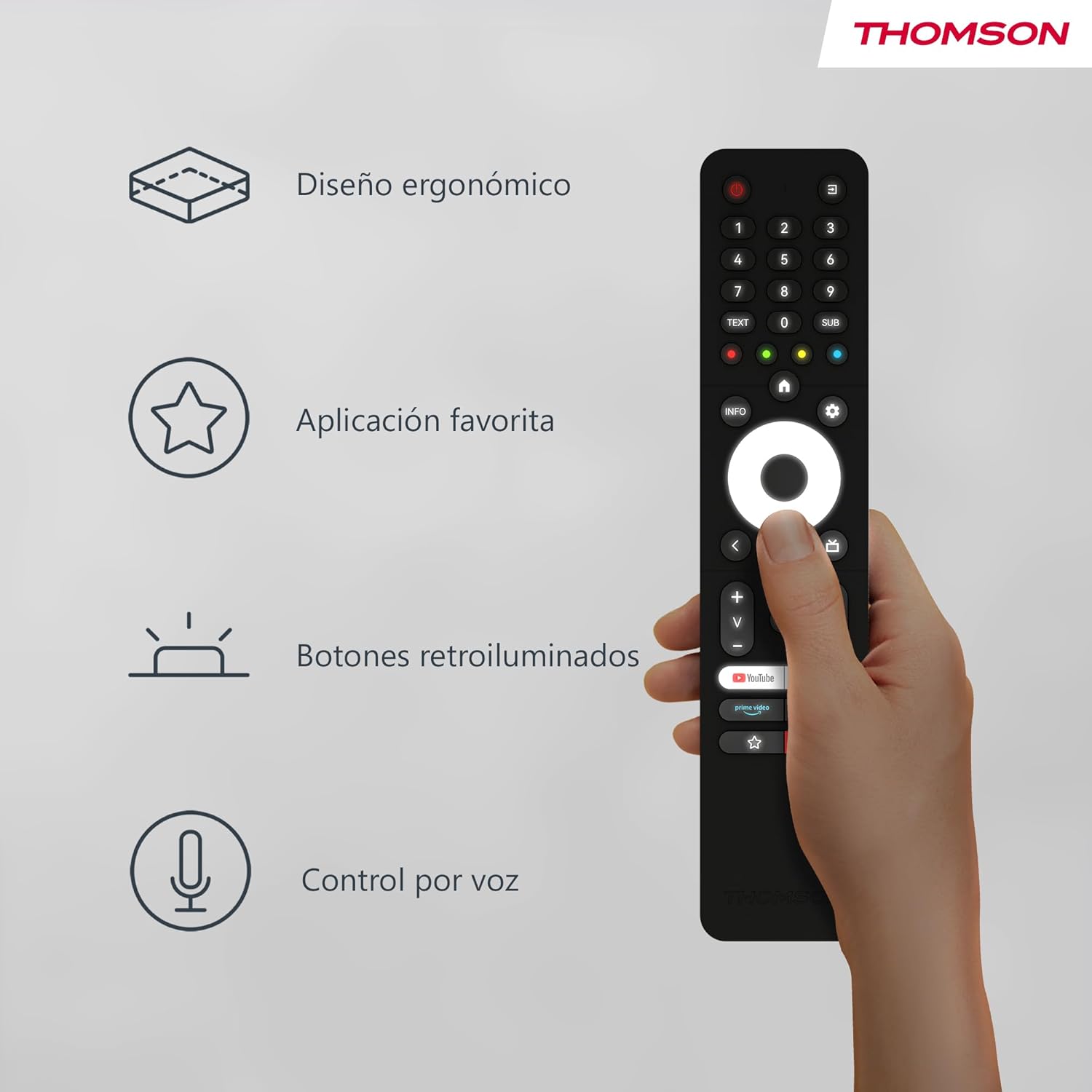
The remote control is designed to fit comfortably in your hand, making prolonged use easy and reducing fatigue. Its sleek profile and balanced weight contribute to a pleasant user experience.
Image: A hand holding the Thomson remote control, illustrating its comfortable ergonomic design and highlighting key features like voice control and favorite apps.
Backlit Buttons

The buttons on the remote control illuminate, making it easy to locate and press the correct buttons in dimly lit environments. This feature prevents accidental key presses and enhances usability during night-time viewing.
Image: Two views of the Thomson remote control side-by-side, one showing the buttons unlit and the other showing them illuminated, demonstrating the backlit feature for low-light use.
Voice Control (Google Assistant)
With the integrated Google Assistant, you can control your TV using voice commands. Press and hold the Google Assistant button, then speak clearly into the remote. You can:
- Adjust volume (e.g., "Volume up", "Set volume to 20").
- Search for content (e.g., "Find action movies", "Play [Movie Title]").
- Open applications (e.g., "Open Netflix", "Launch YouTube").
- Ask questions (e.g., "What's the weather like?").
- Control compatible smart home devices.
Maintenance
Battery Replacement
Replace batteries when the remote's performance degrades or if the LED indicator does not light up during use. Always replace both batteries simultaneously with new AAA alkaline batteries.
Cleaning
To clean the remote control, use a soft, dry cloth. For stubborn dirt, slightly dampen the cloth with water or a mild, non-abrasive cleaner. Do not use harsh chemicals or abrasive materials, as they may damage the remote's surface or internal components. Avoid getting moisture into the battery compartment or button crevices.
Storage
Store the remote control in a cool, dry place away from direct sunlight, extreme temperatures, and high humidity. If the remote will not be used for an extended period, it is recommended to remove the batteries to prevent leakage and potential damage.
Troubleshooting
| Problem | Possible Cause | Solution |
|---|---|---|
| Remote not responding. | Low or dead batteries; Remote not paired; Obstruction between remote and TV. | Replace batteries; Re-pair the remote with the TV (see "Pairing" section); Ensure no objects are blocking the signal (though Bluetooth is less sensitive to this, direct line of sight can sometimes help with initial pairing). |
| Voice control not working. | Microphone blocked; Remote not properly paired for voice; Internet connection issue on TV. | Ensure nothing is covering the microphone hole; Re-pair the remote; Check TV's internet connection. |
| Backlight not illuminating. | Batteries are low; Feature is disabled (if applicable, though usually automatic). | Replace batteries. The backlight feature is typically automatic and activates when the remote is moved or a button is pressed. |
| Favorite app button not launching desired app. | App not assigned or incorrectly assigned. | Go to your TV's settings and re-assign the desired application to the favorite app button. |
Specifications
- Brand: Thomson
- Model Number: RC112A
- Color: Black
- Special Features: Ergonomic, Backlit, Voice Search (Google Assistant)
- Compatible Devices: Thomson Android TVs
- Battery Type: 2 x AAA batteries (not included)
- Max Range: 10 Meters
- Connectivity: Bluetooth
Warranty and Support
Warranty information for your Thomson RC112A remote control is typically provided with your purchase documentation or can be found on the official Thomson website. Please retain your proof of purchase for warranty claims.
For technical support, troubleshooting assistance beyond this manual, or to inquire about replacement parts, please visit the official Thomson support website or contact their customer service. Contact details are usually available on the manufacturer's official website or in your product packaging.
Note: Availability of spare parts information is not provided in the product details.
Related documentsRC112A


Ask a question about this manual
Ask about setup, troubleshooting, compatibility, parts, safety, or missing instructions. Manuals+ will review the question and use this page’s manual context to help answer it.