
1. Introduction
The Jectse 4K 64MP Vlogging Camera (Model: Jectserk26vizos9) is a compact digital camera designed for high-quality photography and videography. It features a 64MP main CCD lens, a CMOS telephoto lens, and a wide-angle CCD lens, enabling 4K video recording and detailed images. The 3-inch HD touch screen provides intuitive control and creative filter options. This manual provides instructions for setup, operation, maintenance, and troubleshooting to ensure optimal performance of your device.
2. Package Contents
Please check the package contents upon unboxing to ensure all items are present:
- 1 x Touch Screen Digital Camera
- 1 x USB Cable
- 1 x Lanyard
- 1 x Cleaning Cloth
- 1 x Adapter
- 1 x Screwdriver
- 1 x Instruction Manual
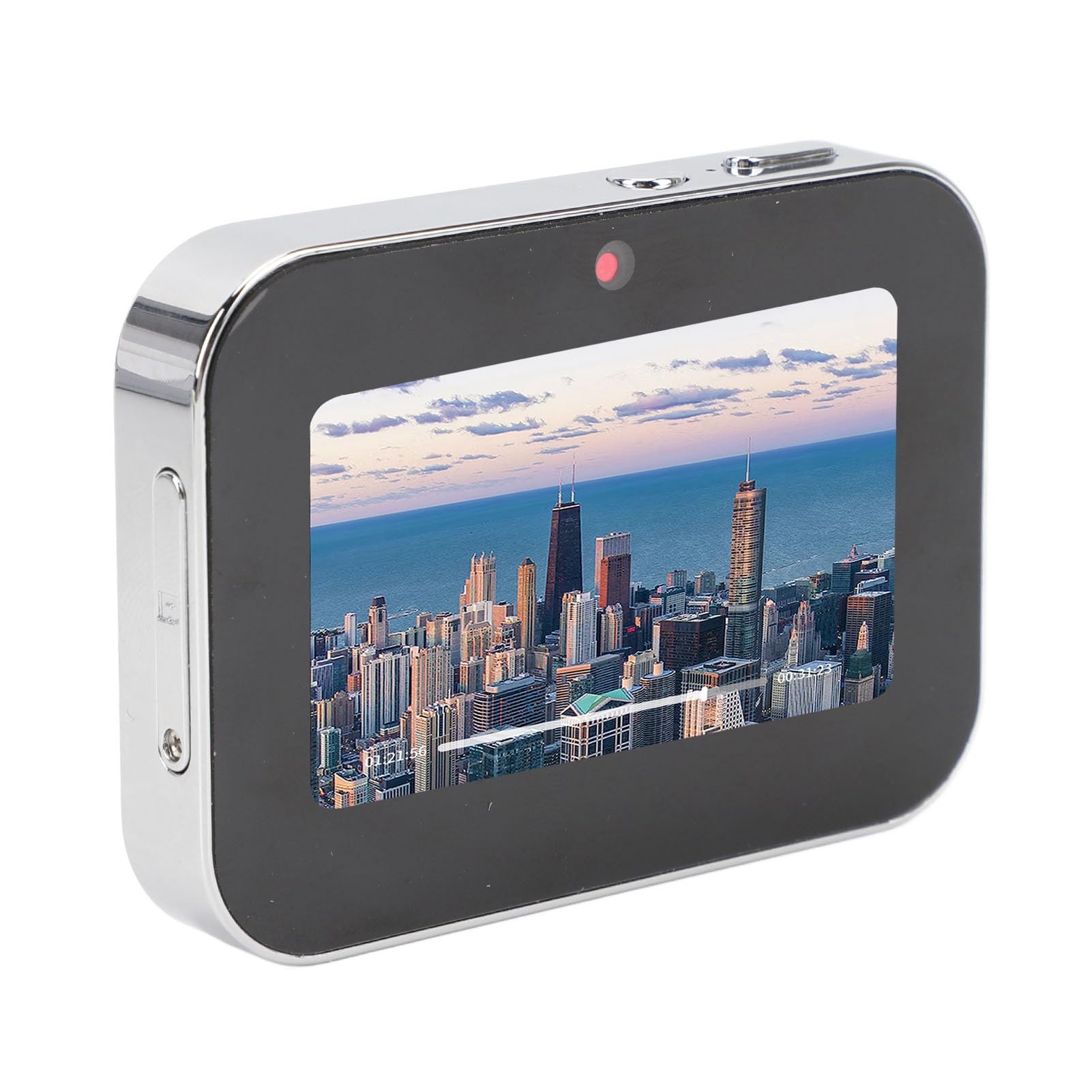
Image: Jectse 4K 64MP Vlogging Camera and included accessories: USB cable, lanyard, screwdriver.
3. Setup
3.1. Battery Charging and Installation
The camera is equipped with an integrated 3600mAh lithium battery. Before first use, ensure the battery is fully charged. Connect the camera to a power source using the provided USB cable and adapter. The camera supports various charging methods, including power banks, car chargers, and solar chargers (accessories not included).
3.2. Memory Card Installation
The camera supports a micro SD memory card up to 128GB (not included). Locate the memory card slot on the side of the camera. Insert the micro SD card with the gold contacts facing down until it clicks into place. To remove, gently push the card until it springs out.

Image: Side view of the Jectse camera, illustrating the location of the memory card slot.
3.3. Power On/Off
To power on the camera, long press the power button located on the top of the device. To power off, long press the power button again.

Image: Close-up of the top of the Jectse camera, highlighting the power button and shutter button.
4. Operating Instructions
4.1. Basic Operation and Mode Selection
After powering on, the camera will display the main interface on its 3-inch HD touch screen. Touch the corresponding mode icon on the screen to enter the desired shooting or playback mode.
4.2. Touch Screen Features and Filters
The camera features an organic light-emitting diode (OLED) full touch screen. You can swipe left and right on the screen to browse and switch between various creative filters. Select the filter that best suits your shooting environment and artistic preference.
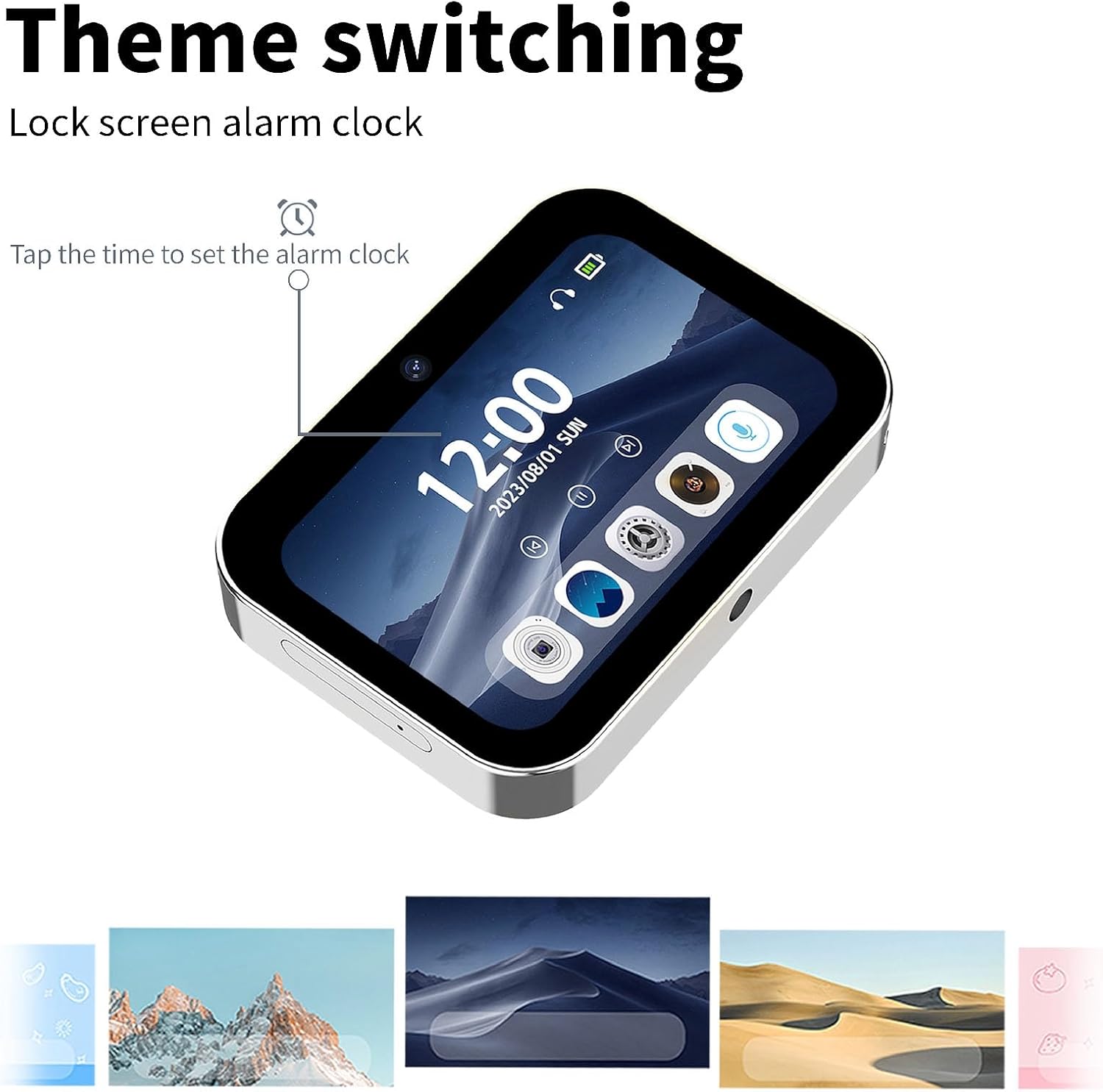
Image: Jectse camera screen demonstrating theme switching and the lock screen alarm clock feature.
4.3. Photo and Video Capture
The camera utilizes a combination of a 64MP main CCD lens, a CMOS telephoto lens, and a wide-angle CCD lens to deliver high-quality images and 4K videos. Press the shutter button (located on the top of the camera) to capture photos or start/stop video recording in the respective modes.
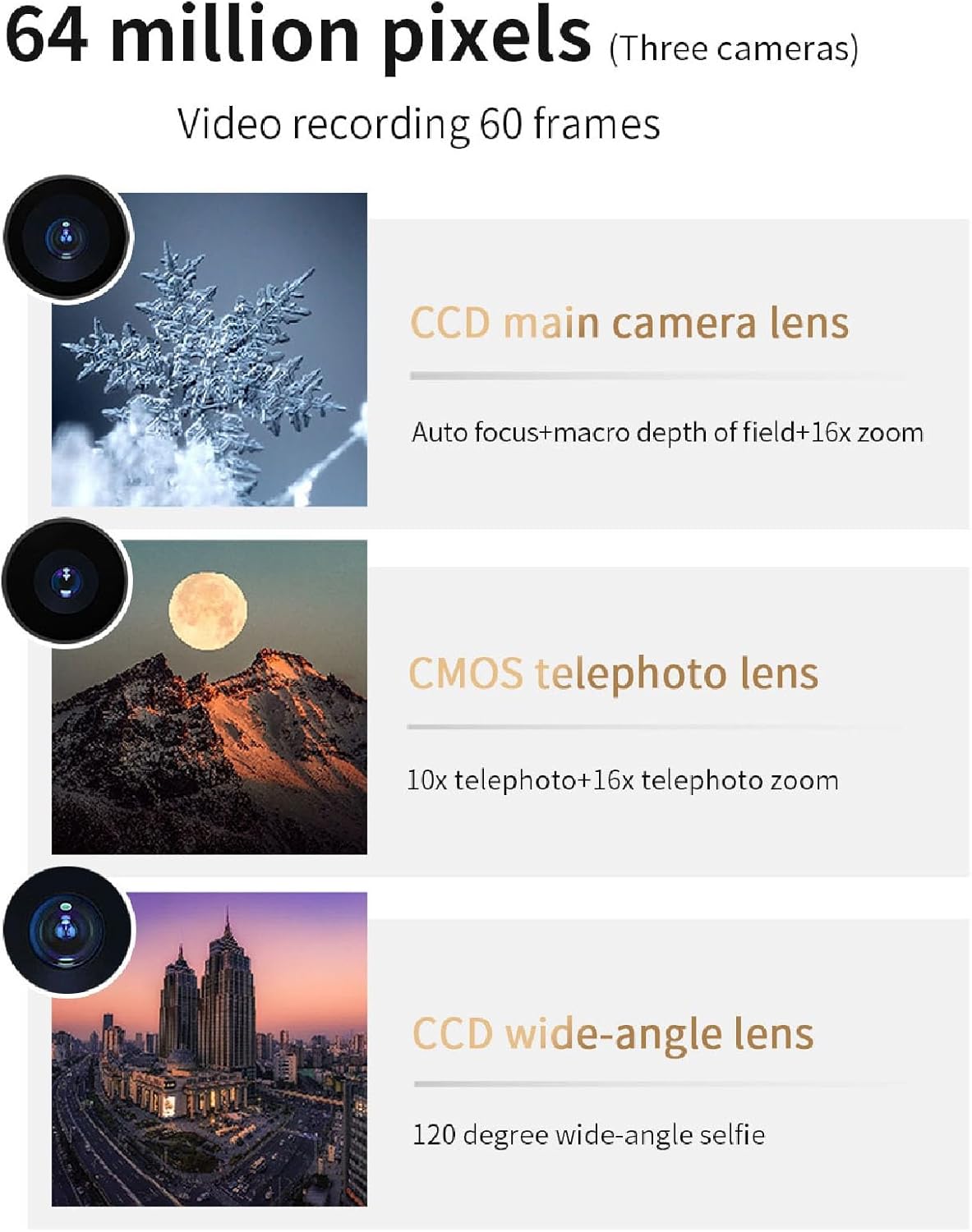
Image: Diagram detailing the camera's three lenses: CCD main camera, CMOS telephoto lens, and CCD wide-angle lens, contributing to 64 million pixels.

Image: The Jectse camera screen showcasing a vibrant city landscape, demonstrating image playback.
4.4. Lock Screen Shooting
The camera supports lock screen shooting. By clicking the lock screen button, you can continue to take photos, record audio, and capture videos even when the screen is off. This feature allows for discreet operation and conserves battery life while maintaining full camera functionality.
4.5. OTG Transmission
The camera supports direct data transmission via OTG (On-The-Go) connection. Connect the camera to your smartphone or other compatible device using an OTG cable (not included). This allows you to view, save, and share your photos and videos directly from the camera to your phone and social media platforms quickly and conveniently.
4.6. Lossless Audio Recording
The camera is capable of lossless audio recording, preserving the original sound quality. Simply tap the record icon on the screen to begin recording audio.

Image: The Jectse camera screen displaying the lossless recording function, with a visual representation of sound waves.
4.7. Setting the Alarm Clock
The camera includes an alarm clock function. Access the alarm settings through the touch screen interface to set custom alarms and wake-up services.
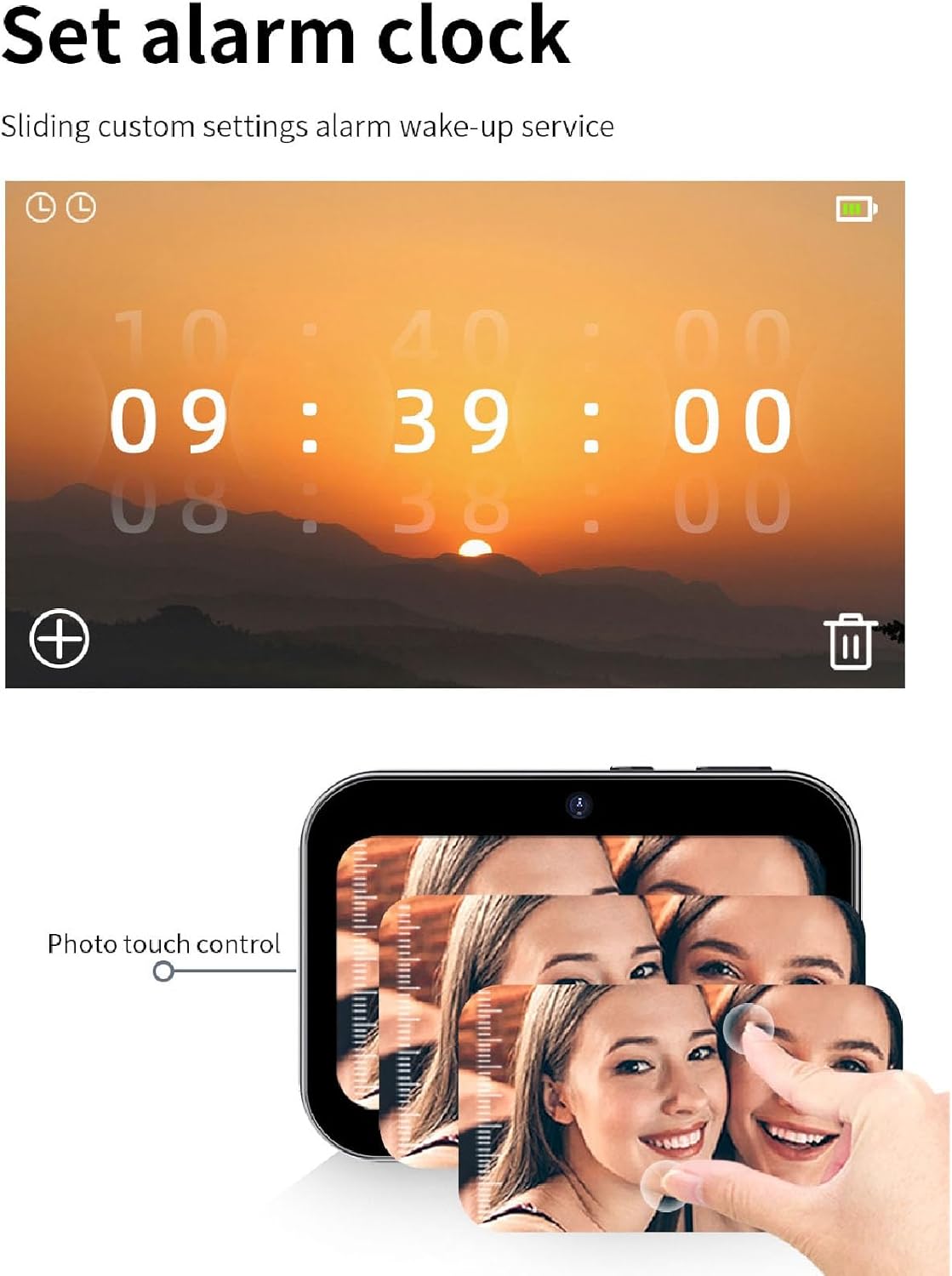
Image: Jectse camera screen showing the alarm clock settings interface and an illustration of photo touch control.
4.8. Film Conversion Software
To convert recorded film files for playback, follow these steps:
- Download the provided attachments, which include the 3231AviMaker software.
- Open the 3231AviMaker software.
- Browse and select the downloaded film file.
- Set the width to 640 and height to 360.
- Select the highest video quality option.
- Confirm the conversion. Once completed, open the output folder to find the converted film in AVI format.
- Import the converted AVI file to your memory card and insert it into the camera.
- Activate the film function on the camera and play the converted video.
5. Maintenance
To ensure the longevity and optimal performance of your Jectse camera, follow these maintenance guidelines:
- Cleaning: Use the provided cleaning cloth or a soft, lint-free cloth to gently wipe the camera body and screen. For stubborn smudges, slightly dampen the cloth with water. Avoid using harsh chemicals or abrasive materials.
- Lens Care: Keep the lenses clean and free from dust and fingerprints. Use a lens brush or air blower to remove loose particles, then gently wipe with a specialized lens cleaning cloth.
- Storage: When not in use, store the camera in a cool, dry place away from direct sunlight, extreme temperatures, and high humidity. Use a protective case to prevent scratches and impacts.
- Battery Care: Avoid fully discharging the battery frequently. For long-term storage, charge the battery to about 50% and remove it from the camera if possible.
- Water Resistance: This camera is not specified as waterproof. Avoid exposing it to water or moisture.
6. Troubleshooting
If you encounter issues with your camera, refer to the following common problems and solutions:
- Camera does not power on:
- Ensure the battery is fully charged. Connect the camera to a power source and try again.
- Check if the battery is properly inserted (if removable).
- Long press the power button for a few seconds.
- Cannot take photos/record videos:
- Check if a memory card is inserted and has sufficient free space.
- Ensure the memory card is formatted correctly (refer to camera settings).
- Verify that the camera is in the correct photo or video mode.
- Poor image/video quality:
- Clean the camera lenses with a soft cloth.
- Ensure adequate lighting conditions.
- Check camera settings for resolution and quality.
- Touch screen unresponsive:
- Restart the camera.
- Ensure the screen is clean and dry.
- OTG transmission not working:
- Ensure your smartphone or device supports OTG functionality.
- Check the OTG cable for damage and ensure it is properly connected.
- Verify that the camera is in playback mode.
If the problem persists after trying these solutions, please contact Jectse customer support for further assistance.
7. Specifications
| Feature | Specification |
|---|---|
| Brand | Jectse |
| Model Name | Jectserk26vizos9 |
| Maximum Image Resolution | 64 Megapixels |
| Maximum Video Resolution | 4K |
| Screen | 3-inch HD Touch Screen |
| Battery | 3600mAh Lithium Battery (integrated) |
| Storage Support | Micro SD card up to 128GB (not included) |
| Photo Sensor Technology | MOS |
| Optical Sensor Technology | MOS |
| Rear Webcam Resolution | 1 Megapixels |
| Self-timer | No |
| Country of Origin | China |
8. Warranty and Support
Specific warranty details for the Jectse 4K 64MP Vlogging Camera are not provided in this manual. Please refer to the warranty information included with your purchase documentation or contact the retailer/manufacturer directly for details regarding warranty coverage and terms.
For technical support, product inquiries, or service requests, please visit the official Jectse brand store or contact their customer service department. You can find more information at the Jectse Brand Store.