Introduction
This manual provides comprehensive instructions for the assembly, operation, and maintenance of your Bestier 63 Inch Gaming Desk. Please read this manual thoroughly before assembly and use to ensure proper function and safety.
Safety Information
- Exceeding the weight limit may affect stability. The maximum weight recommendation is 130 pounds.
- Ensure proper assembly with provided tools.
- Secure the desk to the wall if necessary to prevent tipping.
- Be cautious when handling electrical components.
- Ensure proper ventilation to avoid overheating of electronic devices.
- All assembly tools are included.
Package Contents
Before beginning assembly, verify that all parts listed below are present and undamaged. If any parts are missing or damaged, please contact customer support.
- Desk Panels (Main desktop, monitor stand components, keyboard tray)
- Metal Frame Components (Legs, support bars, brackets)
- Integrated Power Outlet (4 AC outlets, 2 USB ports, 6.5ft power cord, ON/OFF switch)
- LED Lights (with controller)
- Accessories (Cup holder, headphone hook, adjustable foot pads)
- Assembly Hardware (Screws, dowels, wrench, screwdriver)
Setup and Assembly
Follow these steps carefully for proper assembly. It is recommended to assemble the desk on a soft, clean surface to prevent scratches.
Step 1: Prepare the Monitor Stand with LED Lights
Attach the LED light strip to the designated panel of the monitor stand using the provided clamps and screws. Ensure the wiring is neatly tucked away.

Image: The Bestier 63 Inch Gaming Desk fully assembled, showcasing the LED lighting, monitor stand, keyboard tray, and accessories.
Video: Bestier 63 Inch LED Large Computer Desk Unboxing Video. This video demonstrates the unboxing process and initial components of the desk.
Step 2: Assemble the Desk Frame
Connect the T-shaped legs to the main support bars using the provided screws and the included wrench. Ensure all connections are tight for stability.

Image: Detailed product dimensions of the Bestier 63 Inch Gaming Desk, including measurements for the desktop, monitor stand, and overall height.
Step 3: Attach Desktop Panels
Carefully place the carbon fiber textured desktop panels onto the assembled frame. Secure them using the appropriate screws. Ensure the cut-out for the power outlet is correctly positioned.
Video: Bestier 63 inch LED Computer Table Product Introduction. This video provides an overview of the desk's features and design.
Step 4: Install Keyboard Tray and Accessories
Mount the pull-out keyboard tray rails to the underside of the desktop. Attach the keyboard tray to the rails. Install the cup holder and headphone hook to your preferred side of the desk.

Image: A close-up view highlighting the foldable cup holder, two practical hooks for headphones, adjustable feet for leveling, and the pull-out keyboard tray.
Step 5: Integrate Power Outlets
Insert the built-in power outlet into the designated slot on the desktop. Connect the LED light strip to one of the USB ports on the power outlet. Plug the desk's main power cord into a wall outlet.
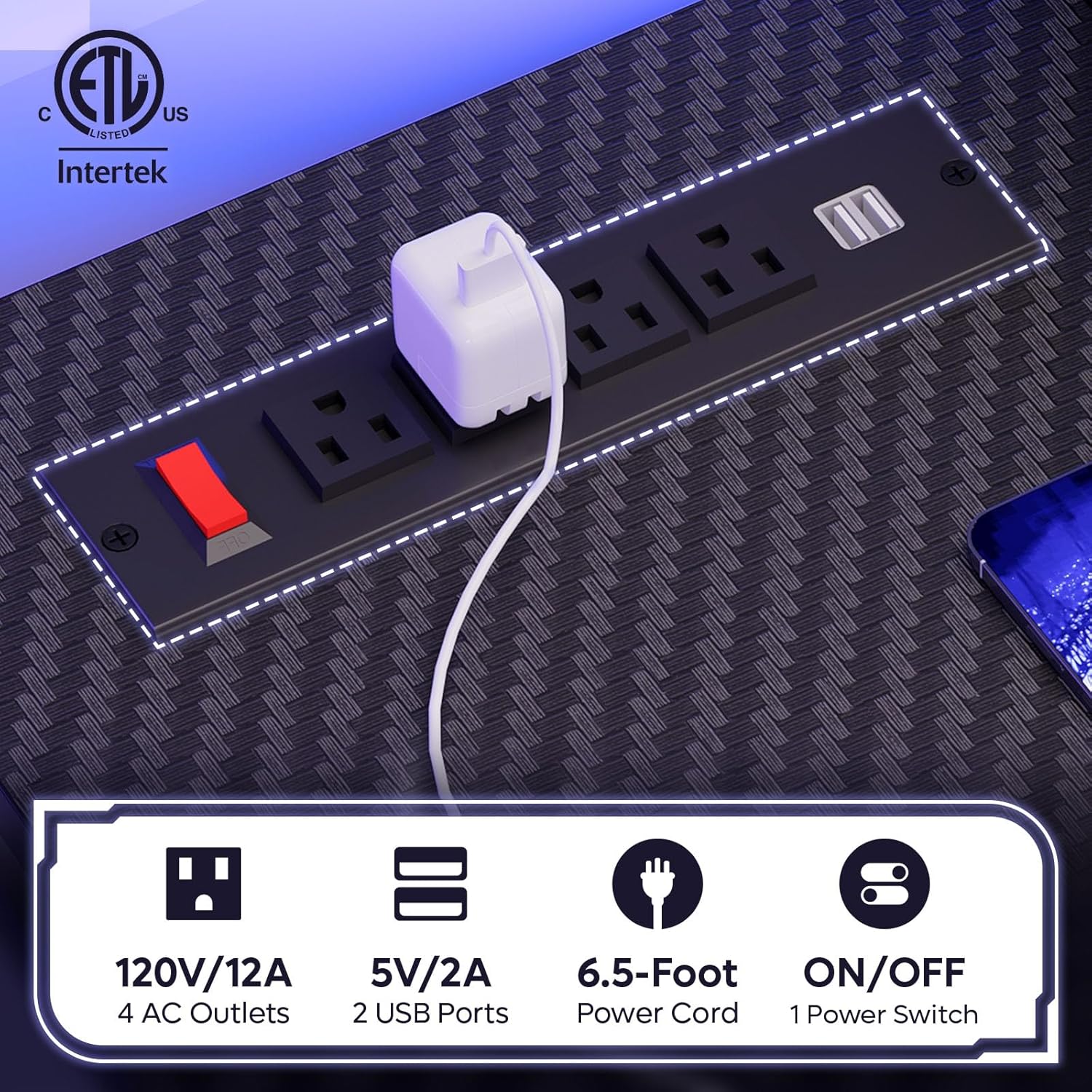
Image: A detailed view of the integrated power outlet, showing 4 AC outlets, 2 USB ports, a 6.5-foot power cord, and an ON/OFF switch.
Operating Instructions
Power Outlets
The desk features a built-in charging station with 4 AC outlets and 2 USB ports. Use the ON/OFF switch to control power to these outlets. This allows convenient charging for phones, tablets, and other devices.
LED Lights
The integrated LED lights offer 7 color options and 22 dynamic modes. Use the inline controller to cycle through colors, modes, and adjust brightness. Connect the LED lights to one of the USB ports on the power outlet for functionality.

Image: The LED light controller, illustrating the options for 22 dynamic modes and 7 main colors, integrated into the ergonomic monitor stand.
Moveable Monitor Stand
The monitor stand is designed for ergonomic viewing and can be moved along the desktop to suit your preference. It provides an elevated surface for your monitor, freeing up desk space.
Pull-out Keyboard Tray
The keyboard tray slides in and out smoothly, accommodating full-size keyboards and a mouse. It can also serve as a storage drawer to maximize desktop area.
Cup Holder and Headset Hook
The desk includes a convenient cup holder and two headset hooks, which can be attached to either side of the desk for easy access and organization.
Maintenance
- Cleaning: Wipe the desk surfaces with a damp cloth, then dry with a clean, dry cloth. Avoid abrasive cleaners.
- Stability Check: Periodically check all screws and connections to ensure they remain tight.
- Electrical Safety: Inspect the power cord and outlets for any signs of damage. Discontinue use if damage is found and contact customer support.
Troubleshooting
- LED Lights Not Working: Ensure the USB cable is securely plugged into both the LED strip and a functioning USB port on the power outlet. Check the power outlet's ON/OFF switch.
- Power Outlets Not Functioning: Verify the desk's main power cord is securely plugged into a live wall outlet and the power outlet's ON/OFF switch is in the 'ON' position.
- Desk Wobbles: Check all assembly screws for tightness. Adjust the foot pads at the bottom of the legs to level the desk on uneven surfaces.
Specifications
| Feature | Detail |
|---|---|
| Brand | Bestier |
| Model Number | BDCF |
| Product Dimensions | 19.6"D x 62.99"W x 29.5"H |
| Color | 3d Carbon Fiber Black |
| Material | Engineered Wood (Top), Metal (Frame) |
| Finish Type | Laminated (Carbon Fiber Coating) |
| Special Features | Built-In USB Outlet, Keyboard Tray, Monitor Stand, LED Lights, Cup Holder, Headphone Hook |
| Maximum Weight Recommendation | 130 Pounds |
| Required Assembly | Yes (Tools Included) |
| Power Outlet | 4 AC Outlets, 2 USB Ports, 6.5ft Cord |
Warranty and Support
Bestier offers a limited warranty on this product. For detailed warranty information or customer support, please visit the official Bestier website or contact their customer service team. The Bestier team is committed to providing satisfactory solutions for any product issues.
Contact information can typically be found on the product packaging or the official Bestier website: Bestier Store


