
ZEBRONICS ZEB-PixaPlay 58
ZEBRONICS PIXAPLAY 58 Smart Projector User Manual
Model: ZEB-PixaPlay 58
Product Overview
The ZEBRONICS PIXAPLAY 58 is a smart projector designed for home entertainment and office use. It features 11500 lumens of brightness, supports 4K content, and projects an image up to 533cm (210 inches) in size. Equipped with a quad-core processor, it offers seamless performance and includes built-in Wi-Fi, Bluetooth, and app support for a comprehensive multimedia experience. The projector also features a long-life LED lamp and multiple connectivity options.
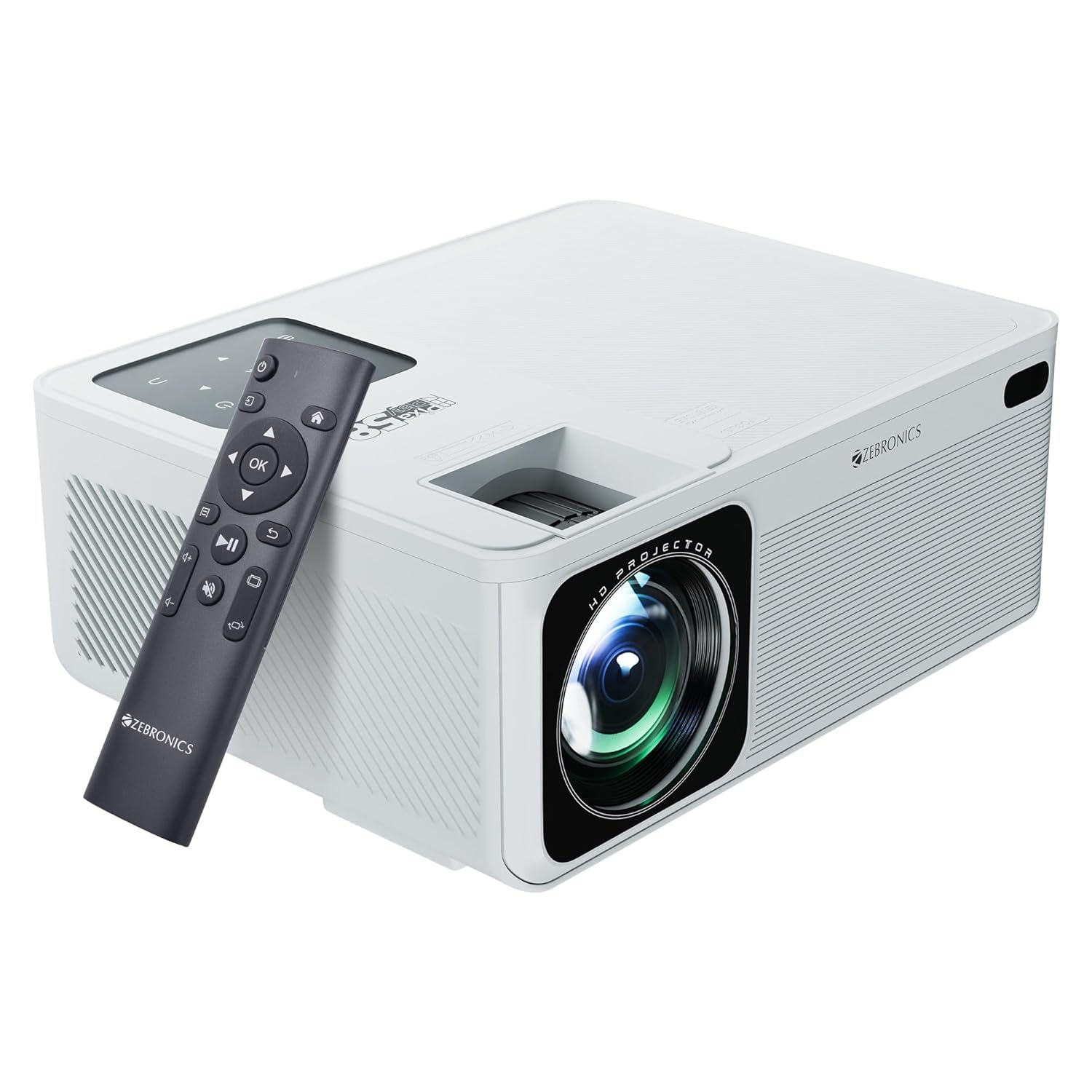
Image: The ZEBRONICS PIXAPLAY 58 Smart Projector shown with its remote control, highlighting its compact design and front lens.
Package Contents
Upon unboxing, please verify that all components are present:
- Projector - 1 unit
- Remote Control - 1 unit
- QR Code - 1 unit (for digital resources)
- Power Cable (not explicitly listed but implied for operation)
Setup Guide
1. Placement
Position the projector on a stable, flat surface or mount it according to your preference. Ensure there is adequate ventilation around the device to prevent overheating. The projector is designed for tabletop mounting.

Image: The projector positioned on a surface, demonstrating its projection capability in a home environment.
2. Power Connection
- Connect the power cable to the projector's power input port.
- Plug the other end of the power cable into a suitable electrical outlet.
3. Initial Power On
Press the power button on the projector or the remote control to turn on the device. The projector will boot up and display the main interface.
4. Focus and Keystone Adjustment
Adjust the focus ring near the lens to achieve a clear image. Use the keystone correction feature to square the image if the projector is not perfectly perpendicular to the screen. This can typically be done via a physical adjustment on the projector or through the on-screen menu.
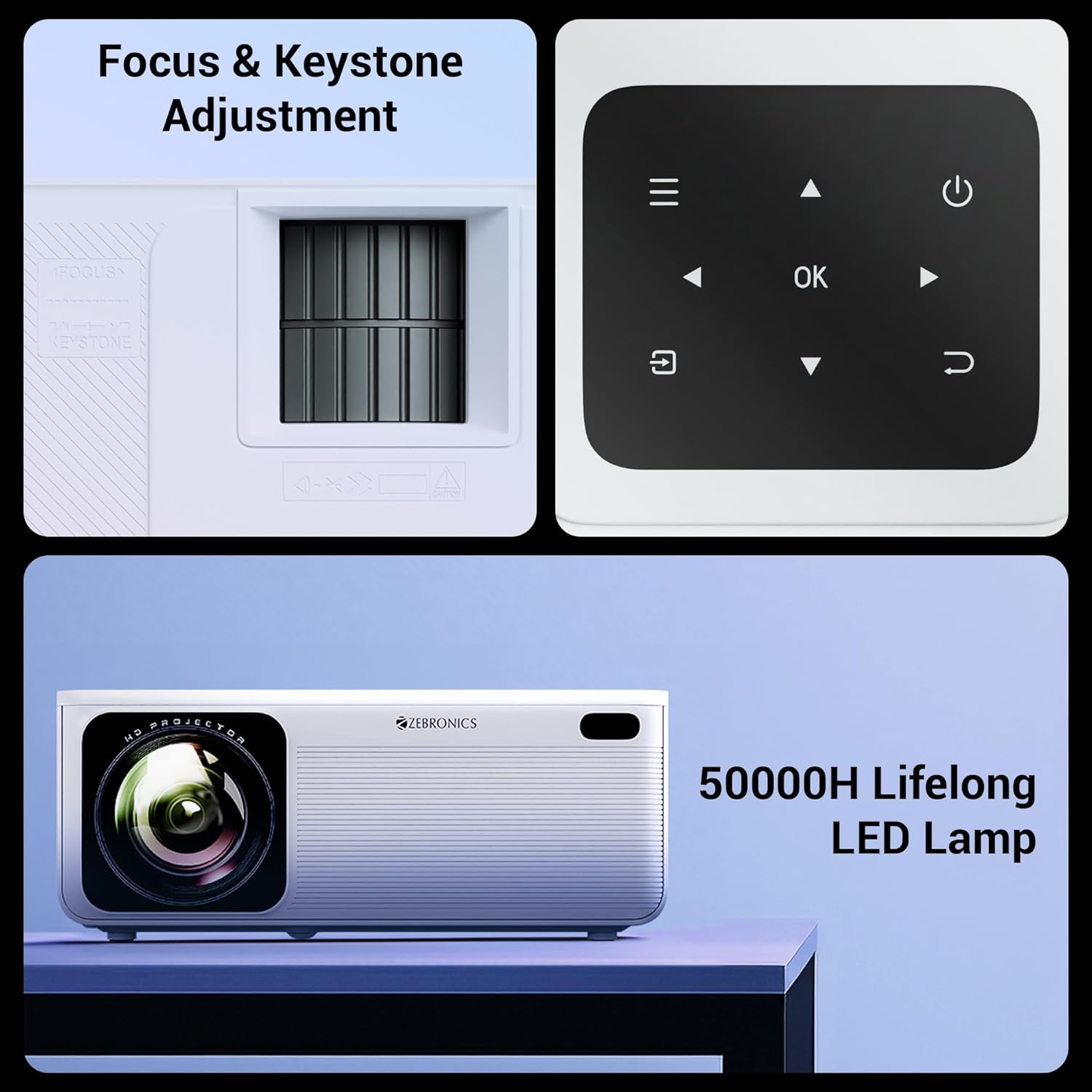
Image: Detailed view of the projector's manual focus and keystone adjustment mechanisms, along with the integrated control panel buttons.
Operating Instructions
1. Connectivity Options
The ZEB-PixaPlay 58 offers versatile connectivity:
- HDMI: Connect up to three HDMI devices (laptops, gaming consoles, Blu-ray players) using the HDMI 1, HDMI 2, and HDMI 3 ports.
- USB: Two USB ports (USB 1, USB 2) are available for connecting USB drives for media playback.
- Bluetooth v5.0: Pair with external audio devices like speakers or headphones wirelessly.
- Wi-Fi: Connect to your home network for online streaming and app access. Supports both 2.4GHz and 5GHz bands.
- AV IN: For connecting older devices with AV output.
- AUX OUT: For connecting to external audio systems via a 3.5mm audio jack.

Image: The rear panel of the projector displaying its various connectivity ports, including HDMI, USB, AV IN, and AUX OUT.
2. Smart Features and App Support
The projector runs on an Android-based system with a quad-core processor, allowing for direct installation and use of various applications. You can download OTT apps or utilize built-in ones for streaming content.

Image: A projected screen showing the user interface with various application icons, indicating built-in app support and smart functionality.
3. Screen Mirroring
Effortlessly mirror content from your Android and iOS devices:
- Miracast: For Android devices. Ensure both the projector and your Android device are connected to the same Wi-Fi network. Select Miracast on the projector and initiate screen mirroring from your device.
- iOS Screen Mirroring: For Apple devices. Ensure both the projector and your iOS device are connected to the same Wi-Fi network. Select the iOS screen mirroring option on the projector and use AirPlay/Screen Mirroring from your iOS device's Control Center.
Maintenance
1. LED Lamp Life
The ZEB-PixaPlay 58 features a long-life LED lamp with an estimated lifespan of 50,000 hours. This significantly reduces the need for lamp replacement.
2. Cleaning
- Lens: Use a soft, lint-free cloth specifically designed for optical lenses. Do not use abrasive cleaners or excessive force.
- Exterior: Wipe the projector's exterior with a soft, dry cloth. Avoid using liquid cleaners directly on the surface.
- Ventilation Ports: Periodically check and gently clean the ventilation ports to ensure unobstructed airflow, which is crucial for maintaining optimal operating temperature.
Troubleshooting
This section addresses common issues you might encounter with your ZEB-PixaPlay 58 projector.
| Problem | Possible Cause | Solution |
|---|---|---|
| No image or blurry image | Incorrect focus, input source not selected, cable not connected properly. | Adjust the focus ring. Ensure the correct input source (HDMI, USB) is selected. Check all cable connections. |
| No sound | Volume too low, external audio device not connected, incorrect audio output setting. | Increase volume. Check Bluetooth connection or AUX OUT connection. Ensure projector's audio output is set correctly. |
| Remote control not responding | Low batteries, obstruction, remote not paired (if Bluetooth). | Replace batteries. Ensure no obstructions between remote and projector. Re-pair the remote if it's a Bluetooth model. |
| Wi-Fi connection issues | Incorrect password, out of range, router issues. | Verify Wi-Fi password. Move projector closer to router. Restart router and projector. |
| Screen mirroring not working | Devices not on same network, mirroring feature not activated. | Ensure both devices are connected to the same Wi-Fi network. Activate Miracast/iOS mirroring on the projector. |
| Projector overheating/shuts down | Blocked ventilation, prolonged use in hot environment. | Ensure ventilation ports are clear. Operate in a well-ventilated area. Allow projector to cool down. |
Specifications
| Feature | Detail |
|---|---|
| Brand | ZEBRONICS |
| Model Name | ZEB-PixaPlay 58 |
| Product Dimensions | 10.6 x 32.5 x 10.6 cm |
| Item Weight | 2 kg |
| Display Technology | LCD |
| Display Type | LED |
| Native Resolution | 1920 x 1080 Pixels (Full HD) |
| Supported Resolution | Up to 4K |
| Brightness | 11500 Lumens (Max.) |
| Image Contrast Ratio | 1500:1 |
| Aspect Ratio | 16:9 |
| Max Screen Size | Up to 533cm (210 inches) |
| LED Lamp Life | 50,000 hours |
| Processor | Quad-Core Processor |
| Connectivity | Bluetooth v5.0, HDMI (x3), USB (x2), AV IN, AUX OUT, Wi-Fi (2.4GHz & 5GHz) |
| Special Features | Built-In Wi-Fi, Portable, Wireless, App Support, Miracast, iOS Screen Mirroring |
| Mounting Type | Tabletop Mount |
| Refresh Rate | 60 Hz |

Image: A visual representation of the projector's dimensions, indicating its compact size.
Warranty and Support
For warranty claims, technical support, or service inquiries, please contact ZEBRONICS customer service. Refer to your purchase documentation or the official ZEBRONICS website for the most up-to-date warranty terms and contact information.
Manufacturer: Zebronics India Private Limited
Address: No.13/7, Smith Road, Royapettah, Chennai-600002
Related documentsZEB-PixaPlay 58


Ask a question about this manual
Ask about setup, troubleshooting, compatibility, parts, safety, or missing instructions. Manuals+ will review the question and use this page’s manual context to help answer it.