
1. Introduction
This manual provides detailed instructions for the setup, operation, and maintenance of your AMIR WA159-AU Wireless Indoor Outdoor Thermometer Weather Station. Please read this manual thoroughly before use to ensure proper functionality and longevity of the device.

Image 1.1: The AMIR WA159-AU main display unit and its wireless outdoor sensor. The main unit features a large LCD screen displaying indoor and outdoor conditions, while the compact outdoor sensor transmits data wirelessly.
2. Package Contents
Verify that all items are present in the package:
- Main Display Unit (1)
- Wireless Outdoor Transmitter (1)
- User Manual (Bilingual) (1)
- Type-C USB Cable (1.5m) (1)

Image 2.1: Contents of the AMIR WA159-AU package, including the main unit, remote sensor, USB cable, and user manual.
3. Product Features
- Comprehensive Display: 4.4-inch LCD screen shows indoor/outdoor temperature and humidity, plus a 5-level weather forecast.
- Time Management: Displays date (year, month, day), day of the week, and includes a clock with alarm and snooze functions (12/24-hour formats).
- Detailed Monitoring: Tracks daily maximum and minimum temperature and humidity values with trend arrows.
- Versatile Power: Main unit can be powered by 3 AAA batteries or a Type-C cable.
- Backlight Feature: Backlight activates for 10 seconds on battery power; stays on when powered by Type-C cable.
- User-Friendly Design: Main unit can be stood or hung. Transmitter includes a display, stand, and mounting options.
- Alerts: Low battery notifications for both units. Option to toggle button sounds.
- Wireless Transmission: Remote sensor transmits data up to 100 meters (328 feet).

Image 3.1: Diagram illustrating the various display elements on the main unit, including outdoor temperature, outdoor humidity, weather forecast, date, week display, time, indoor temperature, indoor humidity, and alarm indicator.
4. Setup Instructions
4.1 Powering the Units
- Outdoor Transmitter:
- Open the battery compartment on the back of the wireless outdoor transmitter.
- Insert 2 AA batteries (not included), ensuring correct polarity (+/-).
- Close the battery compartment securely.
- Main Display Unit:
- Battery Power: Open the battery compartment on the back of the main unit. Insert 3 AAA batteries (not included), ensuring correct polarity (+/-). Close the compartment. The backlight will activate for 10 seconds when a button is pressed.
- Type-C Power: Alternatively, connect the provided Type-C USB cable to the main unit and a suitable USB power adapter (not included). When powered by the cable, the backlight will remain continuously on.

Image 4.1: Illustration of the dual power supply options for the main unit, showing the USB-C port for continuous backlight operation and the battery compartment for 3 AAA batteries.
4.2 Pairing the Units
The outdoor transmitter and main display unit should automatically pair upon power-up. If the outdoor readings do not appear:
- Ensure both units have fresh batteries or are properly powered.
- Place the outdoor transmitter within range of the main unit (up to 100 meters / 328 feet, clear line of sight is best).
- Restart the main unit by removing and reinserting batteries or unplugging and replugging the Type-C cable.
- The outdoor temperature and humidity should then display on the main unit.

Image 4.2: Example placement of the indoor station on a table and the outdoor remote sensor mounted on the exterior of a house, demonstrating wireless connectivity.
4.3 Initial Settings (Date, Time, Units)
Press and hold the SET button to enter setup mode. Use the + and - buttons to adjust values. Press SET again to confirm and move to the next setting.
- Set Year
- Set Month
- Set Day
- Set 12/24 Hour Format (Press 12/24 button to toggle)
- Set Hour
- Set Minute
- Set Temperature Unit (°C/°F)
- Toggle Button Sound On/Off
5. Operating Instructions
5.1 Display Information
The main unit's LCD screen displays the following information:
- Outdoor Temperature & Humidity: Current readings from the wireless sensor.
- Indoor Temperature & Humidity: Current readings from the main unit's internal sensor.
- Weather Forecast: Icons representing sunny, partly cloudy, overcast, rainy, or snowy conditions for the next 12-24 hours.
- Time & Date: Current time, day of the week, month, and day.
- Max/Min Records: Daily maximum and minimum temperature and humidity values.
- Trend Arrows: Indicate rising, falling, or stable trends for temperature and humidity.
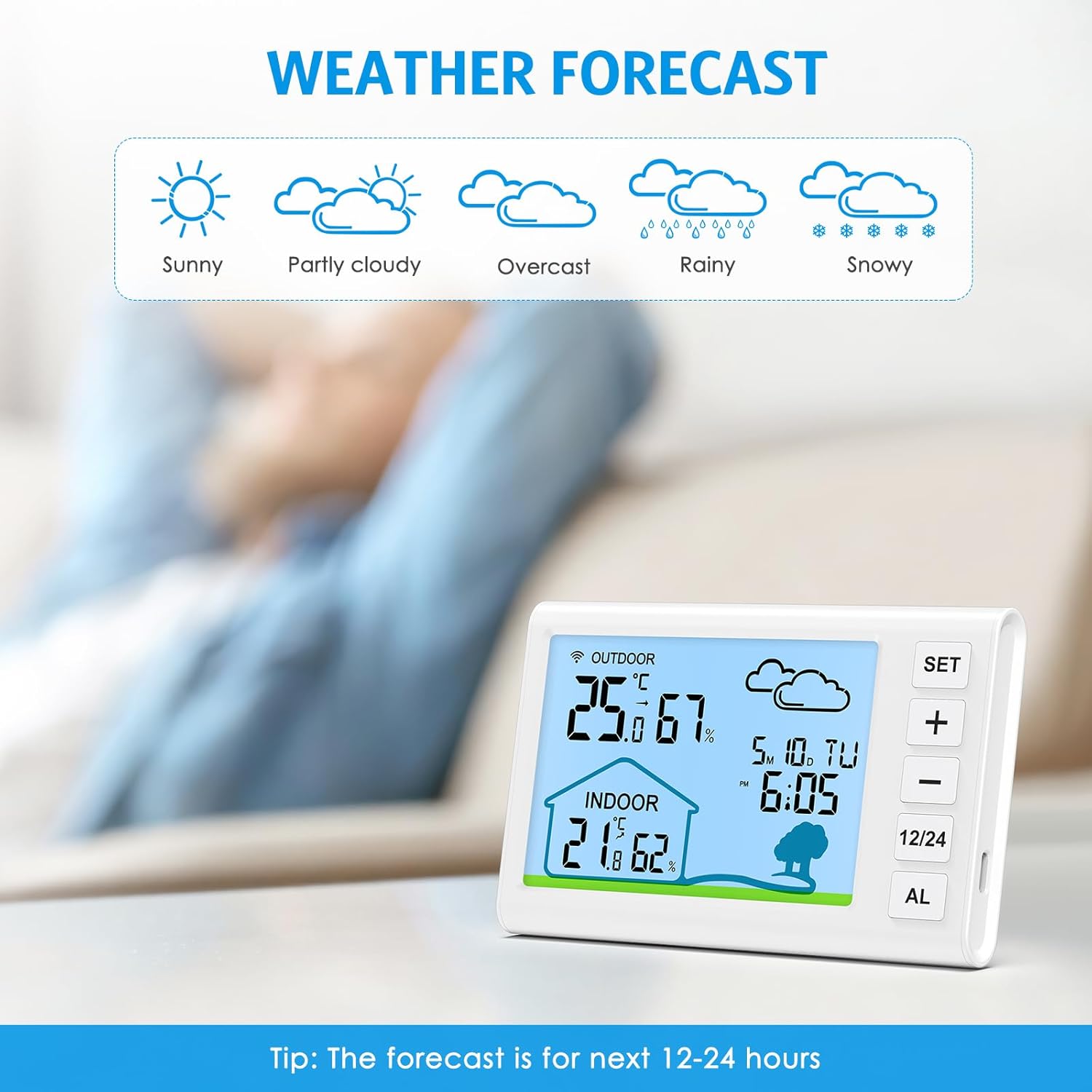
Image 5.1: The main unit displaying various weather forecast icons, including sunny, partly cloudy, overcast, rainy, and snowy, indicating predicted conditions for the next 12-24 hours.
5.2 Alarm Clock Function
To set the alarm:
- Press the AL button once to display the alarm time.
- Press and hold the AL button to enter alarm setting mode.
- Use the + and - buttons to adjust the hour and minute.
- Press AL again to confirm each setting.
- To activate/deactivate the alarm, press the AL button repeatedly until the alarm icon appears/disappears.
When the alarm sounds, press the AL button to activate the snooze function for 5 minutes. To turn off the alarm completely, press any other button.

Image 5.2: The main unit on a bedside table, illustrating its alarm clock and snooze functionality, with icons for alarm and snooze.
5.3 Max/Min Records
Press the MAX/MIN button (or similar, typically the - button when not in setting mode) to view the maximum and minimum temperature and humidity recorded since the last reset. Press again to cycle through current, maximum, and minimum values. To clear the records, press and hold the MAX/MIN button.
6. Maintenance
- Clean the device with a soft, dry cloth. Do not use abrasive cleaners or solvents.
- Avoid exposing the main unit to direct sunlight, extreme temperatures, or moisture.
- The outdoor transmitter is designed for outdoor use but should be placed in a shaded area, protected from direct rain and snow, for optimal accuracy and longevity.
- Replace batteries when the low battery indicator appears on the display.
7. Troubleshooting
| Problem | Possible Cause | Solution |
|---|---|---|
| No display on main unit. | Batteries are dead or incorrectly inserted; Type-C cable not connected or faulty. | Check battery polarity and replace if necessary. Ensure Type-C cable is securely connected to a working power source. |
| Outdoor readings not displayed or inaccurate. | Outdoor sensor batteries are dead; sensor is out of range; interference; sensor not paired. | Replace outdoor sensor batteries. Move sensor closer to the main unit. Avoid placing near large metal objects or electronics. Restart both units to re-establish connection. |
| Inaccurate temperature/humidity readings. | Sensor exposed to direct sunlight, heat sources, or moisture; unit placed near drafts. | Relocate the sensor to a shaded, well-ventilated area away from direct weather elements and heat sources. Ensure main unit is not near windows or vents. |
| Weather forecast does not match local conditions. | Weather forecast is based on atmospheric pressure changes over 12-24 hours, not real-time satellite data. | This is normal. The forecast is an estimation based on internal barometric pressure changes and may not always perfectly align with official forecasts. |
8. Specifications
- Model: WA159-AU
- Product Dimensions: 5.31 x 1.02 x 3.31 inches (Main Unit)
- Weight: 8.82 ounces
- Indoor Temperature Range: -9.9°C to 50°C (14°F to 122°F)
- Outdoor Temperature Range: -50°C to 70°C (-58°F to 158°F)
- Temperature Accuracy: ±1°C (±1.8°F)
- Humidity Range: 20-95% RH
- Humidity Accuracy: ±5% RH
- Wireless Transmission Range: Up to 100 meters (328 feet) in open air
- Main Unit Power: 3 x AAA batteries (not included) or Type-C USB cable (included)
- Outdoor Transmitter Power: 2 x AA batteries (not included)
- Display Type: Digital LCD
- Special Features: Alarm, Clock, High Accuracy, Large Display, Wireless, Max/Min Records, Weather Forecast, Backlight
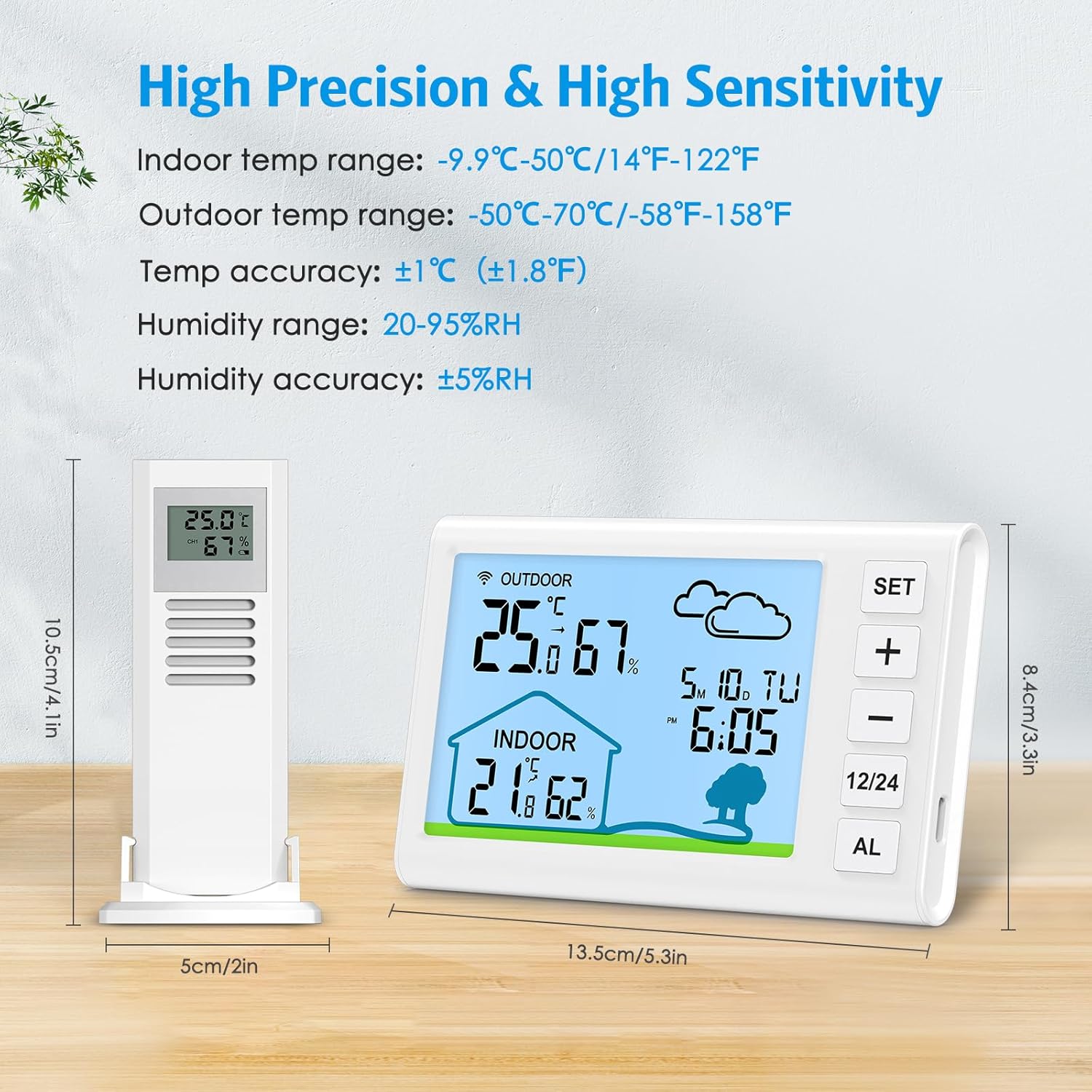
Image 8.1: Detailed specifications including dimensions of the main unit and remote sensor, along with temperature and humidity ranges and accuracy.
9. Warranty and Support
AMIR products are designed for reliability and performance. For warranty information or technical support, please refer to the contact details provided with your purchase documentation or visit the official AMIR website.
Please retain your proof of purchase for any warranty claims.


