
1. Introduction
The Macally Bluetooth Keyboard for Tablet (Model BTTABKEYBATBR) is a versatile wireless keyboard designed for seamless use across multiple devices. Featuring a built-in stand, portable design, and rechargeable battery, it enhances productivity for tablets, smartphones, PCs, and smart TVs. This manual provides essential information for setup, operation, maintenance, and troubleshooting.
2. Product Overview
This compact keyboard offers a comfortable and efficient typing experience with its 78-key layout and responsive scissor-switch keys. It includes 13 dedicated shortcut/media keys for quick access to common functions. The integrated 10.5-inch slot serves as a convenient stand for your smartphone or tablet, allowing for an ergonomic viewing angle.
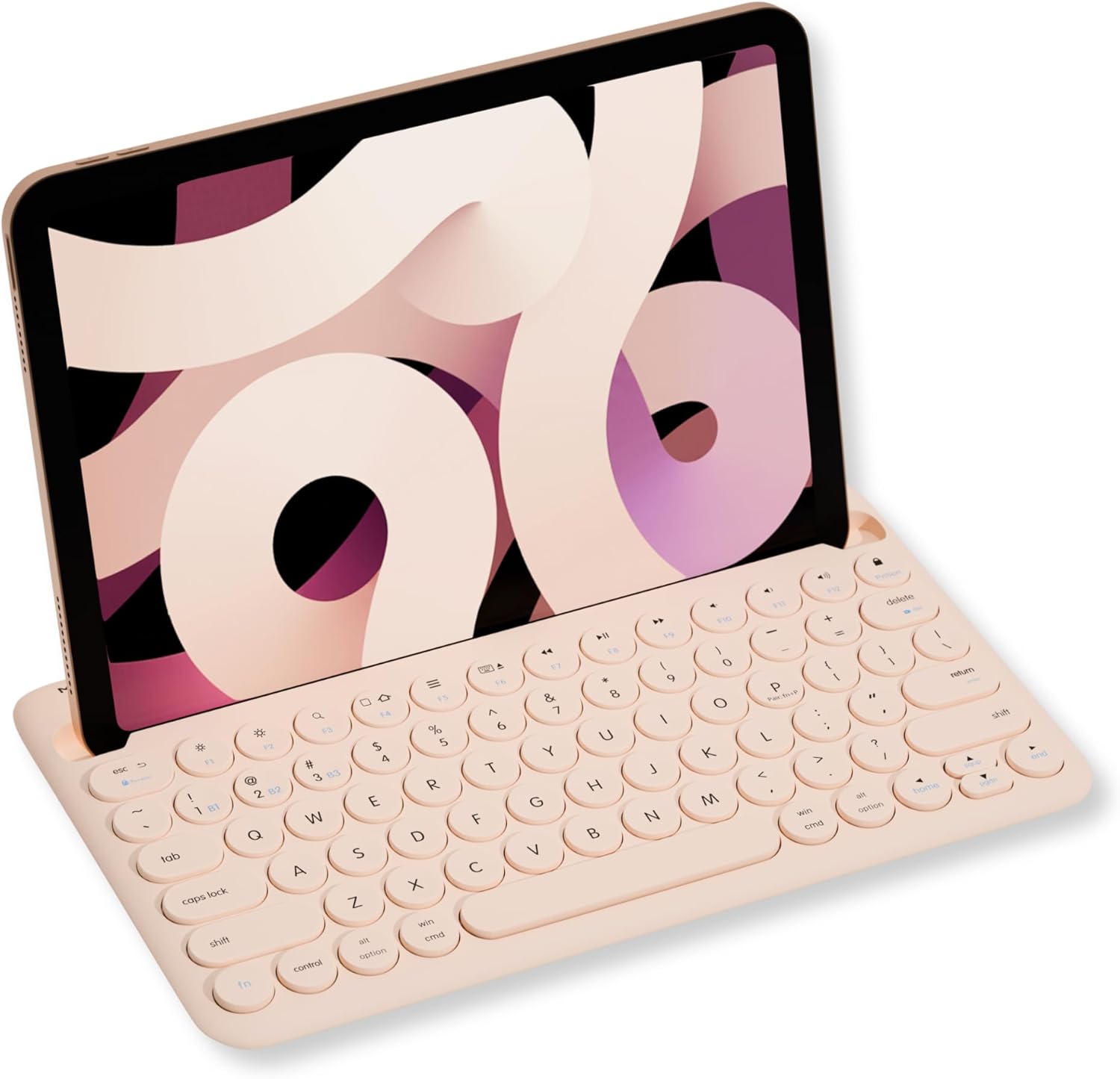
Image: Macally Bluetooth Keyboard with an iPad positioned in its integrated stand.
Key Features:
- Multi-Device Connectivity: Pair and switch between up to three Bluetooth-enabled devices (e.g., iPad, iPhone, PC, Smart TV).
- Integrated Stand: Built-in 10.5-inch slot securely holds your smartphone or tablet for optimal viewing.
- Portable & Rechargeable: Compact design with a 280mAh rechargeable battery for on-the-go use.
- Efficient Layout: 78-key layout with 13 shortcut/media keys for enhanced productivity.
- Responsive Typing: Scissor-switch keys provide a comfortable and semi-silent typing experience.
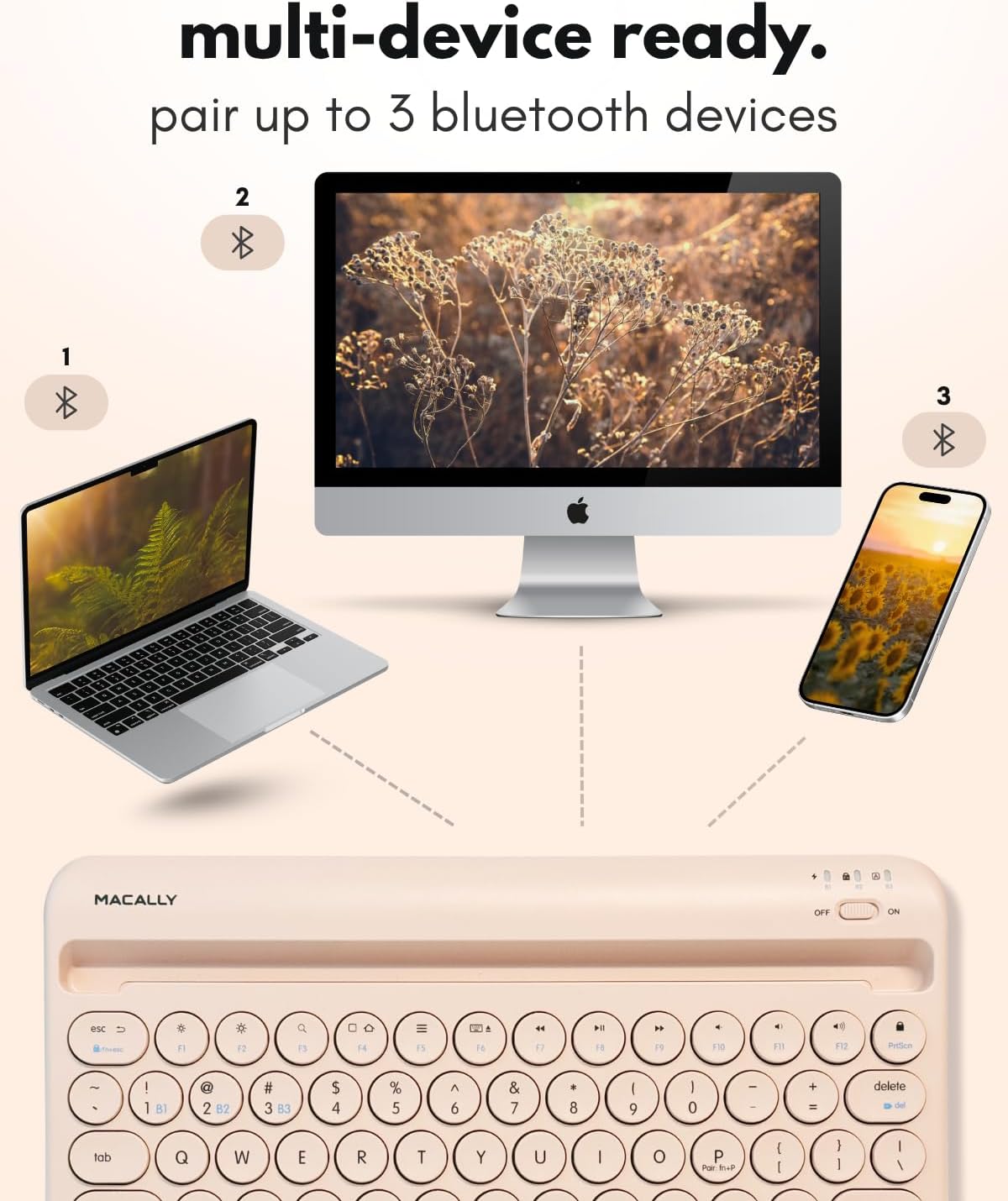
Image: The Macally keyboard demonstrating multi-device connectivity to a laptop, desktop computer, and smartphone.
3. Setup Instructions
3.1. Charging the Keyboard
The keyboard features a 280mAh rechargeable battery. Use the included charging cable to power the device. The LED indicator will show the charging status:
- Red LED: Charging in progress.
- Red LED Off: Fully charged.

Image: A close-up view of the Macally keyboard highlighting the charging port and a battery icon, indicating its rechargeable nature.
3.2. Power On/Off
Locate the power switch on the top right side of the keyboard. Slide it to the 'ON' position to power on the keyboard and to 'OFF' to power it down.
3.3. Bluetooth Pairing
The keyboard can pair with up to three devices. Follow these steps to pair your device:
- Ensure the keyboard is powered on.
- Select a Bluetooth channel (B1, B2, or B3) by pressing the Fn key simultaneously with the desired channel key (e.g., Fn + B1). The corresponding LED (B1, B2, or B3) will flash.
- To initiate pairing mode, press and hold Fn + P simultaneously. The selected channel's LED will flash rapidly, indicating it is ready to pair.
- On your device (tablet, smartphone, PC), go to its Bluetooth settings and search for 'BTTABKEYBAT' (or similar).
- Select the keyboard from the list of available devices to complete the pairing process. The LED will stop flashing once successfully paired.
Video: A demonstration of connecting the Macally Bluetooth keyboard to a device, highlighting the ease of pairing and use.
4. Operating Instructions
4.1. Switching Between Devices
After pairing multiple devices, you can easily switch between them by pressing the Fn key along with the corresponding channel key (B1, B2, or B3) for the desired device.
4.2. Using Shortcut Keys
The keyboard includes 13 shortcut/media keys (F1-F12, and a lock key) that provide quick access to various functions depending on your operating system. Refer to your device's operating system documentation for specific functions of these keys.
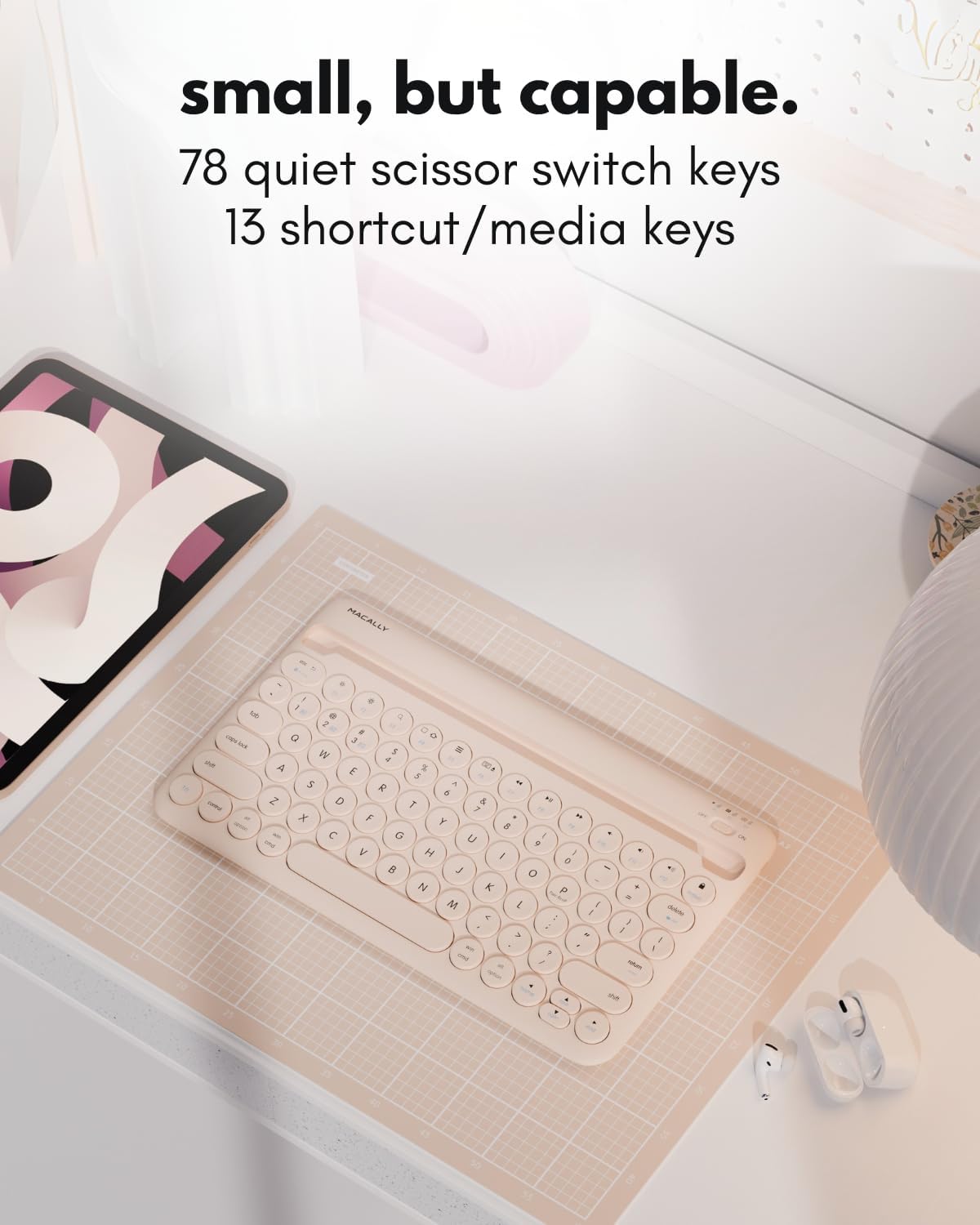
Image: A detailed view of the Macally keyboard, emphasizing its 78-key layout and the inclusion of 13 shortcut/media keys.
5. Maintenance
To ensure the longevity and optimal performance of your Macally Bluetooth Keyboard, follow these maintenance guidelines:
- Cleaning: Use a soft, damp cloth to clean the keyboard surface. Avoid harsh chemicals or abrasive materials.
- Storage: Store the keyboard in a cool, dry place away from direct sunlight and extreme temperatures.
- Battery Care: For best battery life, avoid fully discharging the battery frequently. Charge it regularly, even if not in constant use.
- Protection: When traveling, consider using a protective sleeve or case to prevent scratches or damage.
6. Troubleshooting
6.1. Keyboard Not Pairing
- Ensure the keyboard is powered on and fully charged.
- Verify that Bluetooth is enabled on your device.
- Make sure the keyboard is in pairing mode (LED flashing rapidly after pressing Fn + P).
- If previously paired, try unpairing the keyboard from your device's Bluetooth settings and then re-pairing.
- Move the keyboard closer to your device to ensure it's within the 30ft wireless range.
6.2. Keys Not Responding
- Check if the keyboard is connected to the correct device channel (B1, B2, or B3).
- Ensure the keyboard battery is not critically low.
- Restart both the keyboard and your connected device.
6.3. Charging Issues
- Confirm the charging cable is securely connected to both the keyboard and a power source.
- Try using a different charging cable or USB port.
- Ensure the power source is active.
7. Specifications
| Feature | Detail |
|---|---|
| Model Number | BTTABKEYBATBR |
| Connectivity Technology | Bluetooth |
| Compatible Devices | Laptop, PC, Smart TV, Smartphone, Tablet |
| Keyboard Description | Accessible |
| Special Features | Ergonomic, Hotkeys and Media Keys, Lightweight, Low-Profile Key, Round Key |
| Color | Boba Brown |
| Material | Plastic |
| Power Source | Battery Powered (280mAh rechargeable) |
| Switch Type | Linear (Scissor Switch) |
| Item Weight | 0.071 ounces |
| Package Dimensions | 14.65 x 7.91 x 1.38 inches |

Image: A diagram illustrating the physical dimensions of the Macally Bluetooth Keyboard.
8. Warranty and Support
Macally offers dedicated U.S. based support and service for its products. For warranty registration and additional support, please visit:
- Warranty Registration: vip.macally.com
- Technical Support: techsupport@macally.com


