
Introduction
This manual provides detailed instructions for the Macally UCABLZKEYHUBSG Wired Backlit Keyboard. Please read this manual thoroughly before using the product to ensure proper operation and to maximize its features. This keyboard is designed for compatibility with Mac, Windows, Android, and iOS devices, offering a versatile input solution with integrated USB ports.
Product Overview
The Macally UCABLZKEYHUBSG keyboard features a full-size layout with 107 keys and 16 shortcut keys. It includes a built-in 3-port USB hub for connecting additional peripherals and offers adjustable white LED backlighting for enhanced visibility in various lighting conditions. The keyboard's dual USB-A and USB-C plug ensures broad compatibility.
Key Features:
- Integrated 3-Port USB Hub: Features two USB-A ports and one USB-C port for connecting external devices directly through the keyboard.
- Illuminated Keys: White LED backlighting with 3 adjustable brightness levels for optimal visibility in low-light environments.
- Dual Interface USB Plug: A 2-in-1 USB-C and USB-A connector ensures compatibility with a wide range of devices without requiring adapters.
- Automatic OS Detection: The keyboard automatically detects the operating system (Mac, Windows, Android, iOS) and adjusts key functions accordingly.
- Full-Size Layout: 107 keys including a numeric keypad and 16 convenient shortcut keys.

Image: The Macally Wired Backlit Keyboard, showcasing its full layout and sleek design.

Image: A close-up view of the integrated USB hub on the keyboard, highlighting the USB-A and USB-C ports.
Setup
Setting up your Macally keyboard is a simple plug-and-play process. No drivers or additional software are required for basic functionality.
- Unpack the Keyboard: Carefully remove the keyboard and the attached USB cable from its packaging.
- Identify the Connector: The keyboard features a 2-in-1 USB cable with both a USB-A and a USB-C connector. Choose the appropriate connector for your device.
- Connect to Your Device: Plug the chosen USB connector into an available USB port on your computer, laptop, or compatible device.
- Automatic Detection: The keyboard will automatically detect your operating system (Mac, Windows, Android, iOS) and configure itself for optimal use.

Image: The keyboard's dual USB-A and USB-C connector, illustrating its versatile connectivity options.
Video: An official product video demonstrating the setup and features of the Macally Wired Keyboard with USB Hub.
Operating Instructions
Backlight Control:
The keyboard features white LED backlighting with three adjustable brightness levels. Use the dedicated keys to control the illumination:
- Press the Fn + F5 keys simultaneously to decrease backlight brightness.
- Press the Fn + F6 keys simultaneously to increase backlight brightness.
- Continue pressing to cycle through the brightness levels or turn the backlight off.

Image: The keyboard with its white LED backlighting active, demonstrating visibility in low light.
Using the USB Hub:
The integrated USB hub allows you to connect up to three additional USB devices directly to your keyboard. This is convenient for peripherals such as a mouse, flash drive, or charging small devices.
- Locate the two USB-A ports and one USB-C port on the side of the keyboard.
- Plug your USB devices into the corresponding ports.
- Ensure devices are compatible with USB 2.0 speeds, as the hub operates at this standard.
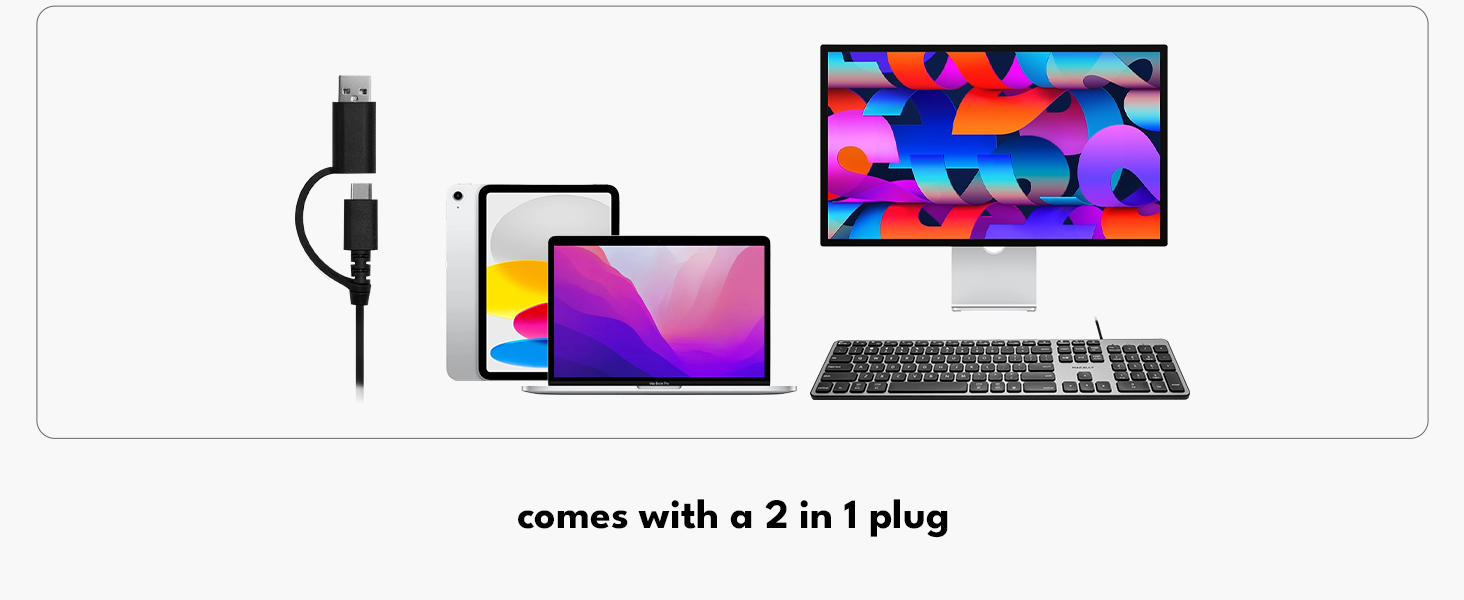
Image: A view of the keyboard's side, illustrating the USB-A and USB-C ports with connected peripherals.
Function Keys and Shortcuts:
The keyboard includes 16 shortcut keys that provide quick access to various functions. Due to automatic OS detection, these keys will adapt to your connected device's operating system. For specific functions, refer to your device's operating system documentation.

Image: The keyboard positioned with logos representing its multi-OS compatibility: Mac, Windows, iOS, and Android.
Maintenance
To ensure the longevity and optimal performance of your Macally keyboard, follow these maintenance guidelines:
- Cleaning: Use a soft, lint-free cloth slightly dampened with water or a mild cleaning solution to wipe the surface of the keyboard. Avoid harsh chemicals, abrasive cleaners, or excessive moisture.
- Dust Removal: Use compressed air to remove dust and debris from between the keys.
- Storage: When not in use for extended periods, store the keyboard in a clean, dry environment away from extreme temperatures.
- Avoid Spills: Keep liquids away from the keyboard to prevent damage to internal components.
Troubleshooting
If you encounter issues with your Macally keyboard, refer to the following common troubleshooting steps:
- Keyboard Not Responding:
- Ensure the USB cable is securely plugged into your device's USB port.
- Try plugging the keyboard into a different USB port on your device.
- If using a USB hub, try connecting the keyboard directly to your device.
- Restart your computer or device.
- Backlight Not Working or Dim:
- Press Fn + F6 repeatedly to increase brightness.
- Ensure the keyboard is receiving sufficient power from the USB port.
- USB Hub Devices Not Detected:
- Ensure the devices are properly connected to the keyboard's USB ports.
- Verify that the devices are compatible with USB 2.0.
- Try connecting the devices directly to your computer to confirm they are functional.
- Some high-power devices may require a direct connection to your computer or a powered USB hub.
- Incorrect Key Functions (e.g., Mac keys on Windows):
- The keyboard features automatic OS detection. If functions are incorrect, try unplugging and replugging the keyboard.
- Ensure your operating system settings are correctly configured for an external keyboard.
Specifications
| Feature | Detail |
|---|---|
| Brand | Macally |
| Model Number | UCABLZKEYHUBSG |
| Connectivity Technology | USB-A, USB-C (2-in-1 cable) |
| Keyboard Description | Wired |
| Special Features | Backlit, Ergonomic, Lightweight, Low-Profile Key |
| Color | Space Gray |
| Backlighting Color | Single Color (White LED) |
| Product Dimensions (L x W x H) | 16.85" x 4.61" x 0.87" |
| Number of Keys | 107 |
| Power Source | Corded Electric |
| Switch Type | Tactile |
| Keyboard Layout | QWERTY |
| Total USB 2.0 Ports | 3 (2x USB-A, 1x USB-C) |
| Material | Plastic |
| Compatible Devices | Laptop, PC (Mac, Windows, Android, iPad, iOS) |
| What's in the Box | Keyboard, USB Cable |

Image: A side profile view of the keyboard, highlighting its compact dimensions.
Warranty and Support
The Macally UCABLZKEYHUBSG Wired Backlit Keyboard comes with a 2-year warranty. For technical assistance, troubleshooting, or warranty claims, please contact Macally's US-based support team. Refer to the official Macally website or product packaging for the most current contact information.
Video: A review video highlighting the features and functionality of the Macally Wired Backlit Keyboard with USB Hub.


