
LAUNCH X431 Smartlink C 2.0
LAUNCH X431 SmartLink C 2.0 Heavy-Duty Diagnostic Module User Manual
Model: X431 Smartlink C 2.0
1. Introduction
The LAUNCH X431 SmartLink C 2.0 is a state-of-the-art heavy-duty diagnostic module designed for professional vehicle diagnostics. It serves as an advanced interface for connecting with various commercial vehicles, including trucks, buses, and construction machinery, to perform in-depth system analysis. This module is an upgraded version of the X431 HD3, offering superior performance, broader vehicle coverage, and enhanced diagnostic capabilities.
It is engineered to work seamlessly with LAUNCH X431 V+, X431 PRO5, and X-431 PAD series diagnostic tablets, providing a comprehensive solution for reading and clearing diagnostic trouble codes (DTCs), viewing live data streams, and executing special functions such as component replacement resets and coding.

Image: The LAUNCH X431 SmartLink C 2.0 diagnostic module shown alongside its complete accessory kit, including various cables and adapters, all neatly organized within a durable storage case.
2. Setup
2.1 Unboxing and Initial Inspection
Upon receiving your LAUNCH X431 SmartLink C 2.0, carefully open the packaging and inspect all components for any signs of damage. Ensure all items listed in the 'What's in the Box' section are present.
2.2 What's in the Box
- X431 SmartLink C 2.0 Diagnostic Module
- Quick Start Guide
- Confidential Letter
- Storage Case
- Various diagnostic cables and adapters (e.g., FUSE, Power Cable Clips, HY 16, M/F 12+16, USB Cable, Jumper 10, Lighter Cable, OBDI Adaptor, Electric switch lines, Network Cable, IV-30, BZ-14, OBD-16, Type II OBD-9, MAN-37, OBD 6, CT-9, IV-38, M-12, VO-8, RE-12, OBDII 16)
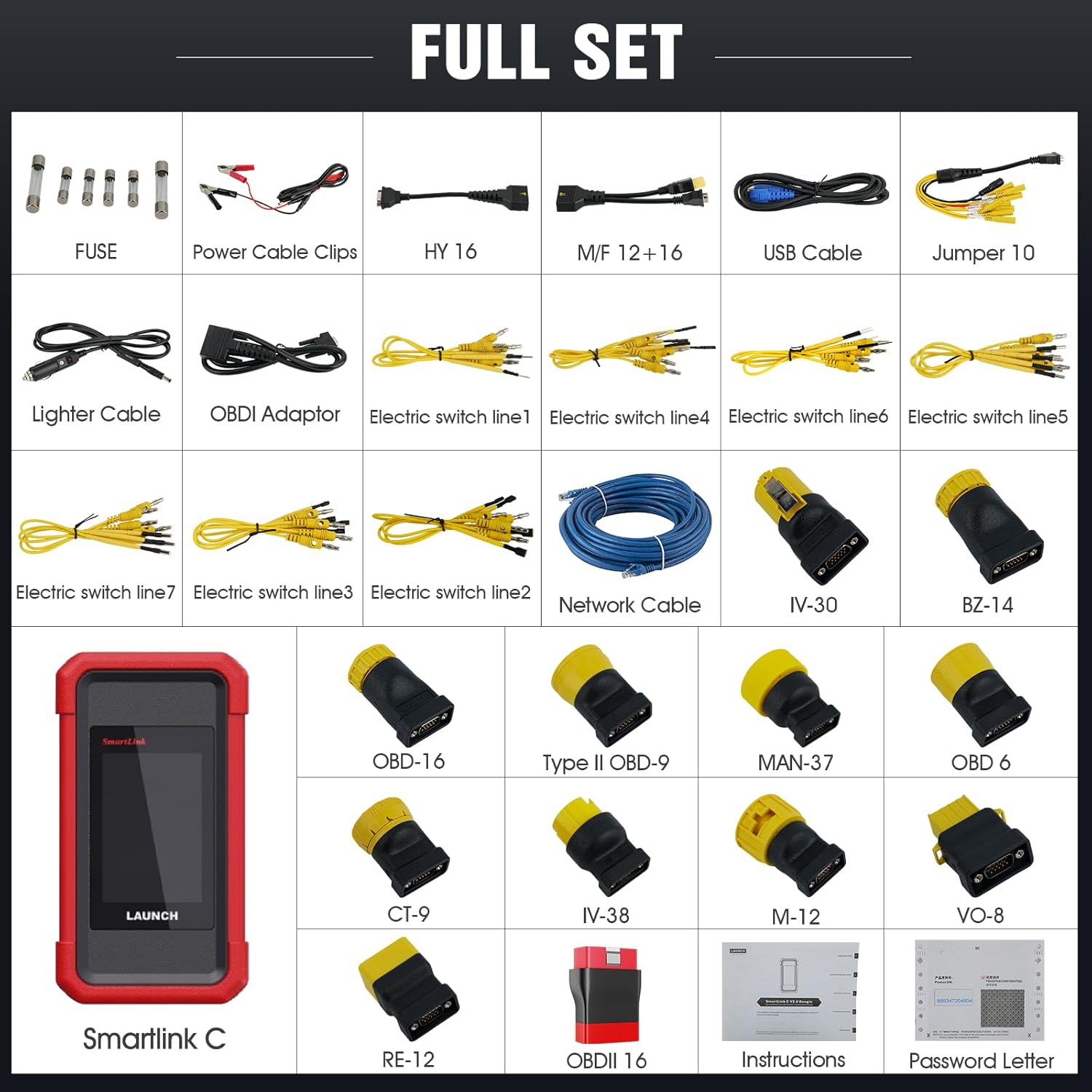
Image: A detailed layout of the complete set of components included with the LAUNCH X431 SmartLink C 2.0, showcasing the main module, various diagnostic cables, power adapters, and connectors.
2.3 Connecting the SmartLink C 2.0
The SmartLink C 2.0 module is not a standalone device and requires connection to a compatible LAUNCH diagnostic tablet (X431 V+, PRO5, or PAD series) for operation. Connection can be established via USB, Bluetooth, Wi-Fi, or Ethernet.
- USB Connection: Connect the SmartLink C 2.0 to your diagnostic tablet using the provided USB cable.
- Bluetooth Connection: Ensure Bluetooth is enabled on both the SmartLink C 2.0 and your diagnostic tablet. Pair the devices through the tablet's settings.
- Wi-Fi Connection: Configure the SmartLink C 2.0 to connect to the same Wi-Fi network as your diagnostic tablet.
- Ethernet Connection: For stable and high-speed data transfer, connect the SmartLink C 2.0 to your network via an Ethernet cable.

Image: A visual guide illustrating how to connect the X431 SmartLink C 2.0 to a LAUNCH X431 Pro3S+ diagnostic tablet, highlighting the wireless (Wi-Fi and Bluetooth) connection options for data transfer to a commercial vehicle.
3. Operating Instructions
3.1 Powering On and Interface Overview
Connect the SmartLink C 2.0 to a power source or the vehicle's OBD port. The 3.97-inch TFT display will illuminate, showing the device status. The module features a diagnostic interface, power interface, USB B interface, and DC interface.

Image: An exploded view of the LAUNCH X431 SmartLink C 2.0, detailing its various interfaces including the diagnostic interface, screen, power interface, USB B interface, and DC interface.
3.2 Diagnostic Functions
Once connected to a compatible LAUNCH tablet and the vehicle, the SmartLink C 2.0 enables a range of diagnostic functions:
- Code Reading: Retrieve current, pending, and historic diagnostic trouble codes (DTCs) from various vehicle systems.
- Code Clearing: Erase DTCs from the vehicle's ECU after repairs are completed.
- Data Stream Analysis: View live data parameters from vehicle sensors and components in real-time, often displayed as graphs or numerical values.
- Action Tests (Bi-directional Control): Perform active tests on vehicle components to verify their functionality.
- Special Functions: Access specific vehicle functions such as component replacement resets, coding, and adaptations.

Image: A visual comparison highlighting the upgraded visualization and user interface of the LAUNCH X431 SmartLink C 2.0 compared to its predecessor, the X431 HDIII, indicating an easier diagnostic experience.
3.3 Vehicle Coverage
The SmartLink C 2.0 supports a wide range of heavy-duty vehicles, including but not limited to:
- Trucks (e.g., Hino, FOTIAN, ISUZU Heavy Vehicle, KENWORTH heavy truck, VOLVO heavy truck, Freightliner heavy truck, SCANIA, Mack, Kenworth)
- Buses (e.g., YUTONG BUS, Higer Bus, ZHONGTONG BUS)
- Construction Machinery (e.g., JCB, An Excavator)
- Agricultural Machinery
- Trailers
- Marine Engines
It supports brands such as Mitsubishi, Isuzu, Fuso, Mercedes-Benz Commercial Vehicles, Bosch, Weichai, Shangchai, Yuchai, Xichai, Chaogai, Yangchai, and Quanchai, and over 80 other heavy-duty truck brands.

Image: A collage demonstrating the diverse range of commercial vehicles supported by the LAUNCH X431 SmartLink C 2.0, including large trucks, buses, construction excavators, and smaller commercial vehicles.
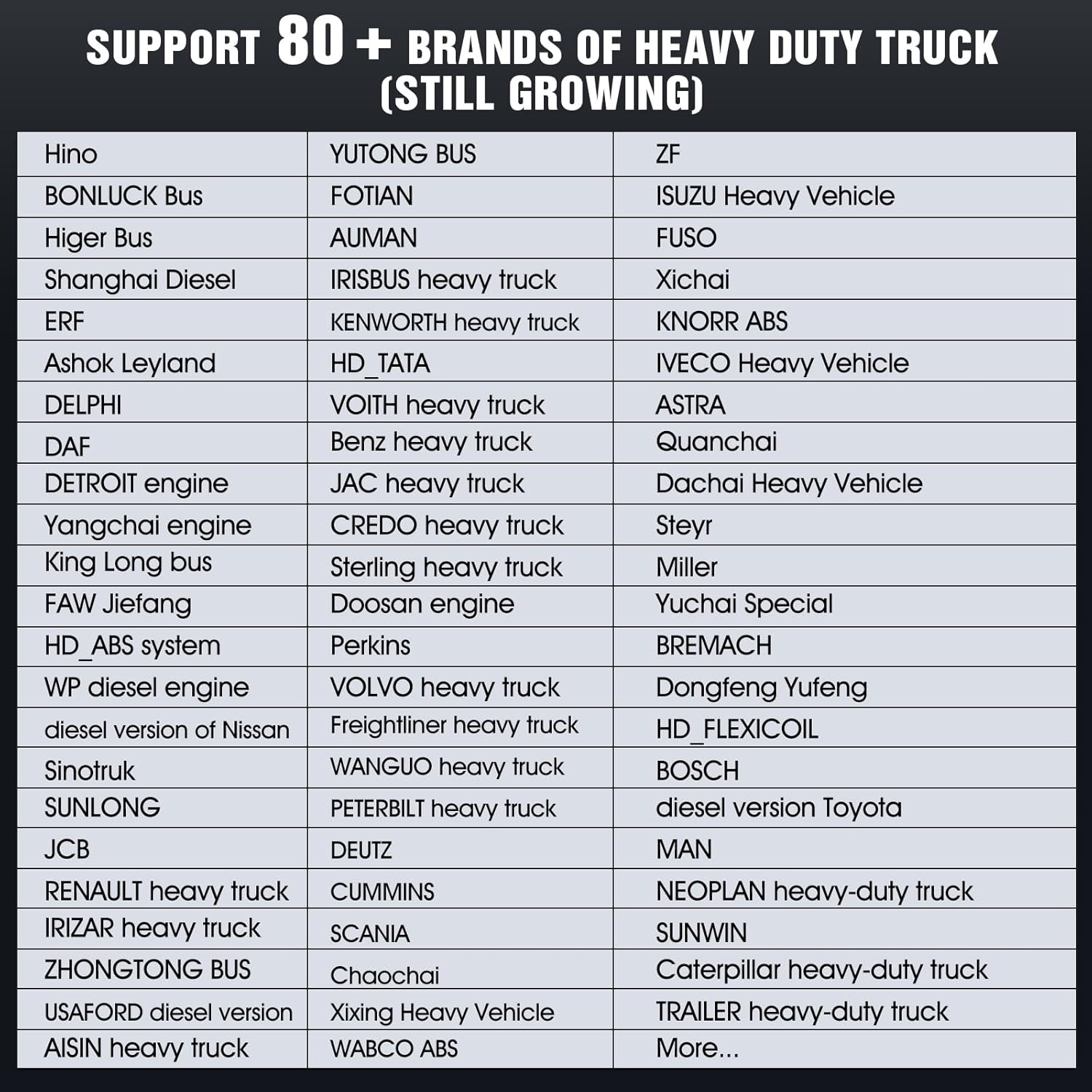
Image: A comprehensive list displaying over 80 heavy-duty truck brands that are supported by the LAUNCH X431 SmartLink C 2.0 diagnostic module, indicating its broad compatibility.
3.4 Remote Diagnosis
The SmartLink C 2.0 features advanced remote diagnostic capabilities. This allows expert technicians to connect to your device remotely to assist in resolving complex diagnostic issues, providing real-time support and guidance.

Image: A conceptual diagram illustrating the cloud and remote diagnosis features of the SmartLink C 2.0, showing data being sent and received between the diagnostic module and a remote server, enabling faster diagnosis.
4. Maintenance
- Cleaning: Use a soft, dry cloth to clean the device. Avoid using abrasive cleaners or solvents.
- Storage: Store the SmartLink C 2.0 in its provided storage case in a cool, dry place when not in use.
- Software Updates: Regularly check for and install software updates to ensure optimal performance and access to the latest vehicle models and diagnostic features. The product includes 2 years of free updates.
- Cable Inspection: Periodically inspect all cables and connectors for wear or damage. Replace any damaged components immediately to prevent malfunction.
5. Troubleshooting
- Device not powering on: Ensure the device is properly connected to a power source or the vehicle's OBD port. Check the power cable and vehicle battery.
- Connection issues (Bluetooth/Wi-Fi): Verify that Bluetooth/Wi-Fi is enabled on both the SmartLink C 2.0 and the diagnostic tablet. Ensure devices are within range and there is no interference. For Wi-Fi, confirm the network connection is stable.
- Unable to communicate with vehicle: Check that the diagnostic cable is securely connected to both the SmartLink C 2.0 and the vehicle's OBD port. Ensure the vehicle's ignition is on. Verify that the correct vehicle make/model is selected on the diagnostic tablet.
- Software freezing/slow performance: Ensure the device has sufficient storage space. Perform a software update if available. Restart the device and the diagnostic tablet.
- Diagnostic results are inconsistent: Ensure all connections are secure. Verify that the vehicle's battery voltage is stable. Consult the vehicle's service manual for specific diagnostic procedures.
For complex issues not resolved by these steps, utilize the remote diagnosis feature or contact LAUNCH technical support.
6. Specifications
| Feature | Specification |
|---|---|
| Model | X431 Smartlink C 2.0 |
| CPU | Dual Cortex-A7 and Cortex-M7 processors |
| Operating System | Linux |
| ROM | 8GB |
| RAM | 256MB |
| Display | 3.97-inch TFT, 320x480 resolution |
| Dimensions | 200mm x 110mm x 47mm |
| Connectivity | USB, Bluetooth, Wi-Fi (2.4/5.0GHz), Ethernet |
| Power Input | 9V DC - 36V DC |
| Supported Languages | English, German, French, Spanish, Italian, Chinese, Japanese, Russian |
| Item Weight | 12.92 pounds (packaged) |
| Package Dimensions | 16.8 x 14 x 6.65 inches |

Image: An illustration highlighting the multiple transmission modes supported by the SmartLink C 2.0, including USB, Wi-Fi, Bluetooth, and Ethernet, which enhance diagnostic convenience.
7. Warranty and Support
7.1 Warranty Information
The LAUNCH X431 SmartLink C 2.0 comes with a manufacturer's warranty. Please refer to the 'Confidential Letter' included in your package for specific warranty terms and conditions. Keep your proof of purchase for warranty claims.
7.2 Technical Support
For technical assistance, software updates, or any operational queries, please contact LAUNCH customer support. Leveraging the SmartLink C 2.0's remote diagnostic capabilities, expert technicians can provide online assistance to resolve complex diagnostic issues efficiently.
Visit the official LAUNCH website for support resources, FAQs, and contact information.
Related documentsX431 Smartlink C 2.0


Ask a question about this manual
Ask about setup, troubleshooting, compatibility, parts, safety, or missing instructions. Manuals+ will review the question and use this page’s manual context to help answer it.