
Blackview cell phone US unlocked Blakcview Color8
Blackview Color 8 Unlocked Cell Phone User Manual
Model: cell phone US unlocked Blakcview Color8
Brand: Blackview
Product Overview
The Blackview Color 8 is a feature-rich unlocked cell phone designed for efficient multitasking and a seamless user experience. It combines powerful hardware with an intuitive operating system to provide reliable performance for daily communication, entertainment, and productivity.
Key Features
- Octa-Core Processor: UMS9230T/T616 for smooth performance.
- Ample Storage: 16GB RAM (8+8 virtual) + 128GB ROM, expandable up to 2TB via SD card.
- High-Resolution Camera: 50MP rear camera with JN1 sensor and 8MP front camera.
- Long-Lasting Battery: 6000mAh battery with 18W fast charging and OTG function.
- Vibrant Display: 6.75-inch HD+ 90Hz screen with 720x1600 resolution.
- Advanced OS: Android 13 with Doke OS 4.0 UI system.
- Connectivity: 4G Dual SIM, 5G WiFi, Bluetooth 5.0, GPS+Glonass+Galileo+Beidou.
- Security: Fingerprint and Face ID unlocking.

Image: The Blackview Color 8 phone in blue, showcasing its sleek design, along with a protective case and wireless earbuds, highlighting its main features like 50MP camera, 16GB RAM, and 128GB storage.
Setup Guide
Follow these steps to set up your Blackview Color 8 for the first time.
1. Inserting SIM and SD Cards
The Blackview Color 8 supports dual Nano SIM cards and one Micro SD/TF card for expanded storage. The device features a 3-card slot design.
- Locate the SIM tray on the side of the phone.
- Use the provided SIM ejector tool to open the tray.
- Carefully place your Nano SIM cards and Micro SD card into the designated slots on the tray. Ensure the gold contacts are facing down.
- Gently push the tray back into the phone until it is flush with the device body.

Image: Close-up view of the Blackview Color 8's side, showing the 3-card slot for two Nano SIM cards and one Micro SD/TF card, along with the 3.5mm headphone jack.
2. Initial Power On and Basic Configuration
- Press and hold the Power button (located on the side, integrated with the fingerprint sensor) until the Blackview logo appears.
- Follow the on-screen prompts to select your language, region, and connect to a Wi-Fi network.
- Sign in with your Google account or create a new one to access Google services and the Play Store.
- Set up your preferred screen lock method, including fingerprint and Face ID for quick and secure access.
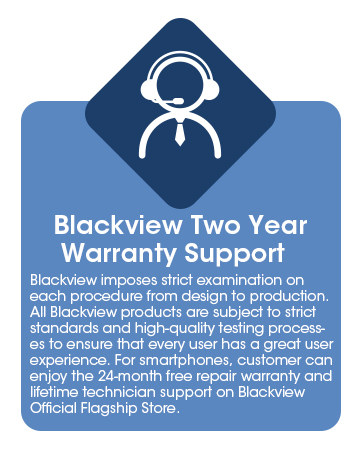
Image: A hand interacting with the side-mounted power button, which also functions as the fingerprint sensor, demonstrating instant access to the device.
Operating Your Device
Display and Navigation
The Blackview Color 8 features a large 6.75-inch HD+ display with a 90Hz refresh rate for smooth visuals. Navigate using standard Android gestures or on-screen navigation buttons.

Image: The Blackview Color 8's large 6.75-inch HD+ display, highlighting its 90Hz refresh rate, 89.9% screen-to-body ratio, 450 nit brightness, and 16.7 million colors.
Camera Usage
Capture stunning photos and videos with the 50MP rear camera and 8MP front camera. The camera app offers various modes to enhance your photography.
- Standard Photo: For everyday shots.
- Beauty Mode: Enhances facial features for selfies.
- Portrait Mode: Creates a blurred background effect.
- Night Mode: Improves photo quality in low-light conditions.
- Panorama Mode: Capture wide scenic views by stitching multiple photos.
- Pro Mode: Offers manual controls for advanced users.
- Video Recording: Supports 1080p video recording.

Image: Visual representation of the Blackview Color 8's camera capabilities, including its 50MP main camera, and various shooting modes like Beauty, Portrait, Night, and Panorama.
Battery Management
The 6000mAh battery provides extended usage. Utilize the 18W fast charging for quick power-ups. The Smart Battery System optimizes energy efficiency.
- To charge, connect the provided charger and data cable to the Type-C port.
- The OTG function allows the phone to act as a power bank for other devices. Connect a compatible OTG cable to charge other devices.
- Monitor battery usage in Settings to identify power-consuming apps.

Image: An illustration of the Blackview Color 8's internal components, highlighting the 6000mAh battery and 18W fast charging capability, along with icons for OTG function and Type-C port.
Android 13 and Doke OS 4.0 Features
Experience enhanced privacy and a user-friendly interface with Android 13 and Blackview's Doke OS 4.0.
- App Language Selection: Customize language settings for individual applications.
- Outdoor Tools: Access useful tools for outdoor activities.
- Gaming Mode: Optimize performance for gaming sessions.
- Real-time Subtitles: Get live captions for videos and audio.
- Call Recording: Record phone calls for future reference.
- Motion Index Tracking: Monitor physical activity.

Image: A visual representation of the Blackview Color 8's software interface, showcasing Android 13 and Doke OS 4.0, with features like data migration, focus mode, and various app icons.
Connectivity and Navigation
The Color 8 supports 4G networks, 5G WiFi, and Bluetooth 5.0. For navigation, it utilizes GPS, Glonass, Galileo, and Beidou for precise positioning.
- Ensure your SIM card is active and compatible with supported carriers (T-Mobile, Speedtalk, Mint Mobile, etc.).
- Connect to Wi-Fi networks via Settings > Network & internet > Wi-Fi.
- Pair Bluetooth devices via Settings > Connected devices > Bluetooth.
- Use mapping applications for navigation, leveraging the phone's 4-in-1 GPS system.

Image: A map interface on the Blackview Color 8 screen, illustrating the phone's GPS+Glonass+Galileo+Beidou navigation capabilities for precise location tracking.
Maintenance
Proper maintenance ensures the longevity and optimal performance of your Blackview Color 8.
Cleaning Your Device
- Use a soft, lint-free cloth to wipe the screen and body.
- Avoid using harsh chemicals, abrasive cleaners, or aerosol sprays.
- Keep ports free of dust and debris.
Software Updates
Regularly check for and install software updates to ensure your device has the latest features, security patches, and performance improvements. You can usually find this option in Settings > System > System update.
Battery Care
- Avoid extreme temperatures, as they can degrade battery life.
- Do not leave the phone charging for excessively long periods after it reaches 100%.
- If storing the device for a long time, charge it to about 50% before turning it off.
Troubleshooting
This section addresses common issues you might encounter with your Blackview Color 8.
Device Not Turning On
- Ensure the battery is charged. Connect the charger and wait a few minutes before attempting to power on.
- Press and hold the Power button for at least 10-15 seconds to force a restart.
Poor Network Connectivity
- Check if your SIM card is properly inserted.
- Verify that your mobile data is enabled in Settings.
- Restart the phone.
- Ensure you are within your carrier's coverage area.
- Note: This phone is not compatible with CDMA carriers such as AT&T, Cricket Wireless, Verizon, Straight Talk, or U.S. Cellular.
Apps Crashing or Freezing
- Close and reopen the app.
- Clear the app's cache and data in Settings > Apps.
- Ensure the app is updated to its latest version from the Play Store.
- Restart your phone.
Battery Draining Quickly
- Reduce screen brightness.
- Disable unused features like Bluetooth, Wi-Fi, or GPS when not needed.
- Close background apps.
- Check battery usage in Settings to identify power-hungry applications.
Specifications
Detailed technical specifications for the Blackview Color 8.
| Feature | Specification |
|---|---|
| Product Dimensions | 6.61 x 3.05 x 0.36 inches |
| Item Weight | 8 ounces |
| Operating System | Android 13.0 |
| Processor | 12nm Octa-core UMS9230T/T616 |
| RAM Memory Installed Size | 16 GB (8GB + 8GB virtual) |
| Memory Storage Capacity | 128 GB (Expandable up to 2TB via SD card) |
| Standing Screen Display Size | 6.75 Inches |
| Resolution | 720 x 1600 (HD+) |
| Refresh Rate | 90Hz |
| Rear Camera | 50MP |
| Front Camera | 8MP |
| Battery Capacity | 6000 Milliamp Hours |
| Charging | 18W Fast Charging |
| Audio Jack | 3.5 mm |
| Wireless Communication Technologies | Bluetooth, Cellular, Wi-Fi (5G WiFi) |
| GPS | GPS+Glonass+Galileo+Beidou |
| SIM Card Slots | 3 (2 Nano SIM + 1 Micro SD/TF) |
| What's in the box | Earphone, Adapter, Protective Case, Data Cable, Charger, Instruction Manual |
Warranty and Support
Blackview provides comprehensive support for your Color 8 device.
2-Year Guarantee Service
All Blackview cell phones come with a 2-year guarantee. This includes a 24-month free repair warranty and lifetime technician support from the Blackview Official Flagship Store.

Image: An icon representing customer support with text indicating 'Blackview Two Year Warranty Support' and a description of the warranty terms.
Contacting Support
If you encounter any problems or require assistance, please communicate with Blackview customer service. Refer to the contact information provided in your product packaging or visit the official Blackview website for support channels.
Ask a question about this manual
Ask about setup, troubleshooting, compatibility, parts, safety, or missing instructions. Manuals+ will review the question and use this page’s manual context to help answer it.