ieGeek 5MP Indoor Camera User Manual
Model: SC1 Pro
1. Introduction
The ieGeek 5MP Indoor Camera is a versatile home security device designed to provide comprehensive surveillance and monitoring. Featuring 5MP Super HD resolution, dual-band 2.4GHz/5GHz Wi-Fi connectivity, and pan/tilt capabilities, it offers clear visuals and flexible coverage. This manual provides detailed instructions for setting up, operating, and maintaining your camera to ensure optimal performance.

Figure 1.1: ieGeek 5MP Indoor Camera
2. Box Contents
Please verify that all items listed below are included in your package:
- 5MP 5Ghz WiFi Indoor Security Camera x1
- 5V/1A Power Adapter x1
- USB-C Cable x1
- Camera Base x1
- User Manual x1
- Mounting screws x4

Figure 2.1: Included Box Contents
Video 2.1: ieGeek SC1 Pro 5MP Indoor Camera Unboxing Video. This video demonstrates the unboxing process and shows all the components included in the package.
3. Setup
3.1 Initial Setup and Wi-Fi Connection
The ieGeek 5MP Indoor Camera supports both 2.4GHz and 5GHz Wi-Fi networks for flexible connectivity. Follow these steps to set up your camera:
- Plug in the camera using the provided power adapter and USB-C cable.
- Download the "ieGeek Cam" app from your smartphone's app store (available for iPhone and Android).
- Open the app and follow the on-screen instructions to add a new device.
- Ensure your smartphone is connected to the same Wi-Fi network (2.4GHz or 5GHz) that you intend to connect the camera to.
- Scan the QR code located on the camera using the app to initiate the connection process.
- Wait for the camera to connect to your Wi-Fi network. A successful connection will be indicated by a solid blue light on the camera.

Figure 3.1: Wi-Fi Connection Steps
Video 3.1: ieGeek 5MP 5G Indoor Security Camera Setup. This video guides you through the process of connecting your camera to your Wi-Fi network.
3.2 Installing a Memory Card
The camera supports local storage via a microSD card (up to 256GB, not included). To install or access the memory card slot and reset button:
- Gently push the camera lens upwards until it fully rotates, revealing the memory card slot and reset button.
- Insert the microSD card into the slot until it clicks into place.
- It is recommended to format the memory card through the app after installation for optimal performance.
Video 3.2: Where is the Reset button and memory card slot. This video demonstrates how to locate and access the memory card slot and reset button on the camera.
4. Operating Instructions
4.1 Pan, Tilt, and Digital Zoom Control
Control the camera's viewing angle directly from the ieGeek Cam app. The camera offers 360° horizontal pan and 55° vertical tilt for comprehensive coverage.
- In the live view interface of the app, use the directional controls to pan (move horizontally) and tilt (move vertically) the camera lens.
- The camera also supports 4x digital zoom to view details more closely.

Figure 4.1: Automatic Tracking and Pan/Tilt Capabilities
Video 4.1: ieGeek 5MP 5G Indoor Pet Camera. This video showcases the camera's pan and tilt functionality, including automatic tracking of pets.
4.2 Two-Way Audio
Communicate with family members or pets through the camera's built-in microphone and speaker.
- In the live view, tap the microphone icon to enable two-way audio. Hold the button to speak, and release to listen.

Figure 4.2: Two-Way Talk and Monitoring Features
4.3 Motion Detection and Auto Tracking
The camera can detect movement and automatically track subjects, sending real-time alerts to your phone.
- Enable motion detection in the app settings to receive instant alerts when movement is detected.
- Activate auto-tracking to have the camera follow moving objects within its 360° field of view.
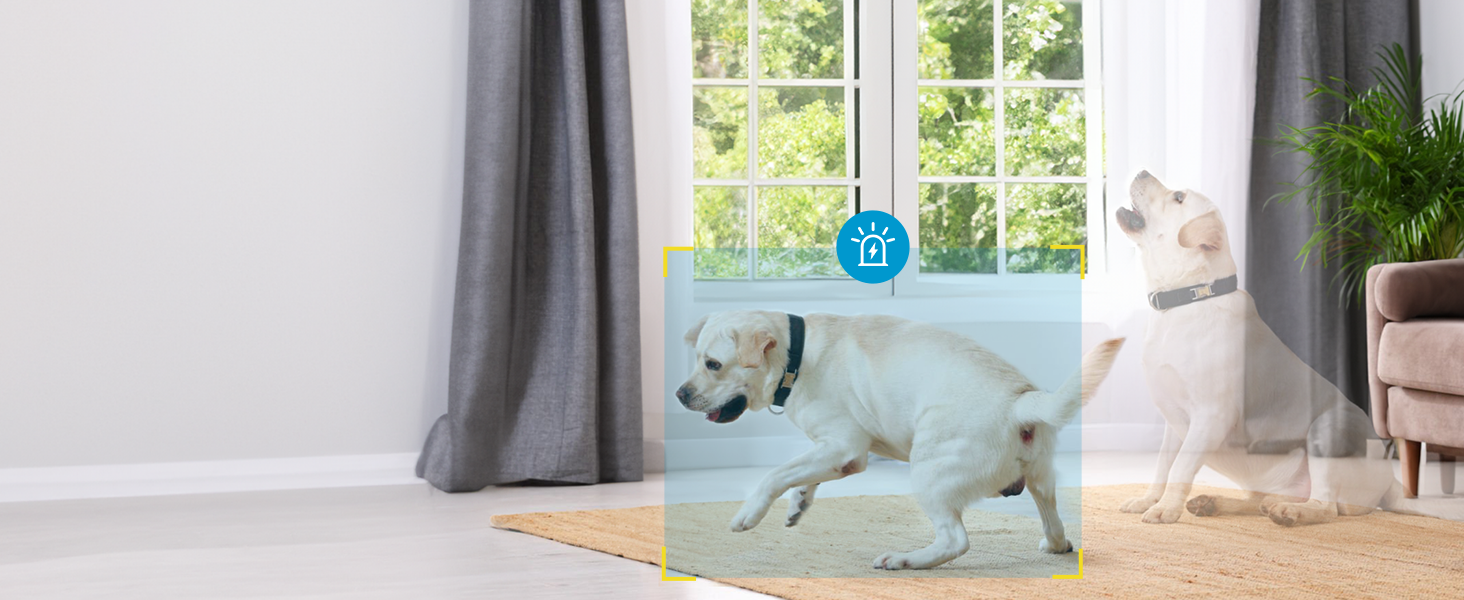
Figure 4.3: Motion Detection in Action
Video 4.2: Take control of your home with the ieGeek 5MP indoor camera. This video highlights the camera's motion detection and auto-tracking features.
4.4 Night Vision
The camera's built-in infrared LEDs provide clear night vision up to 50 feet, ensuring monitoring even in low-light conditions.
- Night vision activates automatically in low light.

Figure 4.4: Night Vision Monitoring
4.5 Storage Options
The camera offers flexible storage solutions for your recordings:
- Local Storage: Save recordings to a microSD card (up to 256GB, not included). The camera supports 24/7 recording.
- Cloud Storage: Utilize the free lifetime cloud storage service for 6-second recordings with 7-day loop coverage.

Figure 4.5: Multiple Storage Options
4.6 Privacy Protection
The camera includes features to protect your privacy:
- You can turn the camera on/off with one click in the app.
- Customize recording schedules to avoid monitoring during inconvenient times.
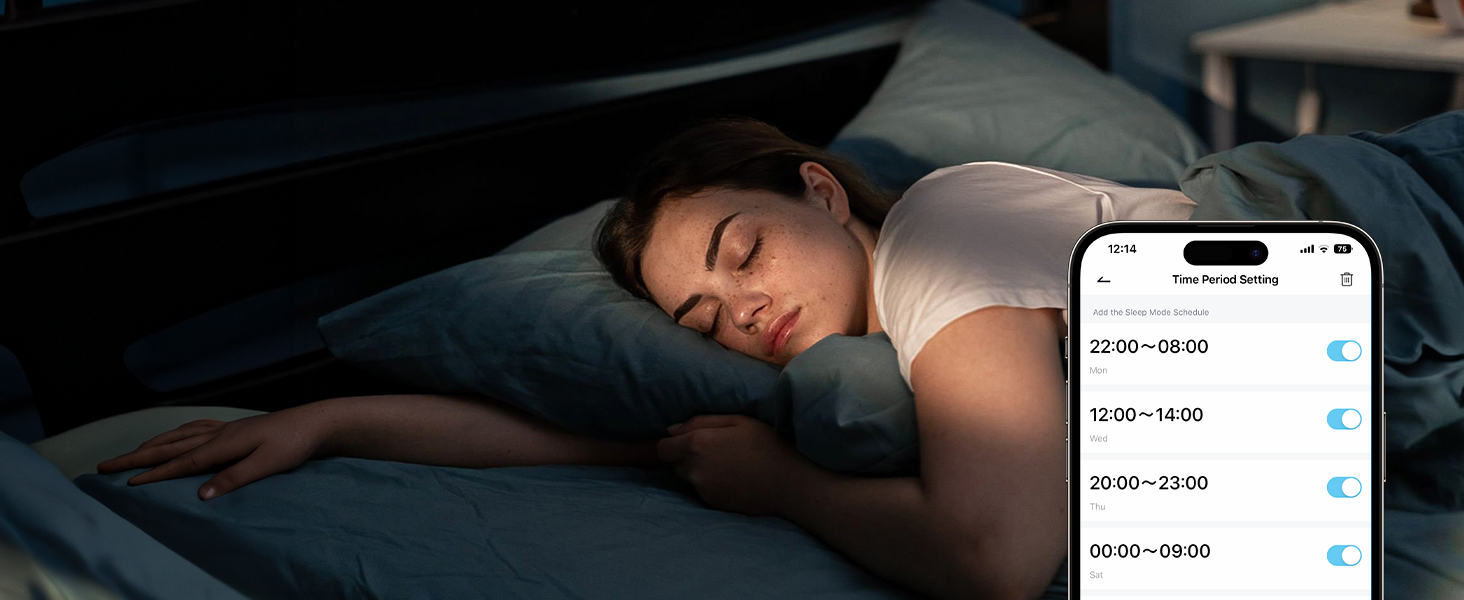
Figure 4.6: Privacy Time Setting
4.7 Device Sharing and Alexa Integration
Share access to your camera and integrate with smart home systems:
- Device Sharing: Allow multiple users to view the live feed simultaneously on their iPhone or Android devices.
- Works with Alexa: Integrate your ieGeek camera with Alexa-enabled devices for voice control and viewing on compatible screens.

Figure 4.7: Works with Alexa
5. Maintenance
To ensure the longevity and optimal performance of your ieGeek 5MP Indoor Camera, follow these maintenance guidelines:
- Cleaning: Use a soft, dry cloth to clean the camera lens and body. Avoid using harsh chemicals or abrasive materials that could scratch the surface.
- Placement: Avoid installing the camera in corners, load-bearing walls, or near large appliances (such as TVs) that might interfere with signal transmission.
- Firmware Updates: Regularly check the ieGeek Cam app for firmware updates to ensure your camera has the latest features and security enhancements.
6. Troubleshooting
If you encounter issues with your ieGeek 5MP Indoor Camera, refer to the following common solutions:
| Problem | Possible Cause | Solution |
|---|---|---|
| Camera not connecting to Wi-Fi | Incorrect Wi-Fi password, weak signal, or incorrect network band. | Double-check Wi-Fi password. Ensure camera is within router range. Verify you are connecting to a 2.4GHz or 5GHz network as supported. Try restarting the camera and router. |
| Video feed is blurry or unclear | Protective film on lens, dirty lens, or poor network connection. | Remove any protective film from the lens. Clean the lens with a soft, dry cloth. Ensure a stable Wi-Fi connection. |
| Motion detection alerts not received | Motion detection disabled in app, incorrect sensitivity settings, or app notifications turned off. | Enable motion detection in the app. Adjust detection sensitivity. Check phone notification settings for the ieGeek Cam app. |
| MicroSD card not recognized | Card not inserted correctly, unsupported card, or card needs formatting. | Reinsert the card. Ensure it is a compatible microSD card (up to 256GB). Format the card via the app. If issues persist, try a different card. |
| Camera is offline | Power disconnected, Wi-Fi signal lost, or router issues. | Check power connection. Verify Wi-Fi network is active. Restart camera and router. |
7. Specifications
| Feature | Detail |
|---|---|
| Model Name | ieGeek SC1 Pro |
| Video Capture Resolution | 5MP Super HD (1920p) |
| Connectivity Technology | Wired (Corded Electric) |
| Wireless Communication Technology | 5GHz & 2.4GHz Wi-Fi |
| Pan/Tilt Range | 360° Horizontal, 55° Vertical |
| Night Vision Range | 50 Feet |
| Storage Options | MicroSD Card (up to 256GB, not included), Cloud Storage |
| Two-Way Audio | Yes |
| Motion Detection | Yes (Motion Only) |
| Auto Tracking | Yes |
| Compatible Devices | Tablet, Smartphone (ieGeek Cam APP) |
| Works with | Alexa |
| Power Source | Corded Electric (7 watts) |
| Item Dimensions (L x W x H) | 4.37 x 2.76 x 2.76 inches |
| Item Weight | 1.1 pounds |
8. Warranty & Support
ieGeek offers a 2-year warranty for this indoor camera. If you encounter any problems or have questions regarding your product, please do not hesitate to contact our professional customer service team.
- Customer Service Email: service@iegeek.com
- Online Support: Visit the official ieGeek website or the "ieGeek Cam" app for FAQs and additional support resources.


