
Introduction
Welcome to the user manual for your Redragon BS8772 Wireless Keyboard and Mouse Combo. This product offers a seamless and efficient wireless experience for your computing needs. Designed for comfort and productivity, this combo features a compact 75% layout keyboard with low-profile mechanical switches and a high-precision ergonomic mouse.
Package Contents
Please verify that all items are present in your package:
- Redragon BS8772 Wireless Keyboard
- Redragon Wireless Mouse
- 2.4GHz USB Dongle (shared for both devices)
- USB Charging Cable (for keyboard)
- User Manual (this document)

Image: The Redragon BS8772 wireless keyboard and mouse combo, showing the keyboard, mouse, and the small USB dongle.
Setup
1. Charging the Keyboard
The keyboard comes with a built-in rechargeable battery. Before first use, or if the battery is low, connect the keyboard to a USB power source (e.g., computer USB port, USB wall adapter) using the provided USB charging cable. The keyboard can only be charged in wired mode.

Image: The Redragon BS8772 keyboard connected to a laptop via a USB cable, illustrating the charging process.
2. Installing Mouse Battery
The mouse requires one AA battery (not included). Open the battery compartment on the underside of the mouse and insert the AA battery, ensuring correct polarity.

Image: The underside of the Redragon BS8772 mouse, highlighting the battery compartment and DPI switch.
3. Connecting the USB Dongle
Locate the 2.4GHz USB dongle. Insert the dongle into an available USB port on your computer or laptop. The keyboard and mouse will automatically connect to the dongle.
Note:
- The USB dongle is shared for both the keyboard and the mouse.
- Ensure the keyboard and mouse are powered on.
Operating Instructions
Keyboard Functions
The Redragon BS8772 keyboard features a 75% layout with 78 keys, including dedicated arrow keys and a number pad.
- Function Keys (Fn): Many keys have secondary functions accessible by pressing the Fn key simultaneously. Refer to the keycap legends for specific functions (e.g., F1-F12, media controls).
- Backlight Control: The keyboard features a single blue backlight. Use the designated key combination (often Fn + a specific key like Page Up/Down or an arrow key) to adjust brightness or turn the backlight on/off.
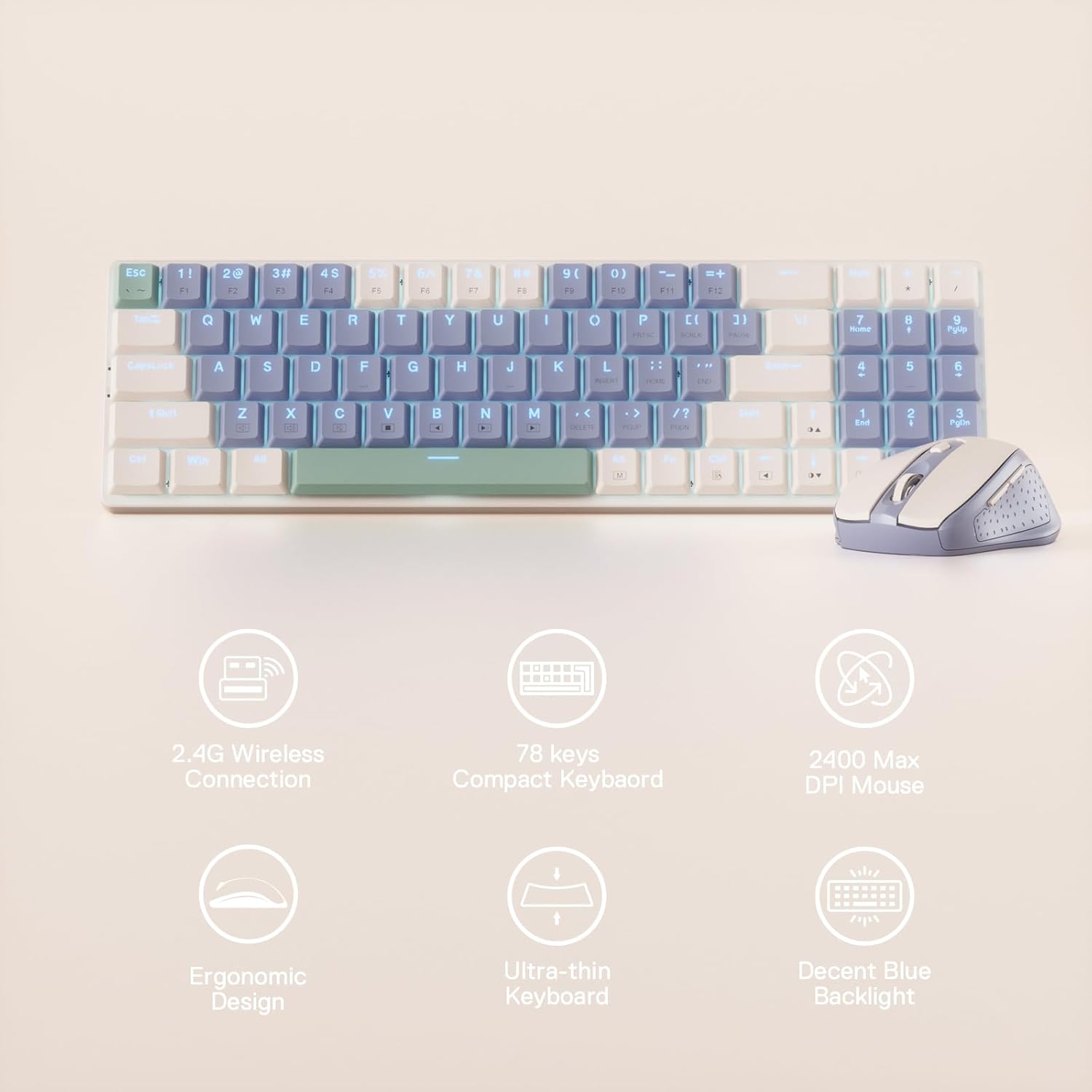
Image: The Redragon BS8772 keyboard and mouse combo, accompanied by icons illustrating key features such as 2.4G wireless connection, 78 keys, 2400 Max DPI mouse, ergonomic design, ultra-thin keyboard, and blue backlight.
Mouse Functions
The ergonomic mouse offers precise control with adjustable DPI settings.
- DPI Adjustment: The mouse has 5 adjustable DPI levels: 800, 1200, 1600, 2000, and 2400 DPI. Press the DPI button (usually located near the scroll wheel or on the underside) to cycle through these settings.
- Ergonomic Design: The contoured shape is designed for comfortable long-term use.
Image: The underside of the Redragon BS8772 mouse, indicating the 5 adjustable DPI levels (800, 1200, 1600, 2000, 2400).
Key Features
- Wireless Connectivity: Utilizes an advanced 2.4GHz wireless dongle for precise, non-interfering, and lag-free data transmission, providing a clutter-free workspace.
- Compact Keyboard Layout: Features a 75% layout with 78 keys, balancing compactness with the inclusion of separate arrow keys and a number pad.
- Low-Profile Mechanical Switches: Designed with low-profile red switches and keycaps that are 30% lower than regular keyboards, shortening the actuation distance for faster response.
- Adjustable Mouse DPI: Offers 5 adjustable DPI levels (800/1200/1600/2000/2400 DPI) for versatile use, from detailed tasks to gaming.
- Ergonomic Design: Both the keyboard with its 2-stage adjustable feet and the lightweight, contoured mouse are designed to maximize comfort and reduce fatigue during extended use.
- Blue Backlighting: The keyboard features a single blue backlight, enhancing visibility and adding a stylish element to your desk setup.
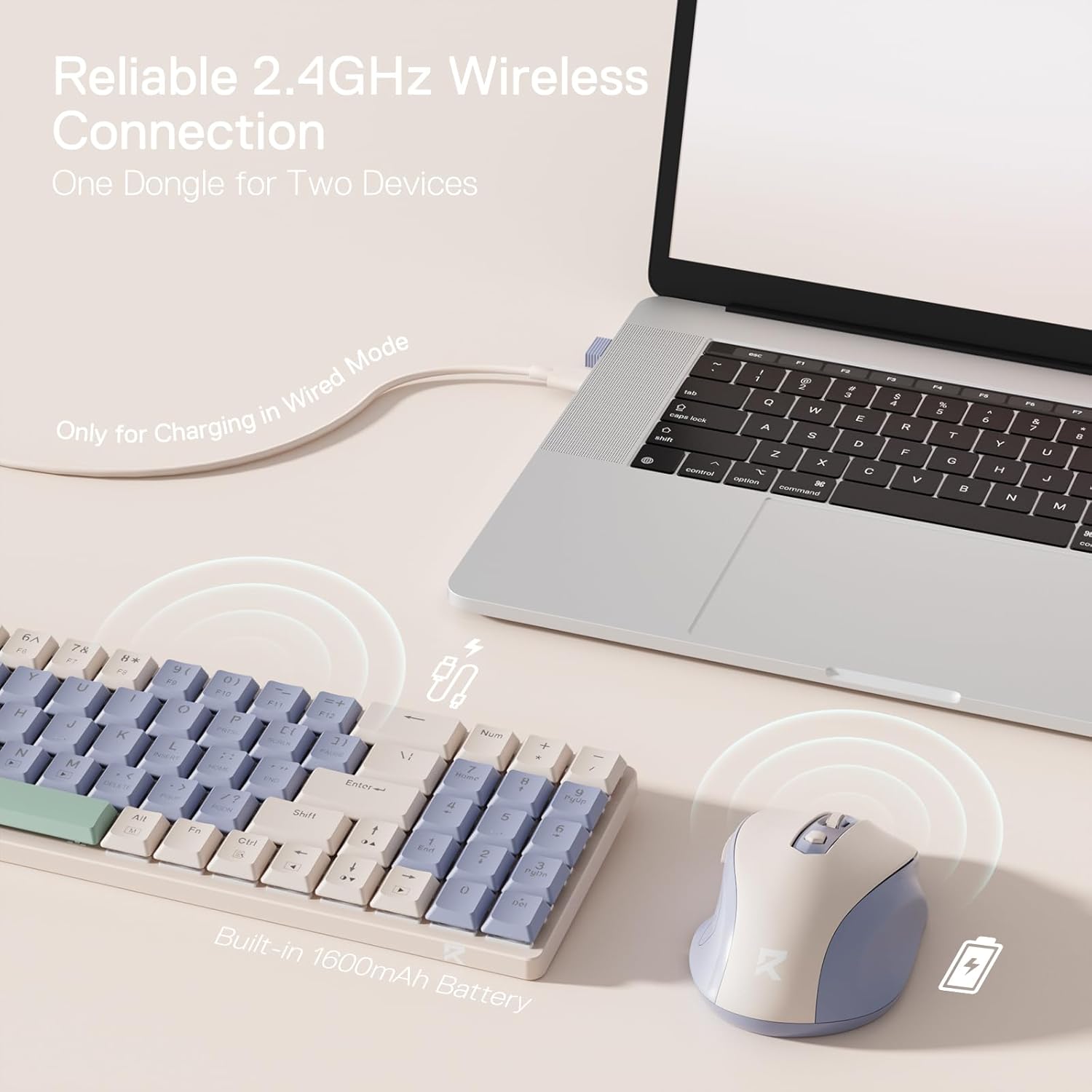
Image: The Redragon BS8772 keyboard and mouse combo displayed on a desk, showcasing its compact design and blue backlighting.
Maintenance
Cleaning
To clean your keyboard and mouse, use a soft, lint-free cloth. For stubborn dirt, slightly dampen the cloth with water or a mild cleaning solution. Avoid using harsh chemicals, abrasives, or solvents.
Battery Care
- Keyboard: Recharge the keyboard battery regularly to maintain its lifespan. Avoid fully discharging the battery frequently.
- Mouse: If the mouse is not in use for an extended period, consider removing the AA battery to prevent leakage.
Storage
Store the keyboard and mouse in a cool, dry place away from direct sunlight and extreme temperatures.
Troubleshooting
| Problem | Solution |
|---|---|
| Keyboard/Mouse not responding |
|
| Lag or intermittent connection |
|
| Keyboard backlight not working |
|
| Mouse cursor erratic or not moving smoothly |
|
Specifications
| Feature | Detail |
|---|---|
| Model Number | BS8772 |
| Connectivity | 2.4GHz Wireless (shared USB dongle) |
| Keyboard Layout | 75% (78 Keys) |
| Keyboard Switches | Low-Profile Mechanical (Red) |
| Keyboard Backlight | Single Blue |
| Keyboard Battery | 1 Lithium Polymer (Rechargeable) |
| Mouse DPI Levels | 800 / 1200 / 1600 / 2000 / 2400 |
| Mouse Battery | 1 AA Battery (Not Included) |
| Compatible Devices | PC, Laptop |
| Item Weight | 1.37 pounds |
| Package Dimensions | 17.24 x 5.2 x 1.89 inches |
Warranty and Support
For warranty information and technical support, please visit the official Redragon website or contact their customer service.


