
Ebitcam 8311
Ebitcam Security Camera User Manual
Model: 8311 | Brand: Ebitcam
1. Introduction
Thank you for choosing the Ebitcam Security Camera. This manual provides detailed instructions on how to set up, operate, and maintain your camera. This 3-megapixel camera offers robust security features, including IP66 weather resistance for both indoor and outdoor environments, two-way audio, and advanced AI-powered detection capabilities. Enjoy peace of mind with 24-hour monitoring and remote access from your smartphone.

The Ebitcam security camera provides high-resolution monitoring for various environments.
2. Package Contents
Please check the package for the following items:
- Ebitcam Security Camera (Model 8311)
- Power Adapter
- Mounting Screws and Wall Plugs
- User Manual
3. Product Overview
Familiarize yourself with the components of your Ebitcam security camera:

The camera features a lens, status LED, microphone, and a durable IP66-rated casing.
- Lens: Captures video footage.
- Status LED: Indicates camera status (e.g., power, connection).
- Microphone: For audio input and two-way communication.
- Speaker: For audio output and two-way communication.
- SD Card Slot: Supports up to 512GB microSD card for local storage. Located under the lens.
- Reset Button: Used to reset the camera to factory settings. Located under the lens.
- Power Port: Connects to the power adapter.
- Mounting Base: Integrated base for various installation options.
4. Setup
4.1 Initial Power-Up
- Connect the power adapter to the camera's power port and plug it into a power outlet.
- Wait for the camera's status LED to indicate it is ready for setup (refer to app instructions for specific LED behavior).
4.2 App Download and Account Registration
- Download the "Ebitcam" app from your smartphone's app store (available for iPhone and Android).
- Open the app and follow the on-screen instructions to register a new account or log in if you already have one.
- Add your camera by scanning the QR code located on the camera body using the app.
4.3 Wi-Fi Connection
- The camera supports 2.4GHz Wi-Fi networks only. Ensure your smartphone is connected to a 2.4GHz Wi-Fi network during setup.
- Follow the app's prompts to connect the camera to your Wi-Fi network.
- For optimal performance, choose an installation location with a strong Wi-Fi signal.
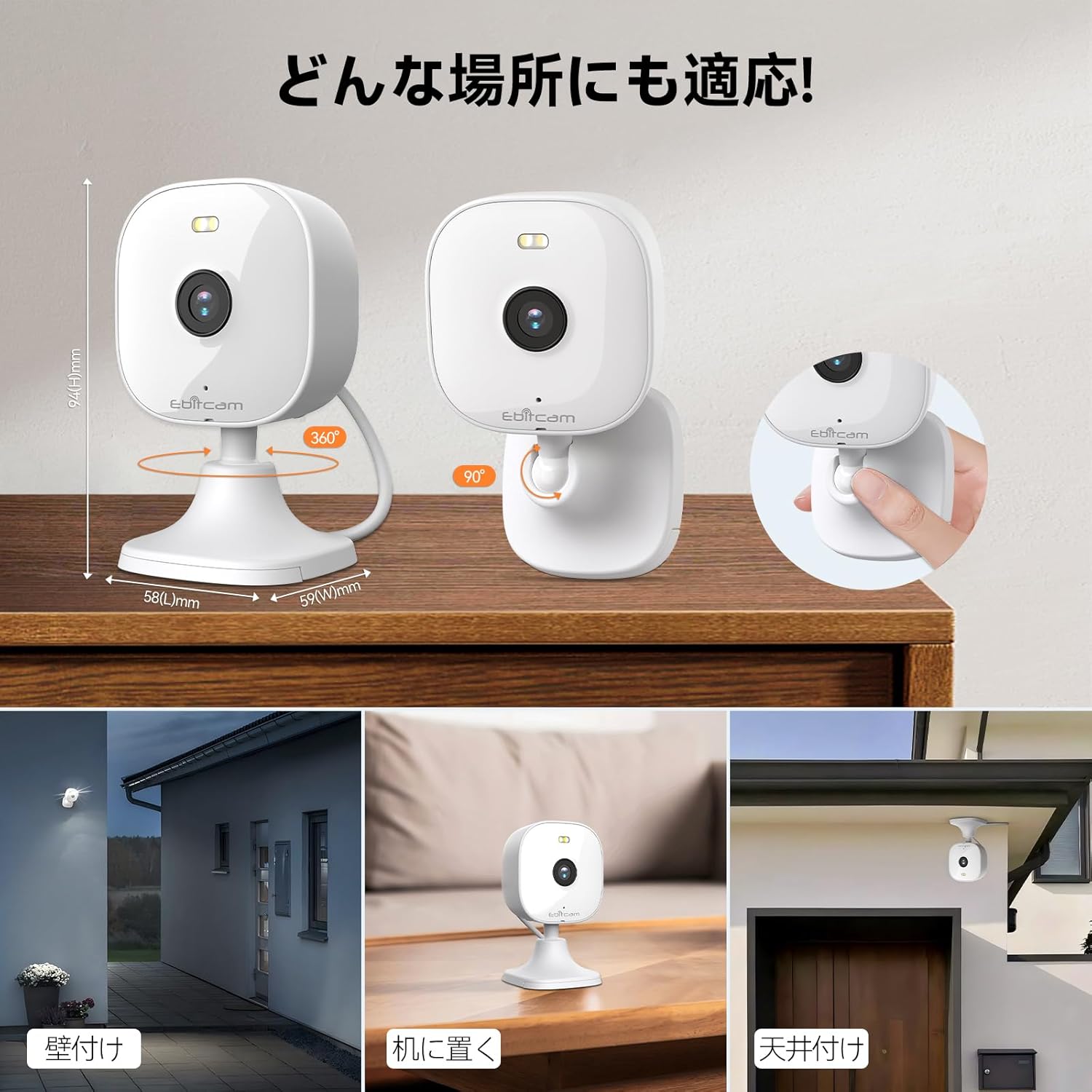
4.4 Physical Installation
The camera offers versatile mounting options:

The camera can be mounted on walls, ceilings, or placed on a tabletop.
- Tabletop Placement: Simply place the camera on a flat surface. The integrated base allows for stable positioning.
- Wall/Ceiling Mount: The camera's base can be detached by gently pulling the camera from its base. Use the included mounting screws and wall plugs to secure the base to your desired wall or ceiling location. Then, reattach the camera to the mounted base.
Note: The product package includes matching screw mounting tools for installation.
5. Operating Instructions
5.1 Live View and Recording
Access the live video feed and manage recordings through the Ebitcam app.

The camera supports 2K (1296p) resolution for clear video capture.
- Live Feed: Open the app and select your camera to view the real-time video stream.
- Continuous Recording: If an SD card is inserted or cloud storage is active, the camera can record continuously 24/7.
- Event-Triggered Recording: Configure settings to automatically start recording when motion, sound, or human presence is detected.
5.2 Two-Way Audio
Communicate with people or pets on the camera's side using the built-in microphone and speaker.
Engage in real-time conversations through the camera's two-way audio feature.
- Tap the microphone icon in the app to speak. Your voice will be transmitted through the camera's speaker.
- The camera's high-sensitivity microphone captures audio from the environment.
5.3 Motion, Sound, and Human Detection & Alerts
The camera utilizes advanced AI to detect specific events and notify you.

AI detection accurately distinguishes between humans and other moving objects.
- AI Detection: The camera can differentiate between human movement, general motion, and sound events.
- Mobile Alerts: Receive instant push notifications on your smartphone when an event is detected.
- Automatic Lighting/Alarm: Configure settings to trigger automatic white light illumination or an audible alarm to deter unwanted visitors upon detection.
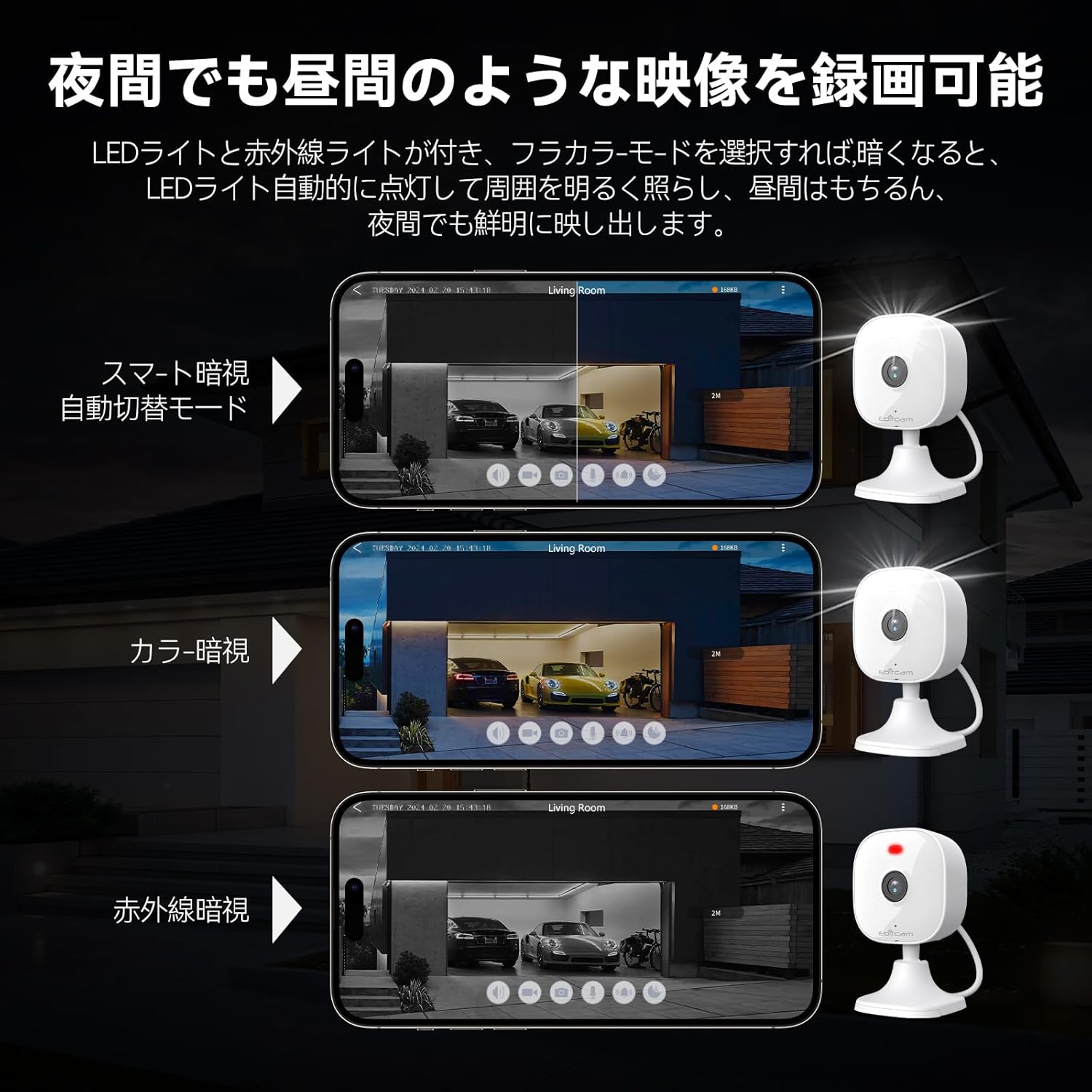
5.4 Night Vision Modes
The camera provides clear visibility even in low-light or dark conditions.

Choose from various night vision modes for optimal clarity.
- Full-Color Night Vision: Utilizes built-in white lights to provide color video footage in darkness (requires settings).
- Infrared Night Vision: Provides clear black-and-white video in complete darkness using infrared LEDs.
- Automatic Switching: The camera can automatically switch between day and night modes based on ambient light.
5.5 Digital Zoom
Zoom in on details within the live view or recorded footage.

The camera supports up to 8x digital zoom.
- Use the pinch-to-zoom gesture on your smartphone screen within the app to digitally zoom in or out.
5.6 Alexa Integration
Control your Ebitcam camera using voice commands with Amazon Alexa.
Integrate your camera with Alexa for convenient voice control.
- Enable the Ebitcam skill in your Alexa app.
- Use commands like "Alexa, show me the [camera name]" to view the live feed on compatible Alexa devices.
5.7 Family Sharing
Share access to your camera with family members or trusted friends.
- Within the Ebitcam app, navigate to the sharing settings for your camera.
- You can share access by generating a QR code for others to scan, allowing them to view the camera feed.
6. Maintenance
6.1 SD Card Management
The camera supports up to a 512GB microSD card for local video storage.

Insert a microSD card for local video storage.
- Insertion: Gently insert the microSD card into the slot located under the camera lens until it clicks into place.
- Formatting: It is recommended to format the SD card through the camera settings in the app before first use.
- Removal: Push the SD card gently to release it, then pull it out.
6.2 Cleaning
- Wipe the camera lens with a soft, clean cloth to ensure clear image quality.
- Clean the camera body with a damp cloth. Do not use harsh chemicals or abrasive cleaners.
6.3 Firmware Updates
- Periodically check for firmware updates through the Ebitcam app. Updates can improve performance, add new features, and enhance security.
- Follow the app's instructions carefully when performing a firmware update.
7. Troubleshooting
Here are solutions to common issues you might encounter:
- Unstable SD Card Performance: If you experience issues with recording or playback, an unstable SD card may be the cause. Please replace your SD card with a reliable, high-quality one and try again.
- App Not Functioning Correctly / Unstable Network: If the app does not function correctly, it might be due to an unstable network environment. Please ensure you have a stable 2.4GHz Wi-Fi connection.
- Camera Offline / Connection Issues: Ensure the camera is powered on and within range of your 2.4GHz Wi-Fi router. Check your Wi-Fi password in the app.
- Forgetting Login Password / Changing Network Environment: If you change your network environment or forget your login password, you can reset the camera. The camera's restart button is located under the lens. Press and hold it for a few seconds until the camera resets.
- False Alarms from Motion Detection: Adjust the motion detection sensitivity settings within the app. Consider setting specific detection zones to reduce unwanted alerts from areas like busy streets or swaying trees.
8. Specifications
| Feature | Specification |
|---|---|
| Product Model Number | 8311 |
| Number of Items | 1 |
| Wireless Communication Technology | Wi-Fi |
| Mounting Type | Freestanding, Wall Mount, Ceiling Mount, Tabletop Mount, Door Mount |
| Night Vision Range | 10 meters |
| Frame Rate | 25 fps |
| Product Dimensions (LxWxH) | 10 x 5 x 5 cm |
| Waterproof Level | IP66 Waterproof |
| Product Weight | 190 g |
| Recommended Uses | Interior, Home, Living Room, Bedroom, Pet, Shop |
| Connectivity Technology | WiFi |
| Indoor/Outdoor Use | Indoor, Outdoor |
| Compatible Devices | iPhone, TV, Tablet, Desktop, Smartphone |
| Power Source | Corded Electric |
| Connection Protocol | Wi-Fi |
| Video Capture Resolution | 1296p (2K) |
9. Warranty and Support
Ebitcam provides the following warranty and support for your product:
- Warranty: A 2-year warranty is provided from the original purchase date.
- Online Support: Online support is available Monday to Friday, from 8 AM to 5 PM (local time). Please refer to the Ebitcam app or official website for contact details.
Related documents8311


Ask a question about this manual
Ask about setup, troubleshooting, compatibility, parts, safety, or missing instructions. Manuals+ will review the question and use this page’s manual context to help answer it.