
RAINPOINT HTV210B
RAINPOINT Sprinkler Timer with Brass Inlet, WiFi Sprinkler Timer 2 Outlet
Model: HTV210B | Brand: RAINPOINT
Introduction
This manual provides comprehensive instructions for the installation, operation, and maintenance of your RAINPOINT Sprinkler Timer with Brass Inlet. This smart device allows you to automate your garden watering, ensuring efficient and precise irrigation. Please read this manual thoroughly before using the product to ensure proper function and longevity.
Product Overview
The RAINPOINT Sprinkler Timer is designed to provide flexible and smart control over your watering schedule. It features a durable brass inlet for secure connection and two independent outlets for managing different watering zones. When paired with a Smart Hub (sold separately), it enables WiFi connectivity for remote control via the RainPoint Smart+ APP.
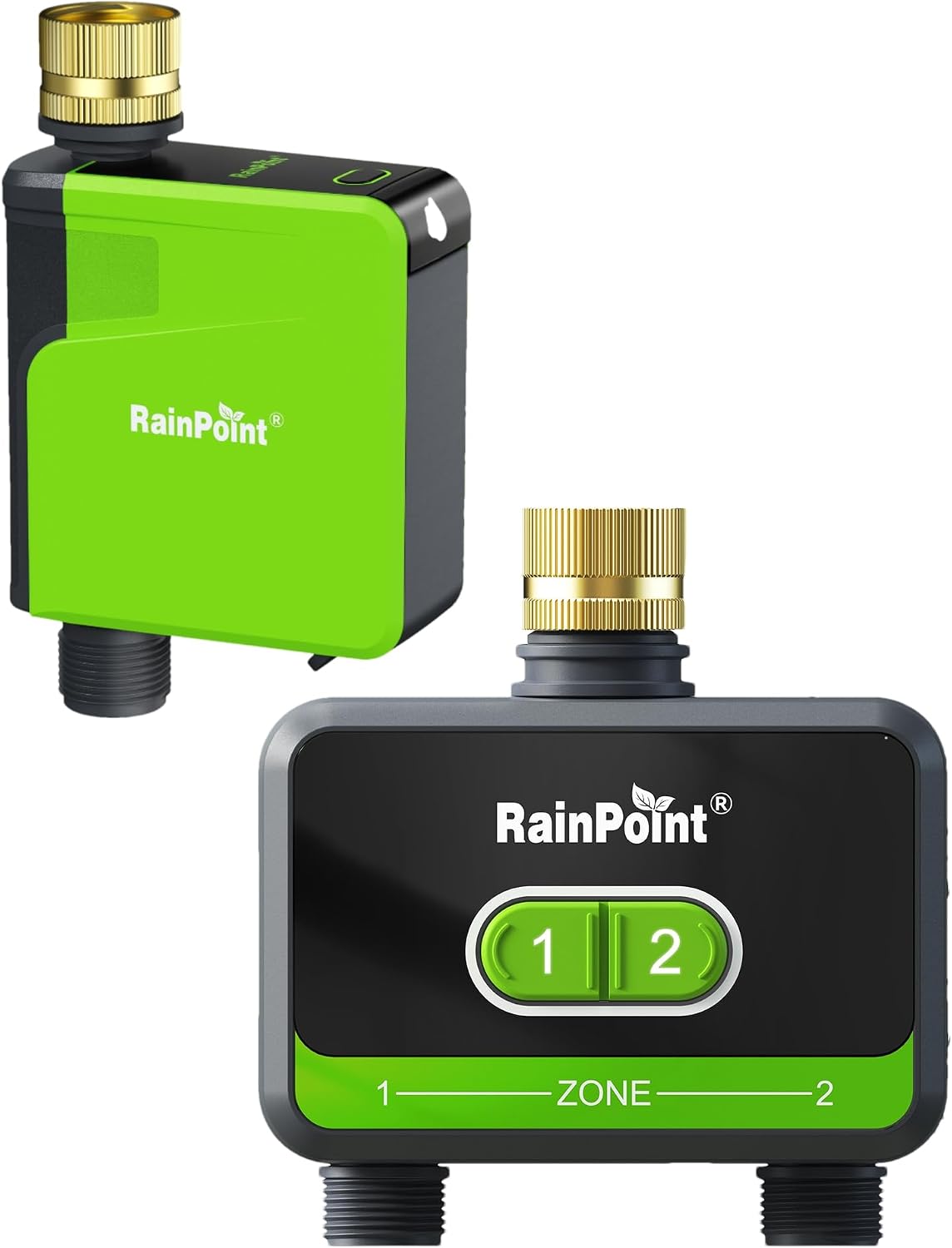
Figure 1: Front and side view of the RAINPOINT Sprinkler Timer, showing the brass inlet and two green outlets.
Key Features:
- Dual Outlet Design: Control two separate watering zones independently.
- Durable Brass Inlet: Ensures a secure and leak-free connection to your faucet.
- Smart Control (with Hub): Connects to the RainPoint Smart+ APP via a Smart Hub (not included) for remote scheduling and monitoring.
- Customizable Watering Modes: Offers Irrigation Mode for scheduled watering and Interval Mode for cyclical watering.
- Multiple Watering Plans: Supports up to 6 different watering plans simultaneously.
- Rain Delay Function: Postpone watering for 24, 48, or 72 hours to conserve water.
- Voice Control: Compatible with Amazon Alexa and Google Assistant for hands-free operation (requires Smart Hub).
Setup and Installation
1. Battery Installation
- Locate the battery compartment on the back of the timer.
- Open the compartment cover.
- Insert the required batteries (e.g., 4 x AA batteries, not included) according to the polarity indicators.
- Securely close the battery compartment cover to ensure water resistance.
2. Connecting to Faucet
- Ensure the faucet is turned off.
- Thread the brass inlet of the sprinkler timer onto your outdoor faucet. Hand-tighten until secure. Do not overtighten.
- Turn on the faucet fully to ensure adequate water pressure to the timer.

Figure 2: Close-up of the pure brass water inlet, highlighting its durability compared to plastic alternatives.
3. Connecting Hoses
- Attach your garden hoses to the two outlets at the bottom of the timer.
- Ensure connections are tight to prevent leaks.
4. App Download and Pairing (Bluetooth & WiFi)
- Download the "RainPoint Smart+" APP from your smartphone's app store (iOS or Android).
- Open the app and create an account or log in.
- Follow the in-app instructions to add your device. The timer will initially connect via Bluetooth.
- To enable WiFi control and voice assistant integration, you will need to pair the timer with a RainPoint Smart Hub (sold separately) through the app.

Figure 3: The sprinkler timer connected to a faucet, with a smartphone displaying the RainPoint Smart+ app interface for controlling watering schedules.
Operating Instructions
1. Setting Watering Schedules via App
The RainPoint Smart+ APP allows you to create and manage up to 6 different watering plans for each zone.
- Irrigation Mode: Set specific start times, duration, and frequency (e.g., daily, specific days of the week).
- Interval Mode: Set a cycle of watering, where the timer waters for a set duration, then pauses for a set interval, repeating the cycle.
- Open the RainPoint Smart+ APP and select your sprinkler timer.
- Navigate to the "Plan" or "Schedule" section.
- Tap the "+" icon to add a new watering plan.
- Choose your desired watering mode (Irrigation or Interval).
- Configure the start time, duration, and frequency according to your needs.
- Save the plan. Repeat for additional zones or plans.

Figure 4: A smartphone screen showing the RainPoint Smart+ app with multiple watering schedules configured, demonstrating the flexibility of the system.

Figure 5: The sprinkler timer in operation, with a phone displaying the app's interface showing six different watering plans, illustrating the comprehensive scheduling capabilities.
2. Rain Delay Function
To prevent overwatering during rainy periods, you can activate the rain delay feature.
- In the RainPoint Smart+ APP, navigate to the main device screen.
- Look for the "Rain Delay" option.
- Select the desired delay duration: 24 hours, 48 hours, or 72 hours.
- Confirm the selection. Watering schedules will be paused for the chosen duration and resume automatically afterward.

Figure 6: The sprinkler timer operating during rain, with an overlay indicating the rain delay feature to prevent repetitive watering.

Figure 7: A smartphone displaying the RainPoint Smart+ app with options for 24, 48, or 72-hour rain delay, allowing users to skip watering schedules during rainfall.
3. Manual Watering
You can initiate manual watering directly from the app for immediate irrigation needs.
- In the RainPoint Smart+ APP, select the desired zone.
- Choose "Manual" or "Instant Watering" option.
- Set the desired duration for manual watering.
- Confirm to start watering. You can stop manual watering at any time through the app.

Figure 8: The sprinkler timer connected to hoses, with a smartphone displaying the manual watering interface in the RainPoint Smart+ app, showing remaining time.
4. Voice Control (Requires Smart Hub)
If your sprinkler timer is connected to a RainPoint Smart Hub, you can integrate it with Amazon Alexa or Google Assistant for voice commands.
- Ensure your RainPoint Smart+ account is linked to your Alexa or Google Home app.
- Discover devices in your voice assistant app.
- Use commands such as:
- "Alexa, turn on the water timer."
- "Hey Google, start watering Zone 1 for 10 minutes."
- "Alexa, turn off the sprinkler timer."

Figure 9: An illustration of the sprinkler timer being controlled via voice commands through a smart speaker, highlighting compatibility with Alexa and Google Assistant.
Maintenance
1. Cleaning
- Periodically clean the exterior of the timer with a soft, damp cloth.
- Inspect the brass inlet and hose outlets for any debris or mineral buildup. Clean as necessary to ensure proper water flow.
2. Battery Replacement
- Replace batteries when the low battery indicator appears in the app or on the device (if applicable).
- Always use fresh, high-quality batteries of the specified type.
3. Winterization and Storage
- Before the first frost, disconnect the sprinkler timer from the faucet and hoses.
- Remove the batteries.
- Drain any remaining water from the timer.
- Store the timer in a dry, frost-free location indoors during winter months to prevent damage from freezing water.
Troubleshooting
| Problem | Possible Cause | Solution |
|---|---|---|
| No water flow from timer. |
|
|
| Timer not connecting to app (Bluetooth/WiFi). |
|
|
| Leaks from connections. |
|
|
Specifications
| Feature | Detail |
|---|---|
| Model | HTV210B (Approximate, based on product images) |
| ASIN | B0D5HJKHR1 |
| Brand | RAINPOINT |
| Color | Green |
| Number of Outlets | 2 |
| Watering Modes | Irrigation Mode, Interval Mode |
| Max Watering Plans | 6 per zone |
| Connectivity | Bluetooth (direct), WiFi (via RainPoint Smart Hub, sold separately) |
| Voice Assistant Compatibility | Amazon Alexa, Google Assistant (with Smart Hub) |
Warranty Information
RAINPOINT products are manufactured to high-quality standards. For specific warranty terms and conditions, please refer to the warranty card included with your product or visit the official RAINPOINT website. Keep your purchase receipt as proof of purchase for warranty claims.
Customer Support
If you encounter any issues or have questions regarding your RAINPOINT Sprinkler Timer, please contact our customer support team. You can find contact information on the official RAINPOINT website or through the RainPoint Smart+ APP.
For the latest FAQs and troubleshooting tips, please visit: www.rainpointonline.com
Related documentsHTV210B


Ask a question about this manual
Ask about setup, troubleshooting, compatibility, parts, safety, or missing instructions. Manuals+ will review the question and use this page’s manual context to help answer it.