Introduction
This manual provides comprehensive instructions for the installation, operation, and maintenance of your Hearvo 8K HDMI KVM Switch. This device allows two computers to share two monitors, a keyboard, a mouse, and other USB peripherals, streamlining your workspace and enhancing productivity.
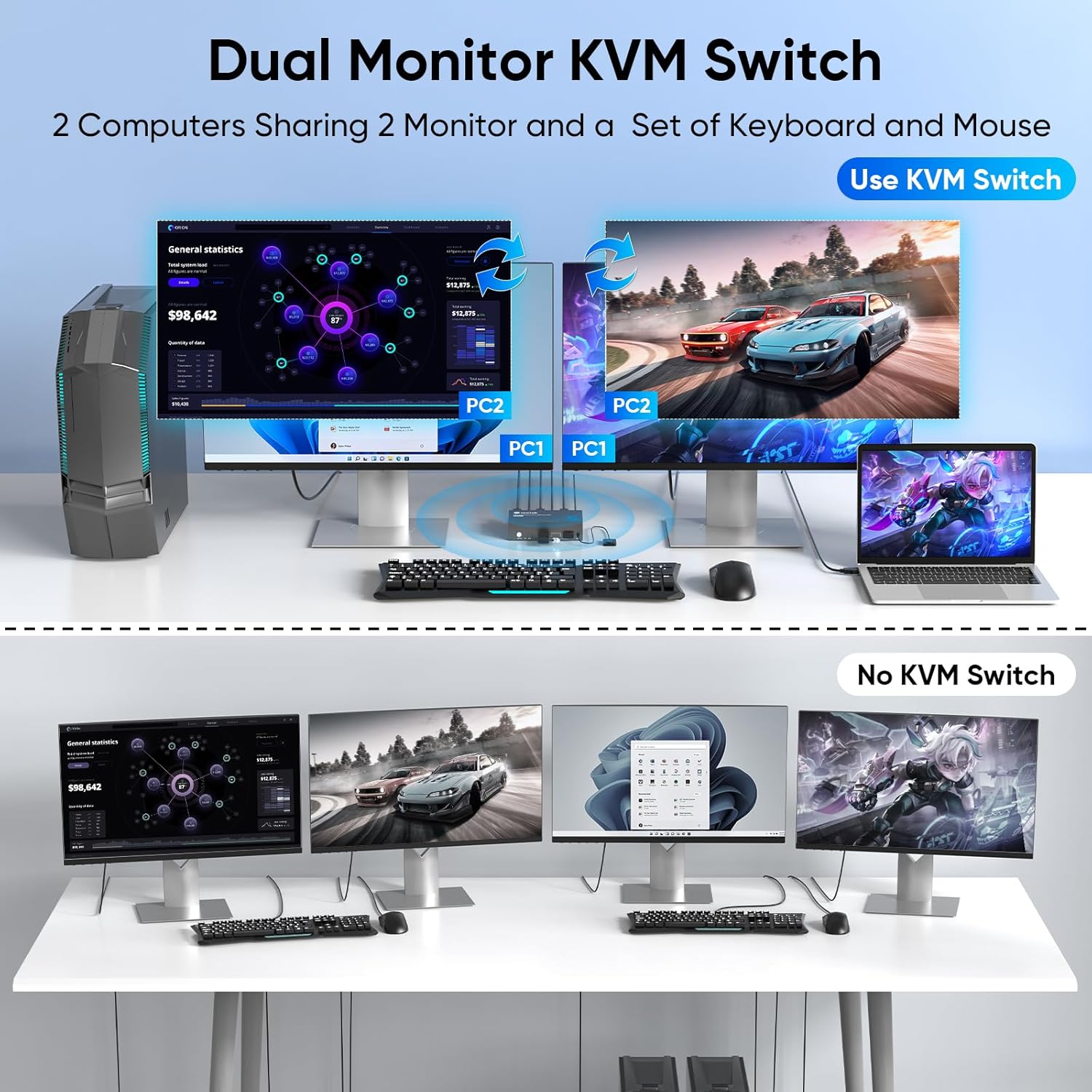
Figure 1: Comparison of a workspace with and without the KVM switch, illustrating how the switch consolidates peripherals for two computers.
Package Contents
Please verify that all items listed below are included in your package:
- 1 x Hearvo 8K HDMI KVM Switch
- 2 x USB 3.0 Cables
- 1 x Wired Remote Switch
- 1 x User Manual
- 4 x Foot Pads
Note: HDMI 2.1 cables are not included and must be purchased separately. You will need three HDMI 2.1 cables to connect two computers to one monitor.
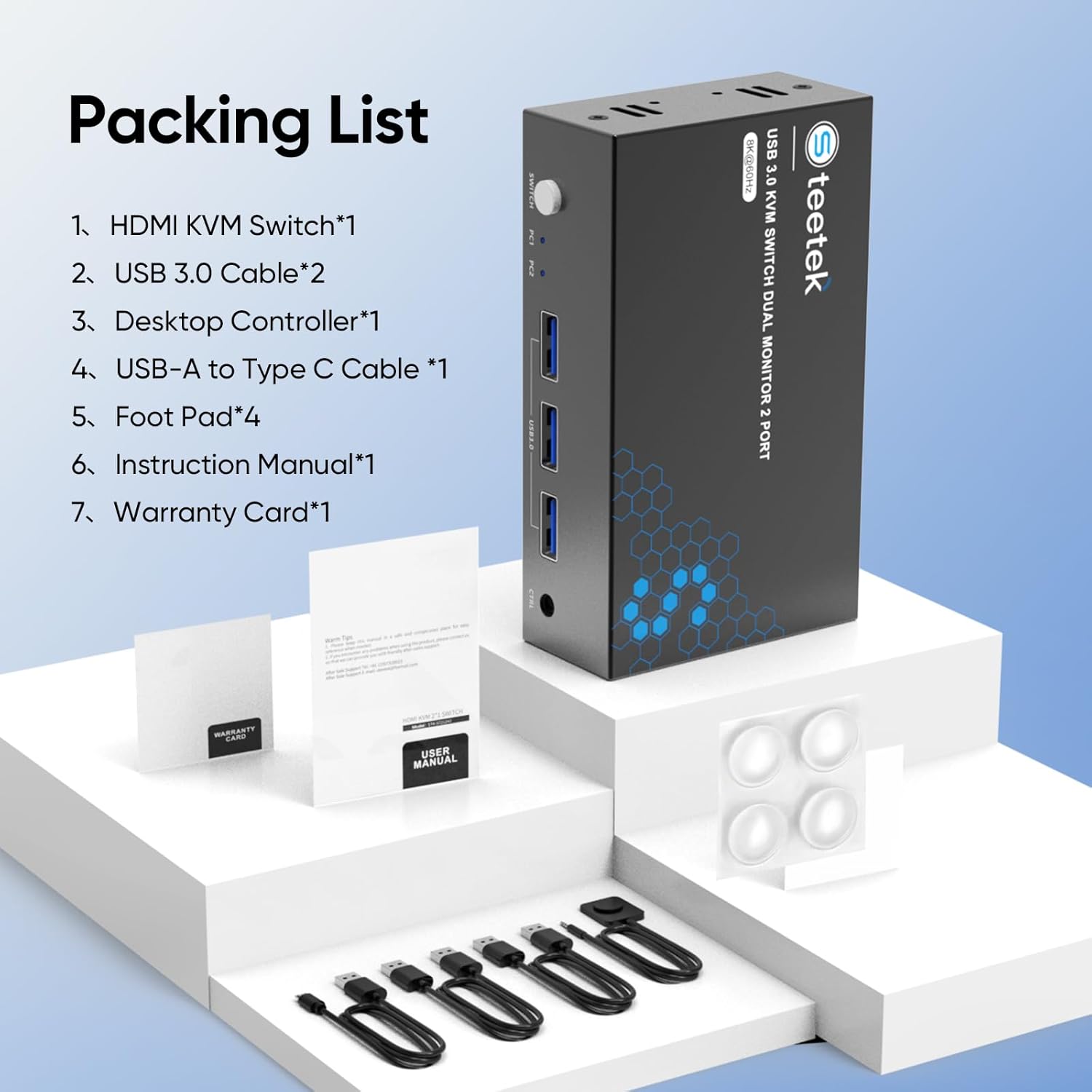
Figure 2: Contents of the KVM switch package, including the main unit, USB cables, and remote switch.
Product Overview
The Hearvo 8K HDMI KVM Switch features a compact design with clearly labeled ports for easy connection. The front panel includes a switch button, PC indicator lights, USB 3.0 ports for peripherals, and a control port for the wired remote. The rear panel provides HDMI input/output ports, USB 3.0 input ports for computers, and a 5V power input.
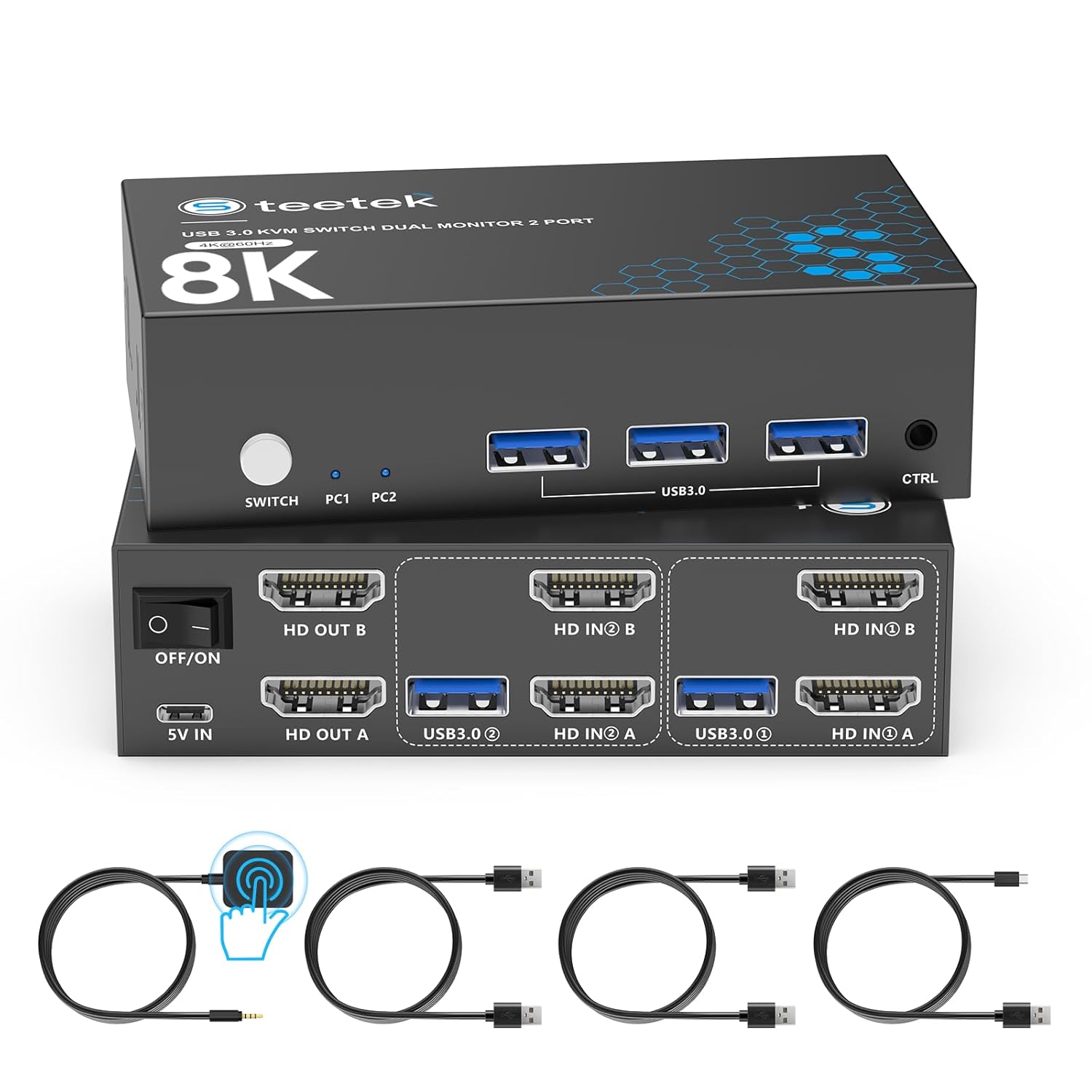
Figure 3: Detailed view of the KVM switch, highlighting the front panel (Switch button, PC indicators, USB 3.0 ports, CTRL port) and rear panel (ON/OFF switch, 5V IN, HD OUT A/B, USB3.0 A/B, HD IN A/B).
Setup Instructions
Follow these steps to connect your KVM switch:
- Power Off Devices: Ensure both computers and monitors are powered off before beginning the connection process.
- Connect Monitors: Connect your two monitors to the KVM switch's "HD OUT A" and "HD OUT B" ports using HDMI 2.1 cables.
- Connect Computers to KVM (Video): Connect the HDMI output from Computer 1 to the KVM switch's "HD IN A" ports (both A and B). Connect the HDMI output from Computer 2 to the KVM switch's "HD IN B" ports (both A and B).
- Connect Computers to KVM (USB): Connect the provided USB 3.0 cables from Computer 1 to the KVM switch's "USB3.0 A" port and from Computer 2 to the KVM switch's "USB3.0 B" port. These connections enable keyboard, mouse, and other USB peripheral sharing.
- Connect Peripherals: Plug your keyboard, mouse, and other USB peripherals (e.g., printer, U-disk, gamepad) into the USB 3.0 ports on the front panel of the KVM switch.
- Connect Wired Remote (Optional): If desired, connect the wired remote switch to the "CTRL" port on the front panel for convenient switching.
- Power On: Connect the 5V power adapter (not included) to the "5V IN" port on the KVM switch, then power on the KVM switch, followed by your monitors and computers.
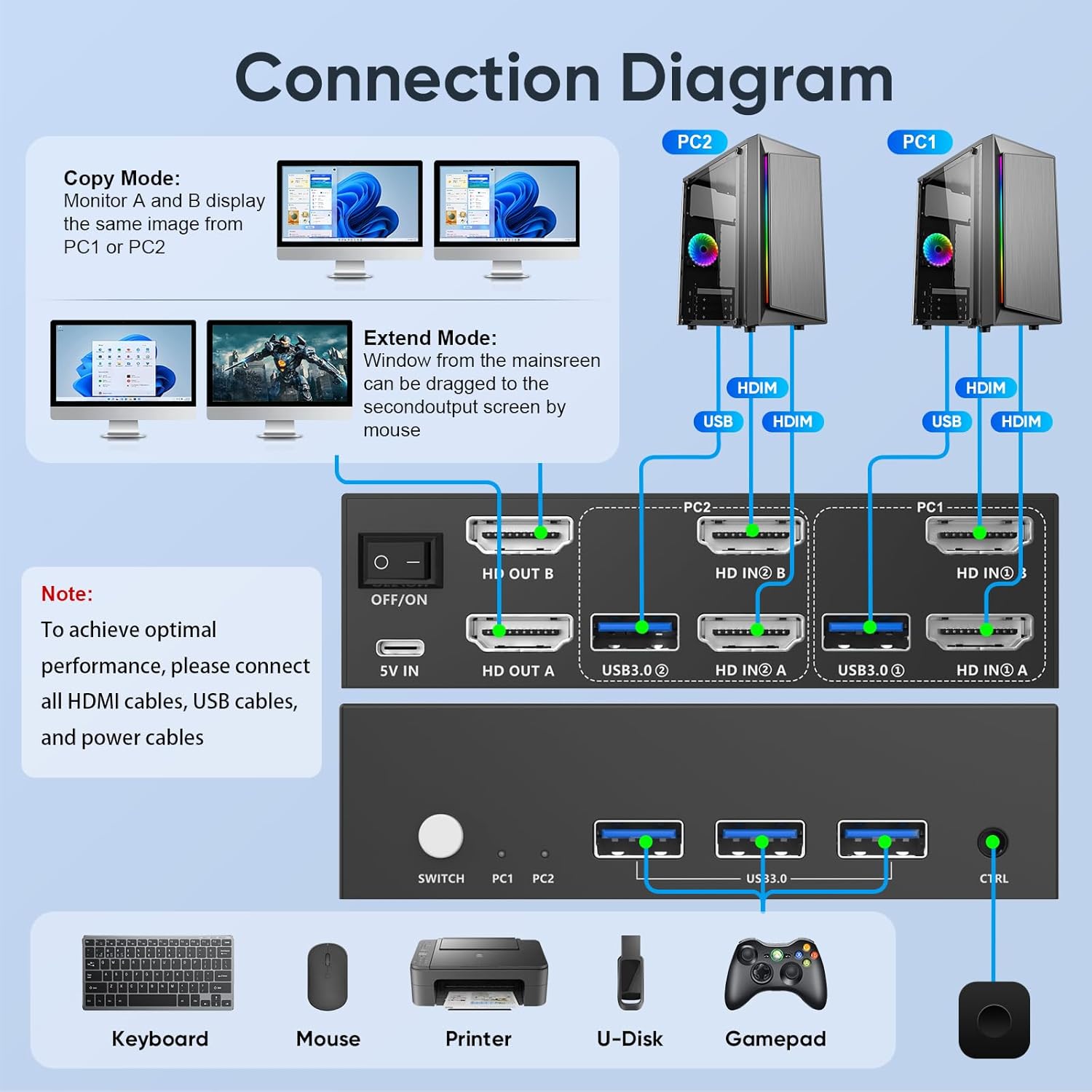
Figure 4: Visual guide for connecting all necessary cables (HDMI, USB, power) to the KVM switch for a dual-monitor, dual-computer setup.
Operating Instructions
The Hearvo KVM switch offers two methods for switching between connected computers:
- Physical Button Switch: Press the "SWITCH" button located on the front panel of the KVM device. The LED indicators (PC1, PC2) will illuminate to show which computer is currently active.
- Wired Remote Switch: Use the included wired remote switch for convenient switching. Place the remote within easy reach on your desk and press its button to toggle between computers. This allows the KVM switch to be placed out of sight, reducing desktop clutter.

Figure 5: Demonstration of the physical button and wired remote for switching between connected computers.
Key Features
- 8K Resolution Support: Supports resolutions up to 8K@60Hz, 4K@240Hz, 2K, 3D, and 1080P, providing high-quality visual output.
- HDCP 2.3 Compliance: Ensures compatibility with protected content, allowing seamless viewing of high-definition media.
- USB 3.0 Ports: Features three USB 3.0 ports for high-speed data transfer up to 5Gbps, enabling efficient sharing of peripherals like keyboards, mice, printers, and external drives.
- Adaptive EDID: Automatically optimizes display settings for stable and smooth image transmission.
- Plug and Play: Requires no driver software or external power supply for basic operation; simply connect all cables.
- Extended & Mirror Mode: Supports both extended and mirror display modes across multiple monitors for versatile workspace configurations.

Figure 6: Visual representation of the 8K@60Hz high-resolution capability.
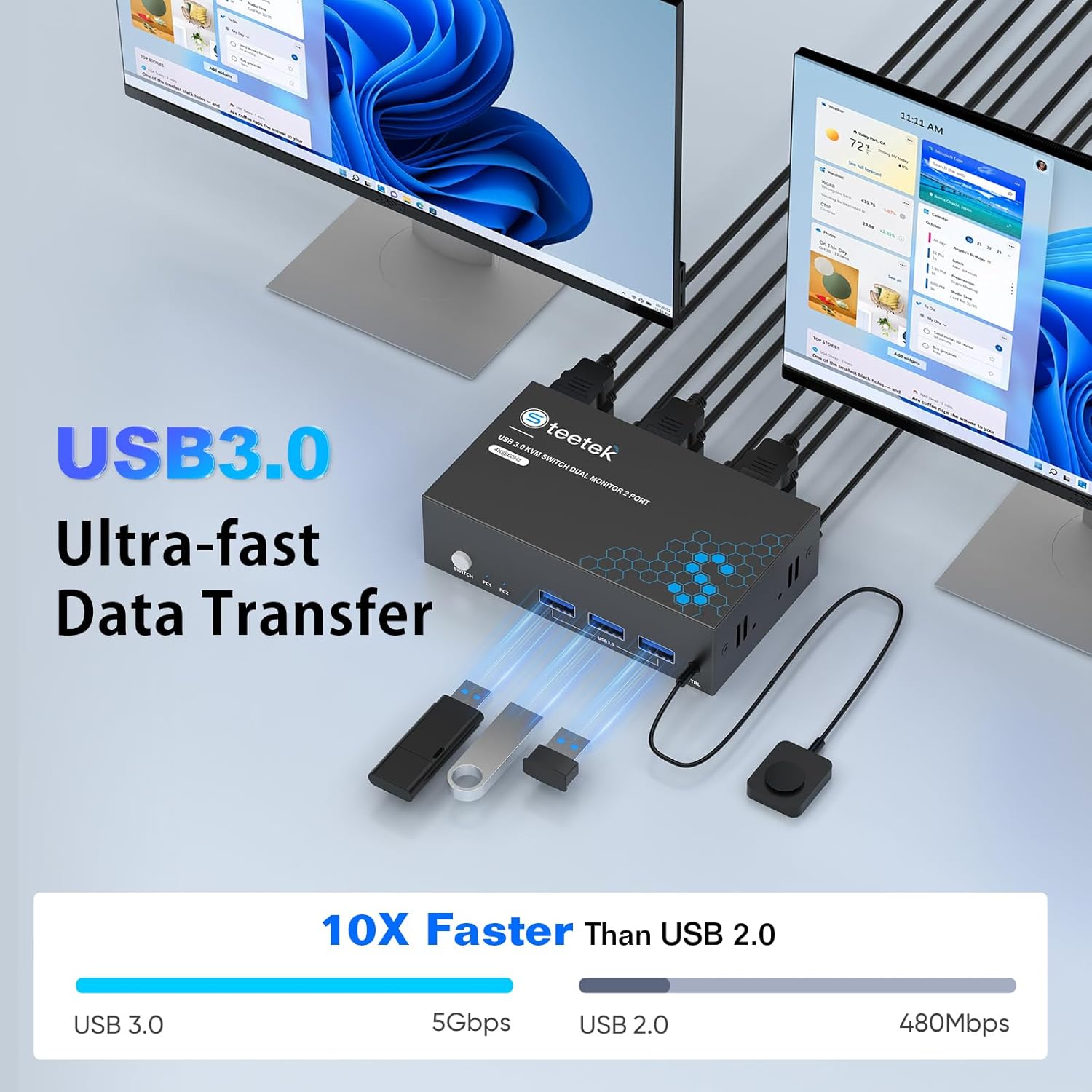
Figure 7: Comparison of USB 3.0 (5Gbps) and USB 2.0 (480Mbps) data transfer speeds, highlighting the KVM's USB 3.0 capability.

Figure 8: Illustration of extended and mirror display modes, allowing users to duplicate or extend their desktop across multiple screens.
Compatibility
The Hearvo 8K HDMI KVM Switch is compatible with a wide range of operating systems and input devices, ensuring broad usability:
- Operating Systems: Windows 7/8/10/11/Vista/XP, Linux, Mac, and more.
- Input Devices: PC, Laptop, PS4, and other HDMI-enabled devices.
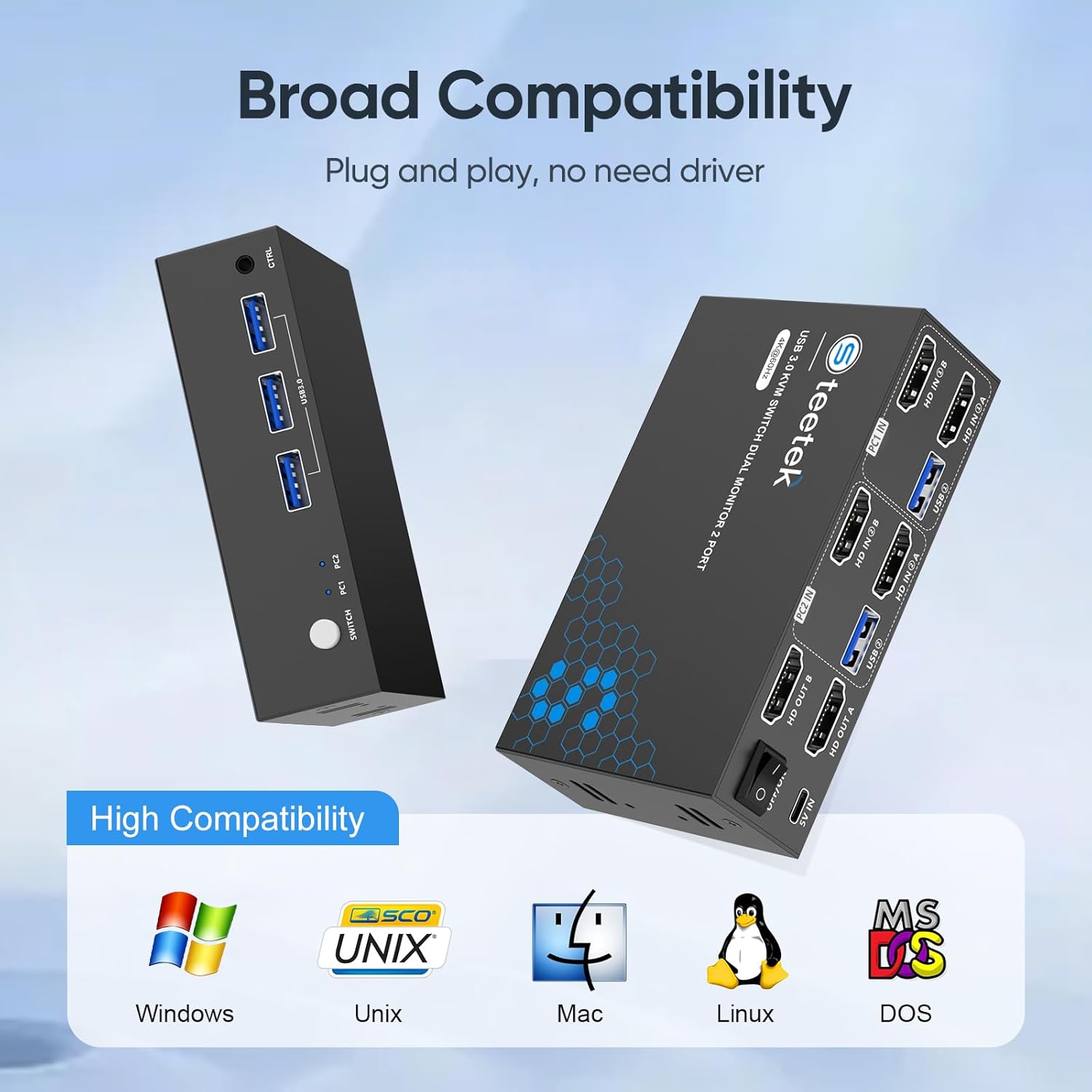
Figure 9: The KVM switch supports various operating systems, including Windows, Unix, Mac, Linux, and DOS.
Supported Resolutions
The KVM switch supports a variety of resolutions and refresh rates. For optimal performance, ensure your display settings are configured correctly.

Figure 10: Table outlining the KVM switch's supported resolutions and refresh rates. Note that 2560x1440@165Hz is supported.
Troubleshooting
If you encounter issues, refer to the following common problems and solutions:
- No Display/Flickering Screen:
Ensure all HDMI and USB cables are securely connected. Verify that your HDMI cables are rated for the desired resolution (e.g., HDMI 2.1 for 8K@60Hz). Check your computer's display settings to ensure the correct resolution and refresh rate are selected. - Keyboard/Mouse Not Responding:
Confirm the USB 3.0 cables from your computers are properly connected to the KVM switch. Try connecting the keyboard/mouse directly to the computer to rule out peripheral issues. Some specialized keyboards/mice may require direct connection or specific drivers. - Switching Delays:
A brief delay (3-5 seconds) may occur during switching as the KVM adapts to the new display signal. This is normal. If delays are excessive, check cable quality and connections. - Audio Issues:
The KVM switch primarily handles video and USB data. For audio, ensure your monitors or computers are configured to output audio correctly. - Compatibility with Non-HDMI Computers:
If your computer lacks HDMI ports, you may need adapters (e.g., DisplayPort to HDMI, USB-C to HDMI, VGA to HDMI). Ensure these adapters are high-quality and support the required resolution.

Figure 11: Guide to avoiding common configuration issues and solutions for various port types (HDMI, DP, USB-C, VGA, DVI).
Specifications
| Feature | Detail |
|---|---|
| Model Number | STK-S7229H2-B |
| Connector Type | HDMI |
| Resolution Support | 8K@60Hz, 4K@240Hz, 2K, 3D, 1080P |
| HDCP Compliance | HDCP 2.3 |
| USB Ports | 3 x USB 3.0 (5Gbps) |
| Switching Methods | Physical Button, Wired Remote |
| Adaptive Technology | EDID Adaptive |
| Operating Voltage | 5 Volts (DC) |
| Material | Aluminum |
| Dimensions | 6.38 x 5.47 x 1.54 inches |
| Weight | 12.63 ounces |
Warranty and Support
Hearvo products come with a lifetime warranty. For any issues or assistance, please contact customer support through your order platform, providing your order number for faster service. We aim to provide a solution within 24 hours.
Additionally, our products are covered by a 12-month protection period, during which any defects can be replaced at no cost.

Figure 12: Warranty information detailing the lifetime warranty and 12-month protection period for product defects.


