
Trust 25397
Trust Bayo II Ergonomic Mouse User Manual
Model: Trust Bayo II (25397)
Introduction
Welcome to the user manual for your new Trust Bayo II Ergonomic Mouse. This manual provides essential information on setting up, operating, maintaining, and troubleshooting your device to ensure optimal performance and comfort. The Trust Bayo II is designed for ergonomic comfort, featuring a 57-degree angle for a natural hand and wrist position, and is constructed with 50% recycled plastic.
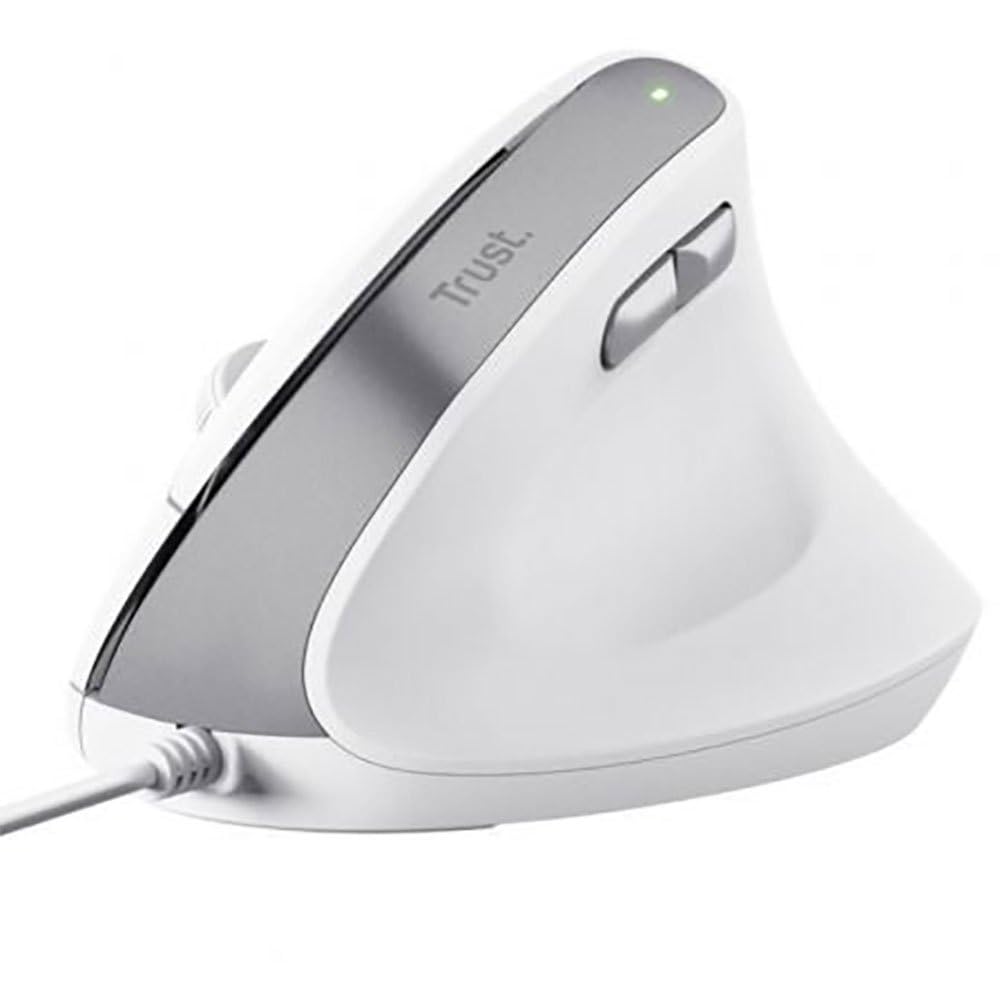
Image: The Trust Bayo II Ergonomic Mouse in white, showcasing its unique vertical design for a comfortable grip. The Trust logo is visible on the silver-grey accent strip, and two thumb buttons are located on the side.
Setup
- Unpack the Mouse: Carefully remove the Trust Bayo II mouse from its packaging.
- Connect to Computer: Locate an available USB Type-A port on your computer. Insert the USB cable of the Trust Bayo II mouse into the USB port.
- Driver Installation (Automatic): The mouse is plug-and-play. Your operating system (Windows, macOS, ChromeOS) should automatically detect and install the necessary drivers. No manual driver installation is typically required.
- Positioning: Place the mouse on a flat, clean surface suitable for optical mouse operation.
Operating Instructions
The Trust Bayo II mouse features 6 buttons and a scroll wheel for efficient navigation and control.
- Left Click Button: Standard primary click function.
- Right Click Button: Standard secondary click function, typically opening context menus.
- Scroll Wheel: Scroll vertically through documents and web pages. Pressing the scroll wheel often acts as a middle click button.
- DPI Button: Adjusts the mouse sensitivity (DPI - Dots Per Inch). The Trust Bayo II has a movement resolution of 2400 DPI, allowing for precise cursor control. Press this button to cycle through available DPI settings.
- Side Thumb Buttons (Forward/Backward): Two easily accessible buttons located on the side of the mouse, designed for quick navigation (e.g., moving forward and backward in web browsers or file explorers).
The ergonomic design with a 57-degree angle is intended to place your arm and wrist in a more natural and comfortable position during prolonged use.
Maintenance
- Cleaning: Use a soft, dry, lint-free cloth to clean the exterior of the mouse. For stubborn dirt, slightly dampen the cloth with water. Avoid using harsh chemicals, solvents, or abrasive cleaners.
- Optical Sensor: Ensure the optical sensor on the bottom of the mouse remains clean and free of dust or debris for optimal tracking performance.
- Cable Care: Avoid sharp bends or excessive pulling on the USB cable to prevent damage.
Troubleshooting
| Problem | Possible Cause | Solution |
|---|---|---|
| Mouse not responding | Loose USB connection, faulty USB port, driver issue. | Ensure the USB cable is securely plugged into the computer. Try a different USB port. Restart your computer. Check Device Manager (Windows) or System Information (macOS) for driver status. |
| Cursor movement is erratic or jumpy | Dirty optical sensor, unsuitable surface, low DPI setting. | Clean the optical sensor on the bottom of the mouse. Use the mouse on a clean, non-reflective, opaque surface (e.g., a mouse pad). Press the DPI button to increase sensitivity. |
| Buttons not working | Software conflict, hardware malfunction. | Test the mouse on another computer to rule out software issues. If the problem persists, contact customer support. |
Specifications
- Brand: Trust
- Model: Bayo II
- Item Model Number: 25397
- Connectivity Technology: Wired (USB Type-A)
- Movement Detection Technology: Optical
- Movement Resolution (DPI): 2400 DPI
- Number of Buttons: 6
- Scroll Type: Wheel (1 scroll wheel)
- Design: Ergonomic, Vertical, Right-handed
- Color: White
- Cable Length: 1.5 m
- Product Dimensions: 77 mm (Width) x 120 mm (Depth) x 73 mm (Height)
- Item Weight: 121 g / 6.3 ounces
- Power Source: Cable
- Material: Made from 50% recycled plastic
- Supported Operating Systems: Windows 10, Windows 11, Mac OS X 12.0 Monterey, Mac OS X 13.0 Ventura, Mac OS X 14.0 Sonoma, ChromeOS
Warranty and Support
The Trust Bayo II Ergonomic Mouse comes with a 2-year warranty from the date of purchase. This warranty covers defects in materials and workmanship under normal use.
For technical support, warranty claims, or further assistance, please visit the official Trust support website or contact their customer service. Refer to the packaging or the Trust website for the most up-to-date contact information.
Online Resources:
- Trust Official Website: www.trust.com
- Trust Store on Amazon: Visit Trust Store
Related documents25397


Ask a question about this manual
Ask about setup, troubleshooting, compatibility, parts, safety, or missing instructions. Manuals+ will review the question and use this page’s manual context to help answer it.