
1. Introduction
This manual provides essential information for the safe and efficient operation of your Haier H65M95EUX 65-inch QD Mini LED 4K UHD Smart TV. Please read this manual thoroughly before using the product and retain it for future reference.
The Haier H65M95EUX is a 65-inch Smart TV featuring QD Mini LED technology for superior brightness and vibrant colors, 4K UHD resolution, and a 144 Hz refresh rate. It integrates Google TV for smart functionalities, Harman Kardon speakers for enhanced audio, and supports Dolby Atmos and Dolby Vision for an immersive viewing experience.
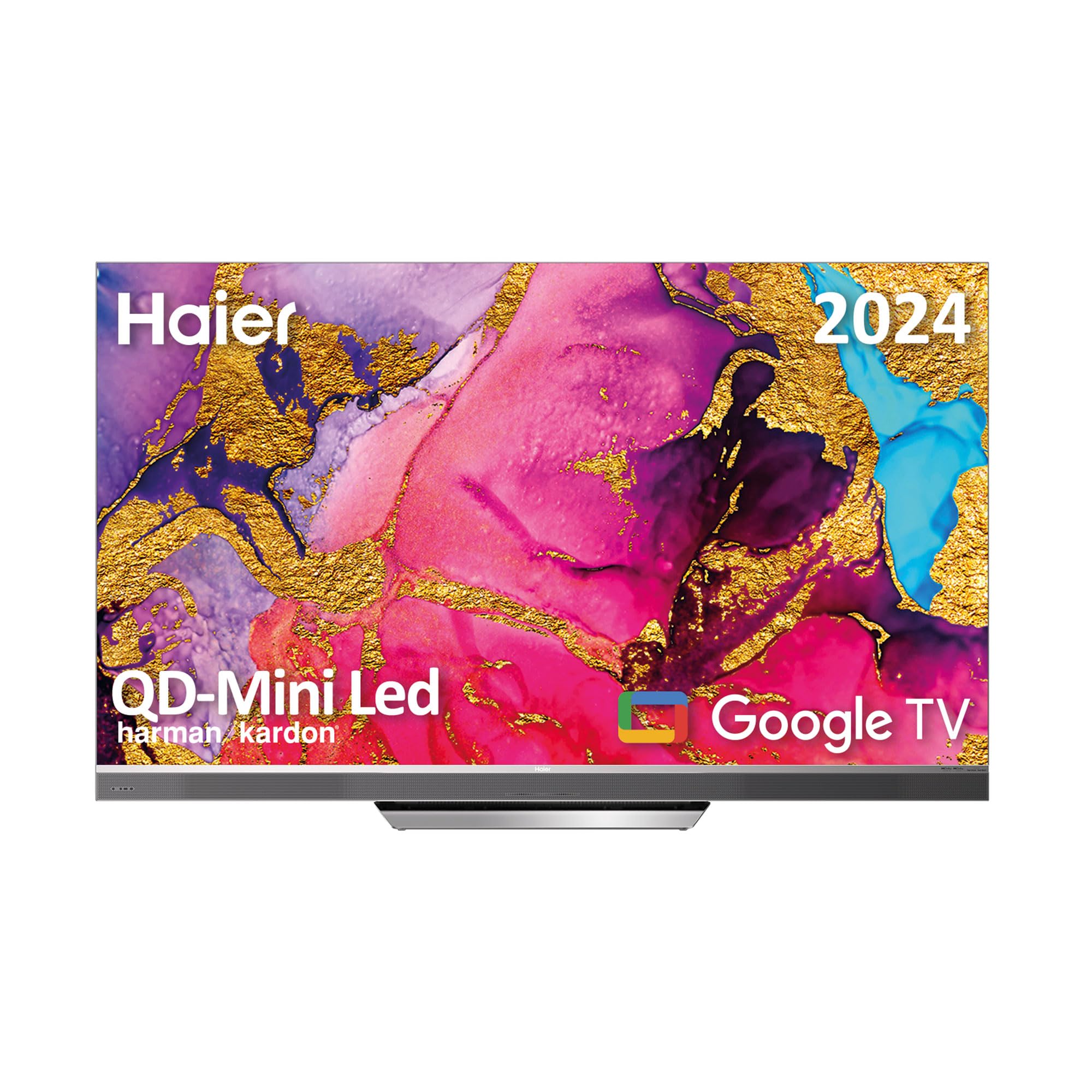
Image 1.1: Haier H65M95EUX 65-inch QD Mini LED 4K UHD Smart TV.
2. Safety Information
Always follow basic safety precautions when using this television to reduce the risk of fire, electric shock, and injury.
- Power Source: Connect the TV only to an AC power source as indicated on the label.
- Ventilation: Ensure proper ventilation. Do not block ventilation openings.
- Water and Moisture: Do not expose the TV to rain or moisture. Do not place objects filled with liquids on the TV.
- Cleaning: Unplug the TV from the wall outlet before cleaning. Use a soft, dry cloth. Do not use liquid cleaners or aerosol cleaners.
- Placement: Place the TV on a stable, level surface. Avoid placing it in direct sunlight or near heat sources.
- Servicing: Do not attempt to service this product yourself. Refer all servicing to qualified service personnel.
- Children: Supervise children to ensure they do not play with the television.
3. Package Contents
Verify that all items are present in the packaging before proceeding with the setup.
- Haier H65M95EUX 65-inch QD Mini LED 4K UHD Smart TV
- Smart Remote Control
- Power Cable
- TV Stand (Base)
- User Manual (this document)
- Screws for stand assembly
4. Setup
4.1. Assembling the Stand
Place the TV screen face down on a soft, clean surface to prevent damage. Align the stand with the mounting holes on the bottom of the TV. Secure the stand using the provided screws. Ensure the stand is firmly attached before placing the TV upright.
4.2. Wall Mounting (Optional)
If you choose to wall mount your TV, refer to the instructions provided with your wall mount kit. Ensure the wall mount is compatible with VESA standards for a 65-inch TV and can support the weight of the television.
4.3. Connecting Devices
Your Haier H65M95EUX TV offers various connectivity options.
- HDMI: Connect external devices such as Blu-ray players, gaming consoles, or set-top boxes to the HDMI 2.1 ports (x4).
- USB: Connect USB storage devices for media playback or software updates to the USB ports (x2).
- Ethernet: For a stable wired internet connection, connect an Ethernet cable to the LAN port.
- Wi-Fi: For wireless internet, connect to your home network via the Wi-Fi settings in the TV menu.
- Bluetooth: Pair Bluetooth-enabled devices like headphones or soundbars.
4.4. Power Connection
Connect the power cable to the TV's power input and then plug it into a wall outlet.
5. Operating the TV
5.1. Initial Setup and Google TV
Upon first power-on, the TV will guide you through the initial setup process. This includes language selection, network connection, and Google account sign-in. Google TV organizes your favorite content from various streaming services into one personalized interface.
- Google Play Store: Access over 10,000 applications, including popular streaming services like Disney+, YouTube, and Netflix.
- Chromecast Built-in: Cast content directly from your mobile device to the TV using compatible applications.
- Google Assistant: Use the integrated microphone on the Smart Remote Control to interact with the TV, search for content, and control smart home devices.
5.2. Smart Remote Control
The Smart Remote Control allows for intuitive navigation and voice commands. Refer to the remote's diagram (if provided separately) for button functions.
5.3. Audio and Video Settings
Your TV features advanced audio and video technologies for an enhanced viewing experience.
- QD Mini LED & 4K UHD: Enjoy sharp images with vibrant colors and brightness up to 2,000 nits.
- 144 Hz Refresh Rate: Provides ultra-smooth motion, ideal for fast-paced content and gaming.
- Harman Kardon Speakers: Integrated 60W front speakers deliver clear and powerful sound.
- Dolby Atmos & Dolby Audio: Experience immersive, three-dimensional surround sound.
- Dolby Vision & HDR 10: Enhanced contrast and color accuracy for compatible content.
- DBX TV: Audio calibration technology for optimized sound performance.
6. Maintenance
6.1. Cleaning the Screen
Gently wipe the screen with a soft, lint-free cloth. For stubborn marks, slightly dampen the cloth with water or a specialized screen cleaner (ensure it's safe for TV screens) and wipe gently. Do not apply pressure.
6.2. Cleaning the Cabinet
Wipe the TV cabinet with a soft, dry cloth. Avoid using abrasive cleaners or solvents.
6.3. Software Updates
Your Google TV may receive automatic software updates. Ensure your TV is connected to the internet to receive these updates, which can improve performance and add new features. You can also manually check for updates in the TV settings.
7. Troubleshooting
Before contacting customer support, try the following solutions for common issues.
| Problem | Possible Cause | Solution |
|---|---|---|
| No power | Power cable disconnected; Power outlet not working | Check power cable connection; Try a different outlet; Press power button on TV or remote. |
| No picture, but sound is present | Incorrect input source; Backlight issue | Press the "Input" button on the remote to select the correct source; Contact support if backlight is suspected. |
| No sound, but picture is present | Volume muted or too low; External audio device issue | Unmute or increase volume; Check connections to external audio devices; Select correct audio output in settings. |
| Remote control not working | Batteries depleted; Obstruction between remote and TV | Replace batteries; Remove any obstructions; Re-pair remote if it's a Bluetooth remote. |
| Cannot connect to Wi-Fi | Incorrect password; Router issue; TV too far from router | Verify Wi-Fi password; Restart router; Move TV closer to router or use Ethernet. |
8. Specifications
Detailed technical specifications for the Haier H65M95EUX Smart TV.
- Model Number: 36200086
- Screen Size: 65 Inches
- Display Technology: QD Mini LED, 4K UHD
- Resolution: 3840 x 2160 (4K UHD)
- Refresh Rate: 144 Hz
- Brightness: Up to 2,000 nits
- Operating System: Google TV
- Audio: Harman Kardon 60W Front Speakers, Dolby Atmos, Dolby Audio, DBX TV
- Video: Dolby Vision, HDR 10
- Connectivity:
- HDMI 2.1 x 4
- USB x 2
- Wi-Fi
- Bluetooth 5.1
- Ethernet (LAN)
- Special Features: Google Assistant (via Smart Remote), Chromecast Built-in, Frameless Design
- Product Dimensions (without stand): 144.8 cm (W) x 87.4 cm (H) x 7.7 cm (D)
- Product Dimensions (with stand): 144.8 cm (W) x 91.2 cm (H) x 25.8 cm (D)
- Color: Silver

Image 8.1: Haier H65M95EUX TV dimensions with and without stand.
9. Warranty and Support
For warranty information, please refer to the warranty card included with your product or visit the official Haier website.
If you encounter issues that cannot be resolved using the troubleshooting guide, please contact Haier customer support. Have your model number (H65M95EUX) and serial number ready when contacting support.
- Manufacturer: Haier
- Model: H65M95EUX
- ASIN: B0D53W4KDL
- Online Support: Visit Haier Official Website


