
1. Product Overview
The Podofo Android 13 Car Radio is a 7-inch touchscreen multimedia system designed for specific Ford vehicle models. It features the latest Android 13 operating system, a 4-core processor, 2GB RAM, and 64GB storage. Key functionalities include wireless Apple CarPlay and Android Auto, built-in GPS navigation, Wi-Fi connectivity, Bluetooth, FM/RDS radio, and support for steering wheel controls and a rear-view camera.
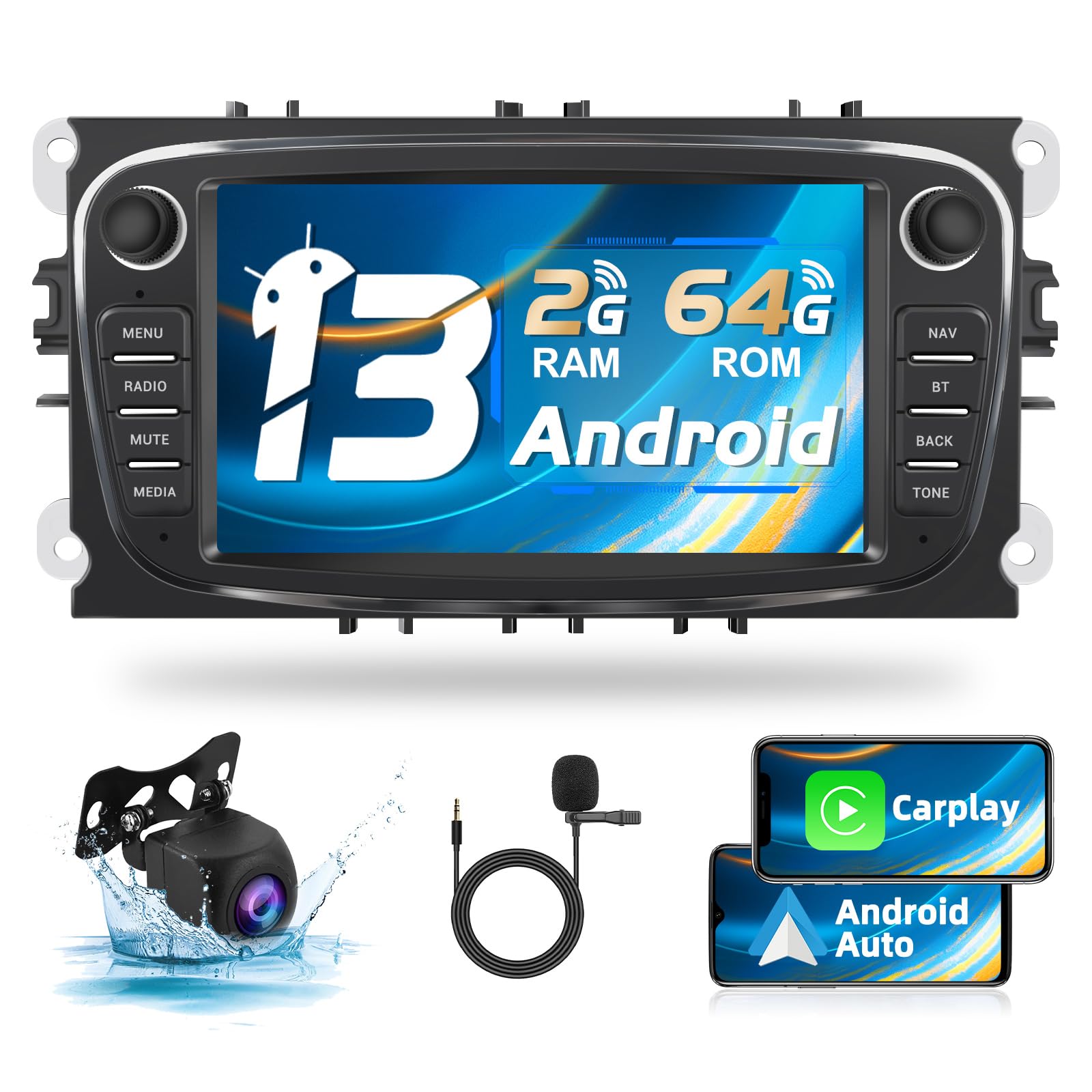
Image: Podofo Android 13 Car Radio main unit installed in a vehicle dashboard.
2. Applicable Vehicle Models
This car radio is compatible with the following Ford models:
- Ford Focus II (2008-2011)
- Ford S-Max (2008-2011)
- Ford Mondeo 9 (2008-2011)
- Ford Galaxy II (2006-2011)
- Ford C-Max (2008-2011)
- Ford Kuga (2006-2011)
Important: Before purchasing and installation, confirm the original car system's configuration year and central control panel design to ensure compatibility.

Image: Visual representation of compatible Ford models and the internal components of the Android 13 system.

Image: Visual guide indicating compatible and incompatible car dashboard configurations for installation.
3. Packing List
Verify that all items listed below are included in the package:
- Podofo Android Car Radio Unit
- Power Cable
- RCA Cable
- USB Cable (Dual USB adapter)
- Rear Camera Input Cable
- Radio Antenna
- GPS Antenna
- Microphone (MIC)
- Rear Camera (Security Camera)
- Antenna Adapter
- User Manual
- Canbus Decoder

Image: Detailed view of the packing list components, including the main unit, cables, antennas, and accessories.
4. Setup and Installation
4.1 Wiring Instructions
Follow these guidelines for connecting the car radio. Professional installation is recommended.
- Power Cable: Connect the main power cable to the vehicle's power supply.
- RCA Cable: Connect for audio/video output and input, such as external amplifiers or monitors.
- USB Cable: Connect the dual USB adapter for external USB devices.
- Rear Camera Input Cable: Connect the video input from the rear-view camera.
- Radio Antenna: Connect the vehicle's radio antenna.
- GPS Antenna: Mount the GPS antenna in a location with a clear view of the sky for optimal signal reception.
4.2 Rear Camera Wiring
To connect the included rear-view camera:
- Connect wire H to A6 (the BACK wire inside the power cable).
- Connect wires I and K to the positive pole of the backup lamp (BUL).
- Connect wire L to grounding or leave unconnected if not required.
Image: Wiring diagram illustrating connections for the main unit and the rear-view camera.
5. Operating Instructions
5.1 Android 13 System
The unit runs on the latest Android 13 operating system, providing a smooth and responsive user experience. It features a 4-core processor, 2GB of RAM, and 64GB of internal storage for applications and media.
Image: Display showing the Android 13 system interface and core hardware specifications.
5.2 Wireless CarPlay and Android Auto
Connect your smartphone wirelessly or via cable to access Apple CarPlay or Android Auto. This allows for voice control of the car radio, access to mobile applications, phone book, and internet features directly from the unit's display.

Image: Screen showing Apple CarPlay and Android Auto interfaces with various app icons.
5.3 Canbus Integration and Split Screen
The integrated Canbus decoder allows the unit to display original car information, such as reverse radar and oil levels. The split-screen function enables running and managing two applications simultaneously on the display.
5.4 Rear View Camera Support
The system supports HD rear-view camera input, including night vision. When reversing, the rear-view image will automatically display on the screen.
5.5 Steering Wheel Control
The unit supports the original car's steering wheel controls. After proper Canbus connection and configuration, you can use the steering wheel buttons to control radio functions, answer calls, change songs, and more.

Image: Display showing the steering wheel control learning interface and the equalizer adjustment screen.
5.6 GPS Navigation
The built-in GPS navigation application provides real-time road conditions and accurate satellite positioning to help you reach your destination efficiently.

Image: Screenshots of GPS navigation, Wi-Fi connection, Bluetooth pairing, and FM/RDS radio interfaces.
5.7 Wi-Fi Connectivity
Connect to mobile hotspots via Wi-Fi to access the internet, download applications, stream videos, and enjoy various online entertainment options.
5.8 Bluetooth Functionality
The integrated Bluetooth allows for hands-free calling, music streaming, and automatic phonebook loading. It also supports EQ adjustments for personalized audio settings.
5.9 FM/RDS Radio
Listen to your favorite radio stations with the FM/RDS tuner. It supports 30 preset channels for quick access to music, news, or talk radio.
5.10 Audio Equalizer (EQ)
Customize your audio experience with 16 types of car equalizer sound adjustments. The unit also supports subwoofer output and voice switching.
6. Maintenance
To ensure the longevity and optimal performance of your Podofo Car Radio:
- Cleaning: Use a soft, dry cloth to clean the screen and exterior. Avoid abrasive cleaners or solvents.
- Software Updates: Periodically check for software updates to ensure the system runs efficiently and has the latest features.
- Environmental Conditions: Avoid exposing the unit to extreme temperatures, direct sunlight for prolonged periods, or excessive moisture.
7. Troubleshooting
If you encounter issues with your car radio, consider the following common solutions:
- No Power: Check all power connections and fuses. Ensure the ignition is on.
- No Sound: Verify speaker connections, volume settings, and audio source selection. Check if the mute function is active.
- GPS Signal Loss: Ensure the GPS antenna is properly connected and has an unobstructed view of the sky.
- Bluetooth Connection Issues: Ensure Bluetooth is enabled on both the car radio and your mobile device. Try unpairing and re-pairing the devices.
- Touchscreen Unresponsive: Try restarting the unit. If the issue persists, a factory reset might be necessary (consult the full manual for instructions).
- CarPlay/Android Auto Not Connecting: Ensure your phone is compatible and the connection (wireless or wired) is stable. Check phone settings for CarPlay/Android Auto permissions.
For more complex issues, refer to the detailed user manual or contact customer support.
8. Technical Specifications
| Feature | Specification |
|---|---|
| Model Number | 1365669031 |
| Operating System | Android 13 |
| Processor | 4-core |
| RAM | 2 GB |
| Internal Storage | 64 GB |
| Screen Size | 7 inches |
| Connectivity Technology | Bluetooth, Wi-Fi |
| Special Features | Android Auto, Apple CarPlay, GPS Navigation, Split Screen, Canbus Support, Rear View Camera Support, Steering Wheel Control |
| Compatible Devices | Smartphone, Tablet |
| Connector Type | USB Type A |
| Audio Output Mode | Stereo |
| Surround Sound Channels | 5.1 |
| Video Encoding | H.264, H.265/HEVC |
| Number of Audio Channels | 5 |
| Package Dimensions | 28 x 21 x 11 cm |
| Item Weight | 1.38 kg |
9. Warranty Information
This Podofo Car Radio comes with a 2-year product warranty from the date of purchase. This warranty covers manufacturing defects and malfunctions under normal use. It does not cover damage caused by improper installation, misuse, accidents, or unauthorized modifications.
Please retain your proof of purchase for warranty claims.
10. Customer Support
For technical assistance, troubleshooting, or warranty inquiries, please contact Podofo customer support through the retailer where the product was purchased or visit the official Podofo website for contact information.
Online Resources:


