
Introduction
This manual provides detailed instructions for the setup, operation, and maintenance of your Lawmate PV-DY40UW DIY 4K WiFi Pinhole Camera. Please read this manual thoroughly before using the device to ensure proper functionality and to maximize its performance.
Package Contents
Verify that all items are present in your package:
- DVR KIT (PV-DY40UW module with camera)
- 128GB MicroSD Card
- USB Charging Cable
Product Overview
The Lawmate PV-DY40UW is a DIY 4K UHD camera kit designed for covert surveillance. It allows users to integrate a high-resolution camera module into various objects, capturing video up to 3840x2160 in 4K UHD resolution. The device supports Wi-Fi connectivity for remote access and configuration via a dedicated app, and stores footage on a microSD card, supporting up to 256GB (128GB included).
Key Features:
- Do-It-Yourself Hidden Camera & WiFi Module DVR
- 4K Ultra HD video resolution
- P2P Connectivity up to 30ft
- Up to 256GB micro SD card storage accepted (128GB Included)
- Designed for covert security camera integration
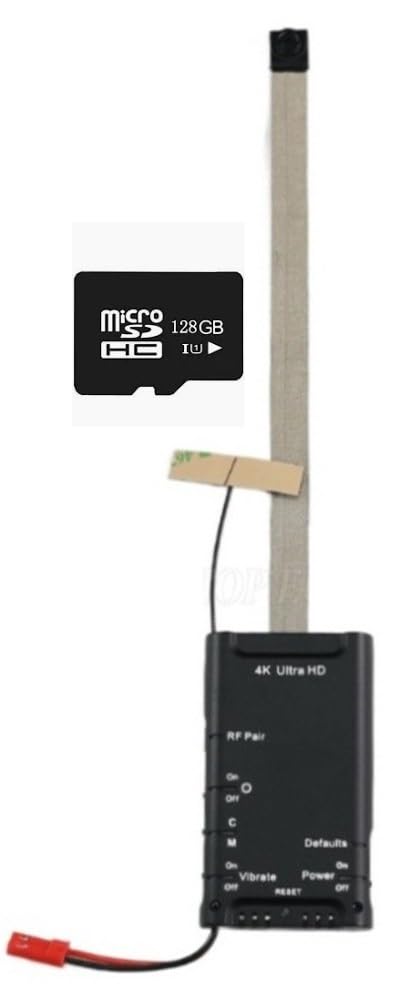
Image: The compact Lawmate PV-DY40UW pinhole camera module with its ribbon cable, shown held in a hand to illustrate its small size.
Setup
1. Charging the Device
The PV-DY40UW is battery-powered. Before initial use, ensure the device is fully charged using the included USB charging cable and a compatible USB power source (e.g., a wall adapter or computer USB port). The charging indicator light will typically show the charging status and turn off or change color when fully charged.
2. MicroSD Card Installation
Locate the microSD card slot on the DVR module. Insert the included 128GB microSD card (or another compatible card up to 256GB) into the slot until it clicks into place. Ensure the card is inserted in the correct orientation. Formatting the SD card via the app is recommended before first use to ensure optimal performance and compatibility.

Image: The Lawmate PV-DY40UW DVR module, showing the main unit with the attached ribbon cable and pinhole camera. This view helps identify the components for setup.
3. App Installation
Download the official Lawmate app from your smartphone's app store (iOS or Android). Search for 'Lawmate' or refer to the QR code provided in the product packaging for direct download links. Install the app and create an account if prompted.
4. Wi-Fi Connection
- Power on the PV-DY40UW module by pressing and holding the power button. The device will emit its own Wi-Fi signal.
- On your smartphone, go to Wi-Fi settings and connect to the Wi-Fi network broadcast by the PV-DY40UW (e.g., 'PV-DY40UW_XXXXXX').
- Open the Lawmate app. The app should automatically detect the connected camera. Follow the in-app instructions to configure the camera, including setting up a password for the device's Wi-Fi and connecting it to your home/office Wi-Fi network for remote access (if desired and supported by the app's P2P functionality).
Operating Instructions
Power On/Off
Press and hold the power button on the DVR module to turn the device on or off. Observe the indicator lights for status confirmation.
Recording Modes
Access the Lawmate app to select desired recording modes: continuous recording, motion detection recording, or scheduled recording. Configure resolution settings (4K, 1080p, 720p) and frame rates (up to 120fps for lower resolutions) through the app's interface.
Live View
Within the Lawmate app, select the connected camera to access the live video feed. This feature allows for real-time monitoring of the camera's view.
Playback and Download
Recorded videos are stored on the microSD card. Use the app to browse, playback, and download video files directly to your smartphone. Ensure sufficient storage space on your phone before attempting to download large files.
Settings Configuration
The Lawmate app provides various settings for customization, including video quality, motion detection sensitivity, loop recording, date/time stamp, and control over LED indicators. Adjust these settings according to your specific surveillance requirements.
Maintenance
Battery Care
To prolong the battery life of your PV-DY40UW, avoid fully discharging the battery frequently. Charge the device regularly, especially if it will be stored for extended periods without use.
MicroSD Card Management
Regularly format the microSD card through the Lawmate app to maintain optimal recording performance and prevent data corruption. Always back up important footage before formatting. Replace the microSD card if it shows signs of degradation or error messages.
Cleaning
Gently clean the camera lens with a soft, lint-free cloth. Avoid using harsh chemicals, abrasive materials, or excessive force that could scratch the lens or damage the device's components.
Troubleshooting
- Device Not Powering On: Ensure the battery is charged. Connect the device to a power source and attempt to power it on again. If the battery is fully depleted, it may take a few minutes of charging before the device shows signs of life.
- Cannot Connect to Wi-Fi: Verify that the device is powered on and actively broadcasting its Wi-Fi signal. Ensure your smartphone is within the effective range of the camera's P2P connectivity (up to 30ft). Restart both the camera and your smartphone. If attempting to connect to a home network, double-check the Wi-Fi password for accuracy.
- App Crashing/Not Functioning: Ensure the Lawmate app is updated to the latest version. Try clearing the app's cache or reinstalling it. Verify that your smartphone's operating system is compatible with the app. A low-quality or corrupted SD card can sometimes cause app instability; consider formatting or replacing the SD card.
- No Recording/Corrupted Files: Check if the microSD card is properly inserted and has sufficient free space. Format the microSD card via the app. Ensure recording settings are correctly configured. A faulty microSD card may need replacement.
- LED Lights Blinking (Discretion Issue): Refer to the app settings. Some models allow disabling or dimming indicator LEDs for covert operation. If no such option is available, consider physical concealment of the LEDs if discretion is paramount.
- Poor Video Quality: Ensure the camera lens is clean and free from obstructions. Check the video resolution settings in the app; select 4K for the highest available quality. Ensure adequate lighting in the surveillance area for optimal image capture.
Specifications
| Model Name | PV-DY40UW |
| Video Capture Resolution | 4K (3840x2160) |
| Frame Rate | 25/30fps (4K), up to 120fps (lower resolutions) |
| Connectivity Technology | Wireless (Wi-Fi) |
| Storage | MicroSD card, up to 256GB (128GB included) |
| Power Source | Battery Powered |
| Video Capture Format | MOV |
| Item Dimensions | 3 x 2 x 1 inches |
| Indoor Outdoor Usage | Indoor |
| Water Resistance Level | Not Water Resistant |
Warranty and Support
Lawmate products are designed for reliability and performance. For detailed warranty information, technical support, or service inquiries, please refer to the official Lawmate website or contact your authorized dealer. It is recommended to keep your purchase receipt as proof of purchase for any warranty claims.


