1. Product Overview
The Creality Smoke Purifier is a fume extractor designed to maintain a clean and safe working environment for laser engravers and 3D printers. It features a 3-stage filtration system capable of achieving a 98.95% purification rate, effectively removing harmful fumes and particles.
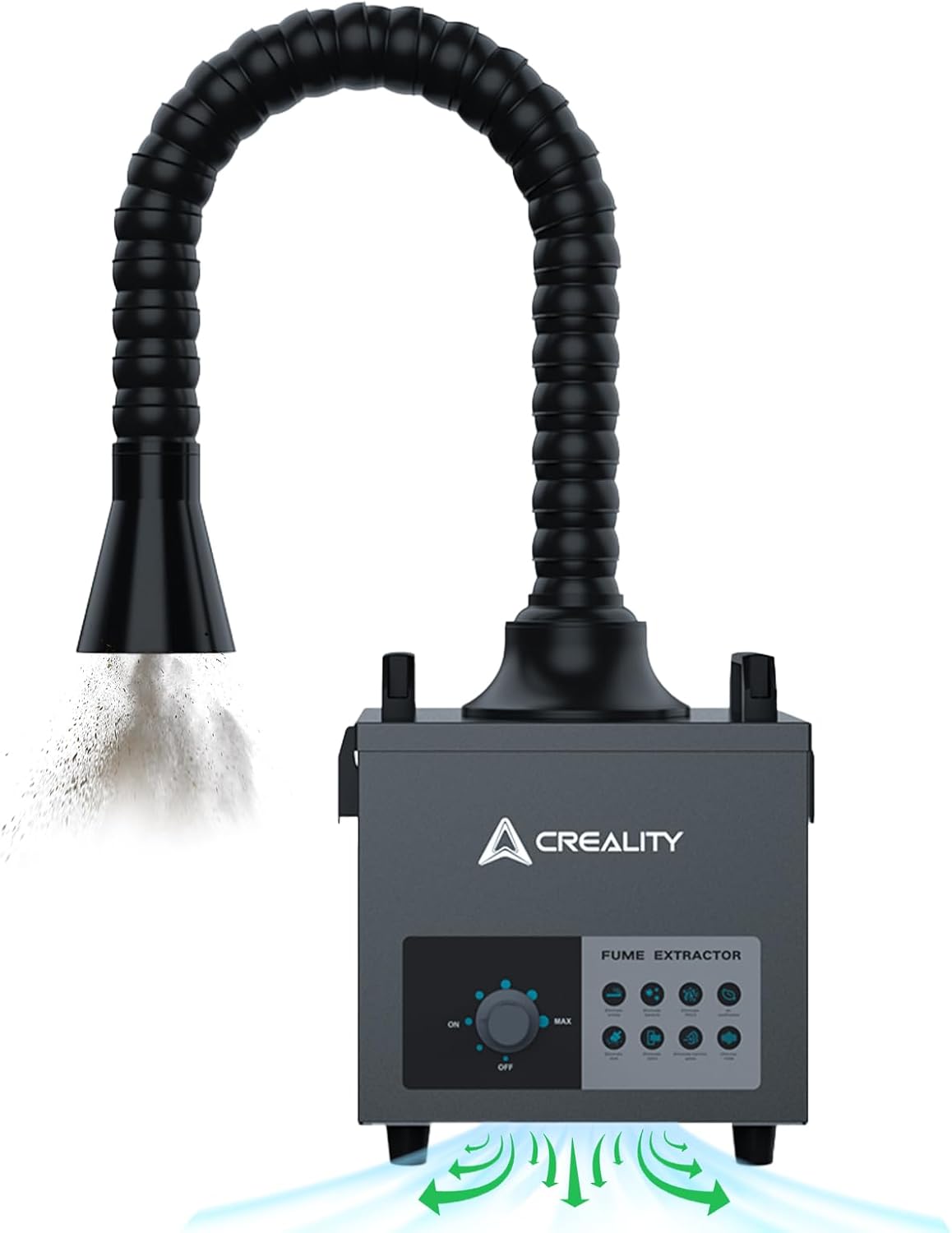
Image 1.1: Creality Smoke Purifier Fume Extractor with flexible duct for fume extraction.
2. Safety Information
Please read and understand all safety instructions before operating the device. Failure to follow these instructions may result in electric shock, fire, or serious injury.
- Ensure the device is placed on a stable, level surface to prevent tipping.
- Do not block the air intake or exhaust vents during operation.
- Keep the device away from water or other liquids. Do not operate with wet hands.
- Only use the provided power adapter and ensure it is connected to a properly grounded outlet.
- Do not attempt to open or repair the device yourself. Refer all servicing to qualified personnel.
- Replace filters regularly as instructed to maintain optimal performance and safety.
3. Product Components
The package includes the following items:
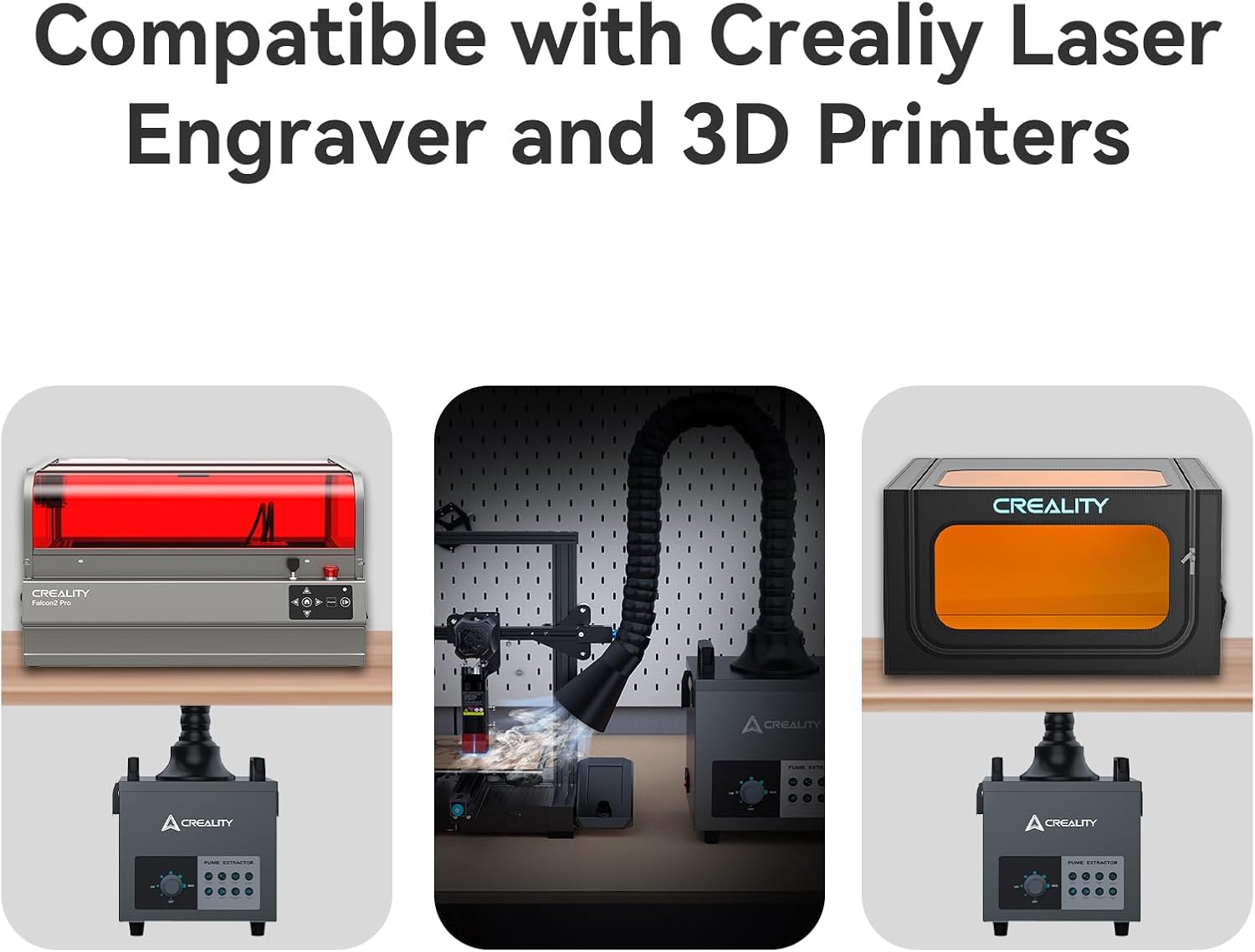
Image 3.1: Included components of the Creality Smoke Purifier.
- Creality Smoke Purifier Main Unit
- Flexible Fume Extraction Duct
- Pre-filter (initial filtration layer)
- Middle Filter (HEPA-like filtration)
- Main Filter (activated carbon for odors)
- Duct Clamps and Adapters
- Power Cable
4. Setup Instructions
Follow these steps to set up your Creality Smoke Purifier:
- Unpack the Unit: Carefully remove all components from the packaging.
- Position the Purifier: Place the main unit on a stable, flat surface near your laser engraver or 3D printer. Ensure there is adequate space around the unit for proper airflow.
- Install Filters: The filters are typically pre-installed. If not, refer to Section 6 for filter installation instructions.
- Attach the Flexible Duct:
- Connect one end of the flexible duct to the exhaust port on top of the purifier unit. Secure it with a clamp if provided.
- Connect the other end of the duct to your laser engraver enclosure or 3D printer's exhaust port. Use appropriate adapters and clamps to ensure a sealed connection. The purifier supports exhaust duct diameters of 3-3.5 inches.

Image 4.1: Sealed design and connection points for the fume extractor.
- Power Connection: Plug the power cable into the purifier's power inlet, then connect it to a suitable electrical outlet.
5. Operating Instructions
Operating the Creality Smoke Purifier is straightforward:
- Power On: Locate the power switch on the unit (usually on the side or back) and flip it to the 'ON' position.
- Adjust Airflow: Use the rotary knob on the front panel to adjust the fan speed and airflow. Turn the knob clockwise to increase suction power (MAX) and counter-clockwise to decrease it (MIN). The unit features stepless airflow adjustment for precise control.

Image 5.1: Control panel with power switch and airflow adjustment knob.
- Begin Operation: Start your laser engraving or 3D printing process. The purifier will begin extracting fumes and particles.
- Power Off: Once your task is complete, turn the airflow knob to the 'OFF' position or flip the main power switch to 'OFF'.
The purifier is designed for various applications, including laser engraving, 3D printing, and electronics manufacturing, ensuring a cleaner workspace.

Image 5.2: Various applications of the Creality Smoke Purifier.
6. Maintenance
Regular maintenance, especially filter replacement, is crucial for the optimal performance and longevity of your smoke purifier.
6.1. Filter System Overview
The Creality Smoke Purifier utilizes a 3-stage filtration system:
- Pre-filter: Captures larger visible particles and dust. This filter is often washable.
- Middle Filter: A honeycomb structure capable of filtering 99.97% of 0.03µm particles, acting as a high-efficiency particulate air (HEPA) filter.
- Main Filter: Contains activated carbon to absorb harmful gases and unpleasant odors.
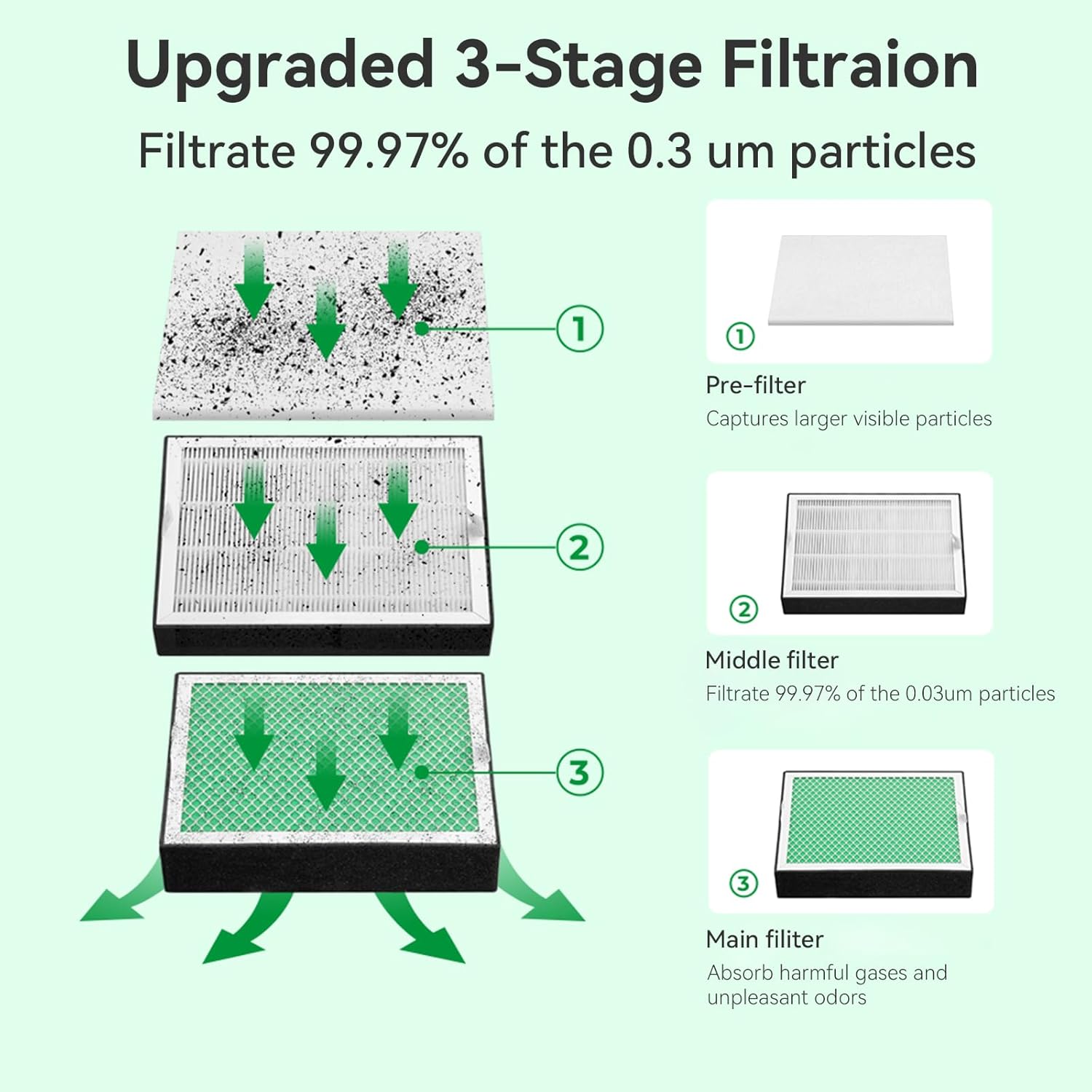
Image 6.1: Detailed view of the 3-stage filtration system.
6.2. Replacing Filter Elements
Filter lifespan varies depending on usage and the type of materials being processed. Replace filters when you notice a decrease in suction power or an increase in odors.
- Power Off: Ensure the purifier is turned off and unplugged from the power source.
- Remove Cover: Unbuckle and carefully remove the top cover of the purifier unit.
- Extract Used Filters: Gently lift out the used filter kit, starting with the top layer (pre-filter) and then the middle and main filters. Dispose of used filters responsibly.
- Insert New Filters: Place the new replacement filters into the unit in the correct order: Main filter at the bottom, followed by the Middle filter, and finally the Pre-filter on top. Ensure they are seated properly.
- Replace Cover: Carefully place the top cover back onto the unit and secure the buckles.
- Resume Operation: Plug in the power cable and turn on the purifier.

Image 6.2: Step-by-step guide for filter replacement.
6.3. Cleaning the Unit
Wipe the exterior of the unit with a soft, dry cloth. Do not use abrasive cleaners or solvents. Ensure no liquids enter the internal components.
7. Troubleshooting
If you encounter issues with your Creality Smoke Purifier, refer to the following common problems and solutions:
| Problem | Possible Cause | Solution |
|---|---|---|
| Unit does not power on. | No power supply; Power switch off; Faulty cable. | Check power cable connection; Ensure power switch is ON; Try a different outlet. |
| Poor fume extraction. | Clogged filters; Duct not properly sealed; Low fan speed setting. | Replace filters (refer to Section 6.2); Check duct connections for leaks; Increase fan speed using the knob. |
| Unusual noise during operation. | Loose components; Obstruction in fan; Unit not on a stable surface. | Ensure unit is on a stable surface; Check for any loose parts; If noise persists, contact support. |
| Persistent odors despite filtration. | Main filter (activated carbon) is saturated. | Replace the main filter. |
If the problem persists after attempting these solutions, please contact Creality customer support.
8. Specifications
| Feature | Specification |
|---|---|
| Product Dimensions | 8.74 x 10.36 x 10.12 inches |
| Weight | 18.6 Pounds |
| Item Model Number | 85W Power |
| Brand | Creality |
| Controller Type | Digital Buttons / Rotary Knob |
| Special Feature | High Purification Rate (98.95%), Specialized Design for Laser Engraver/3D Printer Exhaust Ducts |
| Filter Class | HEPA (Middle Filter) |
| Filtration Stages | 3-Stage (Pre-filter, Middle filter, Main filter) |
| Duct Diameter Compatibility | 3-3.5 inches |

Image 8.1: Product dimensions of the Creality Smoke Purifier.
9. Warranty and Support
Creality products are backed by a manufacturer's warranty. For specific warranty terms, technical support, or service inquiries, please visit the official Creality website or contact their customer service directly.
You can find more information and support resources on the Creality Store on Amazon.


