
DOOGEE T10W
DOOGEE T10W Android Tablet User Manual
Model: T10W
1. Getting Started: Setup
This section guides you through the initial setup of your DOOGEE T10W Android Tablet.
1.1 Package Contents
- DOOGEE T10W Android Tablet
- Charging Cable (Type-C)
- Power Adapter
- SIM Ejector Tool
- User Manual (this document)
- 128GB TF card (if included with your purchase)
1.2 Charging the Tablet
Before first use, fully charge the tablet. Connect the provided Type-C charging cable to the tablet's charging port and the power adapter to a wall outlet. The battery indicator on the screen will show charging status.
1.3 Powering On/Off
- To Power On: Press and hold the Power button located on the side of the tablet until the DOOGEE logo appears.
- To Power Off: Press and hold the Power button until the power options menu appears. Select "Power off" and confirm.
- To Restart: From the power options menu, select "Restart" and confirm.
1.4 Installing SIM and TF Cards
The DOOGEE T10W supports dual nano SIM cards or one nano SIM card and one TF (microSD) card for expanded storage up to 1TB.
- Locate the SIM/TF card tray on the side of the tablet.
- Insert the SIM ejector tool into the small hole next to the tray and gently push until the tray pops out.
- Carefully pull out the tray.
- Place your nano SIM card(s) and/or TF card into the designated slots on the tray, ensuring the gold contacts face down and the cards are correctly oriented.
- Gently push the tray back into the tablet until it clicks into place.

1.5 Initial Setup Wizard
Upon first power-on, the tablet will guide you through the Android 14 setup wizard. Follow the on-screen prompts to:
- Select your language.
- Connect to a Wi-Fi network.
- Sign in with your Google account or create a new one.
- Set up screen lock (PIN, pattern, password, or Face Unlock).
- Review and accept terms and conditions.
2. Operating Your Tablet
This section details the key features and functionalities of your DOOGEE T10W tablet.
2.1 Display and Visuals
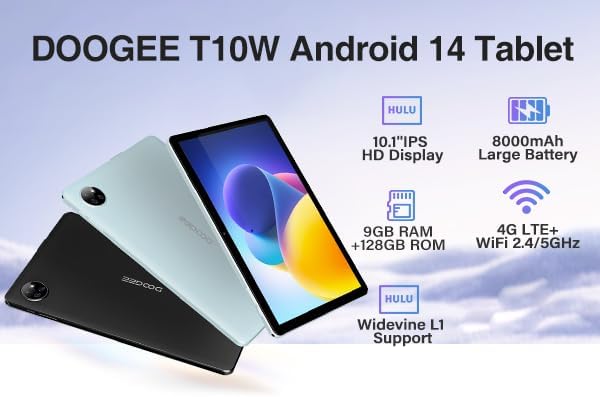
The tablet features a 10.1-inch IPS HD display with a resolution of 1280 x 800 pixels, providing clear and vibrant visuals. The IPS technology ensures wide viewing angles. The display is designed for eye comfort during extended use.
2.2 Performance and Storage
Powered by an Octa-Core processor, the DOOGEE T10W ensures smooth performance for various tasks, from browsing to gaming. It comes with 9GB RAM (4GB physical + 5GB expandable virtual RAM) and 128GB of internal storage (ROM). The storage can be further expanded up to 1TB using a TF (microSD) card.

2.3 Connectivity
- 4G LTE: Supports dual 4G LTE for cellular data and VoLTE calls, allowing connectivity even without Wi-Fi.
- Wi-Fi: Features dual-band Wi-Fi (2.4GHz/5GHz) for fast and stable internet connections.
- Bluetooth 5.0: For connecting wireless accessories like headphones, keyboards, and mice.
- GPS: Supports multiple navigation systems including GPS, GLONASS, BDS, and Galileo for accurate location services.

2.4 Battery and Charging
Equipped with an 8000mAh lithium battery, the DOOGEE T10W offers extended usage times, including up to 700 hours of standby, 16 hours of talk time, and 58 hours of music playback. It supports reverse charging, allowing you to use the tablet as a power bank for other devices. Charging is done via the Type-C port, and it also supports OTG (On-The-Go) functionality.

2.5 Camera Features
The tablet includes a 5MP main camera on the rear and a 2MP front camera. These cameras are suitable for daily photography, video calls, and online meetings.

2.6 Audio and Face Unlock
The DOOGEE T10W is equipped with dual speakers for stereo sound quality and includes a 3.5mm audio jack for wired headphones. For convenient and secure access, the tablet supports Face Unlock technology.

2.7 Android 14 Operating System
The tablet runs on the latest Android 14 operating system, offering enhanced privacy protection, improved app permission controls, and a smoother user experience. Key features include:
- Privacy and Security: Granular control over app permissions and data access.
- Task Bar: Convenient multitasking and quick app switching.
- Split Screen: Run two applications simultaneously for increased productivity.
- Parental Control: Tools to manage screen time and content access for children.

2.8 Accessory Compatibility
The DOOGEE T10W is designed to work seamlessly with external accessories such as Bluetooth keyboards, mice, and styluses, enhancing its versatility for productivity and creative tasks.

3. Maintenance
Proper maintenance ensures the longevity and optimal performance of your tablet.
3.1 Cleaning the Tablet
- Use a soft, lint-free cloth to clean the screen and body of the tablet.
- For stubborn smudges, slightly dampen the cloth with water or a screen-cleaning solution.
- Avoid using harsh chemicals, abrasive materials, or excessive moisture.
3.2 Software Updates
Regularly check for and install software updates to ensure your tablet has the latest features, security patches, and performance improvements. Go to Settings > System > System update to check for available updates.
3.3 Battery Care
- Avoid exposing the tablet to extreme temperatures (hot or cold).
- Do not fully discharge the battery frequently. It is recommended to keep the battery level between 20% and 80%.
- Use only the original or certified charging accessories.
4. Troubleshooting
This section addresses common issues you might encounter with your DOOGEE T10W tablet.
4.1 Tablet Not Powering On
- Ensure the tablet is sufficiently charged. Connect it to the charger for at least 30 minutes.
- Press and hold the Power button for 10-15 seconds to force a restart.
4.2 Wi-Fi Connectivity Issues
- Toggle Wi-Fi off and on in Settings.
- Restart your Wi-Fi router.
- Forget the network in tablet settings and reconnect.
- Ensure you are within range of the Wi-Fi signal.
4.3 Apps Crashing or Freezing
- Close the problematic app and reopen it.
- Clear the app's cache and data in Settings > Apps > [App Name] > Storage.
- Ensure the app is updated to its latest version from the Google Play Store.
- Restart the tablet.
4.4 File Transfer from PC Issues
If you encounter issues transferring files when connecting the tablet to a PC via USB:
- After connecting the tablet to your PC, swipe down from the top of the tablet screen to open the notification panel.
- Tap on the USB notification (e.g., "Charging this device via USB").
- Select "File Transfer" (MTP) from the options. This will allow your PC to access the tablet's storage.
4.5 Factory Reset
If persistent issues occur, a factory reset can resolve them. Warning: This will erase all data on your tablet. Back up important data before proceeding.
- Go to Settings > System > Reset options.
- Select "Erase all data (factory reset)".
- Confirm your choice and enter your PIN/pattern/password if prompted.
- The tablet will restart and begin the reset process.
5. Specifications
Detailed technical specifications for the DOOGEE T10W Android Tablet.
| Feature | Specification |
|---|---|
| Model Name | T10W |
| Operating System | Android 14 |
| Screen Size | 10.1 Inches |
| Screen Resolution | 1280 x 800 Pixels |
| Processor Brand | Qualcomm (Octa-Core) |
| Memory (RAM) | 9GB (4GB + 5GB Expansion) |
| Storage (ROM) | 128GB |
| Expandable Storage | Up to 1TB (TF Card) |
| Wireless Type | 802.11ac (2.4GHz/5GHz Wi-Fi) |
| Cellular Connectivity | 4G LTE (Dual SIM support) |
| Battery Capacity | 8000mAh |
| Front Camera | 2MP |
| Rear Camera | 5MP |
| Item Weight | 2 pounds (approx. 907g) |
| Product Dimensions | 9.6 x 6.4 x 0.38 inches |
| Color | Blue |
6. Warranty and Support
For warranty information, please refer to the warranty card included with your purchase or visit the official DOOGEE website. Warranty terms and conditions may vary by region and retailer.
6.1 Customer Support
If you require further assistance or encounter issues not covered in this manual, please contact DOOGEE customer support through their official website or the retailer from whom you purchased the tablet.
For additional resources and frequently asked questions, you may visit the DOOGEE Store on Amazon.
Related documentsT10W


Ask a question about this manual
Ask about setup, troubleshooting, compatibility, parts, safety, or missing instructions. Manuals+ will review the question and use this page’s manual context to help answer it.