
1. Introduction
Thank you for choosing the OBZ F2 Desktop Barcode Scanner. This device is designed to provide efficient and accurate barcode scanning for various applications, including retail, logistics, and payment processing. Its hands-free operation, automatic detection, and broad compatibility make it a versatile tool for enhancing productivity.
This manual provides essential information on setting up, operating, and maintaining your OBZ F2 scanner. Please read it thoroughly before use to ensure proper functionality and to prevent damage.
2. Safety Information
- Do not expose the scanner to extreme temperatures, humidity, or direct sunlight.
- Avoid dropping or subjecting the scanner to severe impacts.
- Do not attempt to disassemble or modify the scanner. This will void the warranty.
- Keep the scanning window clean to ensure optimal performance. Use a soft, dry cloth for cleaning.
- This device is intended for indoor use only.
3. Package Contents
Please check the package contents upon opening. The standard package should include:
- OBZ F2 Desktop Barcode Scanner
- USB Cable (attached)
- User Manual (this document)
4. Product Overview
The OBZ F2 scanner features a compact, desktop design with an integrated USB cable for easy connectivity. Its omnidirectional scanning capability allows for quick and efficient reading of various barcode types.

Figure 4.1: OBZ F2 Desktop Barcode Scanner in use, demonstrating QR code scanning from a smartphone.

Figure 4.2: Rear view of the OBZ F2 scanner showing the integrated USB cable for connection.

Figure 4.3: Product dimensions and material details. Note the protective film on the scan window that should be removed before first use.
5. Setup
The OBZ F2 Barcode Scanner is designed for plug-and-play operation, requiring no software or driver installation.
- Unpack the Scanner: Carefully remove the scanner from its packaging.
- Remove Protective Film: Peel off any protective film from the scanning window.
- Connect to Computer: Plug the USB cable of the scanner into an available USB port on your computer or POS system.
- System Recognition: Your operating system will automatically detect and configure the scanner. This may take a few seconds.
- Ready for Use: Once recognized, the scanner is ready to begin scanning barcodes.
6. Operating Instructions
The OBZ F2 scanner utilizes automatic detection and CMOS image technology for efficient and accurate scanning.
6.1. Scanning Barcodes
- Hands-Free Operation: Place the scanner on a flat surface. There is no need to pick it up.
- Automatic Detection: The scanner will automatically activate when a barcode is presented within its scanning area.
- Positioning: Hold the barcode (on paper, label, or digital screen) within the scanner's field of view. The scanner will emit a light beam to read the code.
- Confirmation: A successful scan is typically indicated by an audible beep and/or a visual confirmation light.

Figure 6.1: Example of a payment process using the OBZ F2 scanner to read a QR code from a mobile device.
6.2. Supported Barcode Types
The OBZ F2 scanner supports a wide range of 1D and 2D barcode symbologies, including those found on labels, paper, and digital displays (mobile phones, computer screens).

Figure 6.2: The scanner supports various 1D codes (e.g., Code128, Code39, UPC, EAN13) and 2D codes (e.g., QR Code).
6.3. System Compatibility
The scanner is compatible with a variety of operating systems, ensuring broad usability across different setups.
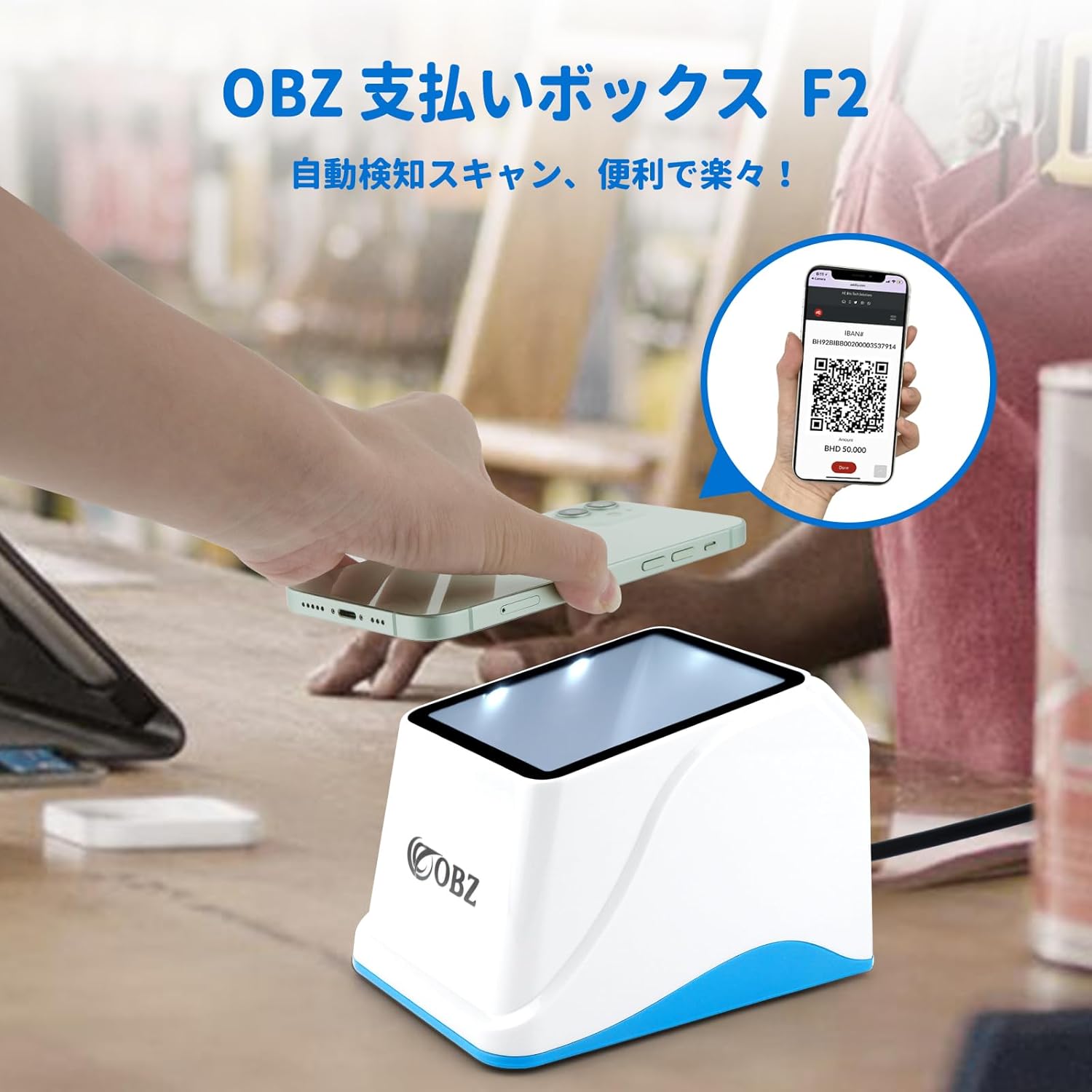
Figure 6.3: Compatible with Windows (XP/7/8/10/11), Linux, Android, and Mac OS. It integrates seamlessly with common office software like Word, Excel, and TXT applications.
7. Maintenance
Proper maintenance ensures the longevity and optimal performance of your OBZ F2 scanner.
- Cleaning the Scanning Window: Regularly clean the scanning window with a soft, lint-free cloth. For stubborn smudges, slightly dampen the cloth with water or a mild, non-abrasive cleaner. Do not use harsh chemicals or abrasive materials.
- General Cleaning: Wipe the exterior of the scanner with a dry or slightly damp cloth to remove dust and dirt.
- Storage: When not in use, store the scanner in a clean, dry environment away from direct sunlight and extreme temperatures.
8. Troubleshooting
If you encounter issues with your OBZ F2 scanner, please refer to the following common problems and solutions:
| Problem | Possible Cause | Solution |
|---|---|---|
| Scanner does not power on or respond. | USB cable not properly connected or faulty USB port. | Ensure the USB cable is securely plugged into both the scanner and the computer. Try a different USB port. |
| Scanner does not read barcodes. | Barcode is damaged, poorly printed, or not supported. Scanning window is dirty. Insufficient lighting. | Try scanning a different, known-good barcode. Clean the scanning window. Ensure adequate lighting. Verify the barcode type is supported. |
| Scanner reads slowly or intermittently. | Scanning window is dirty. Barcode is not presented correctly. | Clean the scanning window. Ensure the barcode is flat and within the optimal scanning range. |
| No sound or incorrect sound settings. | Sound settings need adjustment. | Refer to the user guide (PDF) for instructions on adjusting the volume and sound settings. This typically involves scanning specific configuration codes. |
If the problem persists after trying these solutions, please contact customer support.
9. Specifications
| Feature | Description |
|---|---|
| Model | F2 (NF2-JP) |
| Color | White + Blue |
| Dimensions (L x W x H) | 136mm x 95mm x 96mm |
| Weight | 180g |
| Cable Length | 1.2m |
| Material | ABS + PC |
| Connection Method | USB Cable |
| Scanning Technology | CMOS Image |
| Scan Angle | 360 degrees |
| Supported Symbologies | 1D: Code128, Code39, UPC, EAN13, etc. 2D: QR Code, etc. |
| Compatibility | Windows XP/7/8/10/11, Linux, Android, Mac OS |
10. Warranty and Support
OBZ provides a three-year warranty for this barcode scanner from the date of purchase. This warranty covers manufacturing defects and malfunctions under normal use.
For technical support, warranty claims, or any inquiries regarding your OBZ F2 Barcode Scanner, please contact our customer service team through the platform where you purchased the product. Please have your purchase details and product model number ready when contacting support.


