
TOPTRO TR26
TOPTRO TR26 Mini Projector User Manual
Model: TR26
Brand: TOPTRO
Introduction
The TOPTRO TR26 Mini Projector is a portable, high-definition projector designed for home and outdoor entertainment. It supports 4K and 1080P Full HD content, offering a large screen display of up to 200 inches. Featuring automatic keystone correction, WiFi 6, and Bluetooth 5.2 connectivity, it provides a versatile and immersive viewing experience. This manual provides detailed instructions for setup, operation, maintenance, and troubleshooting.
What's Included
Please check the package contents upon unboxing to ensure all items are present:
- TOPTRO TR26 Mini Projector
- Tripod
- Remote Control
- Power Cord
- HDMI Cable
- Cleaning Kit
- User Manual (this document)

Image: The compact TOPTRO TR26 Mini Projector with its tripod, demonstrating its portability.
Setup
- Placement: Place the projector on a stable, flat surface. The included tripod can be used for optimal positioning. Ensure there is adequate ventilation around the projector.
- Power Connection: Connect the power cord to the projector's power input and then to a power outlet.
- Initial Power On: Press the power button on the projector or the remote control to turn on the device.
- Focus Adjustment: Adjust the focus ring on the projector lens until the projected image is clear and sharp.
- Keystone Correction: The TR26 features automatic vertical keystone correction (±30°). For manual adjustment or fine-tuning, navigate to the 'Setting' menu using the remote control.
- Screen Size Adjustment: The projector supports an 80% zoom function. Use the remote control to adjust the projected image size to fit your screen or wall.

Image: The projector automatically adjusts the image shape for a perfect rectangular display, even when placed at an angle.
Operating Instructions
Connectivity Options
The TOPTRO TR26 offers multiple ways to connect your devices:
- HDMI: Connect devices like TV sticks, gaming consoles (PS5), laptops, or PCs using an HDMI cable. Select 'HDMI' input from the projector's main menu.
- USB: Insert USB sticks to play media files directly. Select 'Media' from the main menu to browse files.
- Audio Output (3.5mm): Connect external speakers or headphones for enhanced audio experience.
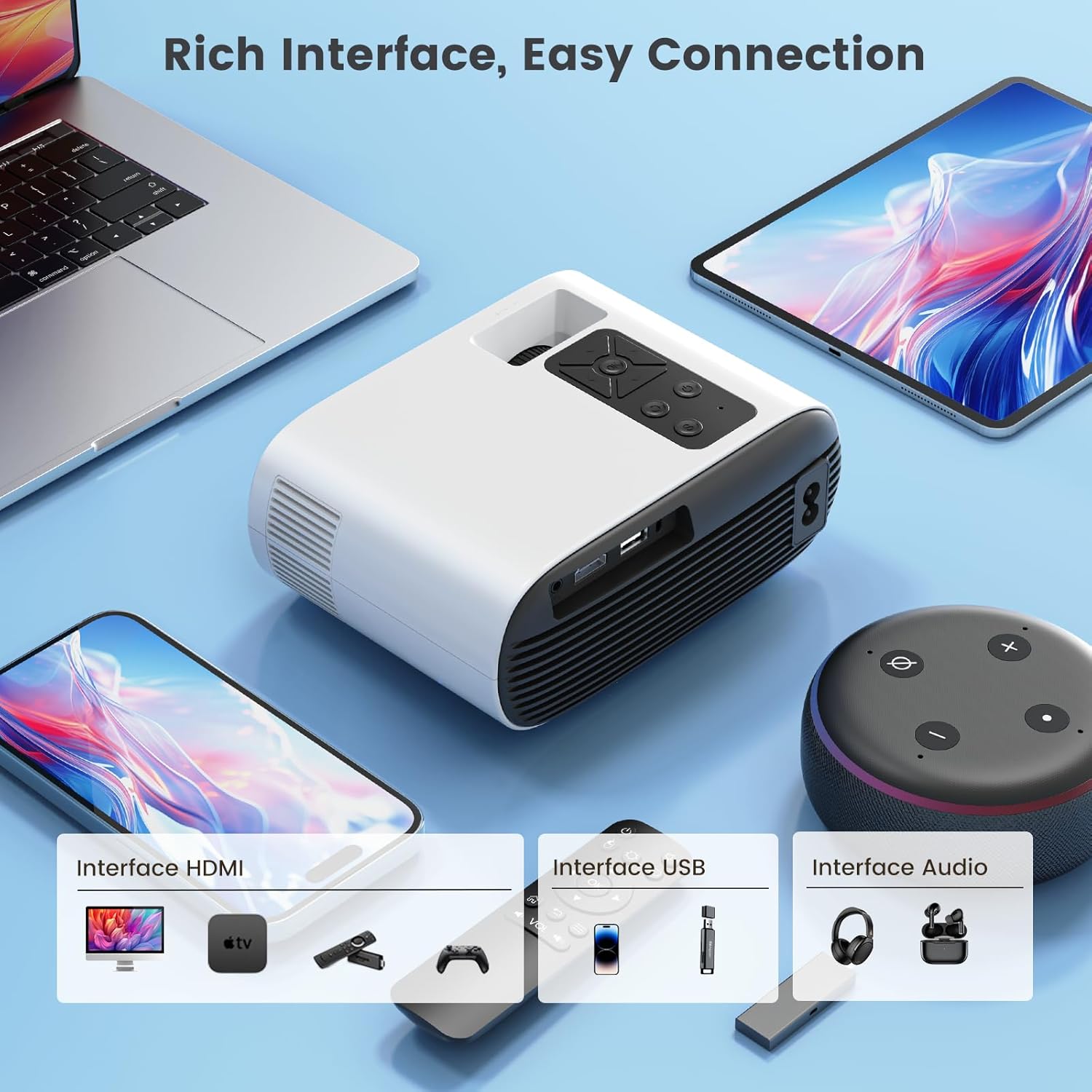
Image: Overview of the projector's input interfaces for easy connection to various devices.
Wireless Screen Mirroring (WiFi 6)
The projector supports 5G/2.4G dual-band WiFi 6 for smooth wireless screen mirroring from iOS, Android, and Windows devices.
- Ensure your mobile device and the projector are connected to the same WiFi network.
- On the projector's main menu, select 'Wireless Screen'.
- Follow the on-screen instructions specific to your device (iOS/Android/Windows) to initiate screen mirroring.
Note on Copyrighted Content:
Due to HDCP copyright protection, direct screen mirroring from apps like Netflix, Prime Video, Disney+, etc., is not supported. For streaming copyrighted content, it is recommended to use an external streaming device such as an Amazon Fire TV Stick or Google Chromecast TV stick connected via HDMI. The TR26 mini projector also does not support Dolby sound effects; please ensure Dolby sound is turned off on your source device if experiencing audio issues.

Image: Seamless wireless screen mirroring for faster and smoother content transmission.
Bluetooth 5.2 Connection
Connect Bluetooth headphones or speakers for an enhanced audio experience.
- On the projector's main menu, select 'Bluetooth'.
- Ensure your Bluetooth audio device is in pairing mode.
- Select your device from the list of available devices on the projector screen to connect.
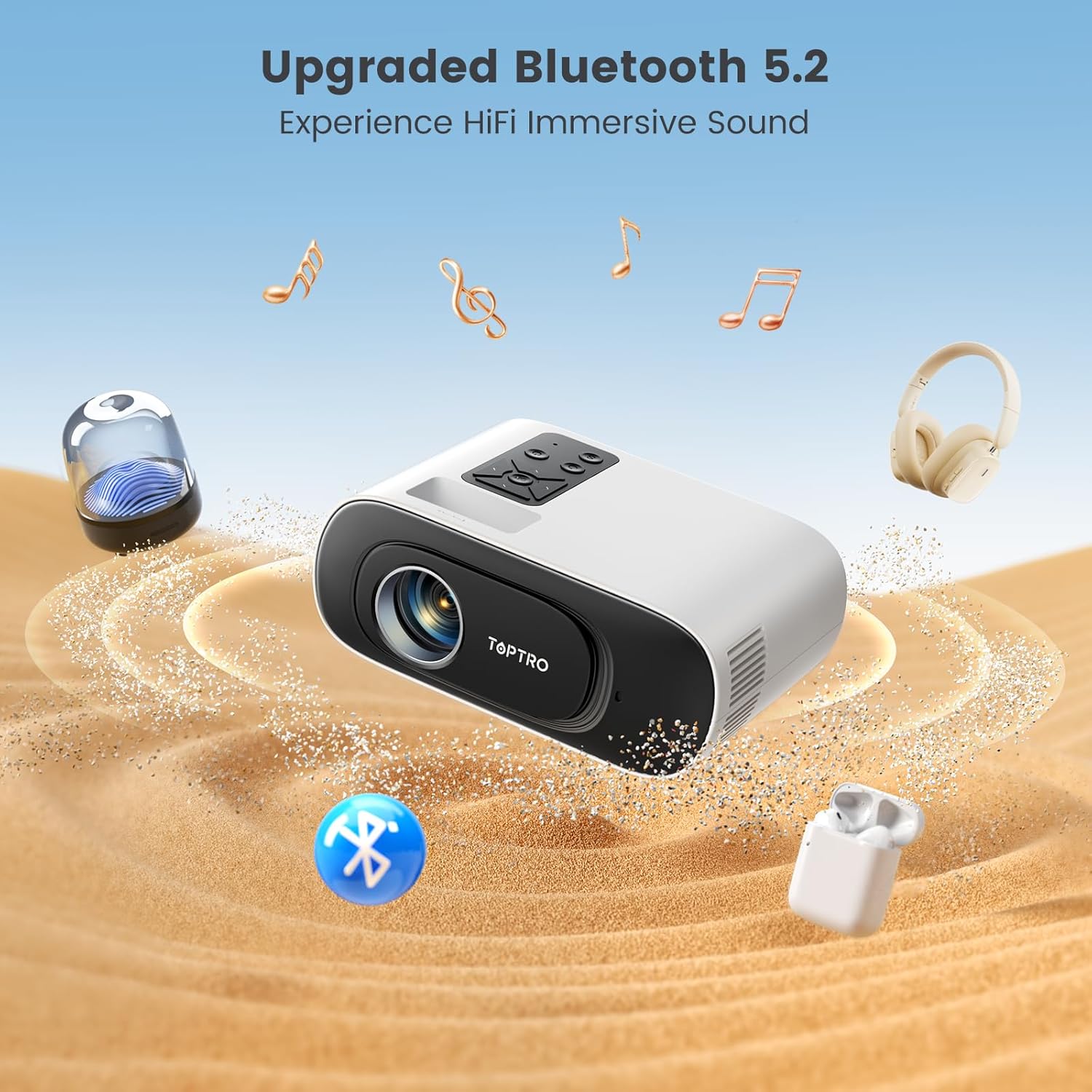
Image: The projector's Bluetooth 5.2 capability allows for wireless connection to external audio devices for immersive sound.
Maintenance
Regular maintenance ensures optimal performance and longevity of your projector. The advanced LED light source lamp has a lifespan of up to 30,000 hours.
Cleaning the Inner Screen (Removing Black Spots)
If you notice black spots on your projected image, it may be due to dust on the inner screen. Follow these steps to clean it:
- Power Off and Unplug: Ensure the projector is turned off and unplugged from the power source before proceeding.
- Access Dust Screen Cover: Gently turn the projector bottom up. Locate the dust screen cover on the underside.
- Pry Off Cover: Use a narrow and thin tool (like a small screwdriver or the provided cleaning tool) to carefully pry off the dust screen cover.
- Clean Inner Screen: Use a clean cotton swab to gently clean the inner screen (there are typically three panels inside).
- Verify Cleaning: Turn on the projector and observe the screen to confirm that the dust spots have been removed.
- Replace Cover: After cleaning, gently cover the dust screen cover back into place.
Video: A step-by-step guide on how to clean the inner screen of the TOPTRO TR26 projector to remove black spots caused by dust.
General Cleaning
- Use a soft, dry cloth to clean the exterior of the projector.
- For the lens, use a specialized lens cleaning cloth and solution to avoid scratches.
- Do not use abrasive cleaners or solvents.
Troubleshooting
| Problem | Possible Cause / Solution |
|---|---|
| No image or blurry image |
|
| No sound |
|
| Cannot screen mirror Netflix/Prime Video |
|
| Black spots on projected image |
|
Specifications
| Feature | Detail |
|---|---|
| Model | TR26 |
| Display Technology | LCD |
| Native Resolution | 1280 x 720 Pixels (Supports 4K, 1080P Full HD) |
| Image Brightness | 20000 Lumens |
| Image Contrast Ratio | 20000:1 |
| Aspect Ratio | 16:9, 4:3 |
| Connectivity | Bluetooth 5.2, Wi-Fi 6 (5G/2.4G), USB, HDMI |
| Special Features | Built-In Speaker, Portable, Built-In Wi-Fi, Auto Keystone Correction |
| Lamp Life | Up to 30,000 hours |
| Product Dimensions | 17.4 x 13.8 x 7.3 cm |
| Item Weight | 600 Grams |
| Power Consumption | 24 Watts |
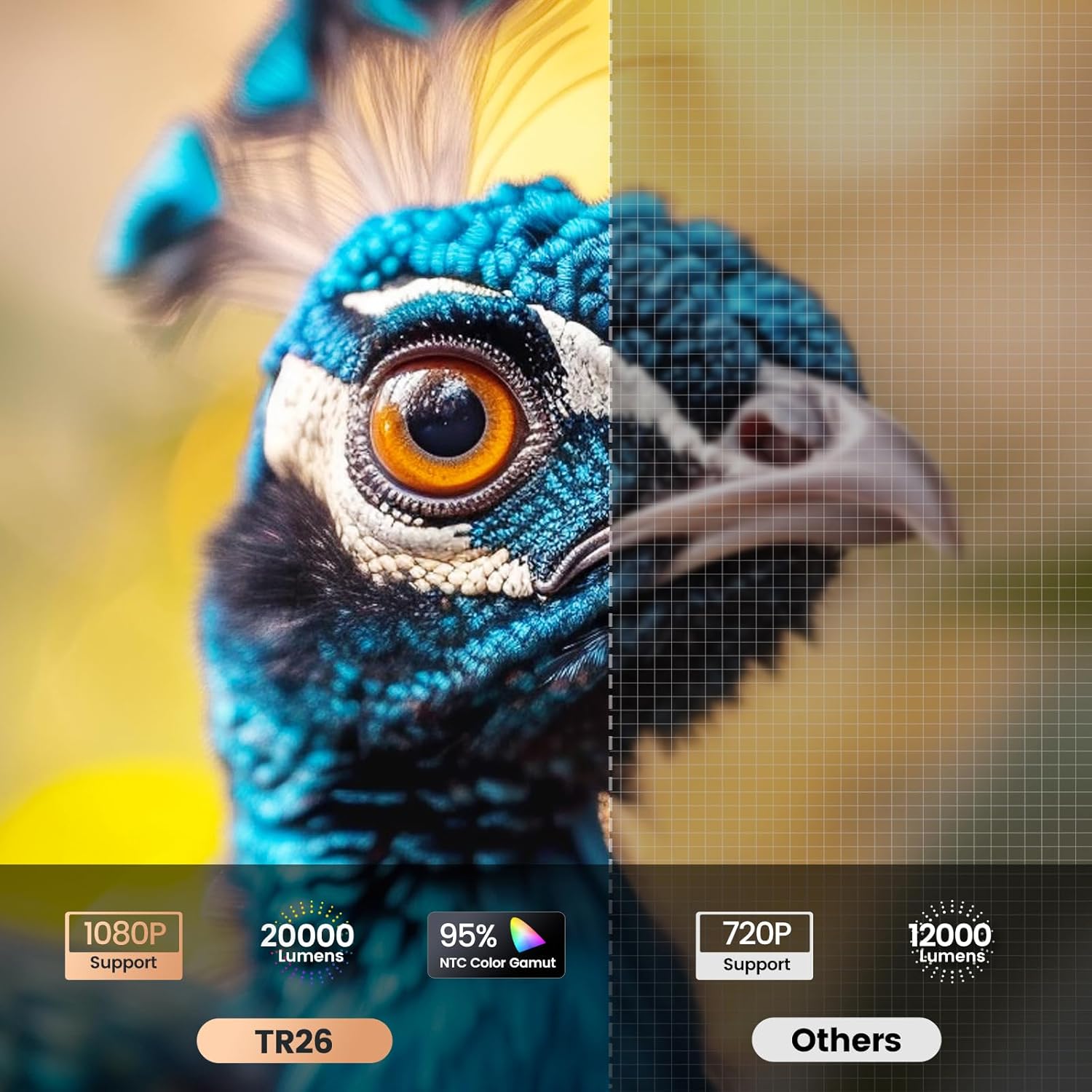
Image: Visual comparison highlighting the TR26's higher resolution and brightness.
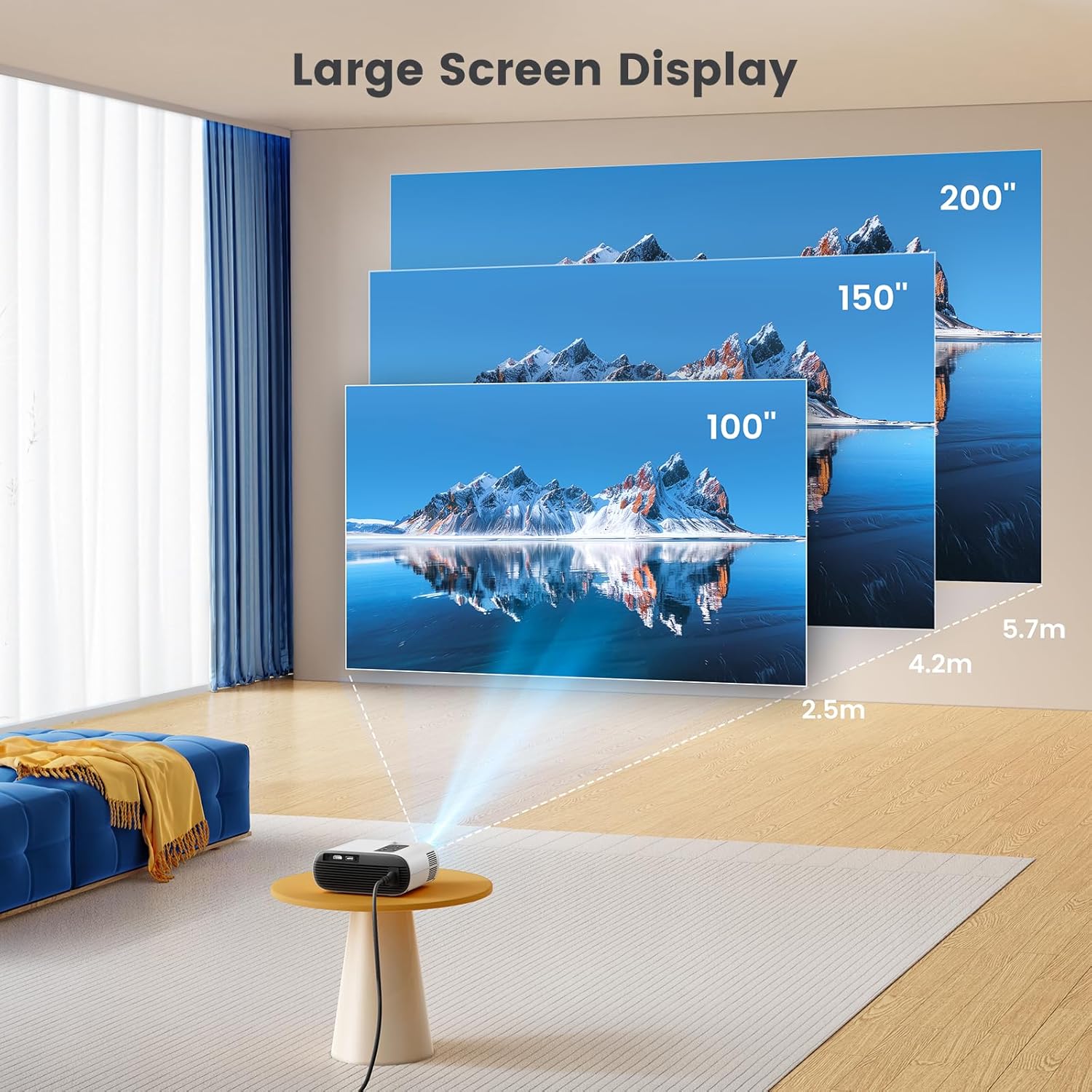
Image: Illustration of the large screen display capabilities of the projector.
Warranty and Support
TOPTRO is committed to providing excellent customer service and product support.
- Warranty: TOPTRO offers a 1-year free replacement and a 3-year warranty for the TR26 projector.
- Technical Support: Technical support is available at all times. If you encounter any problems during use, please contact TOPTRO via email.
For further assistance, please refer to the contact information provided with your product packaging or visit the official TOPTRO website.
Related documentsTR26


Ask a question about this manual
Ask about setup, troubleshooting, compatibility, parts, safety, or missing instructions. Manuals+ will review the question and use this page’s manual context to help answer it.