
1. Introduction
This manual provides detailed instructions for the safe and efficient use of your RoboRock S8 MaxV Ultra robot vacuum cleaner. Please read this manual thoroughly before operating the device and retain it for future reference. This device is designed to provide automated cleaning for various floor types.
2. Product Features
- PreciSense LiDAR Navigation & Reactive AI 2.0 Camera System: For precise mapping and obstacle avoidance.
- High Suction Power: Up to 10,000 Pa for effective dirt and debris removal, with intelligent dirt detection.
- Automatic Mop Lifting: Mop lifts automatically up to 20 mm to avoid wetting carpets.
- Auto-Drying: Mop auto-drying at 60 °C to prevent odors and mildew.
- Extended Runtime: Up to 180 minutes of cleaning on a single charge.
- Self-Cleaning Station: Automated mop washing and dustbin emptying.
- Automatic Dispenser: For cleaning solution, ensuring optimal mopping performance.
3. Setup
Before first use, ensure all packaging materials are removed from the robot and the docking station. Place the docking station on a hard, flat surface against a wall, ensuring adequate space around it for the robot to maneuver.
- Unpack: Carefully remove the robot vacuum and all accessories from the packaging.
- Position the Docking Station: Connect the power cable to the docking station and plug it into a power outlet. Ensure there are no obstacles within 0.5 meters to either side and 1.5 meters in front of the station.
- Charge the Robot: Place the robot onto the docking station. The robot will automatically power on and begin charging. Fully charge the robot before its first cleaning cycle (approximately 3 hours).
- Install the App: Download the RoboRock app from your mobile device's app store. Follow the in-app instructions to connect your robot to your home Wi-Fi network and complete the initial setup, including mapping your home.
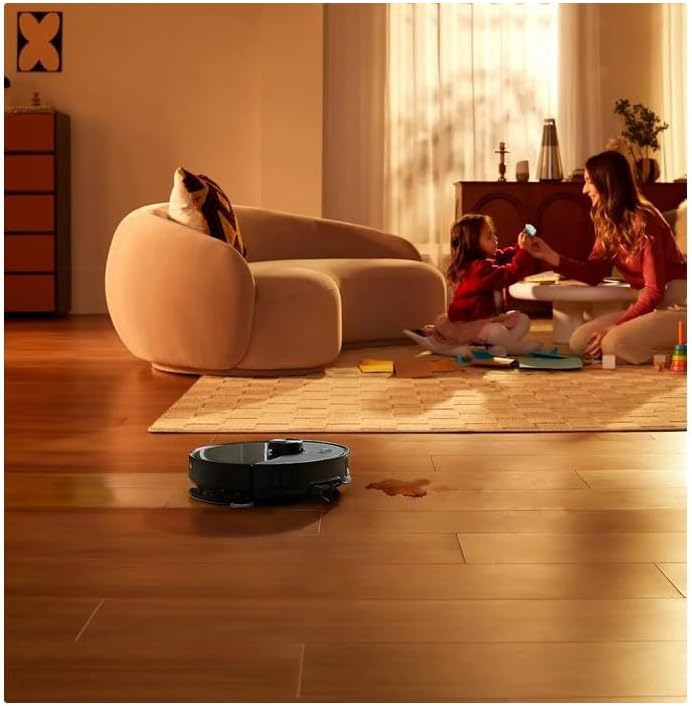
Figure 3.1: The RoboRock S8 MaxV Ultra positioned in a home environment, ready for operation.
4. Operating Instructions
The RoboRock S8 MaxV Ultra can be operated via the physical buttons on the robot or through the RoboRock mobile application.
4.1 Starting a Cleaning Cycle
- Via Robot: Press the Power button once to start a general cleaning cycle. The robot will automatically return to the docking station when cleaning is complete or when the battery is low.
- Via App: Open the RoboRock app, select your robot, and tap 'Clean'. You can customize cleaning modes, select specific rooms, or set no-go zones.
4.2 Pausing/Resuming Cleaning
- Via Robot: Press the Power button once during a cleaning cycle to pause. Press again to resume.
- Via App: Use the 'Pause' and 'Resume' options in the app.
4.3 Spot Cleaning
For concentrated cleaning of a specific area, such as a spill, manually place the robot near the area and select the spot cleaning function via the app. The robot will clean a small area around its current position.
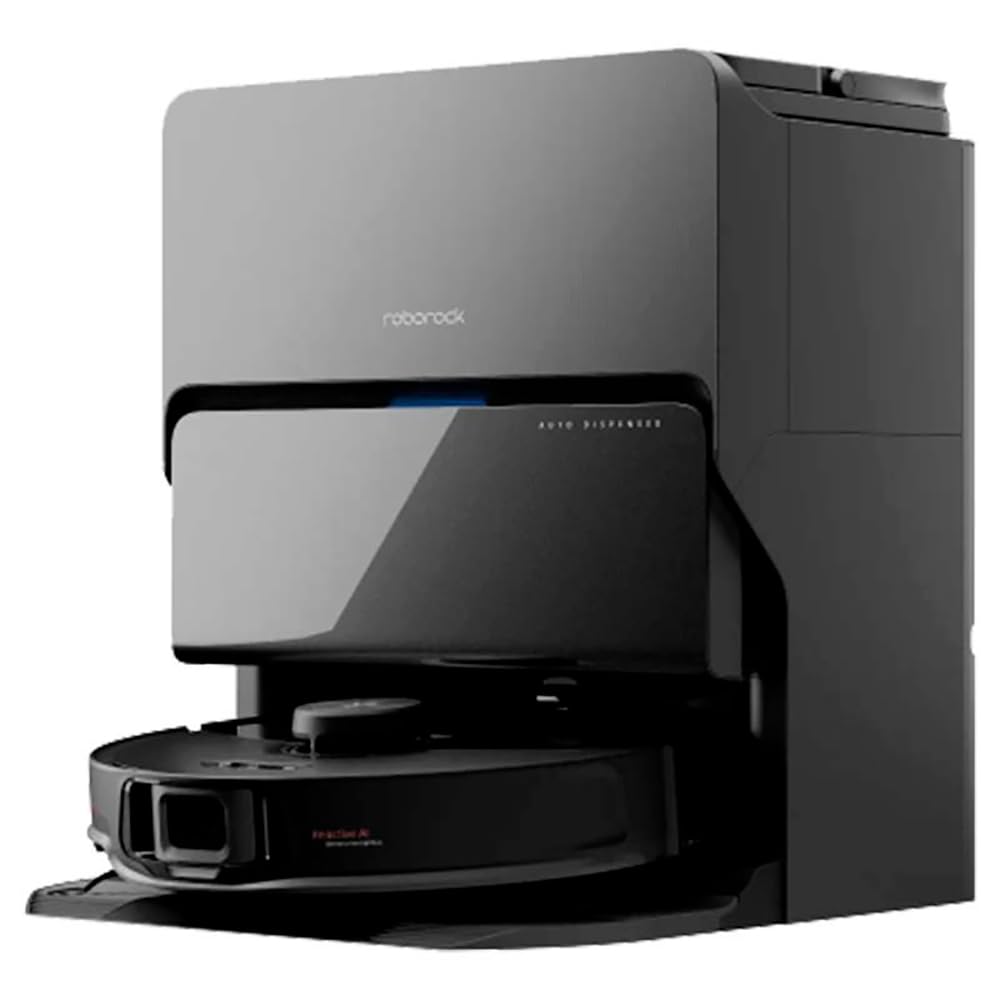
Figure 4.1: The RoboRock S8 MaxV Ultra actively cleaning a liquid spill on a hard floor surface, demonstrating its spot cleaning capability.
4.4 Scheduling
Use the RoboRock app to set up cleaning schedules for automated cleaning at preferred times and days.
5. Maintenance
Regular maintenance ensures optimal performance and extends the lifespan of your RoboRock S8 MaxV Ultra.
5.1 Dustbin and Filter
- Emptying: The self-cleaning station automatically empties the dustbin. However, periodically check the dustbin and empty it manually if needed.
- Cleaning Filter: The HEPA filter should be cleaned regularly (e.g., weekly) by tapping it against a trash can to remove dust. Replace the filter every 3-6 months, or as indicated by the app.
5.2 Main Brush and Side Brush
- Main Brush: Remove the main brush cover and lift out the brush. Use the cleaning tool to remove tangled hair and debris. Clean the brush bearings.
- Side Brush: Unscrew and remove the side brush. Clean any hair or debris wrapped around it. Reattach securely.
5.3 Sensors and Charging Contacts
- Wipe all sensors (cliff sensors, wall sensor, bumper sensor) and charging contacts on both the robot and the docking station with a clean, dry cloth.
5.4 Mop Pad and Water Tank
- Mop Pad: Remove and wash the mop pad after each mopping session. Replace worn-out mop pads.
- Water Tank: Refill the water tank with clean water as needed. Use only recommended cleaning solutions if applicable.
6. Troubleshooting
If you encounter issues with your RoboRock S8 MaxV Ultra, refer to the following common problems and solutions:
| Problem | Possible Cause | Solution |
|---|---|---|
| Robot does not power on | Low battery; Power button not pressed correctly | Place robot on charging dock; Press and hold Power button for 3 seconds |
| Robot cannot charge | Charging contacts dirty; Docking station not powered | Clean charging contacts; Ensure docking station is plugged in |
| Robot gets stuck frequently | Obstacles; Cliff sensors dirty | Clear obstacles from cleaning path; Clean cliff sensors |
| Poor cleaning performance | Dustbin full; Brushes tangled; Filter clogged | Empty dustbin; Clean main/side brushes; Clean/replace filter |
| Mop not wetting floor | Water tank empty; Mop pad dry | Refill water tank; Moisten mop pad before use |
For more complex issues or error messages, consult the RoboRock app for specific guidance or contact customer support.
7. Specifications
| Brand | roborock |
| Model Number | S8MVU52-00 |
| Color | Black |
| Product Dimensions (L x W x H) | 1 x 1 x 1 cm (Robot); 18.3 kg (Total weight with station) |
| Capacity | 300 Pounds (Likely refers to packaging capacity, not device capacity) |
| Power | 74 Watts |
| Voltage | 24 Volts |
| Auto-stop Function | Yes |
| Noise Level | 70 Decibels |
| Battery Life (Autonomy) | 3 hours (180 minutes) |
| Special Features | Self-cleaning station, automatic dispenser for cleaning solution |
| Item Weight | 18.3 Kilograms |
| Filter Type | Cartridge, cloth, foam, HEPA filter |
| Surface Recommendation | Hard floor, carpet |
| Power Source | Battery powered |
| Included Components | Brush, Crevice tool (Suceur plat) |
| Wireless? | No (Refers to wired connection for charging station) |
| Battery Type | 1 Lithium-ion (included) |
8. Warranty and Support
For warranty information, please refer to the documentation provided with your purchase or contact RoboRock customer support directly. The product comes with a 30-day refund/replacement return policy from the seller.
- Spare Parts Availability: Information regarding the availability of spare parts is currently unavailable.
- Customer Support: For technical assistance, troubleshooting beyond this manual, or warranty claims, please visit the official RoboRock website or contact their customer service.


