
1. Introduction
The ZTE MF286C is a high-performance 5G/4G wireless router designed to provide fast and reliable internet connectivity for homes and small offices. Supporting both 5G and 4G networks, this device offers versatile connectivity options. With advanced Wi-Fi 6 technology, it delivers high wireless data rates, enabling smooth streaming, gaming, and browsing for multiple connected devices simultaneously.
2. Package Contents
Please check the package contents carefully. If any item is missing or damaged, contact your vendor.
- ZTE MF286C 5G/4G Router
- Power Adapter (Power cord)
- Ethernet Cable
- Quick Start Guide (not included in this manual)
3. Product Overview
Familiarize yourself with the router's physical features, ports, and indicator lights.
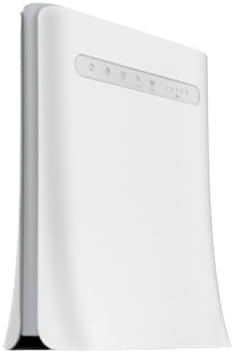
Figure 3.1: Side view of the ZTE MF286C router, showing its sleek white design and ventilation.

Figure 3.2: Front view of the ZTE MF286C router, displaying the power, Wi-Fi, phone, 5G/4G, and signal strength indicator lights, along with the ZTE logo.
3.1 Indicator Lights
- Power Indicator: Indicates the power status of the device.
- Wi-Fi Indicator: Shows the status of the Wi-Fi network.
- Phone Indicator: (If applicable) Indicates voice call status.
- 5G/4G Indicator: Displays the current network type (5G or 4G) and connection status.
- Signal Strength Indicators: Multiple bars indicating the strength of the cellular signal.
4. Setup
Follow these steps to set up your ZTE MF286C router for the first time.
- Insert SIM Card: Locate the SIM card slot (usually on the bottom or side). Insert a standard Nano-SIM card into the slot with the gold contacts facing down and the notched corner oriented correctly. Ensure it clicks into place.
- Connect Power: Connect the power adapter to the router's power port and then plug it into a wall outlet. The Power indicator light should turn on.
- Power On: Press the Power button (if available) or wait for the router to automatically power on. The indicator lights will cycle as the device starts up and connects to the cellular network.
- Network Connection: Wait for the 5G/4G indicator to show a stable connection (e.g., solid blue or green) and for the signal strength indicators to light up, indicating a good cellular signal.
- Connect Devices:
- Via Wi-Fi: On your computer or mobile device, search for available Wi-Fi networks. Select the network name (SSID) printed on the label on the bottom of your router. Enter the Wi-Fi password (Key) also found on the label.
- Via Ethernet Cable: Connect one end of the Ethernet cable to a LAN port on the router and the other end to the Ethernet port on your computer or other network device.
- Access Web Interface: Open a web browser and enter the default IP address (e.g., 192.168.0.1 or 192.168.1.1) into the address bar. Log in using the default username and password (usually "admin" for both, or as specified on the router label).
5. Operating Instructions
5.1 Connecting to Wi-Fi
To connect a device to the router's Wi-Fi network:
- Ensure the router is powered on and the Wi-Fi indicator is active.
- On your device, enable Wi-Fi and scan for networks.
- Select the SSID (network name) of your ZTE MF286C router.
- Enter the Wi-Fi password (Key) when prompted. This information is typically found on a sticker on the router.
5.2 Managing Network Settings
You can customize your router settings through the web interface:
- Access the web interface using the IP address and login credentials (refer to Section 4.5).
- Navigate to the Wi-Fi settings section to change the SSID or password.
- Explore other settings such as parental controls, guest networks, or advanced network configurations as needed.
6. Maintenance
Proper maintenance ensures optimal performance and longevity of your router.
- Placement: Place the router in an open area, away from obstructions, large metal objects, and other electronic devices that may cause interference. Avoid placing it in enclosed spaces.
- Cleaning: Keep the router clean and free from dust. Use a soft, dry cloth to wipe the exterior. Do not use liquid cleaners or aerosols.
- Firmware Updates: Periodically check the manufacturer's website for firmware updates. Keeping your router's firmware up-to-date can improve performance, security, and add new features.
- Ventilation: Ensure the ventilation holes are not blocked to prevent overheating.
7. Troubleshooting
If you encounter issues with your router, try the following troubleshooting steps:
- No Internet Connection:
- Check if the SIM card is correctly inserted.
- Verify that the 5G/4G indicator is stable and not blinking rapidly.
- Ensure you have an active data plan with your mobile network operator.
- Restart the router by unplugging the power adapter, waiting 10 seconds, and plugging it back in.
- Slow Internet Speed:
- Check the signal strength indicators. A weak signal can lead to slow speeds. Try repositioning the router.
- Ensure there are not too many devices connected simultaneously, exceeding the router's capacity.
- Perform a speed test to confirm the actual speed.
- Cannot Connect to Wi-Fi:
- Double-check the Wi-Fi password.
- Ensure your device's Wi-Fi is enabled.
- Restart both the router and your connecting device.
- Router Reset: If problems persist, you may need to perform a factory reset. Locate the reset button (often a small pinhole) on the router. With the router powered on, use a paperclip to press and hold the reset button for about 5-10 seconds until the lights flash. This will restore the router to its factory default settings, including Wi-Fi name and password.
8. Specifications
| Feature | Description |
|---|---|
| Model | MF286C |
| Connectivity Technology | 5G, 4G, Wi-Fi 6 |
| Max Wireless Data Rate | Up to 3.8 Gbps (Wi-Fi 6) |
| Max LAN Data Rate | 300 Mbps |
| Simultaneous Users | Up to 64 |
| Dimensions (L x W x H) | 60 x 25 x 25 centimetres |
| Included Components | Power Adapter, Ethernet Cable |
9. Warranty and Support
This ZTE MF286C router comes with a 6-month warranty from the date of purchase. Please retain your proof of purchase for warranty claims.
For technical support, troubleshooting assistance, or warranty inquiries, please contact your retailer or the manufacturer's official support channels. Refer to the packaging or the manufacturer's website for specific contact information.


