1. Introduction
This manual provides detailed instructions for the installation, operation, and maintenance of your FreedConn FG Motorcycle Helmet Bluetooth Intercom System. Please read this manual thoroughly before using the device to ensure proper function and safety. The FreedConn FG is a universal helmet Bluetooth intercom headset developed with Qualcomm Bluetooth 5.0 Technology, designed to enhance communication and entertainment during motorcycle rides.
2. Product Overview
The FreedConn FG intercom system offers advanced features for motorcycle riders, including:
- Bluetooth 5.0 Connectivity: Ensures stable and efficient wireless communication.
- 6-Way Group Intercom: Supports communication among 2-6 riders up to 1200 meters in open terrain, with 2-person intercom range of approximately 400 meters.
- Music Sharing: Allows riders to share music with companions.
- 3D Lossless Audio: Provides high-fidelity stereo sound quality.
- Smart Noise Control: CVC/DSP noise reduction technology effectively shields up to 95% of ambient noise for clear communication.
- Ultra-Thin Design: Main unit thickness of only 11mm for a comfortable fit.
- Long Battery Life: 650mAh rechargeable lithium-ion battery provides up to 19 hours of continuous talk time and 1 month standby time after a 1-hour charge.
- Voice Assistant Support: Compatible with Siri and other voice assistants for hands-free control.
- Waterproof: IP65 rated for use in various weather conditions.

Image: Overview of FreedConn FG intercom features including Bluetooth 5.0, thin design, music sharing, 2-6 rider intercom, IP65 waterproof rating, 1200m range, and walkie-talkie connection.
3. Package Contents
The FreedConn FG system typically includes the following components:
- FreedConn FG Intercom Main Unit
- Headset with Speakers and Microphone (Hard Mic option available)
- Mounting Bracket (Clip-on and Adhesive options)
- USB Charging Cable
- Speaker Pads
- User Manual
Video: This video demonstrates the unboxing of the FreedConn FG intercom kit, showing all included components such as the main unit, headset, mounting accessories, and charging cable.
4. Setup
4.1 Charging the Device
Before initial use, fully charge the intercom unit. Connect the provided USB charging cable to the charging port on the main unit and a suitable USB power source. The indicator light will show charging status (e.g., red for charging, blue for fully charged).

Image: Illustration showing the fast charging capability (1 hour) and long standby time (1 month) of the FreedConn FG intercom, along with its working time (19 hours).
4.2 Installing the Headset
- Mounting the Main Unit: Choose between the clip-on bracket or adhesive mount to secure the intercom unit to the side of your helmet. Ensure it is firmly attached and does not obstruct your vision or helmet functionality.
- Installing Speakers: Place the speakers inside the helmet's ear pockets. Use the provided speaker pads for optimal fit and comfort. Ensure speakers are positioned directly over your ears for best audio quality.
- Attaching Microphone: Position the microphone in front of your mouth, ensuring it is close enough to pick up your voice clearly but not touching your lips. The hard mic is suitable for open-face helmets, while the soft mic is for full-face helmets.
- Connecting Cables: Plug the speaker and microphone cables into the corresponding ports on the main intercom unit.
Video: This video demonstrates the physical installation of the FreedConn FG intercom system onto a motorcycle helmet, including mounting the main unit, speakers, and microphone.
5. Operating Instructions
5.1 Power On/Off
- Power On: Press and hold the multi-function button (usually the central button) for approximately 2 seconds until you hear a voice prompt and the blue indicator light flashes.
- Power Off: Press and hold the multi-function button for approximately 5 seconds until you hear a voice prompt and the red indicator light flashes before turning off.
5.2 Bluetooth Pairing (Phone/GPS/Other Devices)
- Ensure the FG unit is powered off.
- Press and hold the multi-function button for about 8 seconds until the red and blue indicator lights flash alternately, indicating pairing mode.
- On your phone or GPS device, enable Bluetooth and search for available devices. Select "FreedConn FG" from the list.
- Once paired, the blue indicator light will flash slowly, and you will hear a confirmation tone.
5.3 Intercom Pairing (2-Way)
- Ensure both FG units are powered off.
- On both units, press and hold the multi-function button for 8 seconds until the red and blue lights flash alternately.
- On one unit, short press the multi-function button. It will search for the other unit.
- Once connected, both units will show a slow blue light flash, and you will hear "Intercom connected."
Video: This video illustrates the pairing process between two FreedConn FG Bluetooth intercom devices, detailing the steps to establish a connection for two-way communication.
5.4 Multi-Way Intercom (Up to 6 Riders)
For multi-way intercom, follow these steps:
- Ensure all devices (A, B, C, D) have cleared previous pairing records.
- Press and hold the power on/off button of device A and B until the red and blue lights flash. Then short press the power on/off button of A and wait for pairing. When the blue lights of A and B flash regularly, pairing is successful.
- Turn off B (do not press too long to clear pairing information).
- Press the on/off button of B again until the red and blue lights flash.
- Same as above, press on C until the red and blue flashes, and then short press the turn on button of B to wait for pairing.
- Turn off C (do not press too long to clear pairing information).
- Press the on/off button of C again until the red and blue lights flash.
- Same as above, press on D until the red and blue flashes, and then short press the turn on button of C to wait for pairing.
- Then short press the power on/off button of A.
- Then short press the power on/off button of B.
- Group talking pairing finished.
Video: This video provides a step-by-step guide on how to connect multiple FreedConn FG intercom devices for group communication, demonstrating the pairing sequence for up to four units.
5.5 Pairing with Intercom Devices from Other Brands
- Ensure the third-party headset enters its pairing state (refer to its manual).
- On the FreedConn FG unit, hold the On/Off button for about 2 seconds until the blue light flashes.
- Press and hold the multi-function button for 8 seconds until the red and blue lights flash alternately.
- Short press the On/Off button on the FreedConn FG unit. It will search for the third-party device.
- Once paired, both devices will indicate a successful connection (e.g., blue light flashes on FG).
Video: This video demonstrates the process of pairing the FreedConn FG intercom with intercom devices from other brands, showing the steps for cross-brand compatibility.
5.6 Disconnecting/Resuming Intercom
- Disconnect: Short press the On/Off button to temporarily disconnect the Bluetooth intercom.
- Resume: Press the On/Off button again to resume the Bluetooth intercom connection.
Video: This video demonstrates how to disconnect and resume the intercom function on the FreedConn FG device with a short press of the On/Off button.
5.7 Music Playback and Sharing
- Play/Pause: Short press the multi-function button.
- Next Track: Short press the 'next music' button (right arrow).
- Previous Track: Short press the 'previous music' button (left arrow).
- Music Sharing: While playing music, long press the 'next music' button to initiate music sharing with a paired intercom unit.
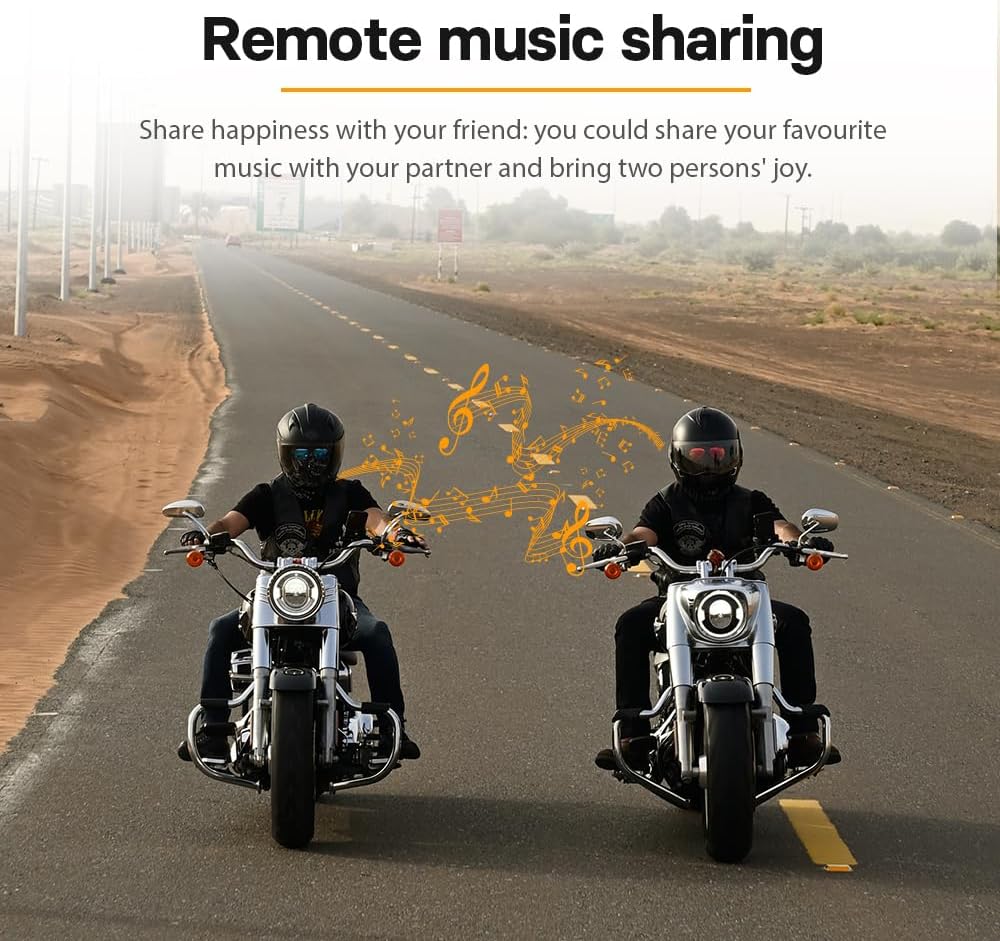
Image: Two motorcyclists riding side-by-side, with musical notes floating between them, illustrating the remote music sharing feature of the FreedConn FG intercom system.
5.8 Volume Control
The FG intercom has external volume buttons. Long press the orange button (right arrow) for volume up and the orange button (left arrow) for volume down. Short press these buttons to skip tracks.
5.9 Voice Assistant
To activate your phone's voice assistant (e.g., Siri), short press the multi-function button twice. This allows for hands-free control of your phone.

Image: Multiple motorcyclists riding on a road, with dotted lines indicating stable and quick communication connections among them, highlighting the 1200m 6-rider intercom capability.
6. Maintenance
- Cleaning: Use a soft, damp cloth to clean the intercom unit. Do not use harsh chemicals or abrasive cleaners.
- Water Resistance: While the device is IP65 waterproof, avoid prolonged submersion in water. Ensure all ports are securely closed when exposed to moisture.
- Battery Care: To prolong battery life, avoid fully discharging the battery frequently. Charge the device regularly, even if not in use for extended periods. Store in a cool, dry place.
- Storage: When not in use, store the device in a dry environment at room temperature.
7. Troubleshooting
- No Power: Ensure the battery is charged. Connect to a charger and check if the charging indicator lights up.
- Cannot Pair: Ensure both devices are in pairing mode (red and blue lights flashing alternately). Clear previous pairing records on both devices and try again. Ensure devices are within range.
- No Sound/Low Volume: Check speaker connections. Adjust volume using the external volume buttons. Ensure speakers are correctly positioned in the helmet.
- Intercom Disconnects Frequently: Ensure devices are within the effective intercom range (1200m without obstacles, 400m for 2-person). Avoid physical obstructions between units.
- Poor Sound Quality/Noise: Ensure the microphone is correctly positioned and not obstructed. The CVC/DSP noise reduction should minimize ambient noise.
- Device Unresponsive: Try resetting the device by holding the power button for an extended period (e.g., 10-15 seconds) or allowing the battery to fully discharge and then recharging.
8. Specifications
| Feature | Specification |
|---|---|
| Bluetooth Version | 5.0 (Qualcomm Chip) |
| Intercom Range (Group) | Up to 1200m (without obstacles) |
| Intercom Range (2-Person) | Approx. 400m |
| Max Riders for Intercom | 6 |
| Battery Capacity | 650mAh Lithium-ion |
| Charging Time | Approx. 1 hour |
| Continuous Talk Time | Up to 19 hours |
| Standby Time | Up to 1 month |
| Noise Control | Active Noise Cancellation (CVC/DSP) |
| Waterproof Rating | IP65 |
| Main Unit Thickness | 11mm |
9. Warranty and Support
FreedConn products are designed for reliability and performance. For warranty information, technical support, or service inquiries, please refer to the official FreedConn website or contact your local dealer. Keep your purchase receipt as proof of purchase for warranty claims.


