
1. Introduction
Thank you for choosing the UPERFECT 22-inch 2K Portable Monitor. This monitor is designed to enhance your productivity and entertainment experience with its high-resolution IPS display, versatile connectivity, and portable design. This manual provides essential information on setting up, operating, maintaining, and troubleshooting your new monitor. Please read it thoroughly before use.

Image 1.1: The UPERFECT 22-inch 2K Portable Monitor, showcasing its sleek design and vivid display capabilities.
2. Safety Information
- Do not expose the monitor to rain or moisture to prevent fire or shock hazards.
- Do not open the monitor casing. There are no user-serviceable parts inside. Refer all servicing to qualified service personnel.
- Place the monitor on a stable, flat surface to prevent it from falling.
- Avoid placing the monitor near heat sources such as radiators, heat registers, stoves, or other heat-producing appliances.
- Use only the power adapter and cables provided or recommended by the manufacturer.
- Unplug the monitor during lightning storms or when unused for long periods.
- Keep ventilation openings clear. Do not block any ventilation openings.
3. Package Contents
Please check the package contents carefully. If any items are missing or damaged, contact your retailer.
- UPERFECT 22-inch 2K Portable Monitor
- USB-C to USB-C Cable
- Mini HDMI to HDMI Cable
- USB-A to USB-C Power Cable
- Power Adapter
- User Manual (this document)
4. Product Overview
4.1. Key Features
- 22-inch 2K QHD (2560x1440) IPS Display: Delivers crisp, clear images with wide viewing angles.
- HDR Support: Enhances contrast and color for a more dynamic visual experience.
- 100% sRGB Color Gamut: Provides accurate and vibrant color reproduction.
- Integrated Fold-Out Kickstand: Allows for adjustable viewing angles from 12-60 degrees.
- VESA Compatible: Supports 75x75mm VESA mounting for flexible setup options.
- Multi-Port Connectivity: Includes USB-C (for power and video), Mini HDMI, and a 3.5mm Audio Jack.
- Slim and Lightweight Design: At 8mm thin and 1.65 kg, it is highly portable.
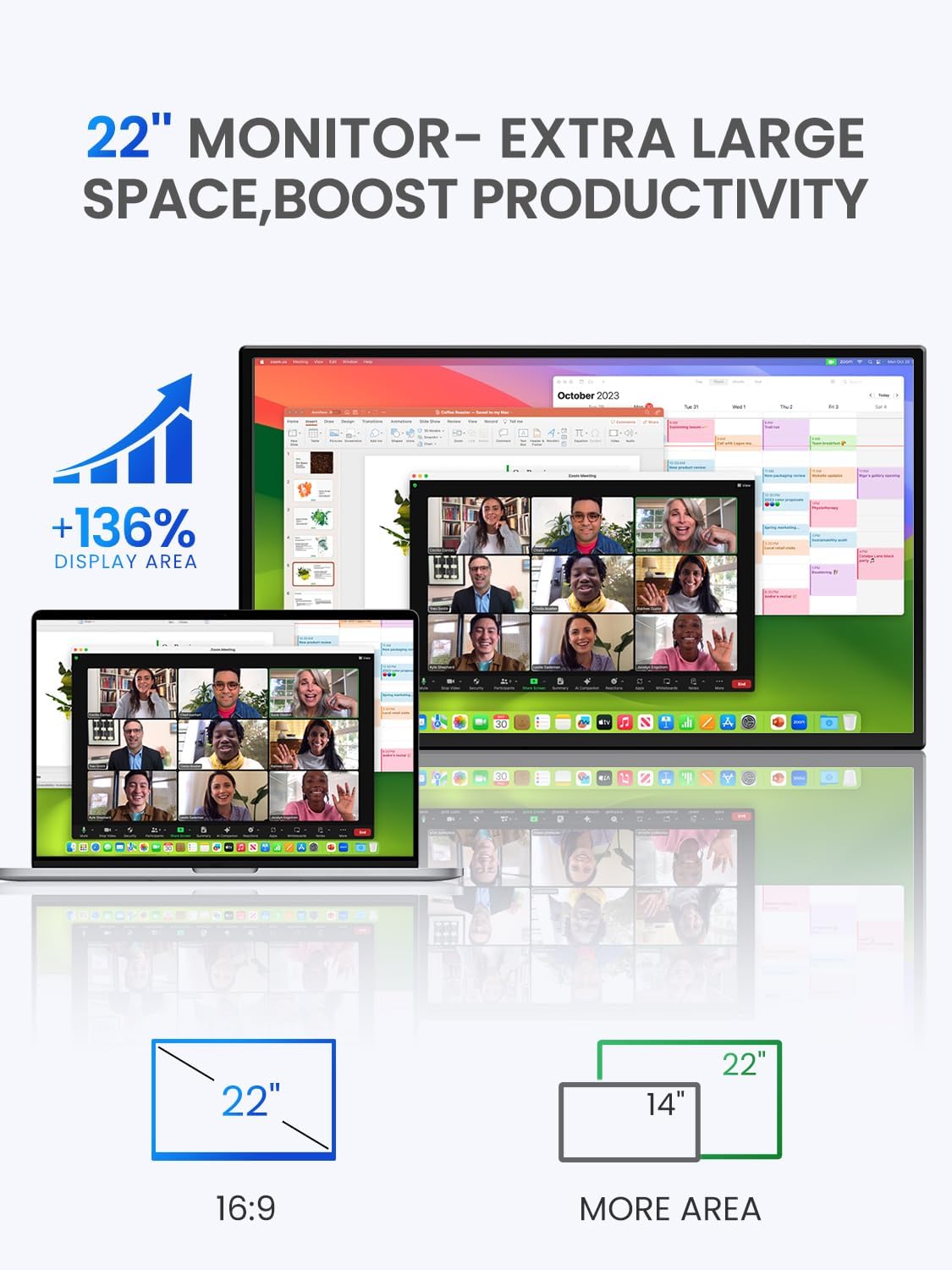
Image 4.1: The 22-inch monitor provides 136% more display area compared to a standard 14-inch laptop, boosting productivity.

Image 4.2: Detailed view of the QHD 2560x1440 IPS matte screen, highlighting its superior visual specifications.
4.2. Ports and Controls

Image 4.3: Layout of the monitor's multi-port and control buttons for wide compatibility.
- Type C 3.1 Port (x2): For power input, video signal (phone, tablet, laptop).
- Mini HDMI Port: For video signal input (X-BOX, PS4/5, PC).
- OTG Port: For connecting USB devices like a mouse or keyboard.
- Power Button: Turns the monitor on/off.
- Menu Button: Accesses the On-Screen Display (OSD) menu.
- Volume +/- / Brightness +/-: Adjusts audio volume or screen brightness.
- Return / Signal Source Button: Navigates back in the OSD or switches input sources.
- 3.5mm Audio Jack: For connecting headphones or external speakers.
4.3. Integrated Stand and VESA Mounting
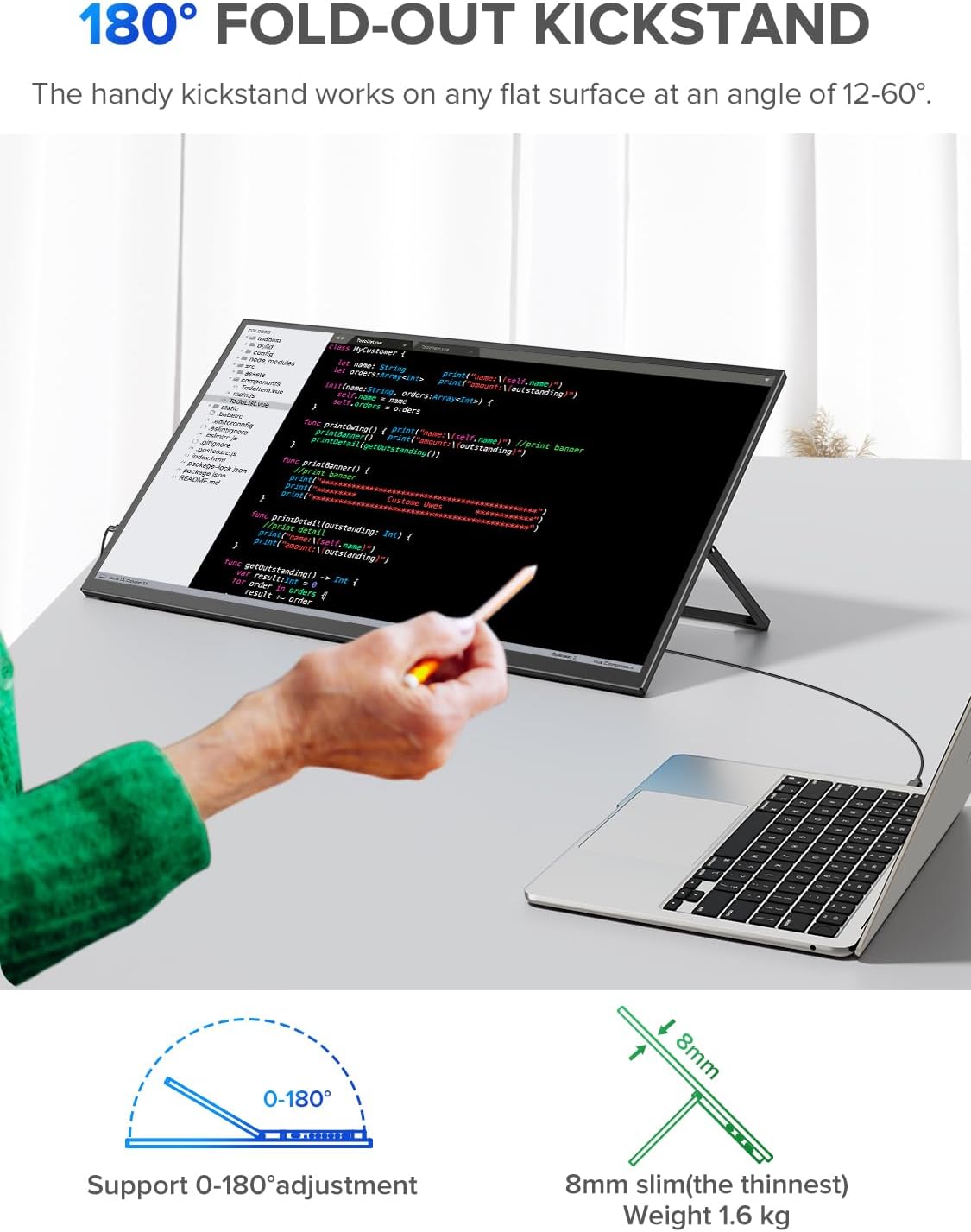
Image 4.4: The monitor's 180-degree fold-out kickstand allows for flexible positioning on any flat surface.

Image 4.5: The monitor is VESA compatible, enabling seamless landscape to portrait transitions and various mounting options.
5. Setup
5.1. Powering the Monitor
Connect the monitor to a power source using the provided USB-A to USB-C power cable and power adapter. Alternatively, if your device supports power delivery over USB-C, a single USB-C to USB-C cable can provide both power and video.
5.2. Connecting to Devices
The UPERFECT portable monitor offers versatile connectivity options:
- USB-C Connection (for Laptops, Phones, Tablets):
Connect one end of the USB-C to USB-C cable to the monitor's Type C 3.1 port and the other end to your device's compatible USB-C port. Ensure your device's USB-C port supports DisplayPort Alternate Mode (DP Alt Mode) for video output. If your device does not provide enough power, connect the monitor to an external power source. - Mini HDMI Connection (for PCs, Laptops, Gaming Consoles):
Connect one end of the Mini HDMI to HDMI cable to the monitor's Mini HDMI port and the other end to your device's HDMI port. You will also need to connect the monitor to a power source via the USB-C power cable.

Image 5.1: The monitor easily functions as a PC monitor, providing a large screen for productivity on the go.
6. Operating
6.1. On-Screen Display (OSD) Menu
The OSD menu allows you to adjust various display settings. To access the OSD menu, press the Menu Button on the side of the monitor.
- Use the Volume +/- / Brightness +/- buttons to navigate through menu options.
- Press the Menu Button again to confirm a selection.
- Press the Return / Signal Source Button to go back to the previous menu or exit the OSD.
6.2. Common OSD Settings
- Brightness/Contrast: Adjust the overall luminance and contrast of the display.
- Color Settings: Modify color temperature, hue, and saturation.
- Input Source: Manually select between USB-C and Mini HDMI inputs.
- Aspect Ratio: Change the display's aspect ratio (e.g., 16:9, 4:3).
- HDR Mode: Enable or disable High Dynamic Range.
- Language: Select the OSD menu language.
6.3. Switching Input Sources
Press the Return / Signal Source Button to quickly cycle through available input sources (USB-C 1, USB-C 2, Mini HDMI).
7. Maintenance
7.1. Cleaning the Screen
Gently wipe the screen with a soft, lint-free cloth. For stubborn marks, dampen the cloth with a small amount of non-ammonia, non-alcohol based glass cleaner. Do not spray cleaner directly onto the screen.
7.2. Cleaning the Casing
Use a soft, dry cloth to clean the monitor casing. Avoid using abrasive cleaners or solvents that may damage the surface.
8. Troubleshooting
8.1. No Signal / Black Screen
- Ensure all cables (power and video) are securely connected.
- Verify that the correct input source is selected on the monitor (use the Signal Source button).
- Check if your device's output resolution is supported by the monitor.
- Try connecting the monitor to a different device to rule out issues with the source device.
- If using USB-C, ensure your device's USB-C port supports DisplayPort Alternate Mode and provides sufficient power.
8.2. No Power
- Check if the power adapter is properly connected to a working power outlet and the monitor.
- Ensure the power button on the monitor is pressed.
- If using USB-C for power, ensure the source device or power adapter provides enough power (e.g., 5V/2A or higher).
8.3. Image Flickering or Distortion
- Check the video cable for damage or loose connections.
- Adjust the resolution and refresh rate settings on your source device.
- Ensure the monitor is not placed near devices that emit strong electromagnetic interference.
8.4. No Audio
- Ensure the volume on the monitor and your source device is turned up.
- Check if headphones or external speakers are properly connected to the 3.5mm audio jack.
- Verify audio output settings on your source device.
9. Specifications
| Feature | Specification |
|---|---|
| Brand | UPERFECT |
| Screen Size | 22 Inches |
| Resolution | 2560 x 1440 (2K QHD) |
| Panel Type | IPS |
| Aspect Ratio | 16:9 |
| Contrast Ratio | 1000:1 |
| Brightness | 300 Nits |
| Color Gamut | 100% sRGB |
| Viewing Angle | 178° |
| Hardware Interface | USB Type C, Mini HDMI |
| Total USB Ports | 3 (2x USB-C, 1x OTG) |
| Product Dimensions | 49L x 28W x 1.8H cm |
| Item Weight | 1.65 Kilograms |
| Item Model Number | 6926316301485 |
| ASIN | B0D3LLX13M |
| Manufacturer | UPERFECT |
9.1. Energy Efficiency

Image 9.1: EU Energy Label for the UPERFECT monitor, indicating its energy efficiency class and consumption.
For detailed technical parameters and declared values, please refer to the official EU EPREL database: https://eprel.ec.europa.eu/qr/2009590
10. Warranty and Support
UPERFECT products typically come with a standard manufacturer's warranty. Please refer to the warranty card included in your package or visit the official UPERFECT website for specific warranty terms and conditions.
For technical support, troubleshooting assistance, or warranty claims, please contact UPERFECT customer service through their official channels. Have your model number (6926316301485) and purchase information ready when contacting support.


