1. Product Overview
The OBA OUKITEL BT50 Smartwatch is a versatile wearable device designed to enhance your daily life with smart features and health monitoring capabilities. It features a 1.43-inch HD display, Bluetooth calling, comprehensive health tracking, and a durable, water-resistant design.
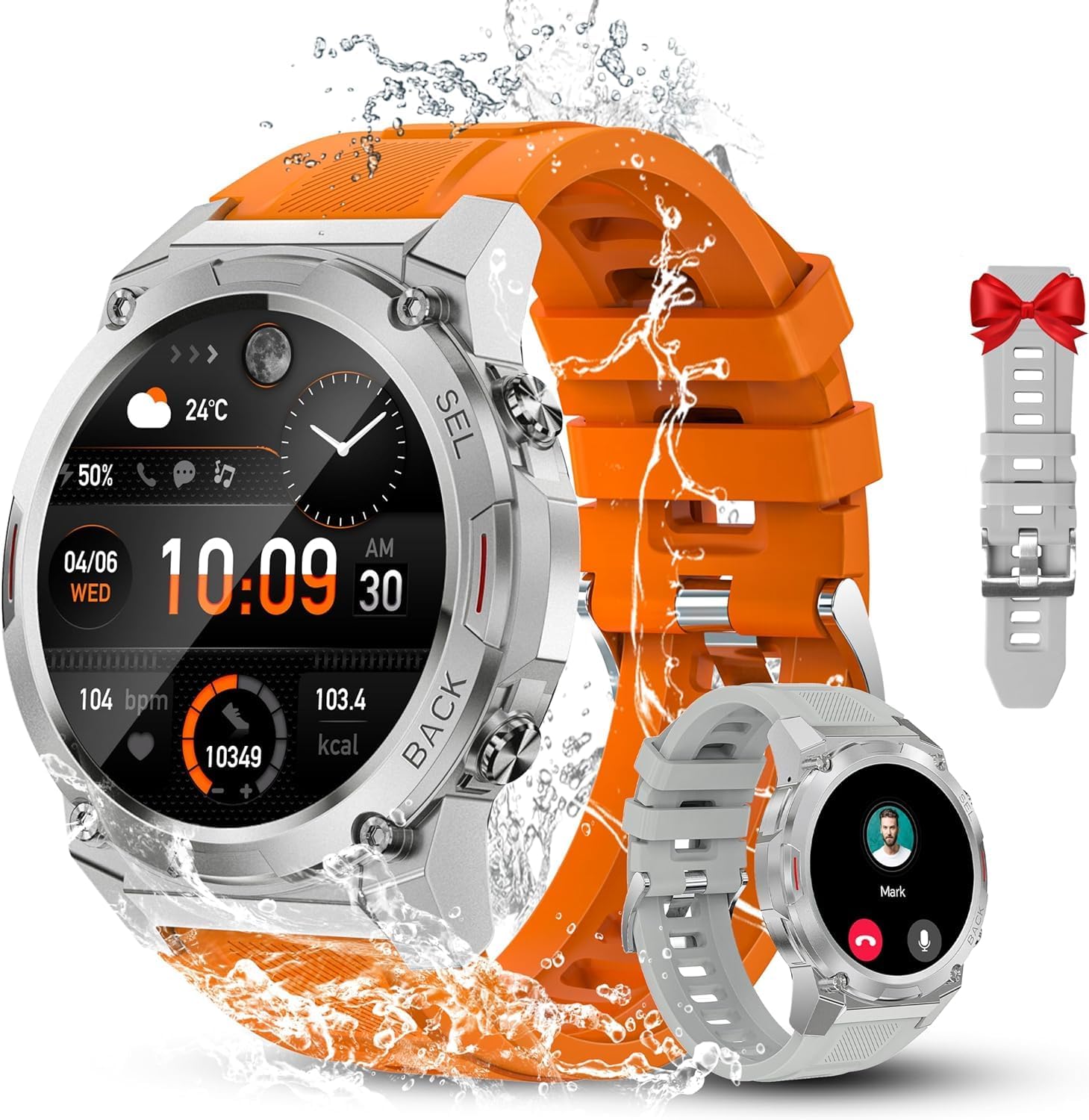
Figure 1: OBA OUKITEL BT50 Smartwatch, showcasing its robust design, vibrant display, and the included white and orange strap options.
2. Package Contents
Please verify that all items are present in the package:
- OBA OUKITEL BT50 Smartwatch (with one strap attached)
- Additional Strap (white-orange)
- Magnetic Charging Cable
- User Manual

Figure 2: Components of the OBA OUKITEL BT50 package, illustrating the smartwatch body and the two interchangeable strap options.
3. Setup Guide
3.1. Charging the Smartwatch
Before initial use, fully charge the smartwatch. Connect the magnetic charging cable to the charging points on the back of the watch and plug the USB end into a standard USB power adapter (not included).
- A full charge takes approximately 2 hours.
- The battery indicator on the screen will show charging progress.

Figure 3: The smartwatch connected to its magnetic charging cable, indicating a full charge and highlighting its extended battery life.
3.2. App Installation and Pairing
To unlock the full functionality of your OBA OUKITEL BT50 Smartwatch, download and install the companion application on your smartphone.
- Scan the QR code in the manual or on the watch screen (if available) to download the "FitCloudPro" app, or search for it in your smartphone's app store (Google Play Store for Android, Apple App Store for iOS).
- Ensure Bluetooth is enabled on your smartphone.
- Open the "FitCloudPro" app and follow the on-screen instructions to create an account or log in.
- In the app, navigate to the device pairing section and select your OUKITEL BT50 from the list of available devices.
- Confirm the pairing request on both your smartphone and the smartwatch.
Once paired, the watch will synchronize time and data with your phone.
4. Operating Instructions
4.1. Basic Navigation
- Touchscreen: Swipe left/right, up/down to navigate through menus and features. Tap to select.
- Side Buttons: The watch features side buttons (labeled "SEL" and "BACK") for quick access to functions or returning to the previous screen.
4.2. Bluetooth Calling
The OUKITEL BT50 supports Bluetooth calls, allowing you to answer or make calls directly from your wrist.
- Ensure the watch is connected to your smartphone via Bluetooth.
- When a call comes in, the watch will display the caller ID. You can answer or reject the call from the watch screen.
- To make a call, access the dialer or contact list on the watch (requires synchronization with the app).

Figure 4: The smartwatch demonstrating its Bluetooth calling capability and displaying icons for various social media notifications.
4.3. Health Monitoring
The smartwatch provides comprehensive health data:
- Heart Rate: Real-time heart rate monitoring.
- Blood Oxygen (SpO2): Measures blood oxygen saturation levels.
- Sleep Tracking: Monitors sleep patterns (deep sleep, light sleep, wake-up times).
- Activity Tracking: Records steps, distance, and calories burned.
Access these features through the watch's menu or view detailed reports in the "FitCloudPro" app.
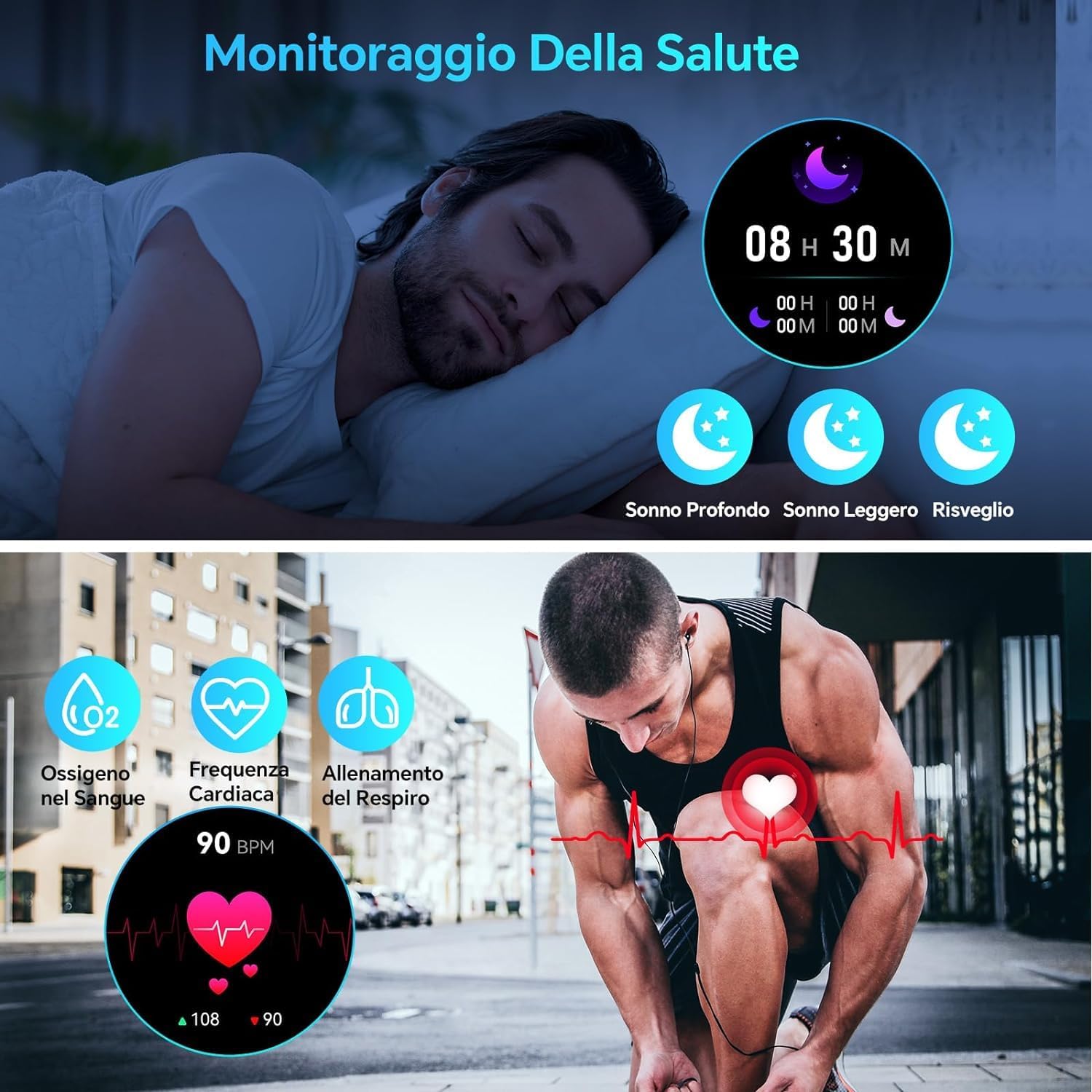
Figure 5: Visual representation of the smartwatch's health monitoring features, including detailed sleep analysis and real-time heart rate and blood oxygen measurements.
4.4. Sports Modes
The OUKITEL BT50 supports over 100 sports modes to accurately track your workouts.
- Navigate to the "Sports" section on your watch.
- Select your desired activity (e.g., walking, running, cycling, swimming, skiing, climbing, football).
- The watch will record duration, calories, heart rate, and other relevant metrics for your chosen activity.

Figure 6: The smartwatch interface showing a selection of its 100+ sports modes, with examples of activities such as cycling, skiing, and climbing.
4.5. Other Features
The smartwatch includes a variety of additional useful functions:
- Customizable Watch Faces: Choose from over 200 watch faces or create your own using the "FitCloudPro" app.
- Music Control: Control music playback on your smartphone (play, pause, skip tracks).
- Remote Camera: Use the watch as a remote shutter for your smartphone camera.
- Weather Forecast: Get real-time weather updates.
- Alarms & Reminders: Set alarms, sedentary reminders, and hydration reminders.
- Voice Assistant: Access your smartphone's voice assistant directly from the watch.
- Stopwatch & Timer: Built-in tools for timing activities.

Figure 7: A selection of the 200+ customizable watch faces available for the OUKITEL BT50, demonstrating personalization options.

Figure 8: The smartwatch showcasing its multi-functional capabilities, including remote camera control, weather display, and music playback management.
5. Maintenance and Care
To ensure the longevity and optimal performance of your OBA OUKITEL BT50 Smartwatch, follow these maintenance guidelines:
- Cleaning: Wipe the watch and straps regularly with a soft, damp cloth. Avoid using harsh chemicals or abrasive materials.
- Water Resistance (IP68): The watch is IP68 rated, meaning it is resistant to dust and can withstand immersion in water up to 5 ATM. It is suitable for swimming and daily water exposure. However, avoid hot water, steam, or prolonged immersion in deep water. Do not press buttons underwater.
- Temperature: Avoid exposing the watch to extreme temperatures (below -40°C or above 70°C) as this can affect battery life and component integrity.
- Impact: While designed to be durable and shock-resistant, avoid dropping the watch or subjecting it to severe impacts.
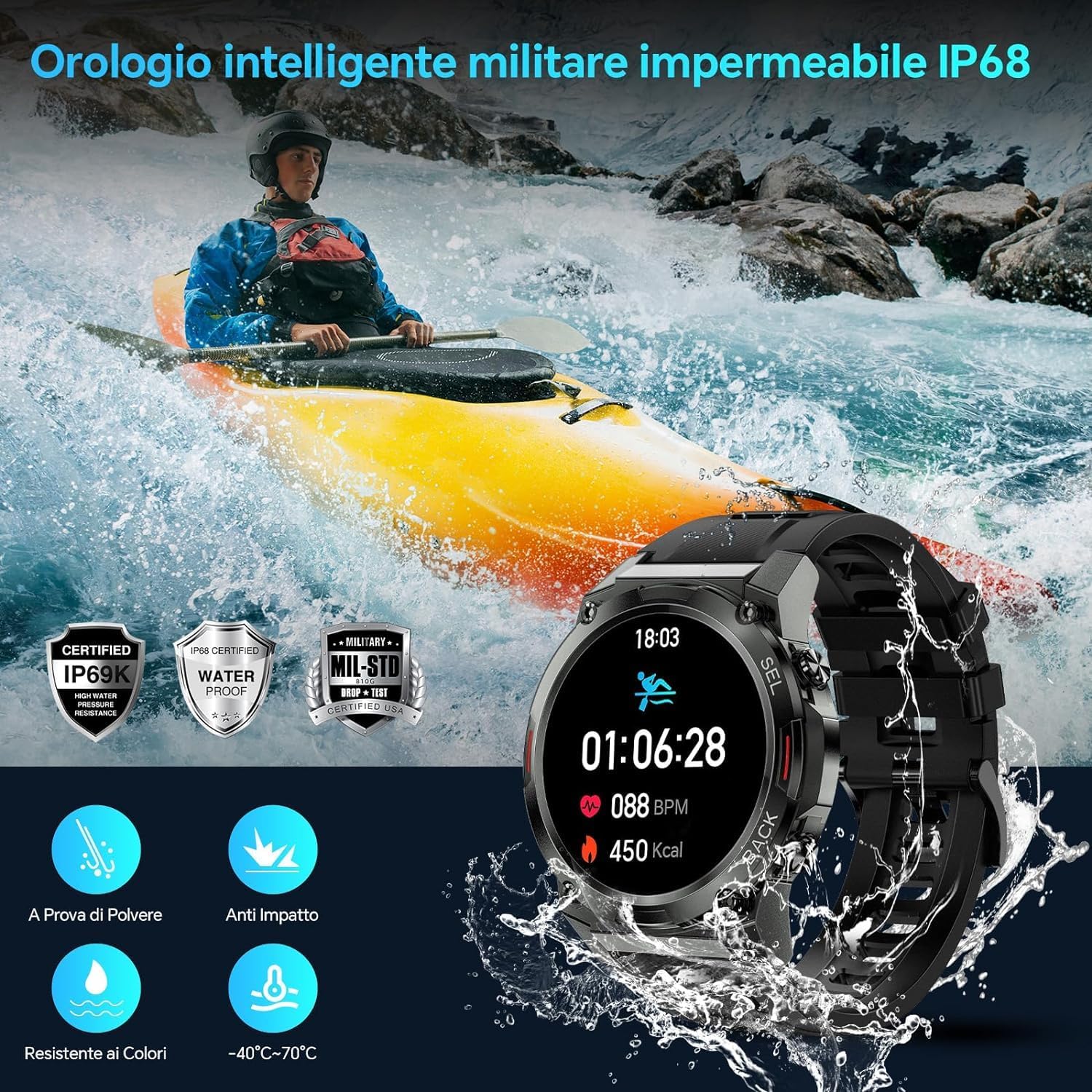
Figure 9: The smartwatch submerged in water, illustrating its IP68 waterproof and dustproof capabilities, suitable for various water activities.
6. Troubleshooting
If you encounter issues with your OBA OUKITEL BT50 Smartwatch, refer to the following common problems and solutions:
- Watch not turning on:
- Ensure the watch is fully charged. Connect it to the charger for at least 30 minutes.
- Press and hold the power button for several seconds.
- Unable to pair with smartphone:
- Ensure Bluetooth is enabled on your smartphone and the watch.
- Make sure the watch is within the Bluetooth range of your phone.
- Restart both the watch and your smartphone.
- Clear the Bluetooth cache on your phone (Android) or forget the device and re-pair (iOS/Android).
- Ensure the "FitCloudPro" app is updated to the latest version.
- Inaccurate health data:
- Ensure the watch is worn snugly on your wrist, not too tight or too loose.
- Clean the sensors on the back of the watch.
- Avoid excessive movement during measurements.
- Note that the watch is not a medical device; data is for reference only.
- Notifications not appearing:
- Check notification permissions for the "FitCloudPro" app in your phone's settings.
- Ensure notifications are enabled within the "FitCloudPro" app for specific applications.
- Verify that the watch is connected to your phone.
7. Specifications
| Feature | Detail |
|---|---|
| Brand | OBA |
| Model | BT50 |
| Display | 1.43-inch HD Touchscreen |
| Connectivity | Bluetooth |
| Battery Capacity | 400 mAh |
| Battery Life (Typical Use) | Up to 15 days |
| Battery Life (Standby) | Up to 45 days |
| Charging Time | Approx. 2 hours |
| Water Resistance | IP68 (up to 5 ATM) |
| Health Monitoring | Heart Rate, SpO2, Sleep Tracking, Activity Tracking |
| Sports Modes | 100+ modes |
| Compatible OS | Android, iOS (via FitCloudPro app) |
| Memory | 16 GB (internal storage, as per product specs) |
| GPS | No built-in GPS |
| Shape | Round |
8. Warranty and Support
For warranty information, please refer to the warranty card included with your product or contact the retailer where you purchased the OBA OUKITEL BT50 Smartwatch. Specific warranty terms and conditions may vary by region and retailer.
For technical support or further assistance, please contact OBA customer service through their official website or the contact information provided in your product packaging. Please have your model number (BT50) and purchase details ready when contacting support.


