
Cello C5024WSF
Cello C5024WSF 50-inch Smart DVD TV User Manual
Introduction
This manual provides comprehensive instructions for the setup, operation, maintenance, and troubleshooting of your Cello C5024WSF 50-inch Smart DVD TV. This television combines a fast LG WebOS Smart TV system with an integrated DVD player, a triple tuner, and versatile connectivity options including Bluetooth, HDMI, and USB. Please read this manual thoroughly before using your TV to ensure proper function and safety.
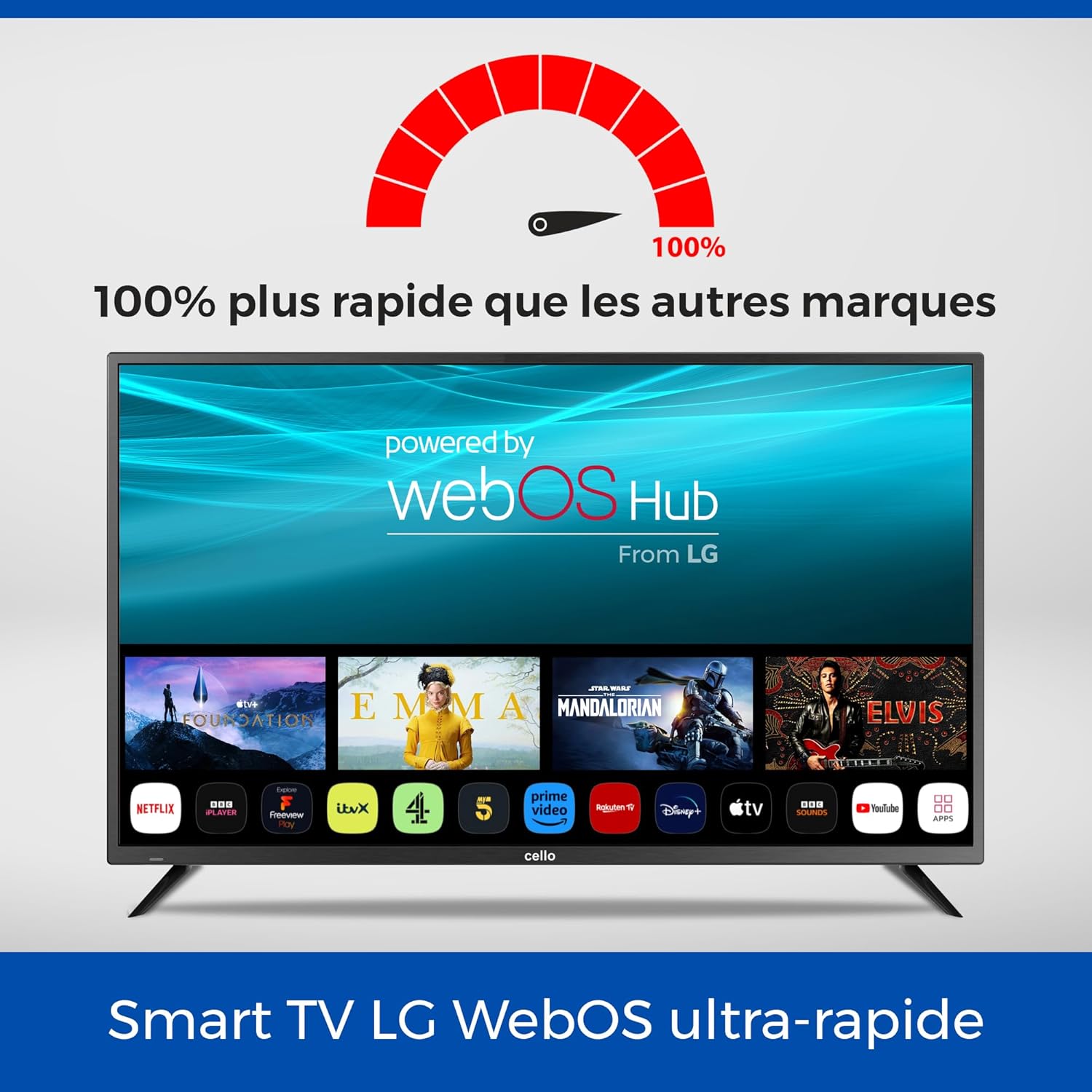
The Cello Smart TV displaying the LG WebOS Hub interface with various streaming application icons, indicating its smart capabilities.
Product Overview
The Cello C5024WSF is designed for ease of use and integrated entertainment. Key features include:
- Smart TV with Integrated DVD: Enjoy the speed of LG WebOS for streaming and the convenience of a built-in DVD player for disc media.
- Elegant Design: A slim frame and lightweight design make it suitable for any room, whether wall-mounted or placed on a stand.
- Triple Tuner: Access digital channels with exceptional HD clarity via integrated DVB-C/S2/T2 tuners.
- Universal Connectivity: Equipped with 2 HDMI ports, 2 USB ports, 1 optical port, and 2 RF ports for connecting various devices. Integrated Bluetooth allows for wireless audio connections.
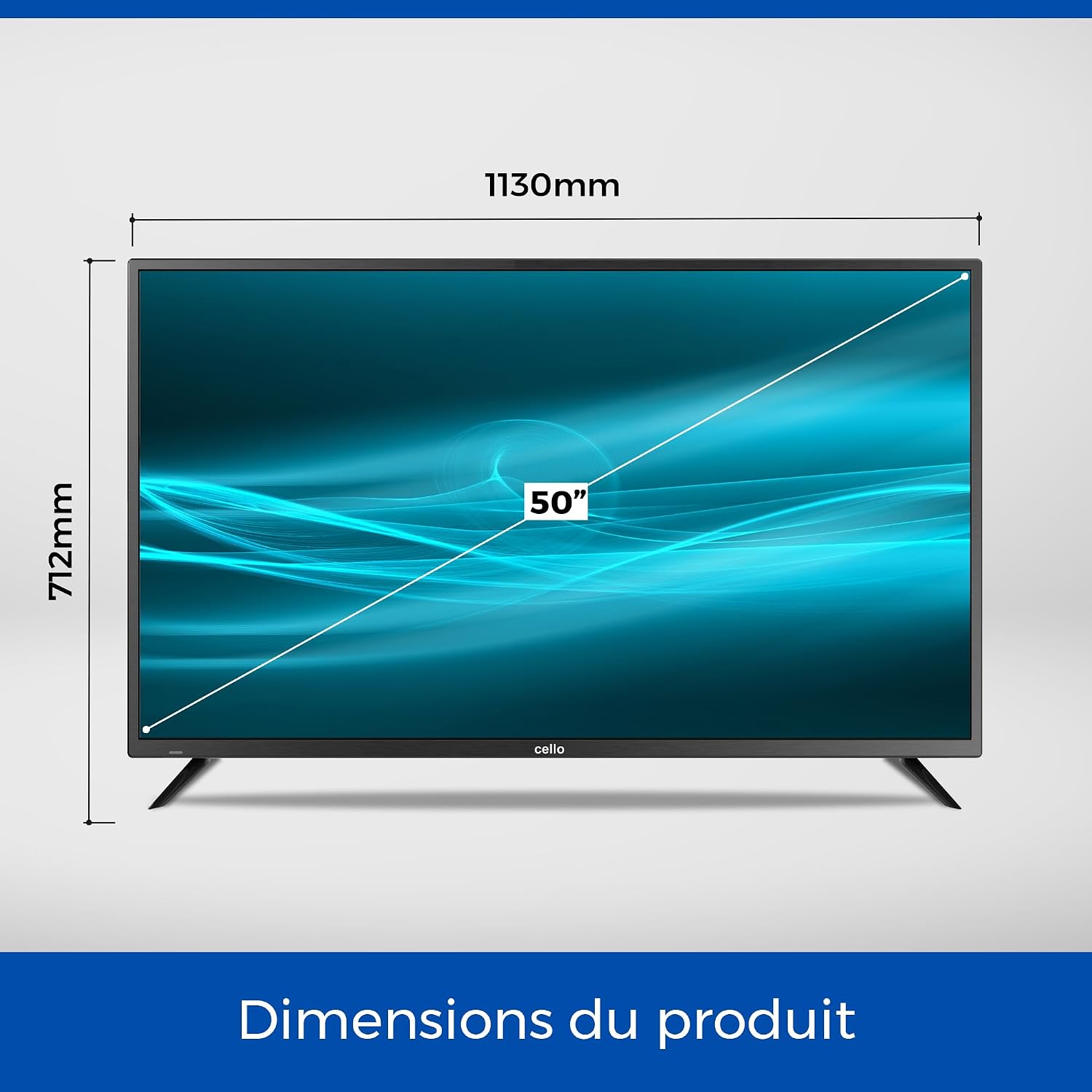
Diagram illustrating the physical dimensions of the Cello 50-inch TV: 1130mm width and 712mm height.

The integrated DVD player allows for direct playback of movies and TV series from discs.

Connect various devices using the available HDMI and USB ports.

Bluetooth connectivity enables wireless pairing with compatible audio devices like soundbars.
Setup Instructions
1. Unboxing and Initial Placement
Carefully remove the TV from its packaging. Choose a stable, flat surface for placement or prepare for wall mounting. Ensure adequate ventilation around the TV.

The Cello TV can be wall-mounted using a VESA compatible bracket (400 x 200 mm).
2. Connecting Power
Connect the provided power cable to the TV's power input and then to a wall outlet. The TV operates on 100-240V AC, 50-60Hz.
3. Connecting External Devices
Use the HDMI ports (2 available) to connect devices such as gaming consoles, set-top boxes, or streaming devices. USB ports (2 available) can be used for media playback or recording.
4. Antenna/Cable Connection
Connect your antenna or cable to the RF input on the TV to receive digital terrestrial (DVB-T2), satellite (DVB-S2), or cable (DVB-C) broadcasts.
5. Network Connection (Wi-Fi)
Upon first power-on, the TV will guide you through connecting to your home Wi-Fi network. This is essential for accessing Smart TV features and applications.
6. Initial Setup Wizard
Follow the on-screen instructions to complete the initial setup, including language selection, channel scanning, and time zone settings.
Operating Your TV
1. Remote Control Functions
The TV comes with an infrared remote control. Insert 2 AAA batteries (not included) into the remote. Familiarize yourself with the buttons for power, volume, channel, input selection, and Smart TV navigation.
2. Smart TV Features (WebOS)
Press the 'Home' button on your remote to access the WebOS interface. From here, you can launch pre-installed applications like Netflix, Prime Video, Disney Plus, and YouTube. You can also download additional apps from the LG Content Store.
- Screen Sharing (Miracast): Use the Miracast feature to wirelessly mirror content from compatible mobile devices to your TV.
3. Using the Integrated DVD Player
Insert a DVD disc into the slot on the side or back of the TV. The TV should automatically switch to DVD mode. Use the remote control for playback functions (play, pause, stop, skip).
4. Media Playback via USB
Insert a USB drive containing compatible media files (photos, music, videos) into one of the USB ports. The TV's media player will detect the drive, allowing you to browse and play content.
5. Bluetooth Audio Pairing
To pair a Bluetooth soundbar or headphones, navigate to the TV's settings menu, select 'Sound', then 'Bluetooth'. Enable Bluetooth and select your device from the list to pair.
Maintenance
1. Cleaning the Screen and Casing
Always unplug the TV before cleaning. Use a soft, dry, lint-free cloth to gently wipe the screen and casing. For stubborn marks, slightly dampen the cloth with water or a specialized screen cleaner. Avoid harsh chemicals, abrasives, or direct spraying of liquids onto the TV.
2. Software Updates
Ensure your TV is connected to the internet to receive automatic software updates. You can also manually check for updates in the TV's settings menu under 'General' > 'About This TV' > 'Check for Updates'. Keeping your software updated ensures optimal performance and access to the latest features.
Troubleshooting
If you encounter issues with your TV, refer to the following common solutions:
| Problem | Possible Solution |
|---|---|
| No Power | Check if the power cable is securely connected to both the TV and the wall outlet. Ensure the outlet is functional. |
| No Picture / Black Screen | Verify the correct input source is selected. Check all cable connections (HDMI, antenna). Try restarting the TV. |
| No Sound | Check volume levels and mute settings. Ensure external audio devices (soundbars, headphones) are correctly connected or paired via Bluetooth. Check audio output settings in the TV menu. |
| Remote Control Not Working | Replace the batteries in the remote. Ensure there are no obstructions between the remote and the TV's IR sensor. |
| Cannot Connect to Wi-Fi | Ensure your Wi-Fi router is on and within range. Re-enter the Wi-Fi password. Try restarting both the TV and your router. |
| DVD Playback Issues | Ensure the DVD disc is clean and free of scratches. Verify the disc is inserted correctly. Try a different DVD. |
Specifications
Below are the detailed technical specifications for the Cello C5024WSF 50-inch Smart DVD TV:
| Feature | Detail |
|---|---|
| Model Number | C5024WSF |
| Screen Size | 50 Inches (127 cm) |
| Display Technology | LED |
| Resolution | 1080p (Full HD, 1920 x 1080) |
| Refresh Rate | 60 Hz |
| Operating System | WebOS |
| Special Features | Bezel-Less Design, Integrated Speaker, Miracast, USB Recording (DVR), Integrated DVD Player |
| Connectivity Technology | Bluetooth (v5.1), HDMI (2 ports), USB (2 ports), Wi-Fi, Ethernet, Optical, RF |
| Audio Output Mode | Digital |
| Speaker Description | Integrated speakers with 16W audio output |
| Surround Sound Format | Dolby Digital |
| Power Consumption | 71 Watts (71 kWh/1000h) |
| VESA Mounting Standard | 400 x 200 mm |
| Item Weight | 9.5 Kilograms |
| Dimensions (D x W x H) | 25P x 113l x 71H centimeters |
| Included Components | Power Cable, Remote Control |
| Remote Control Batteries | 2 x AAA (not included) |
| Model Year | 2024 |

EU Energy Label for the Cello C5024WSF TV, showing energy efficiency class G.

Detailed product information sheet from EPREL. For more details, visit: eprel.ec.europa.eu/qr/1883478
Warranty Information
The Cello C5024WSF 50-inch Smart DVD TV comes with a 1-year limited warranty from the date of purchase. This warranty covers manufacturing defects and malfunctions under normal use. Please retain your proof of purchase for warranty claims. For full terms and conditions, refer to the warranty card included with your product or contact customer support.
Customer Support
For technical assistance, troubleshooting, or warranty inquiries, please contact Cello customer support:
- Email: consumersupport@celloelectronics.com
- Website: www.celloelectronics.de
- Phone: 03334330312 (Please check for local rates and operating hours)
When contacting support, please have your TV model number (C5024WSF) and purchase details ready.
Related documentsC5024WSF


Ask a question about this manual
Ask about setup, troubleshooting, compatibility, parts, safety, or missing instructions. Manuals+ will review the question and use this page’s manual context to help answer it.