
1. Introduction
Welcome to the Koiiko Wireless Gaming Controller Z01 user manual. This guide provides detailed instructions for setting up, operating, maintaining, and troubleshooting your new gaming controller. The Koiiko Z01 is designed for multi-platform compatibility, offering an enhanced gaming experience across various devices.
2. Product Overview
2.1 Key Features
- Multi-Platform Compatibility: Compatible with iOS (iPhone, iPad), Android (phones, tablets), PC, Nintendo Switch/Switch OLED/Switch Lite, PlayStation 4/3, and various cloud gaming services (Steam Link, Play Space, Nvidia GeForce Now, Xbox Game Pass, Amazon Luna, Google Stadia, Rainway, Moonlight). Note: Not compatible with Apple TV, iPod, Fire TV/TV Box.
- Advanced Control: Features clickable thumbsticks, turbo function, 6-axis gyro, responsive Hall Effect linear triggers, and Hall Effect rockers for precise input.
- Customizable Lighting: Dazzling 7-color RGB breathing light with 5 adjustable RGB light modes.
- Programmable Buttons: Equipped with LB, RB, M1, M2 buttons, offering up to 30 customizable actions.
- Wireless Connectivity: Connects via Bluetooth, eliminating the need for a 2.4G adapter.
- Long-Lasting Battery: Built-in 600mAh lithium battery provides over 10 hours of continuous gameplay.
- Portable Design: Small and lightweight for easy carrying and storage.
2.2 Package Contents
- 1 x Koiiko Wireless Gaming Controller Z01
- 1 x USB Charging Cable
- 1 x User Manual
3. Specifications

Product Information Table for Koiiko Wireless Gaming Controller Z01
| Attribute | Detail |
|---|---|
| Product Name | Wireless Gaming Controller |
| Model | Z01 |
| Bluetooth Transmission Distance | ≤ 8 Meters |
| Working Voltage | DC3.7V |
| Working Current | <35mA |
| Duration of Use | Approximately 10-15 Hours |
| Charging Time | Approximately 2 Hours |
| Battery Capacity | 600mAh |
| Dimensions | 143mm x 90mm x 49mm |
| Item Weight | 4 ounces |
4. Setup & Connection
Before connecting, ensure your Koiiko Wireless Gaming Controller Z01 is powered off.
4.1 PC Wireless Connection
- Hold down the 'R' key and then press the 'Home' key for 2 seconds. The 'Home' key will show a BLUE light and flash quickly, indicating pairing mode.
- On your PC, turn on the Bluetooth function.
- Search for and select the Bluetooth device named "Xbox Wireless Controller".
- Once connected, the 'Home' key will remain BLUE.
Video demonstrating how to connect the Koiiko Wireless Gaming Controller to a PC via Bluetooth and how to set up Steam Link for PC streaming.
4.2 iOS Wireless Connection (iPhone/iPad)
- Hold down the 'R' key and then press the 'Home' key for 2 seconds. The 'Home' key will show a BLUE light and flash quickly, indicating pairing mode.
- On your iOS device, turn on the Bluetooth function.
- Search for and select the Bluetooth device named "Xbox Wireless Controller".
- Once connected, the 'Home' key will remain BLUE.
Video guide for connecting the Koiiko Wireless Gaming Controller to an iOS device (iPhone/iPad) via Bluetooth.
4.3 Android Wireless Connection
- Hold down the 'Y' key and then press the 'Home' key for 2 seconds. The 'Home' key will show an ORANGE light and flash quickly, indicating pairing mode.
- On your Android device, turn on the Bluetooth function.
- Search for and select the Bluetooth device named "Z01".
- Once connected, the 'Home' key will remain ORANGE.
Video tutorial on connecting the Koiiko Wireless Gaming Controller to an Android device via Bluetooth.
4.4 Nintendo Switch Wireless Connection
- On your Nintendo Switch, navigate to System Settings > Controllers and Sensors > Change Grip/Order.
- Hold down the 'ZR' key and then press the 'Home' key for 2 seconds. The 'Home' key will show a GREEN light and flash quickly, indicating pairing mode.
- The controller will automatically connect to the console. Once connected, the 'Home' key will remain GREEN.
Video instructions for pairing the Koiiko Wireless Gaming Controller with a Nintendo Switch console.
4.5 PC Streaming (Steam Link)
- Ensure your PC and iOS/Android device are connected to the same network.
- Download and open the Steam Link app on your mobile device.
- Sign in to your Steam account on both your PC and the Steam Link app.
- The app will automatically scan for connectable computers. After selecting your PC, enter the PIN code displayed in the app into Steam on your PC.
- Once the connection and speed test are complete, click 'Start Running' in the app to access your Steam library and play games.
5. Operating Instructions
5.1 Button Functions
- ABXY Buttons: Standard action buttons.
- D-Pad: Directional input.
- Left/Right Joysticks: Analog movement and camera control.
- LB/RB Buttons: Left and Right Bumper buttons.
- LT/RT Triggers: Left and Right Analog Triggers (Hall Effect for precision).
- Home Button: Power on/off, return to home screen.
- Select/Start Buttons: Menu navigation and in-game actions.
- M1/M2 Buttons: Programmable back buttons.
5.2 ABXY Key-Value Interchange
To switch the ABXY key values between Xbox and Switch layouts, press the 'Y + A + HOME' keys simultaneously. This allows you to adapt the button mapping without physically removing buttons.

ABXY Key-Value Interchange Diagram
5.3 RGB Lighting Control
The controller features a dedicated light adjustment button. Press this button to cycle through 7-color RGB breathing light effects and 5 different RGB light modes, allowing you to choose your preferred lighting style.

RGB Lighting Modes Illustration
5.4 Turbo Function
The turbo function allows for rapid, continuous input of a button press. Refer to the detailed instructions in the included physical user manual for specific button combinations to activate and customize turbo settings.
5.5 Programmable Back Buttons (M1, M2)
The M1 and M2 back buttons are highly customizable, supporting up to 30 action keys. Consult the included physical user manual for detailed programming instructions to set up your preferred macros and functions.
5.6 6-Axis Gyro and Vibration
The controller features 6-axis gyro and vibration feedback for immersive gameplay. Please note that these functions are supported only on PC, PlayStation 3, PlayStation 4, and Nintendo Switch platforms.
5.7 Hall Effect Joysticks and Triggers
The Koiiko Z01 is equipped with e-sports level Hall Effect 3D joysticks and linear triggers. This technology greatly reduces joystick drift, providing smooth handling and precise positioning for an enhanced gaming experience.
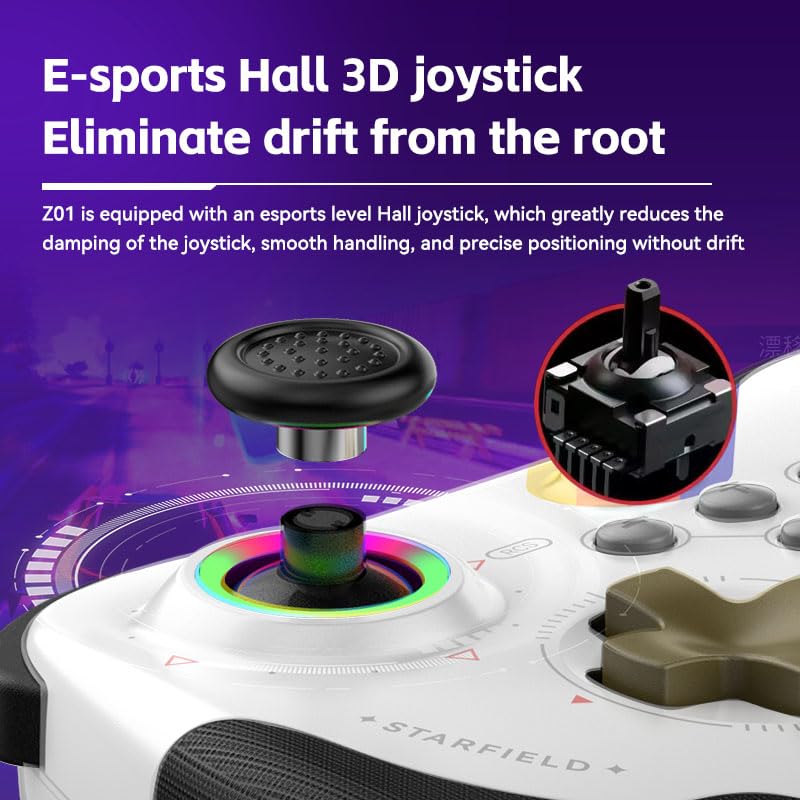
Hall Effect 3D Joystick Detail
6. Maintenance
- Cleaning: Use a soft, dry cloth to clean the controller. Avoid using harsh chemicals or abrasive materials.
- Storage: Store the controller in a cool, dry place away from direct sunlight and extreme temperatures.
- Battery Care: To prolong battery life, avoid fully discharging the controller frequently. Charge it regularly, even if not in use for extended periods.
- Avoid Drops: While durable, repeated drops can damage internal components. Handle with care.
7. Troubleshooting
- Controller Not Connecting:
- Ensure the controller is fully charged.
- Verify you are using the correct button combination for your device's pairing mode (e.g., 'R + Home' for PC/iOS, 'Y + Home' for Android, 'ZR + Home' for Switch).
- Make sure Bluetooth is enabled on your device.
- Remove any previous pairings of the controller from your device's Bluetooth settings and try pairing again.
- Restart both the controller and your device.
- Buttons Not Responding:
- Check if the controller is properly connected to your device.
- Ensure the game you are playing supports controller input.
- If playing on PC, ensure 'Xbox Configuration Support' is enabled in Steam settings if using Steam.
- Test the controller with another game or device to isolate the issue.
- Charging Issues:
- Use the provided USB charging cable.
- Ensure the charging port on the controller and the USB port on your power source are clean and free of debris.
- Try a different USB port or power adapter.
- Joystick Drift:
- The Koiiko Z01 uses Hall Effect joysticks designed to minimize drift. If you experience drift, try recalibrating the controller through your device's settings if available.
- Ensure the controller's firmware is up to date (check the manufacturer's website for updates).
8. Warranty & Support
Your Koiiko Wireless Gaming Controller Z01 comes with a standard manufacturer's warranty. Please refer to the warranty card included in your package for specific terms and conditions.
For any questions, technical support, or assistance with your product, please contact our dedicated technology team. We are committed to providing comprehensive support to ensure your satisfaction.
Contact Information: Please refer to the contact details provided on the product packaging or the official Koiiko website.