1. Introduction
This manual provides detailed instructions for the installation, operation, and maintenance of your Podofo 9-inch Autoradio Carplay system. This unit is designed specifically for Fiat Tipo and EGEA models manufactured between 2016 and 2020, offering advanced features such as Wireless Carplay, Android Auto, Bluetooth, GPS, WiFi, FM/RDS Radio, Steering Wheel Control, and rear camera support. Please read this manual thoroughly before installation and use to ensure proper functionality and safety.
2. Package Contents
Carefully unpack the box and verify that all items listed below are present and in good condition. If any items are missing or damaged, please contact your retailer.
- Podofo 9-inch Autoradio Head Unit
- Power Cable
- RCA Cable
- GPS Antenna
- Original USB Cable
- Installation Tools
- USB Cable
- Rear Camera Input Cable
- User Manual (this document)
- Rear Camera
- Microphone (MIC)
- Canbus Box
- Radio Antenna

This image provides a comprehensive view of the package contents. It shows the main 9-inch head unit with its dimensions, the mounting frame, and a detailed layout of all included accessories: power cable, RCA cable, GPS antenna, USB cables, installation tools, rear camera input cable, user manual, rear camera, microphone, Canbus box, and radio antenna.
3. Product Overview
The Podofo 9-inch Autoradio is a state-of-the-art infotainment system designed to upgrade your driving experience. It features a large touchscreen display, powerful processing capabilities, and seamless integration with your vehicle's existing systems.
Key Features:
- 9-inch High-Definition Touchscreen Display
- Wireless Carplay & Android Auto
- Bluetooth for Hands-Free Calling and Music Streaming
- Integrated GPS Navigation
- WiFi Connectivity
- FM/RDS Radio Tuner
- Steering Wheel Control (SWC) Support
- HiFi Audio Output
- USB Connectivity
- Rear Camera Input
- Canbus Integration for Fiat Tipo/EGEA (2016-2020)

This image displays the main unit of the Podofo 9-inch Autoradio, featuring a Carplay interface on its screen. Below the main unit, icons represent key accessories: Wireless Carplay/Android Auto functionality, a rear camera, an external microphone, and a Canbus box, indicating comprehensive integration and features for compatible Fiat models.
4. Installation
Installation of the Podofo Autoradio requires technical knowledge and familiarity with car audio systems. It is highly recommended to have the unit installed by a qualified professional to avoid damage to the product or your vehicle.
General Installation Steps (Consult a professional):
- Preparation: Disconnect the vehicle's battery to prevent electrical shorts.
- Remove Old Unit: Carefully remove the existing factory radio from the dashboard.
- Connect Wiring: Connect the provided power cable, RCA cable, GPS antenna, USB cables, and rear camera input cable to the corresponding ports on the new Autoradio. Utilize the Canbus box for seamless integration with your Fiat Tipo/EGEA's electrical system and steering wheel controls.
- Install Rear Camera (Optional): If installing the rear camera, route the camera cable to the rear of the vehicle and mount the camera in a suitable location.
- Mount New Unit: Secure the Podofo Autoradio into the dashboard opening.
- Reconnect Battery: Reconnect the vehicle's battery and test all functions.
This image provides a side-by-side comparison of a car's dashboard, showing the original factory radio on the right ("Before Installation") and the Podofo Autoradio installed on the left ("After Installation"). The "After Installation" view prominently displays the Wireless Carplay and Android Auto interfaces, emphasizing the upgrade in functionality and modern design.
5. Setup
5.1 Initial Power On
After successful installation, turn on your vehicle's ignition. The Autoradio should power on automatically. Follow any on-screen prompts for initial language and time settings.
5.2 Wireless Carplay & Android Auto Setup
To connect your smartphone wirelessly:
- Ensure Bluetooth and Wi-Fi are enabled on your smartphone.
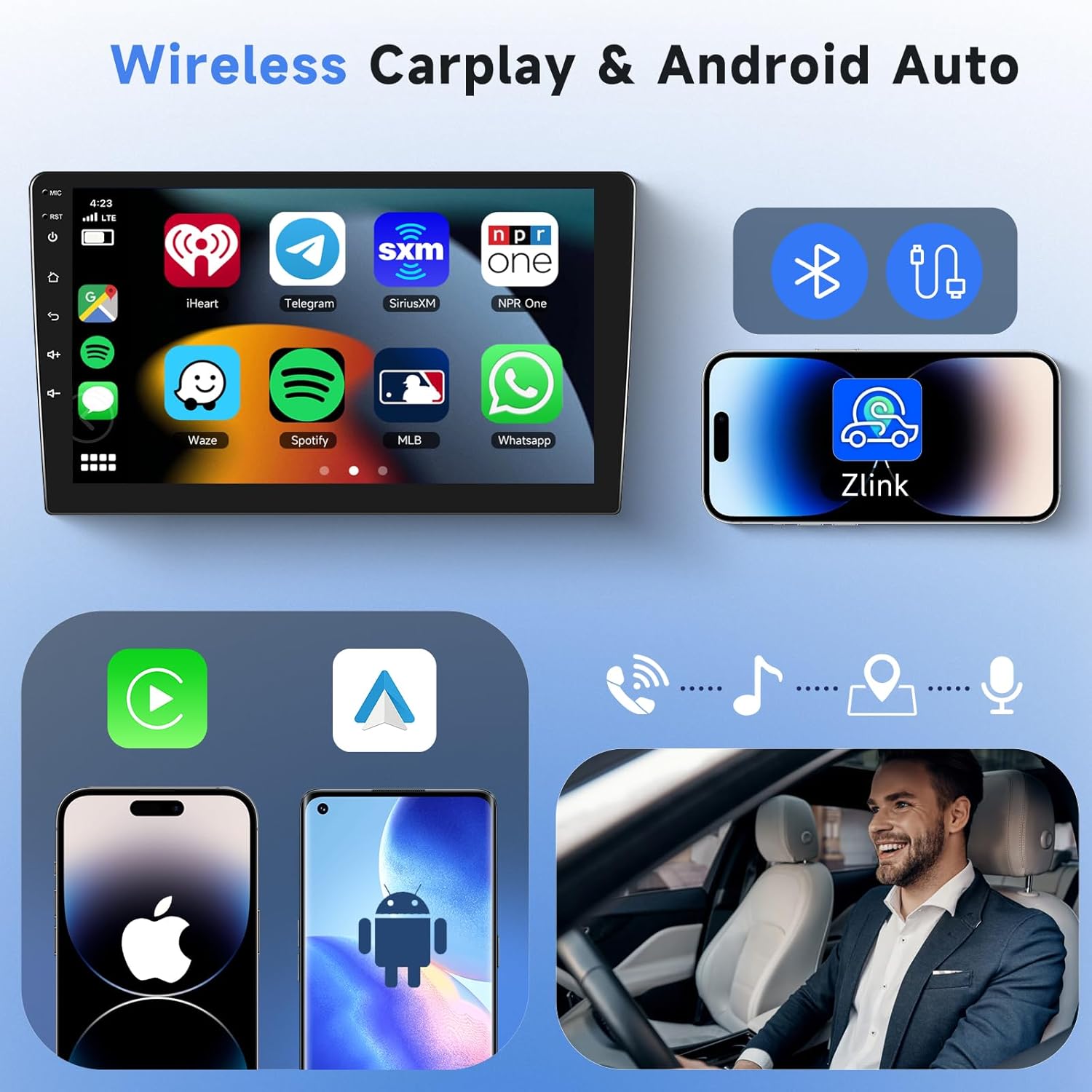
- On the Autoradio, open the Carplay or Android Auto application (often labeled 'Zlink' or similar).
- The Autoradio will search for available devices. Select your phone from the list.
- Confirm the pairing code on both your phone and the Autoradio.
- Once connected, Carplay or Android Auto will launch automatically, mirroring your phone's compatible apps to the unit's screen.

This image focuses on the Wireless Carplay and Android Auto capabilities of the Podofo Autoradio. It showcases a variety of popular application icons (e.g., iHeart, Telegram, Spotify, Waze) on the unit's screen, alongside illustrations of an iPhone and an Android phone connecting wirelessly via the "Zlink" application, highlighting seamless smartphone integration.
5.3 Bluetooth Pairing
For general Bluetooth connectivity (hands-free calls, music streaming without Carplay/Android Auto):
- Go to the Bluetooth settings on the Autoradio.
- Enable Bluetooth on your smartphone and make it discoverable.
- Search for available devices on the Autoradio and select your phone.
- Confirm the pairing code.
5.4 WiFi Connection
To connect to a Wi-Fi network (e.g., mobile hotspot):
- Navigate to the WiFi settings on the Autoradio.
- Turn on WiFi and select your desired network from the list.
- Enter the password if prompted.

This image highlights the Bluetooth and WiFi functionalities. The top section illustrates Bluetooth features, including a phone dialer on the unit's screen for hands-free calling and a user enjoying Bluetooth music streaming. The bottom section depicts the WiFi connection, showing the unit browsing various online content platforms, indicating internet access.
6. Operating Instructions
6.1 FM/RDS Radio
Access the Radio application from the main menu. You can manually tune frequencies, scan for stations, or use the RDS (Radio Data System) features for station information and traffic announcements where available.
6.2 GPS Navigation
The Autoradio comes with integrated GPS. Open the Navigation application to access pre-installed maps or download your preferred navigation apps via WiFi. Ensure the GPS antenna is properly installed for optimal signal reception.

This image details the FM/RDS Radio and GPS Navigation features. The top part shows the radio interface with frequency tuning and RDS information, along with a user adjusting the volume. The bottom part displays the GPS navigation interface with a detailed map showing a route, accompanied by icons for various navigation apps, emphasizing its guidance capabilities.
6.3 Rear Camera
When the vehicle is shifted into reverse gear, the Autoradio will automatically display the feed from the connected rear camera. This feature includes parking guidelines for assistance. Ensure the camera is clean for clear visibility.
6.4 Steering Wheel Control (SWC)
The Canbus box enables integration with your vehicle's steering wheel controls. You can typically customize button functions (e.g., volume up/down, track skip, mode change) through the unit's settings menu. Refer to the 'Steering Learn' section in the settings for configuration.

This image illustrates the safety and convenience features. The top section shows the HD rear camera display on the unit's screen, complete with parking guidelines and night vision capability, indicating enhanced visibility. The bottom section displays the Steering Wheel Control interface, allowing users to customize button functions for safe operation while driving.
6.5 USB Connectivity
Connect USB devices to the provided USB ports for media playback (audio, video, images) or for charging compatible devices. The unit supports various file formats.
6.6 HiFi Audio
The Autoradio features HiFi audio processing for enhanced sound quality. Adjust equalizer settings and audio preferences through the sound settings menu to optimize your listening experience.
7. Advanced Features
7.1 OBD2/DAB Input
The unit supports external OBD2 (On-Board Diagnostics II) and DAB (Digital Audio Broadcasting) devices. An external OBD2 scanner can provide real-time vehicle data, diagnostic trouble codes, and performance information. A DAB antenna allows access to digital radio broadcasts with superior sound quality and additional station information.
Note: External OBD2 and DAB devices are sold separately and are required for these functions.

This image demonstrates the expandability of the Podofo Autoradio with support for external OBD2 and DAB devices. It shows a graphical representation of OBD2 diagnostics (data stream, EVAP test, read/clear codes) and an illustration of a DAB antenna, indicating enhanced vehicle monitoring and digital radio capabilities.
8. Maintenance
- Cleaning the Screen: Use a soft, lint-free cloth to gently wipe the touchscreen. For stubborn smudges, slightly dampen the cloth with water or a screen-safe cleaner. Avoid harsh chemicals or abrasive materials.
- Software Updates: Periodically check for software updates via the unit's settings menu or the manufacturer's website to ensure optimal performance and access to new features.
- General Care: Avoid exposing the unit to extreme temperatures, direct sunlight for prolonged periods, or excessive moisture.
9. Troubleshooting
- Unit does not power on: Check all power connections and the vehicle's fuse box. Ensure the vehicle's ignition is on.
- No sound: Verify speaker connections, volume levels, and audio output settings. Check if the unit is muted.
- Bluetooth/Carplay/Android Auto not connecting: Ensure Bluetooth and Wi-Fi are enabled on your phone and the Autoradio. Try restarting both devices. Clear previous pairings and attempt to re-pair.
- GPS signal lost: Ensure the GPS antenna is properly installed and has a clear view of the sky. Move the vehicle to an open area if signal is weak.
- Rear camera not displaying: Check the camera's power and video input connections. Ensure the vehicle is in reverse gear.
- Steering Wheel Controls not working: Verify Canbus box connection and ensure SWC learning is correctly configured in the unit's settings.
If issues persist after attempting these steps, please contact customer support.
10. Specifications
| Feature | Specification |
|---|---|
| Brand | Podofo |
| Screen Size | 9 Inches |
| Total USB Ports | 2 |
| Power Output | 45 Watts |
| Number of Channels | 4 |
| ASIN | B0D2VQGTC9 |
11. Warranty and Support
This Podofo Autoradio system comes with a 1-year manufacturer's warranty from the date of purchase. This warranty covers defects in materials and workmanship under normal use.
For technical support, warranty claims, or any questions regarding your product, please contact your retailer or Podofo customer service through the contact information provided with your purchase documentation.


