
Baseus ZJBA010001
Baseus BA07 USB Bluetooth 5.3 Adapter User Manual
Model: ZJBA010001
1. Introduction
Thank you for choosing the Baseus BA07 USB Bluetooth 5.3 Adapter. This compact and powerful adapter provides seamless wireless connectivity for your devices, enhancing your computing experience with high-speed data transfer and superior audio quality. This manual will guide you through the setup, operation, and maintenance of your new adapter.
Key Features:
- Advanced Bluetooth 5.3 Technology: Ensures faster, more stable connections with excellent backward compatibility and a range of up to 20 meters.
- Multi-Device Connectivity: Connect up to 5 devices simultaneously, including wireless earphones, speakers, keyboards, mice, printers, phones, tablets, and gamepads.
- Plug and Play: Driver-free installation for Windows 8.1 and above, indicated by a green LED light upon successful connection.
- High-Fidelity Audio: Supports A2DP profile for CD-grade stereo sound without delay, perfect for music and media.
- Fast Data Transfer: Achieves high-speed data transfer rates of up to 16 Mbps, ensuring quick file transfers and smooth performance.

Figure 1: The Baseus BA07 USB Bluetooth 5.3 Adapter. A compact black USB adapter with a green LED indicator, designed for Bluetooth connectivity.
2. Package Contents
Please check the package contents upon unboxing. If any items are missing or damaged, please contact customer support.
- 1 x Baseus BA07 USB Bluetooth 5.3 Adapter
3. Setup
3.1 System Requirements
- Operating System: Windows 8.1 / 10 / 11 (Driver-free)
- Available USB-A Port
Note: This adapter does not work on Windows 7/XP, Apple OS, Linux, and Vista systems.
3.2 Installation Steps (Plug and Play)
- Locate an available USB-A port on your computer (desktop or laptop).
- Carefully insert the Baseus BA07 adapter into the USB-A port. Ensure it is fully seated.
- The adapter will be automatically recognized by your Windows 8.1/10/11 system. No additional driver installation is required.
- A green LED indicator on the adapter will light up, signifying a successful connection and that the adapter is working normally.

Figure 2: Inserting the Baseus BA07 Adapter. The Baseus BA07 adapter shown inserted into a USB-A port, illustrating its plug-and-play functionality. A green light indicates active operation.
4. Operating Instructions
4.1 Connecting Bluetooth Devices
Once the adapter is successfully installed and recognized by your system, you can begin connecting your Bluetooth-enabled devices.
- Ensure the Bluetooth adapter is plugged into your computer and its green LED is lit.
- Turn on the Bluetooth device you wish to connect (e.g., headphones, speaker, mouse, keyboard) and put it into pairing mode. Refer to your device's manual for specific pairing instructions.
- On your Windows computer, navigate to Settings > Devices > Bluetooth & other devices.
- Click on "Add Bluetooth or other device" and select "Bluetooth".
- Your computer will scan for nearby Bluetooth devices. Select your device from the list when it appears.
- Follow any on-screen prompts to complete the pairing process. Once connected, your device will appear as "Paired" or "Connected".
4.2 Multi-Device Connectivity
The Baseus BA07 adapter supports simultaneous connection of up to 5 different Bluetooth devices. This allows for seamless multitasking and enhanced productivity.
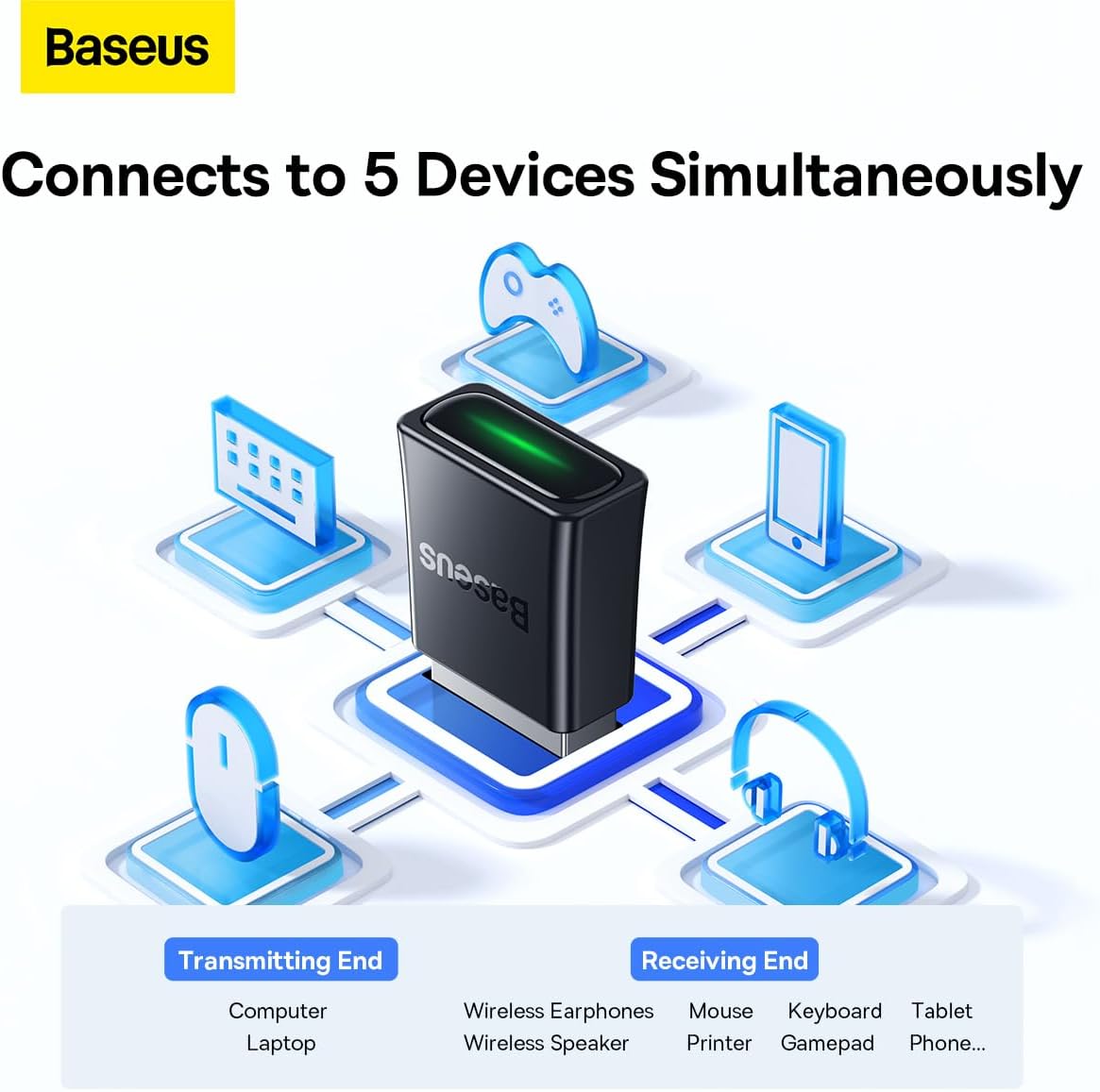
Figure 3: Multi-Device Connection. An illustrative diagram demonstrating the Baseus BA07 adapter's ability to connect simultaneously to up to five different Bluetooth devices, including earphones, mouse, keyboard, tablet, and gamepad.
4.3 Audio Quality and Range
The adapter utilizes Bluetooth 5.3 technology to provide a stable connection up to 20 meters (in an open environment) and supports A2DP for high-definition, CD-grade audio transmission. This ensures clear, natural, and detailed sound for your wireless headphones and speakers.

Figure 4: CD-Grade Sound Quality. Two scenarios depicting users enjoying high-quality audio: one person listening with wireless earphones, and another connecting to a wireless speaker, highlighting the adapter's CD-grade sound capabilities.
4.4 Data Transfer Speed
With a high-speed transmission rate of up to 16 Mbps, the Baseus BA07 adapter facilitates quick and efficient transfer of data and files between your computer and connected Bluetooth devices. It also offers strong resistance to interference, ensuring a smooth and uninterrupted experience.

Figure 5: Bluetooth 5.3 Advantages. A visual comparison highlighting the advantages of Bluetooth 5.3 over Bluetooth 5.0, including faster transmission, lower latency, more stable connection, and wider compatibility.
5. Maintenance
5.1 Cleaning
- Gently wipe the adapter with a soft, dry, lint-free cloth.
- Do not use liquid cleaners, aerosols, or solvents, as they may damage the device.
5.2 Storage
- Store the adapter in a cool, dry place away from direct sunlight and extreme temperatures.
- Keep out of reach of children.
6. Troubleshooting
If you encounter issues with your Baseus BA07 adapter, please refer to the following common problems and solutions:
| Problem | Possible Cause | Solution |
|---|---|---|
| Adapter not recognized / Green LED not lit | Not properly inserted; Incompatible OS; USB port issue. | Ensure adapter is fully inserted. Try a different USB-A port. Verify your operating system is Windows 8.1 or newer. |
| Cannot connect to Bluetooth device | Device not in pairing mode; Out of range; Interference; Already connected to another device. | Ensure your Bluetooth device is in pairing mode and within 20 meters. Restart both the computer and the Bluetooth device. Disconnect from other devices if necessary. |
| Poor audio quality / Disconnections | Interference; Device too far; Low battery on Bluetooth device. | Move closer to the adapter. Reduce obstacles between the adapter and device. Ensure the Bluetooth device is charged. Minimize other wireless interference. |
| Slow data transfer | Interference; Multiple devices connected; Device limitations. | Reduce wireless interference. Disconnect unnecessary Bluetooth devices. Ensure the connected device supports high transfer speeds. |
7. Specifications
| Brand | Baseus |
| Model Number | ZJBA010001 |
| Bluetooth Version | 5.3 |
| Interface | USB-A (USB 3.0 hardware interface) |
| Data Transfer Rate | Up to 16 Mbps |
| Wireless Range | Up to 20 meters (open environment) |
| Compatible Operating Systems | Windows 8.1 / 10 / 11 (Driver-free) |
| Compatible Devices | Laptops, PCs (for connecting earphones, speakers, keyboards, mice, printers, phones, tablets, gamepads) |
| Color | Black |
8. Warranty and Support
8.1 Warranty Information
Baseus products are designed and manufactured to the highest quality standards. For specific warranty terms and conditions, please refer to the warranty card included with your purchase or visit the official Baseus website. Keep your proof of purchase for warranty claims.
8.2 Customer Support
If you have any questions, concerns, or require technical assistance beyond the scope of this manual, please contact Baseus customer support through their official website or the retailer from whom you purchased the product. Provide your product model number (ZJBA010001) and a detailed description of the issue for faster service.
Related documentsZJBA010001


Ask a question about this manual
Ask about setup, troubleshooting, compatibility, parts, safety, or missing instructions. Manuals+ will review the question and use this page’s manual context to help answer it.