
1. Introduction
The PGST Wireless GSM 2G/WIFI Home Alarm System (Model PG105-2GEU-D) is designed to provide comprehensive security for your home or office. This system integrates both GSM 2G and Wi-Fi connectivity, offering reliable alerts via SMS and app notifications. It supports various wireless accessories, including door/window sensors, PIR motion detectors, remote controls, and SOS buttons, ensuring a customizable and effective security solution. This manual provides detailed instructions for setup, operation, and maintenance of your alarm system.
2. Safety Information
- Ensure the control panel is installed in a central location, away from direct sunlight, heat sources, and moisture.
- Use only the provided power adapter.
- Keep the system away from strong electromagnetic interference.
- Do not attempt to disassemble or repair the device yourself. Contact qualified personnel for service.
- Regularly test the system and its sensors to ensure proper functionality.
- Keep batteries out of reach of children. Dispose of used batteries according to local regulations.
3. Package Contents
Verify that all items are present in your package:
- 1 x PGST Alarm Control Panel (PG105-2GEU-D)
- 1 x Power Adapter
- Wireless Door/Window Sensors (Quantity may vary by kit)
- Wireless PIR Motion Detector (Quantity may vary by kit)
- Remote Controls (Quantity may vary by kit)
- SOS Button (Quantity may vary by kit)
- User Manual (This document)
- Mounting Hardware
4. Product Overview
The PGST alarm system features a central control panel with a 2.4-inch TFT display, supporting both Wi-Fi and GSM 2G networks. It allows for comprehensive home protection with various sensors and smart home integration.

Figure 4.1: PGST Alarm Control Panel with 2.4-inch TFT Display. Shows the screen displaying time, date, weather, and arming status.

Figure 4.2: Detailed view of the PGST Alarm Control Panel, highlighting the speaker, SOS button, RFID card sensing area, dialing buttons, TFT display screen, up/down/function buttons, back/cancel button, and confirm button. The rear view shows the anti-prying switch, 3.5mm siren interface, wired arming area interface, SIM card slot, ON/OFF switch, and Micro USB 110/220V AC to 5V power input.
Key Features:
- Dual Network Connectivity: Supports both Wi-Fi and GSM 2G for reliable alarm notifications via app push, SMS, and phone calls.
- Smart Home Integration: Compatible with Tuya/Smart Life App, Amazon Alexa, and Google Assistant for voice control and remote management.
- Expandable System: Connects to various wireless accessories including door/window sensors, PIR motion detectors, remote controls, and SOS buttons.
- Emergency SOS Function: One-button SOS call for immediate assistance, ideal for elderly or children.
- Real-time Monitoring: Receive instant notifications on your mobile phone when the system is triggered.
- Voice Intercom: (Requires compatible camera accessory) Allows two-way communication.
- Low Battery Alert: Wireless sensors provide low battery warnings.
5. Setup
5.1 Initial Power-up
- Connect the power adapter to the control panel and plug it into a power outlet.
- Flip the ON/OFF switch on the back of the panel to the 'ON' position.
- The panel will power on and display the startup screen.
5.2 SIM Card Installation (for GSM 2G functionality)
- Ensure the control panel is powered off.
- Locate the SIM card slot on the back of the panel (refer to Figure 4.2).
- Insert a valid 2G GSM SIM card into the slot, ensuring correct orientation.
- Power on the control panel. The network status icon on the display should indicate GSM signal strength.

Figure 5.1: The alarm panel with a SIM card being inserted, illustrating the capability to preset five alarm call numbers for emergency notifications.
5.3 Wi-Fi Connection
- On the control panel, navigate to the 'Settings' menu.
- Select 'Wi-Fi Settings' and choose your home Wi-Fi network.
- Enter your Wi-Fi password using the keypad.
- Confirm the connection. The Wi-Fi icon on the display should indicate a successful connection.
5.4 App Download and Registration
- Download the 'Tuya Smart' or 'Smart Life' app from your smartphone's app store (iOS App Store or Google Play Store).
- Register for an account or log in if you already have one.
- In the app, tap '+' to add a new device. Select 'Security & Video Surveillance' > 'Alarm (Wi-Fi)'.
- Follow the in-app instructions to connect your alarm control panel to the app. This usually involves putting the panel into pairing mode and confirming the Wi-Fi network.

Figure 5.2: Real-time control of the alarm system through the Smart Life application on a smartphone, showing options for Disarmed, Away, Home, and SOS modes.
5.5 Pairing Wireless Sensors
To pair sensors, put the control panel into pairing mode (refer to the panel's on-screen menu for 'Add Sensor'). Then, activate each sensor according to its specific instructions (e.g., separate the magnetic parts of a door sensor, press the test button on a PIR sensor or SOS button).
- Door/Window Sensors: Install on doors and windows. When opened, the sensor triggers.
- PIR Motion Detectors: Install in areas where motion detection is needed. Avoid placing near heat sources or direct sunlight.
- SOS Button: Can be carried or placed in an accessible location for emergencies.

Figure 5.3: A PIR motion detector installed in a living room, illustrating its 110-degree detection range for high sensitivity and abnormal alarm reminders.
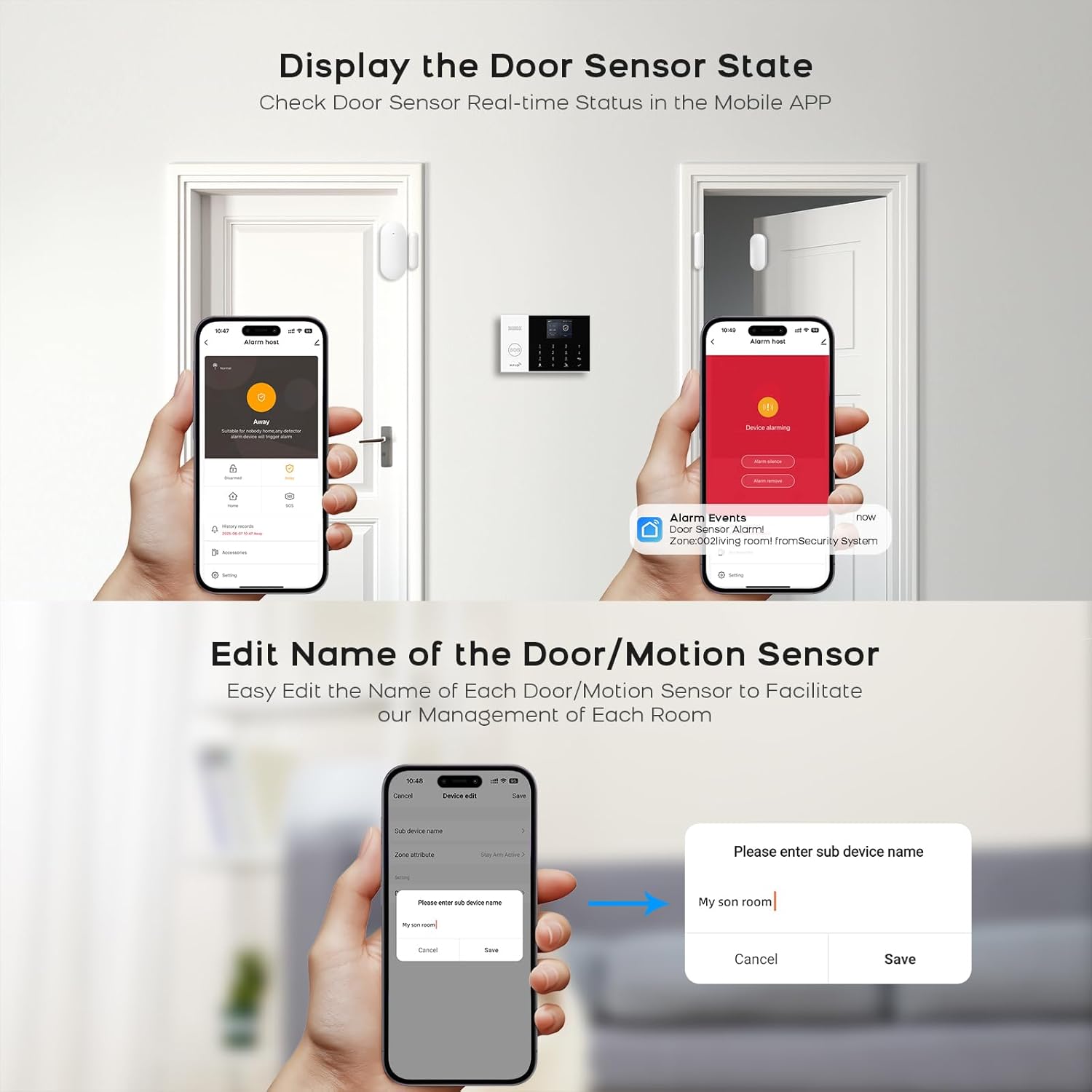
Figure 5.4: The mobile app displaying the real-time status of a door sensor and providing options to edit the name of door/motion sensors for easier management of each room.
5.6 Setting Alarm Numbers
You can set up to 5 groups of phone numbers for alarm calls and 2 groups for SMS alerts. Navigate to the 'Phone Settings' or 'Alarm Numbers' menu on the control panel to input these numbers. When an alarm is triggered, the system will call and send SMS to these preset numbers.
6. Operating Instructions
6.1 Arming and Disarming the System
- Arm (Away Mode): Activates all sensors. Use when leaving the premises. Can be done via control panel, remote control, or mobile app.
- Home Arm (Stay Mode): Activates perimeter sensors (e.g., door/window sensors) but bypasses internal motion sensors, allowing movement within the home. Can be done via control panel, remote control, or mobile app.
- Disarm: Deactivates all sensors. Can be done via control panel (using password), remote control, or mobile app.
6.2 SOS Function
Press the SOS button on the control panel or the dedicated wireless SOS button in an emergency. The system will immediately trigger an alarm and notify the preset emergency contacts via call and SMS.
Video 6.1: Demonstrates the SOS alarm function, showing how pressing the SOS button can alert contacts in case of an accident, such as a fall, enabling timely assistance.
6.3 Smart App Control and Notifications
The Tuya Smart/Smart Life app allows you to remotely arm/disarm the system, check sensor status, customize accessory names, and receive instant push notifications for all alarm events. This provides real-time control and awareness of your security system from anywhere.
6.4 Voice Control (Alexa, Google Assistant)
Integrate your PGST alarm system with Amazon Alexa or Google Assistant through the Tuya Smart/Smart Life app. Once linked, you can use voice commands to arm or disarm your system (a PIN may be required for disarming for security).
6.5 Voice Intercom (with compatible camera)
If you have a compatible smart camera integrated with the system, the app allows for voice intercom functionality. This enables two-way communication, for example, to speak to visitors at your door or deter intruders.
Video 6.2: Illustrates the voice intercom feature, showing how linked cameras can be used to communicate with individuals, such as deterring potential intruders or speaking to delivery personnel.
7. Maintenance
7.1 Battery Replacement for Wireless Sensors
When a sensor's battery is low, the control panel and app will display a low battery warning. Replace batteries promptly to ensure continuous protection. Refer to individual sensor manuals for specific battery types and replacement procedures.
7.2 Cleaning
Wipe the control panel and sensors with a soft, dry cloth. Do not use liquid cleaners or abrasive materials, as these can damage the devices.
7.3 System Testing
It is recommended to test your alarm system periodically (e.g., monthly) to ensure all sensors are functioning correctly and that alarm notifications are being received. Put the system in test mode if available, or notify your monitoring contacts before testing.
8. Troubleshooting
- No Wi-Fi Connection: Ensure your Wi-Fi network is 2.4GHz (5GHz is not supported). Check Wi-Fi password and signal strength. Restart your router and the alarm panel.
- No GSM Signal: Ensure the SIM card is correctly inserted and has an active 2G plan. Check for network coverage in your area.
- Sensors Not Triggering Alarm: Verify sensors are properly paired and their batteries are not low. Check sensor placement and ensure they are within range of the control panel.
- No App Notifications: Ensure the app has necessary permissions (notifications, background activity) on your smartphone. Check your phone's internet connection.
- False Alarms: Check PIR sensor placement to avoid direct sunlight, pets, or moving objects. Ensure door/window sensors are securely mounted and not easily dislodged.
9. Specifications
| Feature | Description |
|---|---|
| Brand | PGST |
| Model | PG105-2GEU-D |
| Connectivity Technology | Wireless (Wi-Fi, GSM 2G) and Wired |
| Power Source | Battery (for sensors), AC (for control panel) |
| Compatible Devices | Smartphones (via Tuya/Smart Life App), Amazon Alexa, Google Assistant |
| Display | 2.4-inch TFT Screen |
| Alarm Notification | App Push, SMS, Phone Call |
| SOS Function | One-button emergency alert |
10. Warranty Information
PGST products are covered by a manufacturer's warranty. Please refer to the warranty card included in your product packaging or visit the official PGST website for detailed warranty terms and conditions. Keep your purchase receipt as proof of purchase for warranty claims.
11. Customer Support
For technical assistance, troubleshooting, or any questions regarding your PGST Wireless GSM 2G/WIFI Home Alarm System, please contact PGST customer support. Contact information can typically be found on the product packaging, the official PGST website, or within the Tuya Smart/Smart Life application's help section.
You can also visit the PGST Store on Amazon for more product information and support resources.


