
Introduction
Thank you for choosing the CACOE K08 Keyboard Case. This manual provides detailed instructions for setting up, operating, and maintaining your new keyboard case. Please read this manual thoroughly before use to ensure optimal performance and longevity of your product.
Compatibility
This keyboard case is specifically designed for the following Samsung Galaxy Tab models:
- Samsung Galaxy Tab S10 Lite 10.9" (2025 models: SM-X400, SM-X406)
- Samsung Galaxy Tab S10 FE 10.9" (2025 models: SM-X520, SM-X526, SM-X526B)
- Samsung Galaxy Tab S9 FE 10.9" (2023 models: SM-X510, SM-X516B)
- Samsung Galaxy Tab S9 11" (2023 models: SM-X710, SM-X716B)
Please verify your tablet model number before use to ensure proper fit and functionality. This product is not compatible with Samsung Galaxy Tab S9+ (12.4-inch) or Samsung Galaxy Tab S10+ (12.4-inch) models.

Image: Compatibility chart for CACOE K08 Keyboard Case.
Package Contents
The package includes:
- 1 x CACOE K08 Wireless Keyboard
- 1 x Protective Case
Note: Charging cable and charging head are not included.
Setup Instructions
1. Charging the Keyboard
Before first use, ensure the keyboard is fully charged. Connect a USB-C charging cable (not included) to the keyboard's charging port and a power source. The charging indicator light will show the charging status.

Image: Keyboard USB-C charging port.
2. Bluetooth Pairing
- Switch the keyboard's power button from OFF to ON.
- Press and hold the "Fn" + "C" keys simultaneously for 3-4 seconds until the Bluetooth indicator light flashes. This puts the keyboard into pairing mode.
- On your Samsung Galaxy Tab, go to Settings > Connected devices > Bluetooth and turn Bluetooth ON.
- Search for available devices. Select "Wireless Keyboard" from the list to establish a connection.
- Once connected, the Bluetooth indicator light on the keyboard will stop flashing.

Image: Bluetooth pairing instructions on the keyboard.
Operating Instructions
Keyboard Backlight Control
The keyboard features 7 beautiful backlight colors and 3 levels of brightness. To adjust the backlight:
- Press the Light bulb key (usually next to the spacebar or Fn key) to cycle through colors.
- Press Fn + Light bulb key to adjust brightness levels (Low, Medium, High, Off).

Image: Keyboard backlighting in various colors.
Touchpad Gestures
The integrated touchpad supports multi-touch gestures for enhanced navigation and productivity. Refer to the image below for common gestures:

Image: Touchpad gestures for navigation.
Detachable Keyboard Design
The keyboard is magnetically attached to the case, allowing for easy removal when not needed. This provides flexibility to switch between a lightweight tablet and a laptop-like setup.

Image: Detachable magnetic keyboard.
Pen Holder
The case includes a dedicated slot for your S Pen, ensuring it is securely stored and easily accessible. This prevents loss and keeps your pen protected.

Image: Integrated pen holder.
Stand Functionality
The case features a stable triangular stand structure, allowing you to prop up your tablet at an optimal viewing or typing angle.

Image: Triangular stand functionality of the case.
Maintenance
- Cleaning: Use a soft, damp cloth to clean the keyboard and case. Avoid harsh chemicals or abrasive materials.
- Storage: When not in use for extended periods, turn off the keyboard to conserve battery life. Store in a cool, dry place.
- Protection: The case is made from soft PU material, offering drop and scratch protection. However, avoid excessive force or impact.

Image: Case demonstrating drop protection.
Troubleshooting
Keyboard Not Connecting or Functioning Correctly
If the keyboard does not connect or function as expected, please check the following settings on your tablet:
- Ensure the keyboard is charged and powered ON.
- Verify Bluetooth is enabled on your tablet and the keyboard is in pairing mode (flashing indicator light).
- On your tablet, navigate to Settings > General management > Physical keyboard.
- Under "Physical keyboard," ensure the correct language is selected (e.g., "English (US)" or "Italiano"). You may need to tap "Set up keyboard layouts" or "Add new keyboard" to find and select the appropriate language.
- If issues persist, try unpairing and re-pairing the keyboard.
Specifications
| Feature | Detail |
|---|---|
| Brand | CACOE |
| Model Name | K08 |
| Compatible Devices | Samsung Galaxy Tab S10 Lite 10.9" (2025), S10 FE 10.9" (2025), S9 FE 10.9" (2023), S9 11" (2023) |
| Connectivity Technology | Bluetooth |
| Special Features | Touchpad, 7-Color Backlit Keyboard (3 brightness levels), Detachable Magnetic Design, Pen Holder |
| Color | Black |
| Keyboard Layout | QWERTY |
| Number of Keys | 78 |
| Power Source | Battery Powered (2 batteries) |
| Minimum OS Required | Android 10.0 |
| Cover Material | PU Leather, ABS Plastic |
| Product Dimensions | 26.5L x 26.5W x 26.5H cm (Note: This dimension seems generic, actual dimensions may vary slightly for specific tablet models) |
| Country of Origin | China |

Image: Italian QWERTY Keyboard Layout.
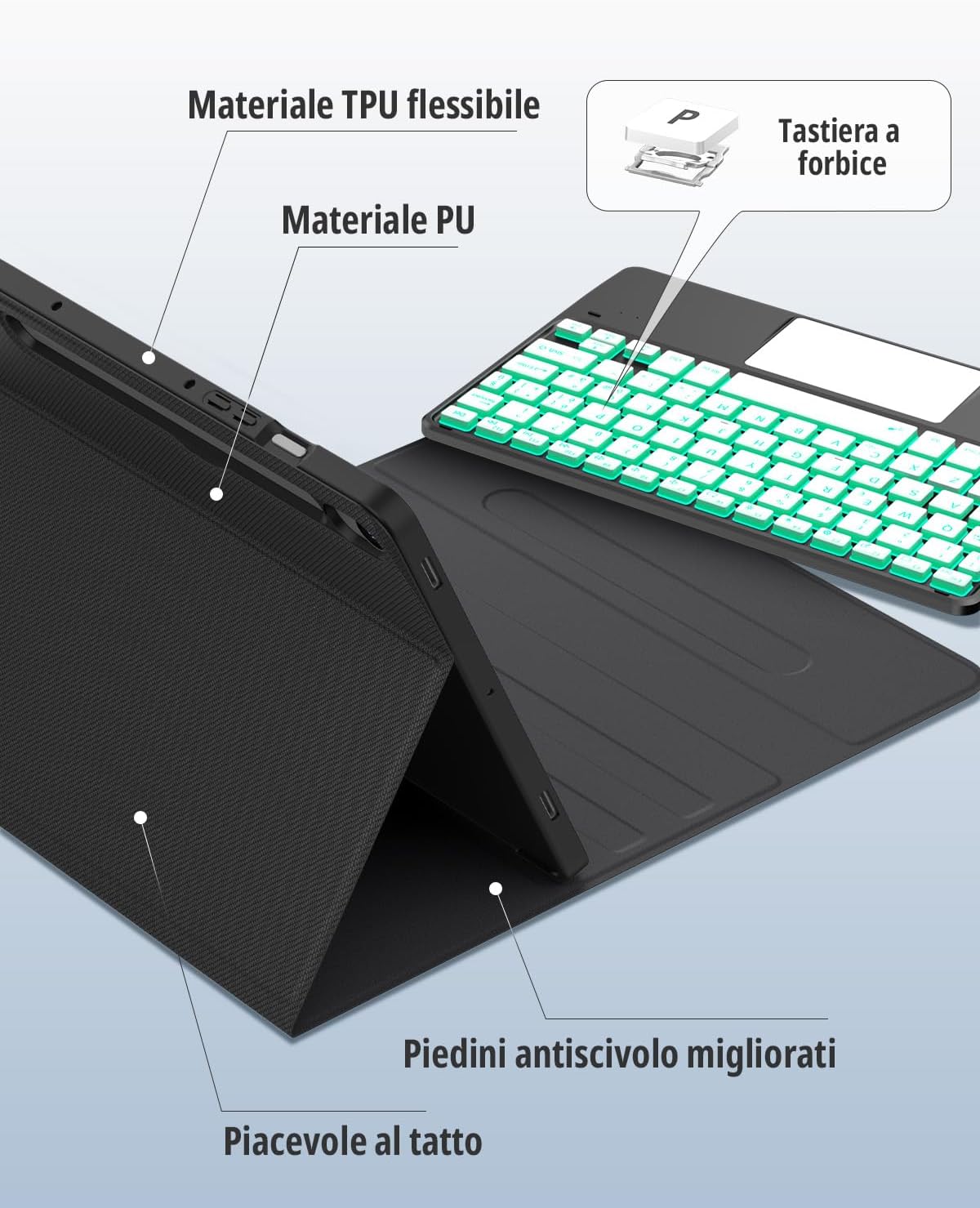
Image: Case materials and design features.
Warranty and Support
For warranty information or technical support, please refer to the product packaging or contact CACOE customer service directly through the retailer where the product was purchased. Please have your model number (K08) and purchase details ready.
CACOE offers 24-hour customer service. For assistance, please visit the CACOE brand store or contact their support channels.