1. Introduction
This manual provides instructions for the safe and effective use of your Anykit Visual Ear Wax Removal Camera, Model AKE390i. This device is a digital otoscope designed to visualize the ear canal and assist in earwax removal. It features a camera with LED illumination and connects to compatible mobile devices for real-time viewing.
Please read this manual thoroughly before operating the device and retain it for future reference.

Figure 1: Anykit Visual Ear Wax Removal Camera with accessories.
2. Important Safety Warnings
- WARNING: THIS IS NOT A TOY. Keep the product away from children under 12 years old.
- This otoscope camera is not intended to diagnose, treat, cure, or prevent any disease or health condition. Consult a medical professional for any health concerns.
- Do not insert the device too deeply into the ear canal. Excessive force or improper use can cause injury.
- Always use the provided specula and protective covers to prevent direct contact of the camera tip with the ear canal walls.
- Clean the device and accessories thoroughly before and after each use as described in the Maintenance section.
- If you experience pain, discomfort, or bleeding during use, discontinue immediately and seek medical advice.
3. Package Contents
Verify that all items are present in your package:
- Anykit Visual Ear Wax Removal Camera (Otoscope)
- USB Type-C Cable (integrated)
- Soft Silicone Earpicks
- Adjustable Protection Covers
- Replacement Specula
- User Manual
- Storage Bag (may vary by package)

Figure 2: Included components in the product package.
4. Setup and First Use
4.1 Compatibility
The Anykit Visual Ear Wax Removal Camera is compatible with:
- Android 8.0+ devices (must support OTG functionality).
- iPhone 15/15 Pro/15 Plus/15 Pro Max.
- iPad (12th generation and newer).
Not compatible with: PCs, iPad Pro (4th generation), iPad 4, or iPad 2. This otoscope does not include a Type-C to Lightning adapter. If using your own adapter, ensure it supports OTG.
4.2 App Installation
- Download "Xscope" App: Search for "Xscope" in the Google Play Store (for Android) or Apple App Store (for iOS) and download the application.
- Grant Permissions: After installation, open the app. When prompted, click "Allow" to grant necessary permissions for the device to function.

Figure 3: App download and connection steps.
4.3 Device Connection
- Connect Otoscope: Plug the USB Type-C connector of the otoscope into your compatible smartphone or tablet.
- Run App: Open the "Xscope" application. The device should automatically connect, and you will see a live view from the camera.
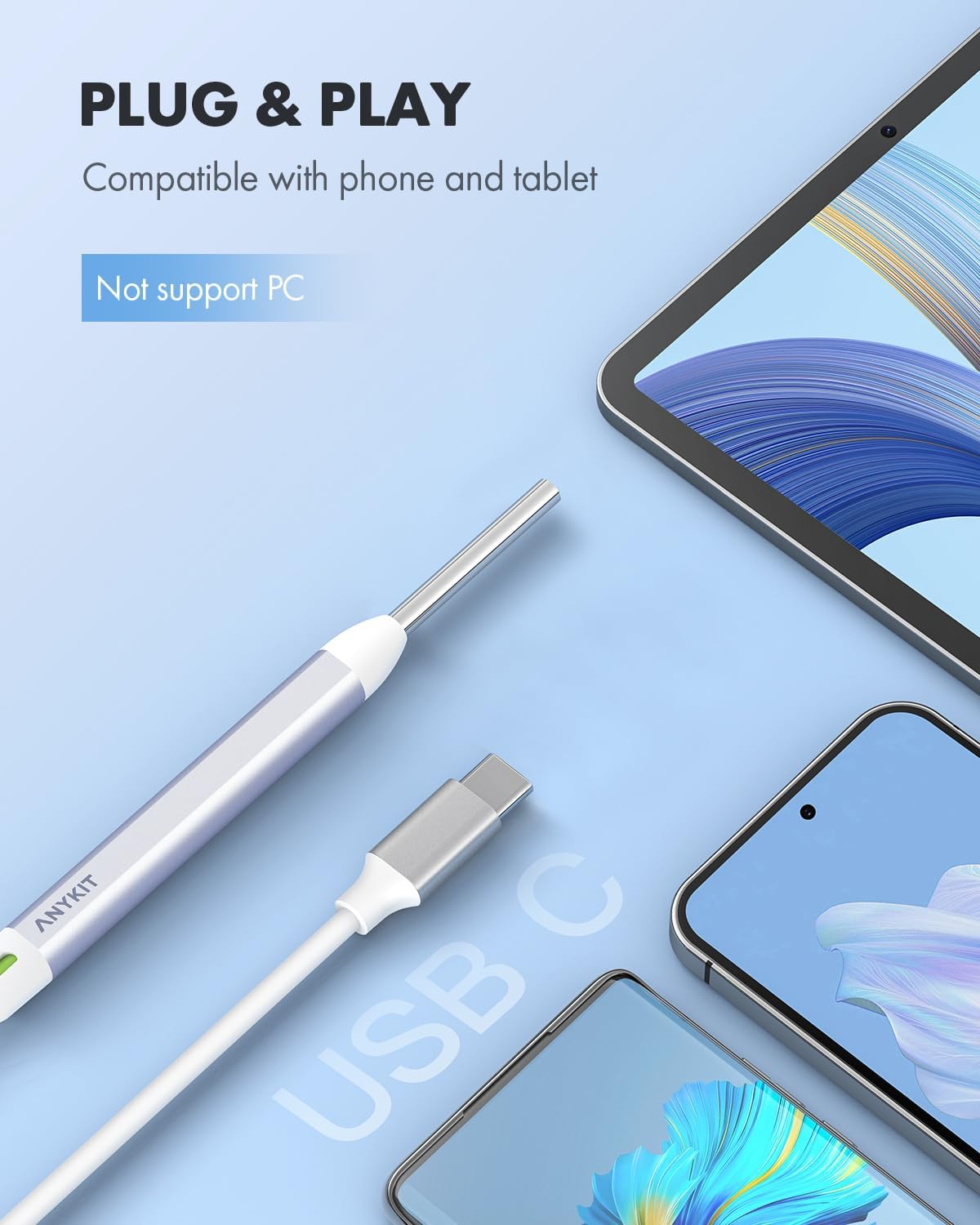
Figure 4: Connecting the otoscope to a mobile device.
5. Operating Instructions
5.1 Attaching Accessories
Before use, attach a clean speculum and an adjustable protection cover to the tip of the otoscope. These accessories ensure safe insertion and prevent over-insertion into the ear canal.
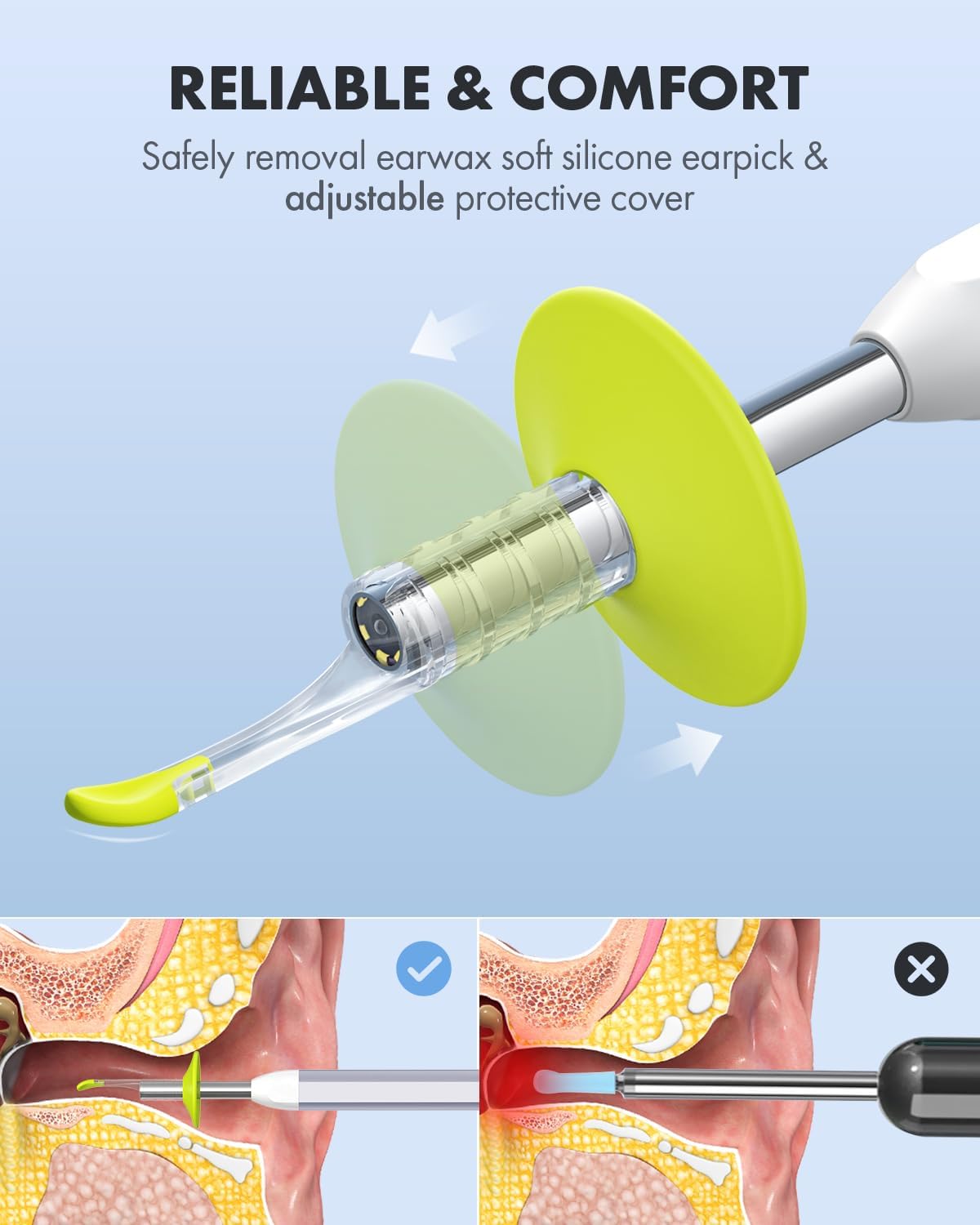
Figure 5: Attaching the protective cover and earpick.

Figure 6: Importance of using specula for safe operation.
5.2 Viewing and Navigation
Once connected and the app is running, you will see a live feed from the otoscope camera on your device screen. The device features a 1080p HD camera lens with 6 illumination LED lights for clear visualization.

Figure 7: High-definition camera lens and LED illumination.
5.3 View Modes
The "Xscope" app offers different view modes for enhanced monitoring:
- Full-Screen Mode: Displays the real-time image from the otoscope across the entire screen.
- Split-Screen Mode: Allows for a clear comparison between a previously captured image and the real-time view. This is useful for tracking changes or progress.

Figure 8: Split-screen mode for ear health tracking.
5.4 Capturing Images and Videos
The app allows you to capture still images and record videos of your ear canal. These can be saved to your device's gallery.
- Take Photo: Tap the camera icon within the app to capture a still image.
- Record Video: Tap the video icon to start and stop video recording.
Captured media can be shared with healthcare professionals for remote consultation, saving time and facilitating quick advice.

Figure 9: Sharing images and videos for remote consultation.
6. Maintenance and Care
6.1 Cleaning the Otoscope
- Camera Lens: Gently wipe the camera lens with a soft, dry cloth or a cotton swab lightly dampened with rubbing alcohol. Ensure no liquid enters the device.
- Device Body: Wipe the main body of the otoscope with a clean, damp cloth. Do not submerge the device in water or any cleaning solutions.
6.2 Cleaning Accessories
- Earpicks and Specula: Wash reusable earpicks and specula with mild soap and water. Rinse thoroughly and allow them to air dry completely before storage or next use. Disposable accessories should be discarded after a single use.
6.3 Storage
Store the otoscope and its accessories in the provided storage bag in a clean, dry place, away from direct sunlight and extreme temperatures.

Figure 10: Storage bag for organizing the otoscope and accessories.
7. Troubleshooting
| Problem | Possible Cause | Solution |
|---|---|---|
| No image on screen / Device not recognized |
|
|
| Image is blurry or unclear |
|
|
| App crashes or freezes |
|
|
8. Product Specifications
| Feature | Detail |
|---|---|
| Model Number | AKE390i |
| Brand | Anykit |
| Camera Resolution | 1080p HD |
| Illumination | 6 LED Lights |
| Connectivity | USB Type-C (Wired) |
| Compatibility | Android 8.0+ (OTG support), iPhone 15 series, iPad (12th Gen+) |
| Package Dimensions | 6.02 x 2.56 x 1.65 inches |
| Item Weight | 3.53 ounces |
| ASIN | B0D2D8CT8X |
9. Warranty and Support
Specific warranty information is not provided in this manual. For details regarding warranty coverage, please refer to the product packaging or contact Anykit customer support directly.
For technical support, troubleshooting assistance, or inquiries about your Anykit Visual Ear Wax Removal Camera, please visit the official Anykit website or contact their customer service department. Contact information can typically be found on the product packaging or the manufacturer's website.
10. Legal Disclaimer
Statements regarding dietary supplements have not been evaluated by the FDA and are not intended to diagnose, treat, cure, or prevent any disease or health condition. This product is not a medical device intended for diagnosis or treatment of medical conditions.


