
Introduction
Thank you for choosing the PORLEI TM551 Wired Trackball Mouse. This manual provides essential information for setting up, operating, and maintaining your new trackball mouse. Please read it carefully to ensure optimal performance and longevity of your device.
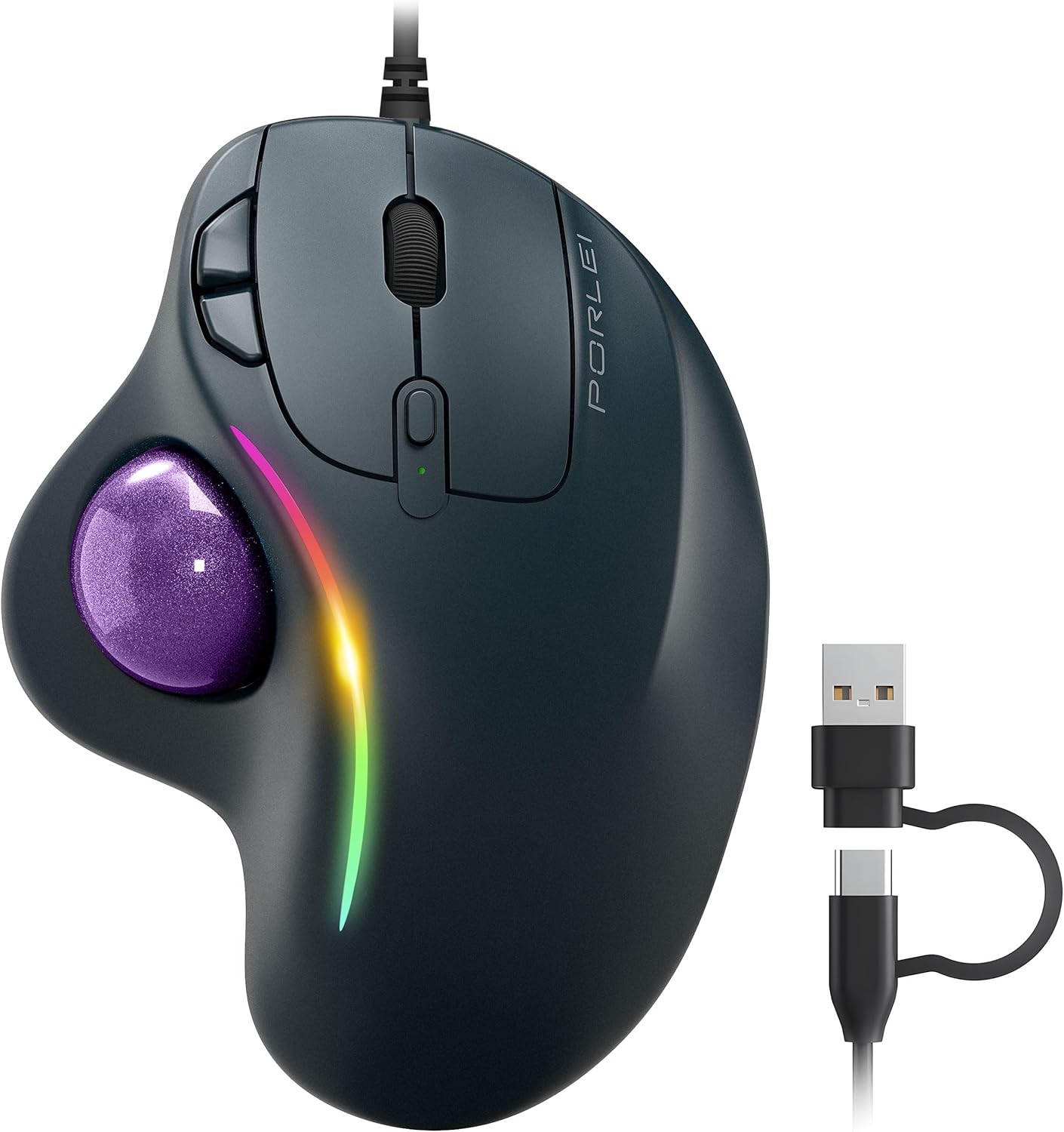
Image: The PORLEI TM551 Wired Trackball Mouse, showcasing its ergonomic design, RGB lighting, and dual USB-C and USB-A connectivity options.
Setup Guide
The PORLEI TM551 Trackball Mouse is designed for simple plug-and-play operation, requiring no additional driver installation.
Connecting Your Mouse
- Locate an available USB-A or USB-C port on your computer (PC, Laptop, Mac, Desktop).
- Connect the USB cable of the trackball mouse to the chosen port. The mouse features a 1.8m cable for flexible placement.
- The operating system will automatically detect and install the necessary drivers. The mouse will be ready for use within a few seconds.

Image: The PORLEI TM551 trackball mouse connected to a laptop, demonstrating its plug-and-play setup. The image highlights the convenience of immediate use without complex installations.
Operating Instructions
Familiarize yourself with the features and controls of your PORLEI TM551 Trackball Mouse for an enhanced user experience.
Ergonomic Design and Comfort
The sculpted ergonomic shape is designed to fit naturally in your hand, promoting a relaxed grip and reducing muscle strain and wrist stiffness. The optimal angle allows your palm to remain in a natural position for all-day comfort.

Image: A user's hand comfortably resting on the PORLEI TM551 trackball mouse, illustrating its ergonomic design for all-day comfort and smooth thumb control.

Image: A diagram highlighting the 49.5-degree angle of the PORLEI TM551 trackball mouse, designed to promote optimal wrist posture and reduce strain.
Adjusting DPI Settings
The mouse features 5 adjustable DPI (Dots Per Inch) levels, allowing you to customize cursor speed and precision for different tasks. Press the DPI button located near the scroll wheel to cycle through the settings:
- 100 DPI: Slowest cursor speed, ideal for precise tasks.
- 200 DPI: Slightly faster, good for general use.
- 400 DPI: Balanced speed for everyday computing.
- 800 DPI: Faster cursor movement for quick navigation.
- 1200 DPI: Fastest cursor speed, suitable for rapid movements across large displays.

Image: The PORLEI TM551 trackball mouse on a desk, with an overlay indicating the five adjustable DPI settings (100, 200, 400, 800, 1200 DPI) for precise tracking and customizable cursor speed.
Button Functions
- Left Click Button: Standard selection and activation.
- Right Click Button: Context menu access.
- Precision Scroll Wheel: For vertical scrolling through documents and web pages. Also functions as a clickable middle button.
- Back/Forward Buttons: Located near the thumb trackball, these buttons facilitate navigation in web browsers and file explorers. Note: These buttons are non-programmable and are not compatible with Mac OS systems.
- DPI Button: Cycles through the 5 DPI settings.
Image: An annotated diagram of the PORLEI TM551 trackball mouse, labeling its key components including the precision scroll wheel, forward/backward buttons, DPI button, removable ball, and RGB lighting.
RGB Lighting
The mouse features cool RGB lighting that adds aesthetic appeal to your workspace. The lighting is integrated into the design and provides a subtle glow. The lighting can be turned off if desired, though specific instructions for this function are not provided in this manual; please refer to the manufacturer's website or product packaging for details.
Optimal for Tight Workspaces
With its 34mm standard trackball and precise tracking system, the TM551 allows you to move the cursor by simply moving your thumb. This design makes it ideal for tight workspaces, busy desks, or when working on non-traditional surfaces like your leg, sofa, bed, or carpet, as it does not require surface movement.

Image: The PORLEI TM551 trackball mouse positioned on a desk alongside a laptop and other items, illustrating how its stationary design makes it perfect for tight workspaces.
Maintenance
Regular cleaning of your trackball mouse will ensure smooth and precise operation.
Cleaning the Trackball
- Gently push the trackball from the underside of the mouse to remove it from its housing.
- Using a soft, lint-free cloth, wipe the trackball to remove any dust or debris.
- Clean the inside of the trackball housing, paying attention to the three small support points (rollers) that the ball rests on. Use a cotton swab if necessary to reach tight areas.
- Once clean, reinsert the trackball into its housing until it clicks securely into place.

Image: The PORLEI TM551 trackball mouse with its purple trackball removed, demonstrating the ease of cleaning the ball and its housing to maintain smooth operation.
Troubleshooting
If you encounter issues with your PORLEI TM551 Trackball Mouse, refer to the following common solutions:
- Mouse Not Responding:
- Ensure the USB cable is securely plugged into a working USB port on your computer.
- Try plugging the mouse into a different USB port.
- Restart your computer.
- Trackball Movement is Not Smooth or Jumpy:
- The trackball or its internal rollers may be dirty. Refer to the "Maintenance" section for cleaning instructions.
- Back/Forward Buttons Not Working (Mac OS):
- The Back/Forward buttons are not compatible with Mac OS systems. This is a design limitation.
- DPI Setting Confusion:
- The DPI settings cycle through 5 levels. Press the DPI button repeatedly to find your preferred cursor speed. There is no visual indicator for the current DPI level other than cursor speed.
Specifications
| Feature | Detail |
|---|---|
| Product Dimensions | 5.71 x 2.28 x 4.41 inches |
| Item Weight | 7.8 ounces |
| Connectivity Technology | USB (Wired) |
| Cable Length | 1.8 meters |
| Special Features | RGB Lighting, Lightweight, Ergonomic Design |
| Movement Detection Technology | Trackball (Optical Sensor) |
| Adjustable DPI Levels | 100, 200, 400, 800, 1200 DPI |
| Compatibility | Windows, Mac OS, Laptops, Desktops |
Warranty and Support
For warranty information and technical support, please refer to the documentation included with your product packaging or visit the official PORLEI website. You can also find more information and contact details on the PORLEI Store on Amazon.