
1. Introduction
This manual provides instructions for the Voistek USB Headset V9 Dual Ear. This wired on-ear headset is designed for clear audio communication and comfortable use with various devices and applications, including video calls, online meetings, and classes.
2. Package Contents
Verify that all items are present in your product package:
- Voistek USB Headset (Dual Ear)
- USB-A to USB-C Adapter Cable
- User Manual

Image 2.1: Voistek USB Headset V9 Dual Ear with its included USB-A and USB-C adapters and inline control unit.
3. Features
- Clear Audio: Equipped with 30mm drivers for balanced and clear sound.
- Noise-Cancelling Microphone: Rotatable 330° microphone designed to reduce background noise for clear voice pickup.
- Comfortable Design: Lightweight on-ear design with soft ear cushions and an adjustable headband for extended wear.
- Plug and Play Connectivity: USB-A and USB-C compatibility (via adapter) for easy connection to various devices without driver installation.
- In-line Controls: Integrated controls for volume adjustment, speaker mute, and microphone mute.
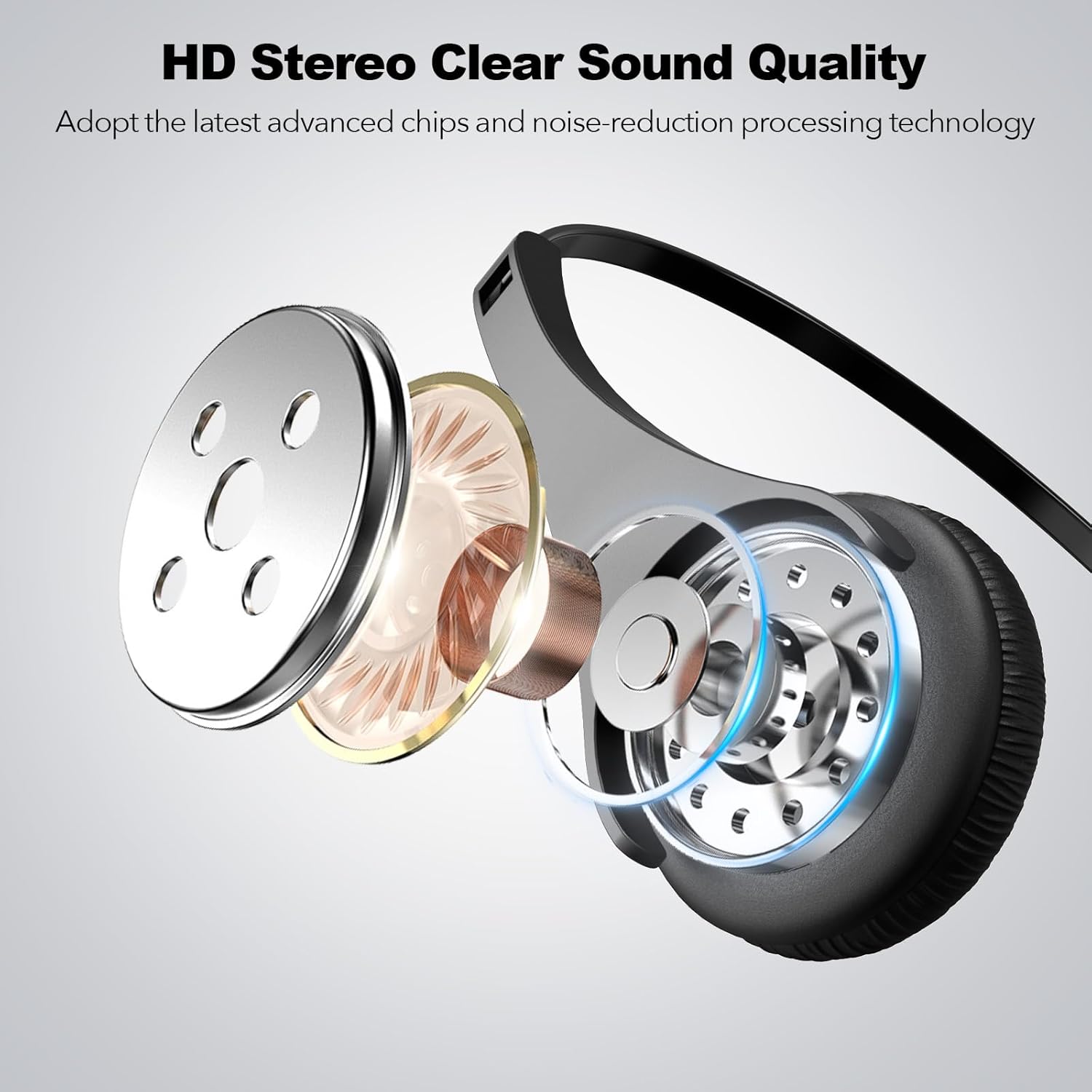
Image 3.1: Illustration of the 30mm audio driver for clear sound quality.

Image 3.2: Ergonomic and flexible design features including the adjustable headband, soft ear cushions, and 330° rotatable microphone.
4. Setup
The Voistek USB Headset is designed for plug-and-play operation, requiring no additional software or drivers for most operating systems.
- Connect the Headset:
- For devices with a USB-A port, directly plug the headset's USB-A connector into an available USB port.
- For devices with a USB-C port, attach the included USB-A to USB-C adapter to the headset's USB-A connector, then plug the USB-C end into an available USB-C port.
- System Recognition: Your operating system (Windows, macOS, Android) should automatically detect the headset and configure it as the default audio input and output device.
- Adjust Settings (if necessary): If the headset is not automatically selected, navigate to your device's sound settings and manually select the Voistek Headset as the input (microphone) and output (speaker) device.

Image 4.1: Headset connected to a laptop, illustrating plug-and-play setup with various operating systems.
5. Operating Instructions
The headset features an in-line control unit for convenient audio management.

Image 5.1: Detailed view of the in-line control unit.
- Volume Up (+): Press to increase the listening volume.
- Volume Down (-): Press to decrease the listening volume.
- Speaker Mute: Press the speaker icon button to mute or unmute the headset speakers. An indicator light may show the mute status.
- Microphone Mute: Press the microphone icon button to mute or unmute the microphone. A red indicator light will illuminate when the microphone is muted.
Microphone Positioning: The microphone boom can be rotated 330 degrees to be worn on either the left or right side. Position the microphone approximately 1-2 inches from your mouth for optimal voice clarity.
6. Maintenance
To ensure the longevity and optimal performance of your Voistek USB Headset, follow these maintenance guidelines:
- Cleaning: Use a soft, dry cloth to clean the headset. Avoid using liquid cleaners or abrasive materials.
- Storage: Store the headset in a cool, dry place when not in use. Avoid extreme temperatures.
- Cable Care: Do not pull on the cable to disconnect the headset. Always grasp the plug. Avoid sharp bends or kinks in the cable.
- Earpads: The soft ear cushions are designed for comfort. Handle them gently to prevent damage.
7. Troubleshooting
If you encounter issues with your headset, refer to the following common solutions:
| Problem | Possible Solution |
|---|---|
| No sound from headset |
|
| Microphone not working |
|
| Sound is distorted or unclear |
|
| In-line controls are overly sensitive |
|
8. Specifications
| Feature | Detail |
|---|---|
| Model | V9 |
| Brand | Voistek |
| Connectivity Technology | Wired (USB-A, USB-C via adapter) |
| Ear Placement | On Ear |
| Audio Driver Size | 30 mm |
| Frequency Response | 20 Hz - 20 KHz |
| Sensitivity | 117 dB |
| Impedance | 32 Ohm |
| Microphone | Noise-Cancelling, 330° Rotatable |
| In-line Controls | Volume Up/Down, Speaker Mute, Microphone Mute |
| Compatible Devices | Desktops, Laptops, Tablets, Telephones (with USB-A or USB-C) |
| Operating Systems | Windows, macOS, Android |
| Material | ABS, Aluminum, Faux Leather |
| Item Weight | 6.4 ounces |
9. Warranty and Support
For warranty information and technical support, please refer to the documentation included with your purchase or visit the official Voistek website. Keep your purchase receipt for warranty claims.