
Leadfan RM
Leadfan Wireless CarPlay & Android Auto Car Radio User Manual
Model: RM | Brand: Leadfan | For: Toyota Camry (2006-2011)
1. Introduction
This manual provides detailed instructions for the installation, operation, and maintenance of your Leadfan Wireless Apple CarPlay & Android Auto Car Radio. This 9-inch IPS touchscreen stereo is designed specifically for Toyota Camry models from 2006 to 2011, offering advanced features such as GPS navigation, Bluetooth 5.1, WiFi connectivity, rear camera support, voice control, and steering wheel control compatibility.
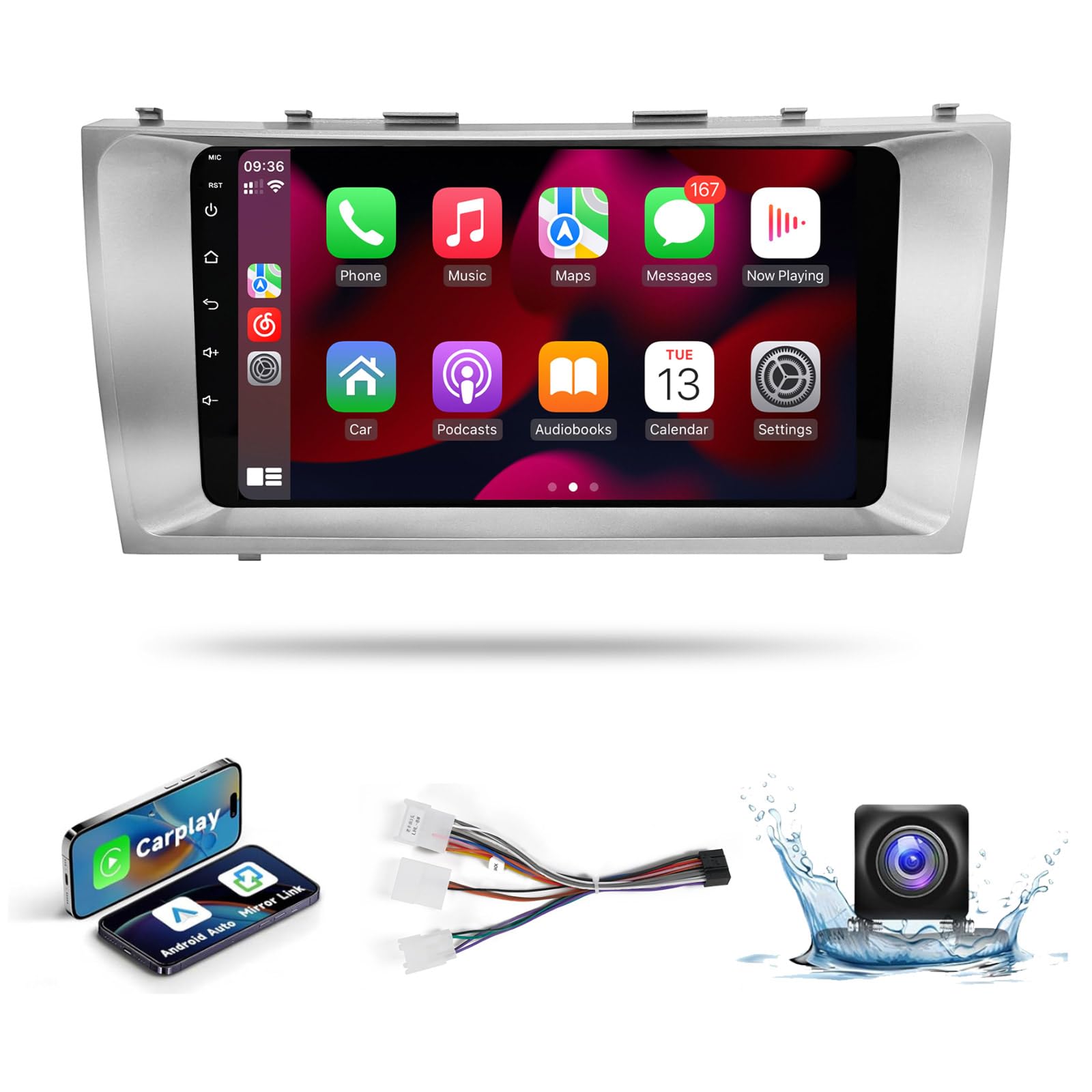
Image: Leadfan 9-inch IPS Touch Screen Car Radio for Toyota Camry 2006-2011, showing the unit's sleek design and integration.
2. Package Contents
Verify that all items listed below are included in your package. If any items are missing or damaged, please contact customer support.
- Car Radio Unit (9-inch IPS Touch Screen)
- Power Cable
- RCA Cable
- USB Cable (x2)
- GPS Antenna
- Rear View Camera
- Rear View Camera Cable
- External Microphone
- Frame Removal Tool
- User Manual

Image: A comprehensive view of all components included in the Leadfan car radio package, laid out neatly on a surface.
3. Product Features
- Vehicle Compatibility: Custom-designed for Toyota Camry 2006-2011 models, ensuring a seamless fit and integration with the factory dashboard.
- High Performance: Equipped with 2GB RAM and 32GB ROM for smooth operation and fast response times. Features a 1080P IPS Touchscreen for clear visuals.
- Wireless Connectivity: Supports Wireless Apple CarPlay and Android Auto for seamless smartphone integration, allowing access to navigation, music, calls, and apps via the touchscreen or voice assistant.
- Mirror Link Functionality: Enables screen mirroring from your smartphone to the car stereo display.
- Navigation & Internet: Built-in GPS navigation module and support for WiFi/Hotspot connectivity for online navigation apps, streaming, and other internet-based content.
- Audio Enhancements: Integrated FM radio with automotive-grade chipset for strong signal reception. DSP Equalizer (EQ) for customized sound effects and improved audio quality.
- Safety & Convenience: Supports HD backup camera with automatic display switching when reversing. Compatible with existing steering wheel controls (SWC) for volume adjustment, track changes, and call management.
4. Setup & Installation
Proper installation is crucial for optimal performance. It is recommended to have this unit installed by a professional if you are unfamiliar with car audio systems.
4.1. Pre-Installation Check
Before beginning installation, ensure the vehicle's battery is disconnected. Verify all components from the package contents list are present.
4.2. Wiring Connections
The unit features a plug-and-play wiring harness for simplified installation. Connect the power cable, RCA cables, USB cables, GPS antenna, and rear view camera cable to their respective ports on the car radio and your vehicle's wiring system. Refer to the wiring diagram in the included user manual for specific connections.

Image: A visual comparison highlighting the simpler plug-and-play wiring of the Leadfan product compared to the complex wiring of traditional car stereos.
4.3. Physical Installation
Carefully remove the factory radio from your Toyota Camry. Install the Leadfan car radio unit into the dashboard opening, ensuring all clips and mounting points align. Secure the unit in place. The custom-molded design ensures a perfect fit without gaps.

Image: The Leadfan car radio seamlessly integrated into the dashboard of a Toyota Camry, showcasing the finished installation effect.
4.4. Initial Power-Up and Calibration
After installation, reconnect the vehicle's battery. Power on the unit. It is recommended to perform a screen calibration for optimal touch response.
Video: An overview of the Leadfan Car Radio for Toyota Camry, demonstrating its features and initial setup steps.
5. Operating Instructions
5.1. Basic Operations
The 9-inch IPS touchscreen provides intuitive control over all functions. Use the on-screen icons to navigate between applications such as Music, Video, Radio, Navigation, and Settings.
5.2. Wireless Apple CarPlay & Android Auto
Connect your smartphone wirelessly via Bluetooth and Wi-Fi to activate Apple CarPlay or Android Auto. This allows you to access your phone's navigation, music, messaging, and calling features directly on the car radio display. Voice commands are supported for hands-free operation.

Image: The car radio screen showing both Wireless Apple CarPlay and Android Auto interfaces, demonstrating seamless smartphone integration.
5.3. GPS Navigation & WiFi
The built-in GPS module provides accurate navigation. Connect to a WiFi hotspot (e.g., from your smartphone) to download online maps, stream content from platforms like YouTube, or access other internet services directly on the unit.

Image: The car radio screen showing a GPS navigation map on one side and various application icons, indicating WiFi hotspot functionality.
5.4. FM Radio & EQ Settings
Tune into your favorite FM radio stations. The integrated DSP Equalizer allows you to customize audio settings for a personalized listening experience. Adjust frequency bands to enhance bass, treble, or vocal clarity.

Image: The car radio screen showing the FM radio interface on the top and detailed DSP Equalizer settings on the bottom, allowing audio customization.
5.5. Bluetooth 5.1
Pair your smartphone via Bluetooth 5.1 for hands-free calling and wireless audio streaming. The system supports phonebook synchronization and displays call information on the screen.

Image: The car radio screen showing the Bluetooth 5.1 interface, with options for making calls and playing music wirelessly from a connected smartphone.
5.6. Split Screen Functionality
Utilize the split-screen feature to run two applications simultaneously. For example, you can have navigation displayed on one side and music playback controls on the other.
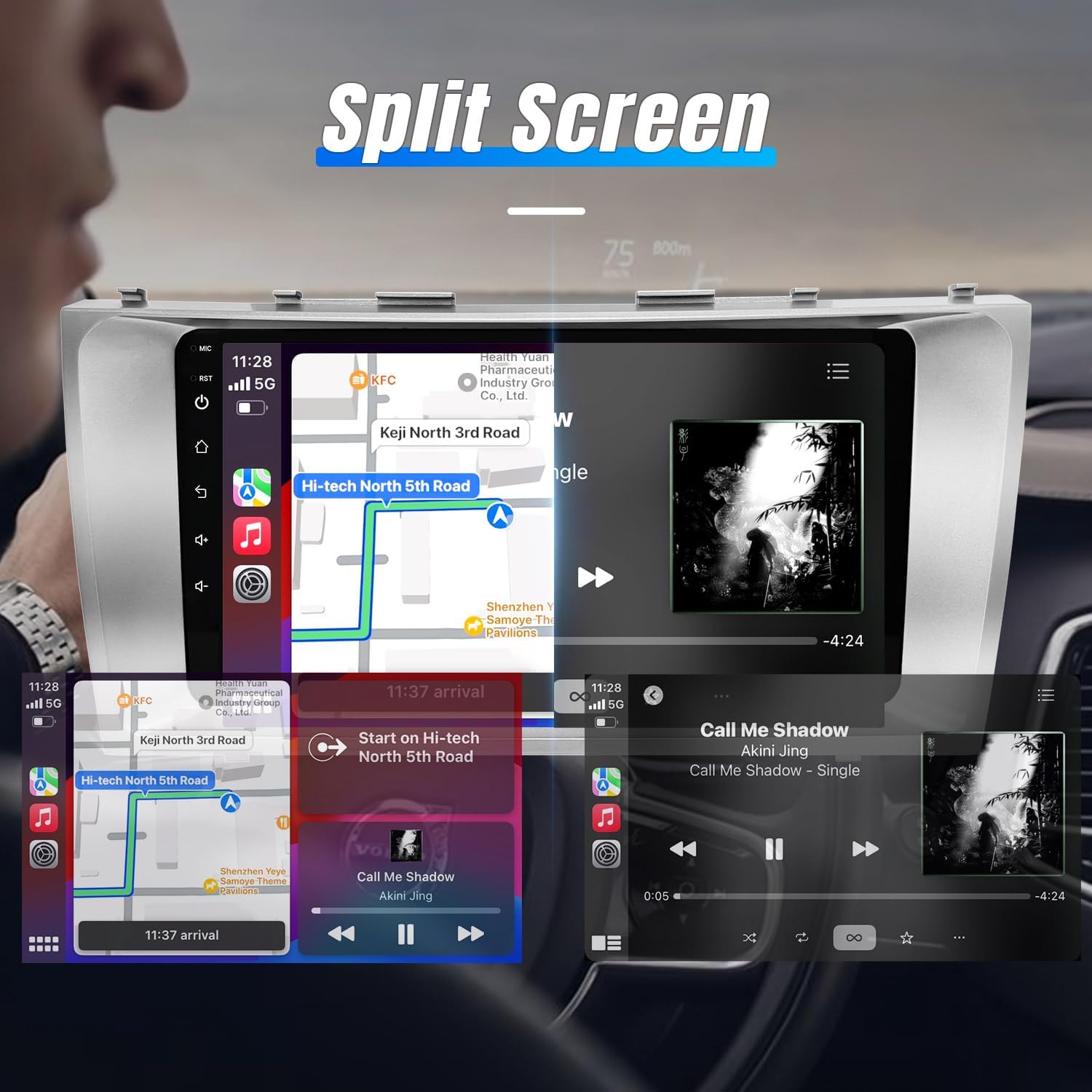
Image: The car radio screen demonstrating the split-screen feature, showing a navigation map on one side and a music player interface on the other.
5.7. Rear View Camera & Steering Wheel Control (SWC)
When the vehicle is in reverse, the display automatically switches to the rear view camera feed, providing a clear view of the area behind your car. The unit is compatible with your vehicle's existing steering wheel controls, allowing you to manage audio and calls without taking your hands off the wheel.
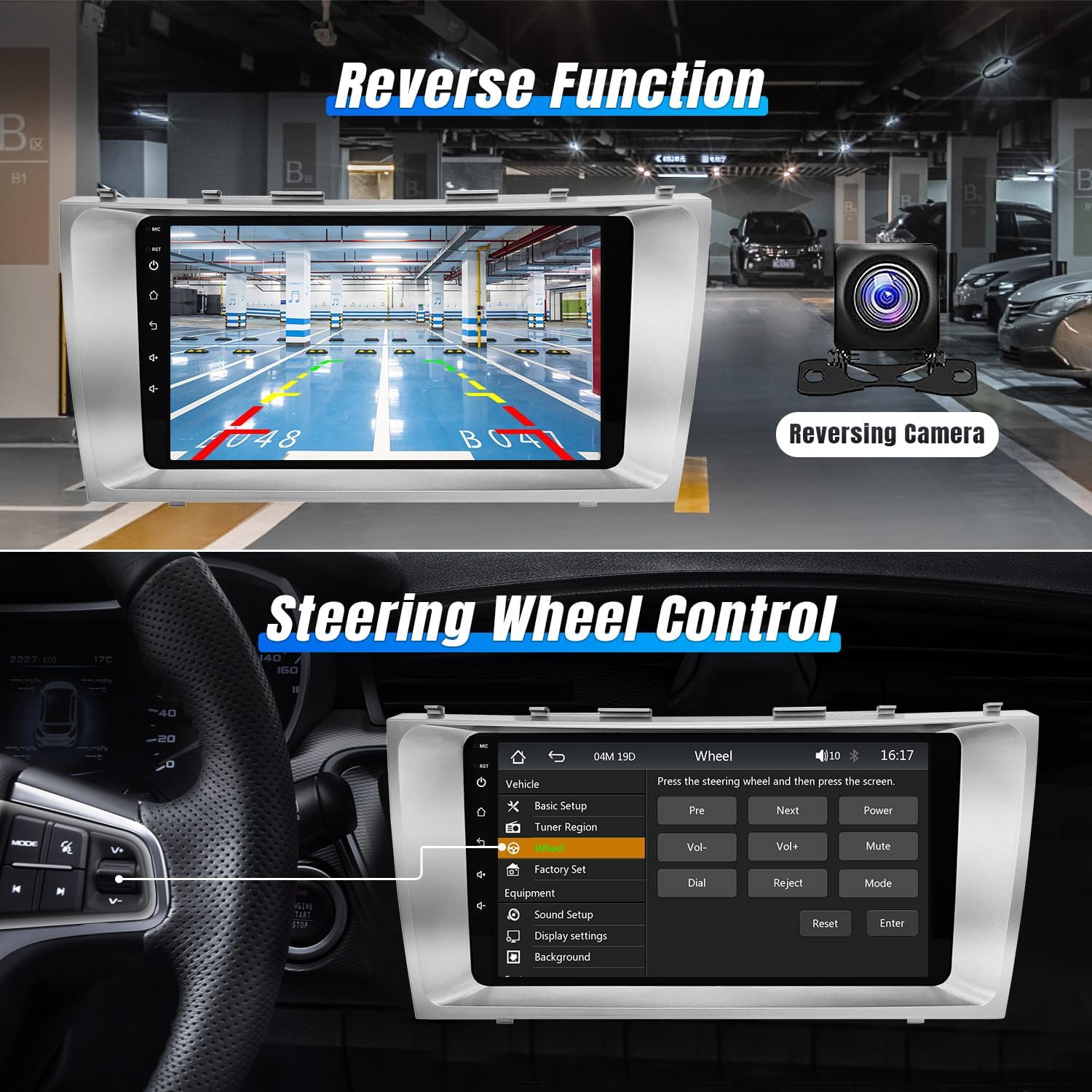
Image: The car radio screen showing a rear view camera display on the top and the steering wheel control learning interface on the bottom.
6. Maintenance
To ensure the longevity and optimal performance of your Leadfan car radio, follow these maintenance guidelines:
- Cleaning: Use a soft, dry cloth to clean the touchscreen and exterior. Avoid abrasive cleaners or solvents that could damage the screen or finish.
- Software Updates: Periodically check for available software updates to ensure you have the latest features and bug fixes. Updates can typically be found on the manufacturer's website or through the unit's settings menu.
- Temperature: Avoid exposing the unit to extreme temperatures for extended periods, as this can affect performance and lifespan.
- Wiring: Regularly inspect wiring connections for any signs of wear or damage. Ensure all connections remain secure.
7. Troubleshooting
If you encounter any issues with your Leadfan car radio, refer to the following common troubleshooting steps. For more complex problems, consult the detailed troubleshooting guide video or contact customer support.
7.1. Common Issues & Solutions
- No Power: Check all power connections and fuses. Ensure the vehicle's battery is properly connected and charged.
- No Sound: Verify speaker connections. Check volume levels and mute settings. Ensure the correct audio source is selected.
- Touchscreen Unresponsive: Perform a screen calibration (refer to the included manual for instructions). If the issue persists, try resetting the unit.
- GPS Signal Loss: Ensure the GPS antenna is properly installed and has a clear line of sight to the sky.
- Bluetooth Connection Issues: Ensure Bluetooth is enabled on both the car radio and your smartphone. Delete previous pairings and attempt to re-pair.
- CarPlay/Android Auto Not Connecting: Verify Bluetooth and Wi-Fi are active. Ensure your phone's operating system is up to date. Try restarting both the phone and the car radio.
Video: An essential troubleshooting guide addressing common issues and their solutions for car radio units.
8. Specifications
| Feature | Detail |
|---|---|
| Model Name | RM |
| Display Size | 9 Inches |
| Item Weight | 2.79 pounds |
| Package Dimensions | 12.6 x 6.69 x 3.82 inches |
| Connectivity Technology | Bluetooth, Wi-Fi |
| Special Features | Bluetooth, Touchscreen, Waterproof (Rear Camera) |
| Voice Command | Touchscreen (Voice Control via CarPlay/Android Auto) |
| Map Type | North America (via GPS) |
| Audio Output Mode | Stereo |
| Mounting Type | Dashboard Mount |
9. Warranty and Support
Your Leadfan car radio comes with a 1-Year Warranty from the date of purchase, covering manufacturing defects. We are committed to providing excellent customer service and technical support.
9.1. Customer Service
We offer 24-hour after-sales technical support to assist with any installation or operation questions. Our professional technical team is dedicated to making your driving experience easier and more enjoyable.
For assistance, please contact Leadfan customer service via the platform where you purchased the product.
9.2. Returns and Replacements
- 60 Days No Worry Return: You may return the product within 60 days of purchase.
- 12 Months Replacement: Replacement is available within 12 months for eligible issues.
- Lifetime After-Sales Consult and Technical Support: We provide ongoing support for the lifetime of the product.
Related documentsRM


Ask a question about this manual
Ask about setup, troubleshooting, compatibility, parts, safety, or missing instructions. Manuals+ will review the question and use this page’s manual context to help answer it.