
1. Introduction
This manual provides essential information for operating your KXD A10 Unlocked Cell Phone. Please read it carefully to ensure proper usage and to maximize the device's features. The KXD A10 is an Android 13 smartphone designed for reliable communication and multimedia experiences.
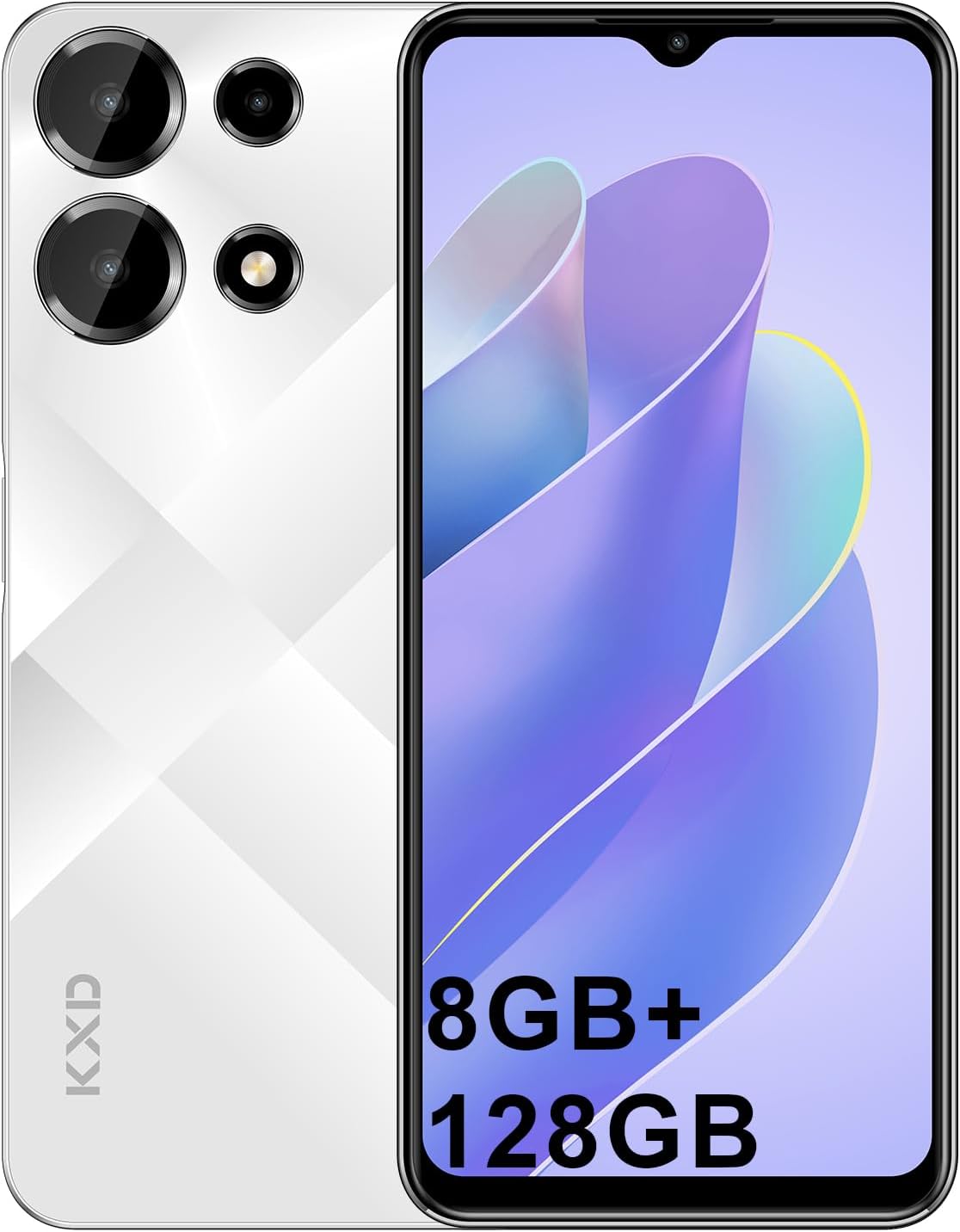
Image 1.1: KXD A10 Unlocked Cell Phone, showcasing its design and display.
2. What's in the Box
Upon opening your KXD A10 package, verify that all the following items are included:
- 1 x KXD A10 Phone
- 1 x Protective Film (pre-applied or separate)
- 1 x Phone Case
- 1 x Type-C Cable
- 1 x Data Cable
- 1 x SIM Tray Ejector
- 3 x Quick Start Guide (may include safety information and warranty card)
- 1 x Power Adapter

Image 2.1: Illustration of the KXD A10 phone and its included accessories.
3. Setup
3.1. SIM Card and Storage Card Installation
The KXD A10 supports dual SIM cards and a TF (microSD) card for expandable storage. Ensure the phone is powered off before inserting or removing cards.
- Locate the SIM tray on the side of the phone.
- Insert the SIM tray ejector tool into the small hole next to the tray and press gently until the tray pops out.
- Place your Nano-SIM cards and/or TF card into the designated slots on the tray, ensuring correct orientation.
- Carefully reinsert the tray into the phone until it clicks into place.

Image 3.1: Overview of KXD A10 features, including the dual SIM card and TF card support.
3.2. Initial Power On and Setup Wizard
Press and hold the Power button until the KXD logo appears. Follow the on-screen instructions to complete the initial setup, which includes selecting your language, connecting to Wi-Fi, and signing in to your Google account.
3.3. Face ID Unlock
The KXD A10 features Face ID for convenient and secure unlocking. To set up Face ID:
- Go to Settings > Security & privacy > Face unlock.
- Follow the on-screen prompts to register your face. Ensure you are in a well-lit area and hold the phone at eye level.
4. Operating Your Device
4.1. Android 13 Operating System
Your KXD A10 runs on Android 13, offering enhanced privacy features, improved notifications, and a personalized user experience. Navigate through the interface using gestures or the traditional navigation bar.

Image 4.1: KXD A10 displaying the Android 13 user interface with various apps and notifications.

Image 4.2: Visual representation of Android 13 features and Google services integration.
4.2. Display and Interaction
The KXD A10 features a 6.6-inch HD+ display with a resolution of 1280 x 720 pixels and a 60Hz refresh rate, providing clear visuals for daily use.

Image 4.3: The KXD A10's 6.6-inch HD+ display.

Image 4.4: Details on the KXD A10's 60Hz display, resolution, and brightness.
5. Camera Usage
The KXD A10 is equipped with a 13MP rear camera and an 8MP front camera, suitable for capturing everyday moments and video calls.
5.1. Taking Photos and Videos
- Open the Camera application.
- Select between photo or video mode.
- Tap the shutter button to capture an image or start/stop video recording.
- Use the front/rear camera switch icon to change cameras.

Image 5.1: Examples of photos taken with the KXD A10's rear and front cameras.

Image 5.2: Breakdown of the KXD A10's camera system, including 13MP rear and 8MP front cameras.
6. Performance and Storage
The KXD A10 is powered by an Octa-Core processor, providing sufficient performance for daily tasks. It comes with 12GB of RAM (4GB physical + 8GB virtual expansion) and 128GB of internal storage, expandable up to 256GB via a TF card.

Image 6.1: Visual representation of the KXD A10's 12GB RAM (4+8GB) and 128GB ROM with 256GB extension capability.

Image 6.2: Details on the KXD A10's 12GB RAM and 128GB ROM, highlighting expansion options.
7. Battery Information
The KXD A10 is equipped with a 4500mAh high-capacity battery, designed to provide extended usage time. The device supports 10W fast charging.
7.1. Charging Your Device
Use the provided Type-C cable and power adapter to charge your phone. Connect the Type-C end to the phone's charging port and the adapter to a power outlet.
7.2. Battery Optimization
To prolong battery life, consider these tips:
- Reduce screen brightness.
- Disable Wi-Fi, Bluetooth, and GPS when not in use.
- Close unused applications running in the background.
- Enable Battery Saver mode in Settings.

Image 7.1: The KXD A10's 4500mAh battery capacity.

Image 7.2: Estimated usage times for various activities with the 4500mAh battery.
8. Specifications
Below are the detailed technical specifications for the KXD A10 Unlocked Cell Phone:
| Feature | Specification |
|---|---|
| Model Name | A10 |
| Operating System | Android 13.0 |
| CPU Model | Octa-Core |
| CPU Speed | 1.6 GHz |
| RAM Memory Installed Size | 4 GB (with 8GB expansion) |
| Memory Storage Capacity | 128 GB (expandable up to 256GB) |
| Screen Size | 6.52 Inches |
| Resolution | 1280 x 720 (HD+) |
| Rear Camera | 13MP |
| Front Camera | 8MP |
| Battery Capacity | 4500 mAh |
| Connectivity Technologies | 4G, Cellular |
| Wireless Carrier | Unlocked for All Carriers |
| Audio Jack | 3.5 mm |
| Product Dimensions | 6.5 x 3 x 0.3 inches |
| Item Weight | 14.4 ounces |
9. Maintenance
9.1. Cleaning Your Device
Use a soft, lint-free cloth to clean the screen and body of your phone. Avoid using harsh chemicals or abrasive materials that could damage the finish.
9.2. Software Updates
Regularly check for and install software updates to ensure your device has the latest security patches and features. Go to Settings > System > System update.
10. Troubleshooting
If you encounter issues with your KXD A10, try the following common solutions:
- Device not turning on: Ensure the battery is charged. Connect the charger and wait a few minutes before attempting to power on again.
- Apps crashing or freezing: Close the problematic app and reopen it. If the issue persists, restart your phone.
- Poor network signal: Check if your SIM card is correctly inserted. Move to an area with better network coverage.
- Wi-Fi connection issues: Restart your phone and your Wi-Fi router. Forget the network in your phone's Wi-Fi settings and reconnect.
- Face ID not working: Ensure your face is well-lit and unobstructed. Re-register your face if necessary.
- Battery draining quickly: Review battery optimization tips in Section 7.2. Check battery usage in Settings to identify power-hungry apps.
11. Warranty and Support
For warranty information, please refer to the warranty card included in your product packaging. For further assistance or technical support, please contact KXD customer service through their official website or the contact details provided in your product documentation.
You can visit the KXD Store on Amazon for additional product information and support resources: KXD Mobiles Store