
X88 PRO 13 X88 PRO 13
X88 PRO 13 Smart TV Box User Manual
Model: X88 PRO 13
1. Introduction
The X88 PRO 13 Smart TV Box is a high-performance multimedia streaming device designed to transform your television into a smart entertainment hub. Running on Android 13.0 with an RK3528 Quad-Core processor, it offers seamless 8K and 3D video playback, advanced connectivity options including WiFi 6 and Bluetooth 5.0, and ample storage with 4GB RAM and 32GB ROM. This manual provides essential information for setting up, operating, and maintaining your device.
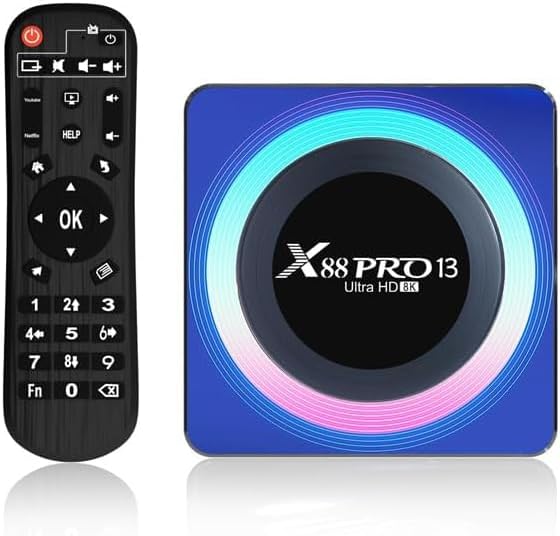
Figure 1.1: X88 PRO 13 Smart TV Box and included remote control.
2. Safety Information
- Ensure the device is placed on a stable, flat surface to prevent falls.
- Do not expose the device to water, moisture, or extreme temperatures.
- Use only the provided power adapter. Using unauthorized adapters may damage the device and void the warranty.
- Avoid blocking ventilation openings to prevent overheating.
- Do not attempt to disassemble or repair the device yourself. Contact qualified personnel for service.
- Keep the device away from direct sunlight and heat sources.
3. Package Contents
Please check the package carefully to ensure all items are present:
- 1 x X88 PRO 13 Smart TV Box
- 1 x Remote Control
- 1 x HD Cable (HDMI)
- 1 x User Manual
- 1 x Power Adapter

Figure 3.1: All items included in the X88 PRO 13 Smart TV Box package.
4. Product Overview
4.1. Key Features
- Operating System: Android 13.0
- Processor: RK3528 Quad-Core Cortex-A53
- Memory: 4GB RAM, 32GB ROM
- Video Output: Supports 8K and 3D
- Wireless Connectivity: Dual-Band WiFi 6 (2.4GHz/5.0GHz), Bluetooth 5.0
- Wired Connectivity: 10/100M Ethernet
- Video Decoding: H.265
- Special Features: Miracast, HDR10 support

Figure 4.1: Visual representation of the X88 PRO 13's core features.

Figure 4.2: The RK3528 Quad-Core Cortex-A53 processor, central to the device's performance.

Figure 4.3: The X88 PRO 13 runs on the latest Android 13.0 system, offering enhanced performance and features.
4.2. Ports and Connections
The X88 PRO 13 Smart TV Box features various ports for connectivity:
- DC (Power Input): Connect the provided power adapter here.
- SPDIF: Digital audio output for connecting to audio receivers.
- HD (HDMI): Connect to your TV's HDMI input for video and audio.
- LAN (Ethernet): For wired network connection.
- AV: Analog video and audio output (if applicable, though not explicitly listed in specs, it's on the image).
- USB 3.0: High-speed USB port for external storage or peripherals.
- USB 2.0: Standard USB port for external storage or peripherals.
- TF (MicroSD Card Slot): For expanding storage with a TF/MicroSD card.

Figure 4.4: Detailed view of the connectivity ports on the X88 PRO 13.
5. Setup Guide
5.1. Connecting to Your TV
- Connect one end of the provided HD (HDMI) cable to the "HD" port on the X88 PRO 13 TV Box.
- Connect the other end of the HDMI cable to an available HDMI input port on your television. Note the HDMI input number (e.g., HDMI 1, HDMI 2).
5.2. Powering On
- Connect the power adapter to the "DC" port on the X88 PRO 13 TV Box.
- Plug the power adapter into a wall outlet.
- The device should automatically power on. If not, press the power button on the remote control or the device itself (if available).
5.3. Initial Setup Wizard
Upon first boot-up, you will be guided through an initial setup wizard:
- Language Selection: Choose your preferred language for the system interface.
- Network Connection:
- Wi-Fi: Select your Wi-Fi network from the list, enter the password, and connect. The device supports Wi-Fi 6 for faster and more stable connections.
- Ethernet: If you connected an Ethernet cable to the LAN port, the device should automatically detect and connect to the wired network.
- Date and Time: Set the correct date and time or enable automatic synchronization.
- Google Account: Sign in with your Google account to access the Google Play Store and other Google services. This step is optional but recommended for full functionality.
- Follow any remaining on-screen prompts to complete the setup.
6. Operating Instructions
6.1. Navigating the Interface
Use the included remote control to navigate the Android TV interface. The main buttons typically include:
- Directional Pad (D-Pad): For moving up, down, left, and right.
- OK Button: To select an item or confirm an action.
- Back Button: To return to the previous screen.
- Home Button: To return to the main home screen.
- Menu Button: To access context-sensitive menus.
- Volume Buttons: To adjust audio volume.
6.2. Installing and Managing Applications
The X88 PRO 13 allows you to download and install applications from the Google Play Store:
- From the home screen, navigate to the Google Play Store icon and select it.
- Browse or search for desired applications (e.g., Netflix, YouTube, Prime Video, Disney+).
- Select the app and choose Install.
- To manage installed apps, go to Settings > Apps. From here, you can open, force stop, or uninstall applications.
6.3. Streaming Services
The device supports various streaming services. Once installed from the Google Play Store, open the application and log in with your account credentials:
- Netflix
- YouTube
- Prime Video
- Chromecast
- Disney+
- And many others available via Google Play.
6.4. Connecting Peripherals
You can connect various peripherals to your X88 PRO 13 TV Box:
- USB Devices: Plug USB flash drives, external hard drives, keyboards, or mice into the USB 2.0 or USB 3.0 ports.
- Bluetooth Devices:
- Go to Settings > Connected devices > Pair new device.
- Put your Bluetooth device (e.g., headphones, gamepad) into pairing mode.
- Select the device from the list on your TV screen to pair.

Figure 6.1: The X88 PRO 13 supports robust wireless connections including Dual-Band WiFi and Bluetooth 5.0 for various peripherals.
6.5. Multi-Screen Interaction (Miracast)
The X88 PRO 13 supports Miracast, allowing you to mirror the screen of your compatible mobile device or tablet directly onto your TV screen.
- Ensure both your X88 PRO 13 and your mobile device are connected to the same Wi-Fi network.
- On the X88 PRO 13, open the Miracast application (or similar screen mirroring app, if pre-installed).
- On your mobile device, enable screen mirroring or cast feature (often found in quick settings or display settings).
- Select the X88 PRO 13 from the list of available devices on your mobile phone.
- The content from your mobile device should now be displayed on your TV.

Figure 6.2: Seamless multi-screen interaction allows you to share content from your mobile device to your TV.
7. Troubleshooting
| Problem | Possible Cause | Solution |
|---|---|---|
| No power/Device not turning on. | Power adapter not connected properly; power outlet issue. | Check power cable connection. Try a different power outlet. Ensure the power button on the remote or device is pressed. |
| No picture on TV. | Incorrect HDMI input selected on TV; loose HDMI cable. | Ensure your TV is set to the correct HDMI input. Check HDMI cable connections at both ends. Try a different HDMI port on your TV or a different HDMI cable. |
| No sound. | TV volume too low or muted; audio settings incorrect. | Increase TV volume. Check audio output settings on the TV Box (Settings > Sound). |
| Wi-Fi connection issues. | Incorrect password; weak signal; router issues. | Re-enter Wi-Fi password. Move the device closer to the router. Restart your Wi-Fi router. Try a wired Ethernet connection if possible. |
| Apps crashing or freezing. | Insufficient memory; app specific bug; outdated app. | Close background apps. Clear app cache (Settings > Apps > [App Name] > Clear cache). Update the app from Google Play Store. Restart the TV Box. |
| Remote control not working. | Low batteries; obstruction; not paired (for Bluetooth remotes). | Replace batteries. Ensure no obstructions between remote and device. If it's a Bluetooth remote, re-pair it via Settings > Connected devices. |
8. Specifications
| Feature | Detail |
|---|---|
| Brand | X88 PRO 13 |
| Model Name | X88 PRO 13 |
| Operating System | Android 13.0 |
| Processor | RK3528 Quad-Core Cortex-A53 |
| RAM | 4GB |
| ROM (Internal Storage) | 32GB |
| Video Resolution | Up to 8K |
| Special Features | Miracast, HDR10, 3D support |
| Wi-Fi Connectivity | Wi-Fi 6 (2.4GHz/5.0GHz Dual-Band) |
| Bluetooth | Bluetooth 5.0 |
| Ethernet | 10/100M Standard RJ45 |
| USB Ports | 1 x USB 3.0, 1 x USB 2.0 |
| Card Slot | TF Card (MicroSD) |
| Video Decoder | H.265 |
| Color | Blue |
9. Maintenance
- Cleaning: Use a soft, dry cloth to clean the device. Do not use liquid cleaners or aerosols.
- Software Updates: Periodically check for system updates via Settings > About device > System update to ensure optimal performance and access to the latest features.
- Storage Management: Regularly clear cache and uninstall unused applications to free up storage space and maintain smooth operation (Settings > Apps).
10. Warranty and Support
The X88 PRO 13 Smart TV Box comes with a manufacturer's warranty.
- Warranty Period: 1 Year Manufacturer's Warranty.
- Support: For technical assistance or warranty claims, please contact your retailer or the manufacturer's customer support. Refer to the contact information provided with your purchase or on the product packaging.
Related documentsX88 PRO 13


Ask a question about this manual
Ask about setup, troubleshooting, compatibility, parts, safety, or missing instructions. Manuals+ will review the question and use this page’s manual context to help answer it.