
Introduction
The Lenovo ThinkPad Universal USB-C Dock 40A9 DK1633 is designed to enhance your productivity by providing a single-cable solution for connecting your laptop or tablet to multiple displays, a wired network, audio devices, and various USB peripherals. This manual provides detailed instructions for setting up, operating, and maintaining your docking station.
Package Contents
Verify that all items are present in your package:
- Lenovo ThinkPad Universal USB-C Dock (40A9 DK1633)
- USB-C Cable
- 90W AC Power Adapter
- Power Cord
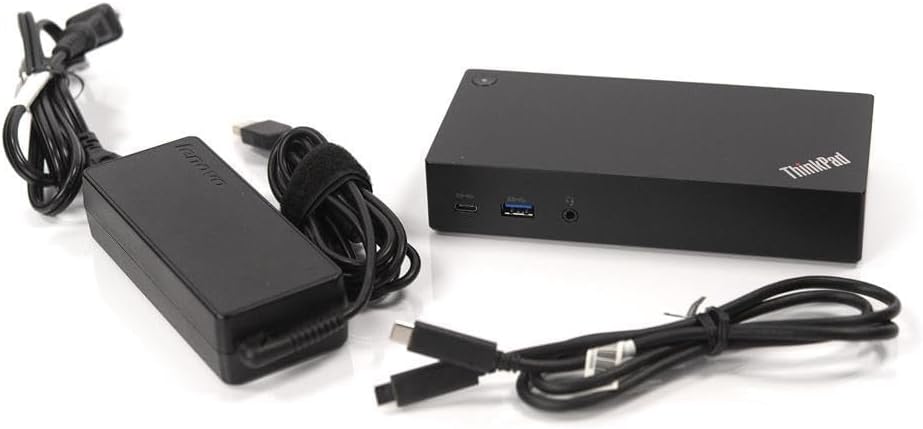
Image: The docking station, its USB-C cable, and the 90W AC power adapter are shown together.
Product Overview
The ThinkPad Universal USB-C Dock provides a comprehensive set of ports for various connectivity needs.
Front View

Image: Front panel of the dock, featuring the power button, a USB-C port, a USB 3.0 port, and a 3.5mm audio jack.
- Power Button: Powers the dock and mirrors the connected system's power button.
- USB-C Port: For data transfer and charging mobile devices (15W).
- USB 3.0 Port (Always On): For data transfer and charging mobile devices (10.5W).
- Audio Jack: For connecting headphones or speakers.
Rear View

Image: Rear panel of the dock, displaying the power input, multiple USB 3.0 ports, two DisplayPort outputs, a VGA output, and an Ethernet port.
- Power Input: Connect the 90W AC power adapter.
- USB-C Port (for host connection): Connects to your laptop/tablet.
- USB 3.0 Ports: For connecting USB peripherals.
- DisplayPort (DP) Outputs: For connecting external monitors.
- VGA Output: For connecting an external monitor.
- Ethernet Port (RJ-45): For wired network connection.
Setup Instructions
- Connect Power: Plug the 90W AC power adapter into the dock's power input port, then connect the power cord to an electrical outlet.
- Connect to Host Device: Use the provided USB-C cable to connect the dock's host USB-C port to your laptop or tablet's USB-C port.
- Connect Peripherals:
- Monitors: Connect external monitors to the DisplayPort or VGA outputs on the dock. The dock supports single UHD (4K) display at 30Hz or dual FHD (1080p) displays.
- Network: Connect an Ethernet cable to the RJ-45 port for a wired network connection.
- USB Devices: Connect USB keyboards, mice, external drives, and other peripherals to the available USB 3.0 ports.
- Audio: Connect headphones or speakers to the 3.5mm audio jack.
- Power On: Press the power button on the dock. This will also power on your connected ThinkPad system if it is off or in sleep/hibernate mode.

Image: A user's desk setup showing the docking station connected to a laptop and two external monitors, along with a keyboard and mouse.
Operating the Dock
- Display Configuration: Once connected, your operating system should automatically detect the external displays. You may need to adjust display settings (e.g., extend, duplicate, resolution) through your computer's display settings.
- Power Delivery: The dock provides up to 60W of power to your connected laptop or tablet via the USB-C cable. Ensure your device supports USB-C power delivery for charging.
- USB Charging: The front USB-C port provides 15W and the front USB 3.0 Always On port provides 10.5W for charging mobile devices even when the laptop is off.
- Network Management: The dock supports network manageability features for ThinkPad systems, including PXE boot, Wake-On-LAN, and MAC address pass-through.
- Power Button Functionality: The power button on the dock functions identically to your ThinkPad's power button, allowing you to power on/off or wake your system.
Maintenance
- Cleaning: Use a soft, dry cloth to clean the exterior of the dock. Avoid liquid cleaners or abrasive materials.
- Firmware Updates: Regularly check for firmware updates for your dock using the Lenovo Dock Manager software. Updates can improve performance and compatibility.
- Storage: Store the dock in a cool, dry place away from direct sunlight and extreme temperatures when not in use.
Troubleshooting
| Problem | Solution |
|---|---|
| No power to dock or laptop. |
|
| External display not working. |
|
| USB devices not recognized. |
|
| No network connection. |
|
Specifications
| Feature | Detail |
|---|---|
| Brand | Lenovo |
| Model | 40A9 DK1633 |
| Hardware Interface | USB 3.0, USB-C, DisplayPort, VGA, Ethernet |
| Total USB Ports | 6 (including 1 USB-C, 1 USB 3.0 Always On) |
| Video Outputs | 2x DisplayPort, 1x VGA |
| Max Resolution (Single Display) | UHD (4K) @ 30Hz |
| Max Resolution (Dual Display) | FHD (1080p) |
| Power Delivery | Up to 60W to host laptop |
| Power Adapter | 90W AC Adapter |
| Dimensions (L x W x H) | 6" x 5" x 0.5" (approx.) |
| Weight | 1.5 pounds (approx.) |
| Compatible OS | Windows 10 and above |
Warranty Information
This renewed product comes with a 30-day warranty from the seller. Please refer to your purchase documentation for specific terms and conditions regarding returns and replacements.
Support
For further assistance, technical support, or to download the latest drivers and firmware, please visit the official Lenovo support website or contact your seller.
- Lenovo Support: support.lenovo.com
- Lenovo Dock Manager: For firmware updates and device management.


