
1. Introduction
This manual provides essential information for the installation, operation, maintenance, and troubleshooting of the Nockchawon BCM94360CD WiFi Bluetooth Airport Wireless Card. This product is designed as a replacement component for specific iMac models. Please read these instructions carefully before proceeding with any installation or maintenance.
2. Product Overview
The BCM94360CD is an internal wireless network card that integrates 802.11ac Wi-Fi and Bluetooth 4.0 capabilities. It is intended to restore or upgrade wireless connectivity in compatible iMac models where the original card may be damaged or malfunctioning. This card addresses issues related to Wi-Fi network connections and Bluetooth accessory pairing.

Figure 2.1: Front view of the Nockchawon BCM94360CD WiFi Bluetooth Airport Wireless Card. This image displays the front side of the BCM94360CD wireless card, showing its primary components and the gold-plated connector pins. Key identifying numbers such as BCM94360CD and 653-0014 are visible.

Figure 2.2: Rear view of the Nockchawon BCM94360CD WiFi Bluetooth Airport Wireless Card. The rear side of the BCM94360CD wireless card is shown, highlighting the antenna connectors and other surface-mounted components. This view is important for understanding the card's physical layout and connection points.
3. Compatibility
This wireless card is specifically compatible with the following Apple iMac models:
- iMac 21.5" A1418 (Late 2013-Mid 2014)
- Late 2013 For iMac 14.1 21.5" EMC 2638 ME086LL/A 2.7 GHz "Core i5" (i5-4570R)
- Late 2013 For iMac 14.1 21.5" EMC 2638 ME087LL/A 2.9 GHz "Core i5" (i5-4570S)
- Late 2013 For iMac 14.1 21.5" EMC 2638 BTO/CTO 3.1 GHz "Core i7" (i7-4770S)
- Mid 2014 For iMac 14.4 21.5" EMC 2805 MF883LL/A 1.4 GHz "Core i5" (i5-4260U)
- iMac 27" A1419 (Late 2013-Mid 2015)
- Late 2013 For iMac 14.2 27" EMC 2639 ME088LL/A 3.2 GHz Core i5 (i5-4570)
- Late 2013 For iMac 14.2 27" EMC 2639 ME089LL/A 3.4 GHz Core i5 (i5-4670)
- Late 2013 For iMac 14.2 27" EMC 2639 BTO/CTO 3.5 GHz Core i7 (i7-4771)
- Late 2014 For iMac 15.1 27" EMC 2806 MF886LL/A 3.5 GHz Core i5 (i5-4690)
- Late 2014 For iMac 15.1 27" EMC 2806 BTO/CTO 4.0 GHz Core i7 (i7-4790K)
- Mid 2015 For iMac 15.1 27" EMC 2806 MF885LL/A 3.3 GHz Core i5 (i5-4590)
To ensure compatibility, verify both the Model "Axxxx" and EMC "xxxx" numbers located beneath the lower cover of your iMac. This card is not compatible with iMac models from other years.

Figure 3.1: Location of the EMC Number. A close-up view of an internal label within an iMac, highlighting the location of the EMC (Electromagnetic Compatibility) number. This number is critical for accurately identifying the iMac model and ensuring compatibility with replacement parts.
4. What's in the Box
Your package should contain the following item:
- 1 x BCM94360CD WiFi Bluetooth Airport Wireless Card
5. Setup and Installation
Important: Replacing internal components of an iMac requires technical expertise and specialized tools. Incorrect installation can lead to damage to your device. If you are not confident in performing this procedure, it is highly recommended to seek assistance from a qualified technician.

Figure 5.1: Internal component installation on an iMac. This image depicts a technician performing an internal component installation on an open iMac. It serves as a visual reference for the type of environment and procedure involved in replacing the wireless card, emphasizing the need for careful handling and appropriate tools.
Installation Steps:
- Preparation:
- Backup all important data on your iMac.
- Power off your iMac completely and disconnect all cables (power, USB, Ethernet, etc.).
- Work in a clean, well-lit, and static-free environment. Use an anti-static wrist strap.
- Gather necessary tools, which typically include suction cups, Torx screwdrivers, spudgers, and a plastic opening tool.
- Access Internal Components: Carefully open your iMac. This usually involves removing the display panel, which is often held by strong adhesive strips or magnets. Refer to a specific service guide for your iMac model for precise instructions.
- Locate and Remove Old Wireless Card: Identify the existing wireless card. It is typically secured by one or more screws and has antenna cables connected to it. Carefully disconnect the antenna cables and remove the securing screw(s). Gently slide out the old card from its slot.
- Install New Wireless Card: Align the BCM94360CD card with the vacant slot. Gently push it into place until it is fully seated. Secure the card with the screw(s) removed earlier. Reconnect the antenna cables to their respective connectors on the new card. Ensure a snug fit for all connections.
- Reassemble iMac: Carefully reassemble your iMac, ensuring all cables are properly routed and connected, and the display panel is securely reattached.
- Initial Power On and Testing: Reconnect the power cable and other peripherals. Power on your iMac. Once booted, verify that Wi-Fi and Bluetooth functionalities are working correctly through System Preferences.
6. Operating Instructions
Once the BCM94360CD wireless card is correctly installed, its operation is integrated into your iMac's operating system. Wi-Fi and Bluetooth functions will be accessible through the standard macOS network and Bluetooth settings. No additional drivers or software are typically required for compatible iMac models.
- Wi-Fi: Access Wi-Fi networks via the Wi-Fi icon in the menu bar or through System Settings > Network > Wi-Fi.
- Bluetooth: Pair Bluetooth devices via the Bluetooth icon in the menu bar or through System Settings > Bluetooth.
7. Maintenance
The BCM94360CD wireless card is an internal component and requires minimal maintenance. To ensure optimal performance and longevity:
- Keep iMac Clean: Regularly clean the exterior of your iMac to prevent dust buildup, which can affect internal components.
- Avoid Extreme Conditions: Operate your iMac within recommended temperature and humidity ranges to prevent component degradation.
- Professional Cleaning: If significant dust accumulates inside the iMac, consider professional cleaning to avoid overheating and component failure.
8. Troubleshooting
If you encounter issues after installing the BCM94360CD wireless card, refer to the following troubleshooting steps:
| Problem | Possible Cause | Solution |
|---|---|---|
| No Wi-Fi or Bluetooth after installation | Card not seated correctly, antenna cables loose, incorrect card for model. |
|
| Intermittent Wi-Fi/Bluetooth connection | Loose antenna connection, interference, software issue. |
|
| Bluetooth devices not pairing | Device not in pairing mode, software issue. |
|
If problems persist after attempting these solutions, consider consulting a professional technician or contacting the product seller for further assistance.
9. Specifications
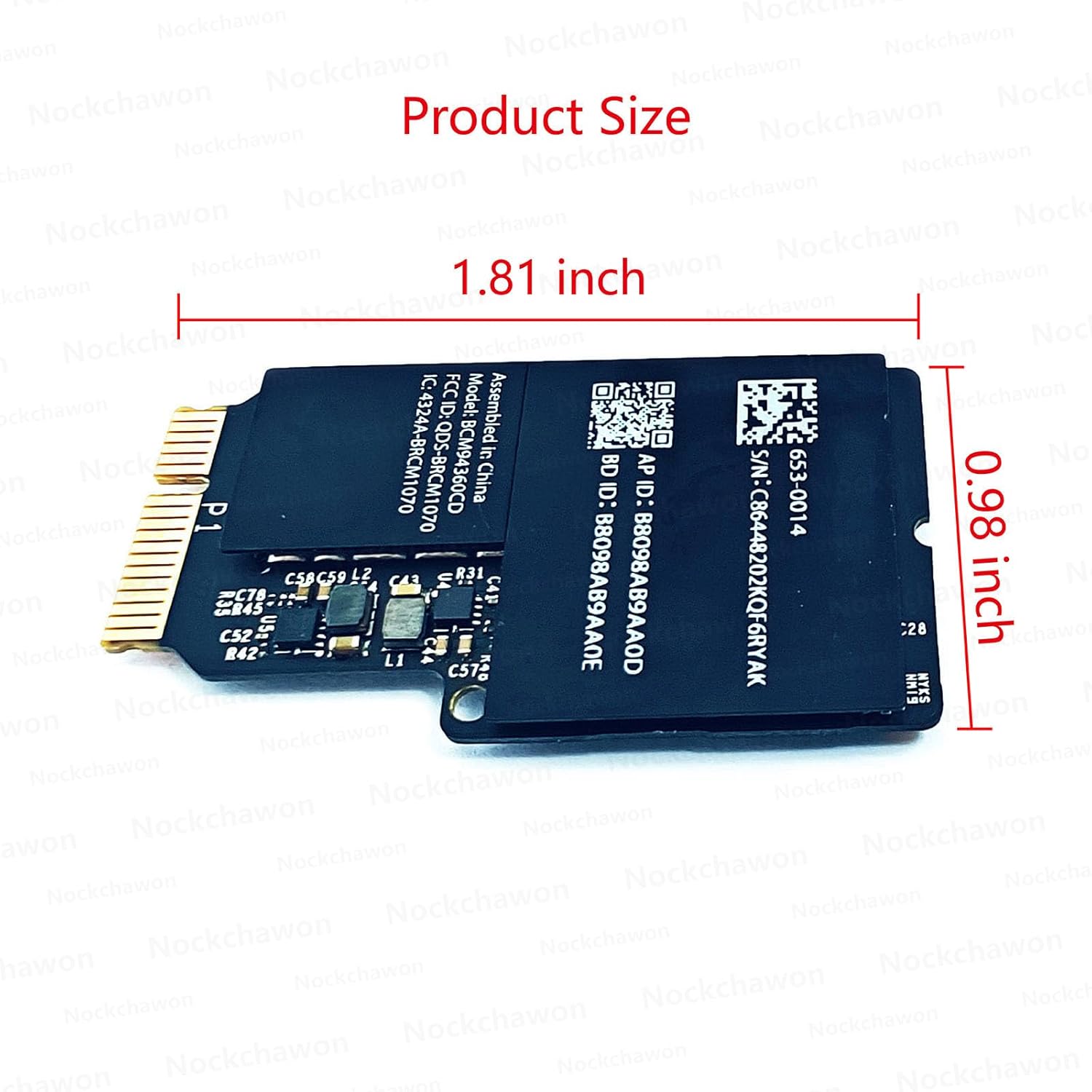
Figure 9.1: BCM94360CD wireless card with dimensions. This image illustrates the physical dimensions of the BCM94360CD wireless card, indicating its length of 1.81 inches and width of 0.98 inches. These measurements are crucial for verifying compatibility with the intended slot.
| Feature | Detail |
|---|---|
| Model Number | BCM94360CD |
| Part Number (PPN) | 653-0014 |
| Wi-Fi Protocol | 802.11ac (backward compatible with 802.11a/b/g/n) |
| Bluetooth Version | 4.0 |
| Hardware Interface | Proprietary (designed for iMac) |
| Product Dimensions | 1.81 x 0.98 x 0.08 inches (4.6 x 2.5 x 0.2 cm) |
| Item Weight | 0.49 ounces (13.9 grams) |
| Manufacturer | Nockchawon |
10. Warranty and Support
For information regarding product warranty, returns, or technical support, please refer to the terms and conditions provided by your original point of purchase or contact the seller directly. Keep your purchase receipt as proof of purchase.