
JKBMS JK-B2A24S15P
JKBMS Smart BMS User Manual
Model: JK-B2A24S15P
Introduction
This manual provides comprehensive instructions for the installation, operation, and maintenance of your JKBMS Smart BMS (Battery Management System). This device is designed to protect and optimize the performance of LiFePO4, Li-ion, and LTO battery packs, ensuring safety and extending battery lifespan.

Figure 1: JKBMS Smart BMS (Model JK-B2A24S15P)
Safety Information
WARNING: Working with high-voltage battery systems can be dangerous. Always follow safety precautions to prevent injury or damage to equipment.
- Ensure all power sources are disconnected before installation or maintenance.
- Wear appropriate personal protective equipment (PPE), including insulated gloves and eye protection.
- Do not short-circuit battery terminals or BMS connections.
- Verify all wiring connections are correct before applying power. Incorrect wiring can cause severe damage to the BMS and battery pack.
- Keep the BMS away from water, moisture, and flammable materials.
- If you are not confident in your ability to install this device, seek professional assistance.
Package Contents
Verify that all items listed below are present in your package:
- Smart BMS (JK-B2A24S15P) x 1
- Wires (70cm) x 1 set
- Switch (50cm) x 1
- NTC (Temperature Sensor, 40cm) x 1
- Operate manual x 1 (This document)
Note: RS485 converter is not included and must be purchased separately if needed.
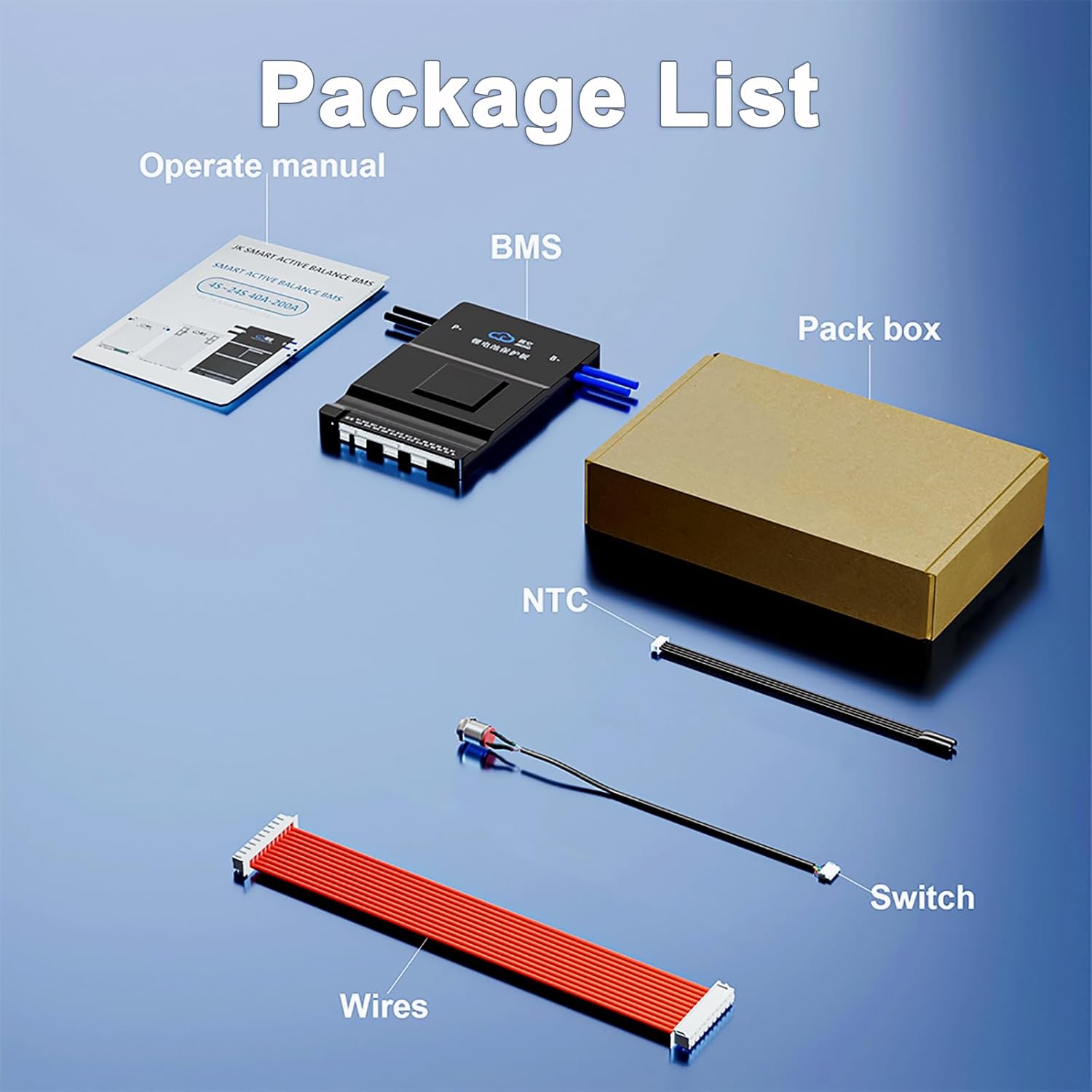
Figure 2: Included components in the JKBMS Smart BMS package.
Product Features
- Enhanced Safety: Provides comprehensive protection against overcharging, over-discharging, overcurrent, short circuits, and temperature extremes.
- Active Equalization: Features 2A active balance current to optimize battery performance and extend lifespan by ensuring cells are balanced.
- Bluetooth Connectivity: Built-in Bluetooth for easy monitoring and control via the JKBMS mobile app (Android and iOS compatible).
- RS485 Communication: Includes RS485 port for advanced communication and integration (converter sold separately).
- Wide Application: Compatible with Li-ion, LiFePO4, and LTO battery types, suitable for various applications including electric vehicles, scooters, and power banks.
- Robust Design: PCB is three-proof (silicone, dustproof, antistatic, and moisture-proof) for durability.

Figure 3: Overview of the eight security protection features.

Figure 4: Bluetooth communication capabilities for real-time monitoring and control.
Specifications
| Parameter | Value (JK-B2A24S15P) |
|---|---|
| Model | JK-B2A24S15P |
| Supported Cell Count | 8S-24S |
| Input Voltage Range | 24V-72V |
| Balance Current | 2A Active Balance |
| Continuous Discharge Current | 150A |
| Maximum Instantaneous Current | 300A |
| Overcharge Protection Voltage | 1.2-4.4V (Adjustable) |
| Overdischarge Protection Voltage | 1.2-4.4V (Adjustable) |
| Single Cell Voltage Collection Range | 1V-5V |
| Voltage Acquisition Accuracy | ±3mV |
| Communication | Bluetooth (Standard), CAN/RS485 (Optional) |
| Dimensions (L x W x H) | 6.38 x 4.02 x 0.8 inches (162 x 102 x 20.4 mm) |
| Weight | Approx. 15.2 ounces (430g) |
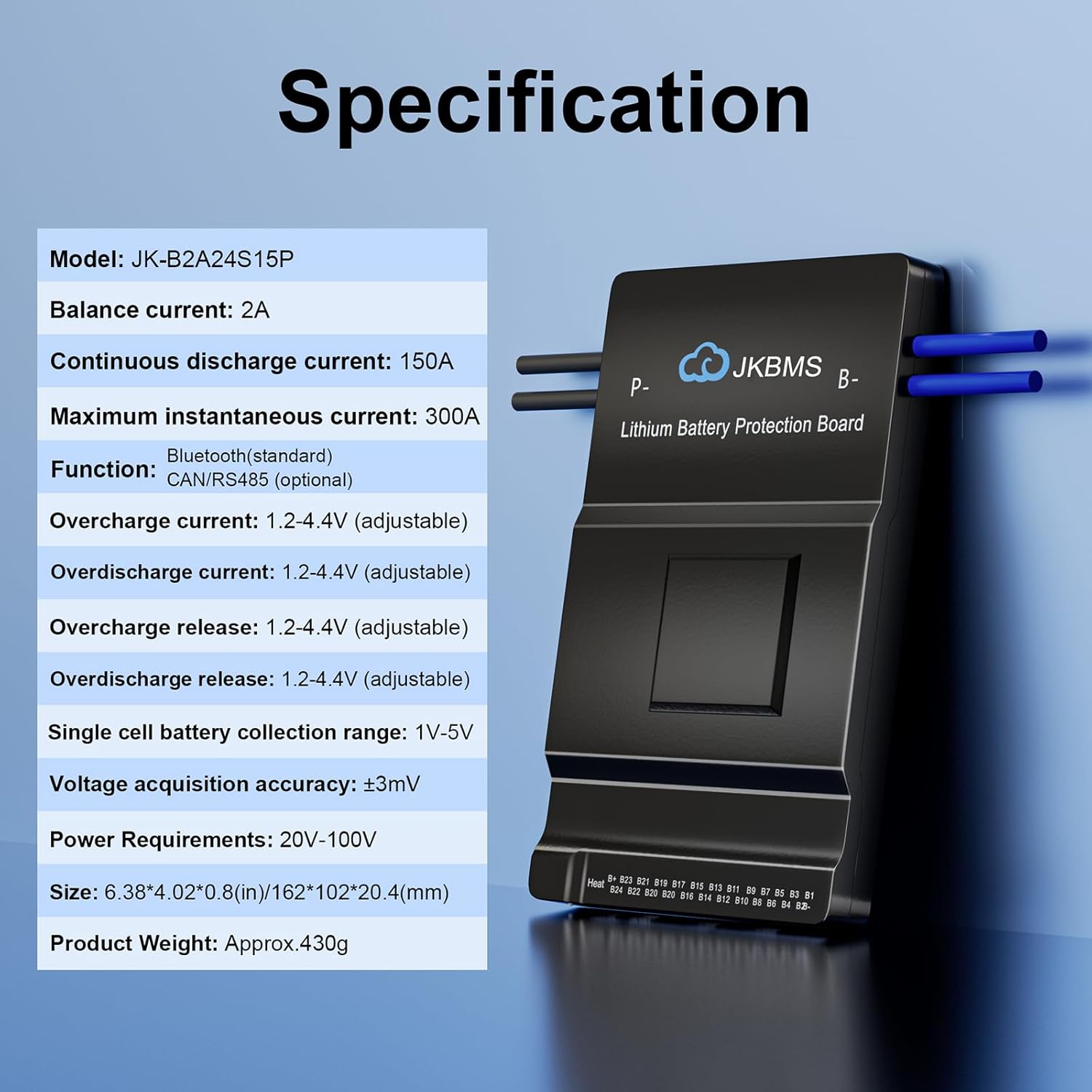
Figure 5: Detailed product specifications.
Setup and Installation
Proper installation is crucial for the safe and effective operation of your JKBMS. Please follow these steps carefully.
Wiring Diagram Overview

Figure 6: General wiring diagram for the JKBMS Smart BMS.
Installation Steps:
- Prepare the Battery Pack: Ensure your battery pack is assembled correctly with all cells connected in series. Verify the total voltage and individual cell voltages are within the BMS's operating range.
- Connect Balance Wires: Connect the balance wires from your battery pack to the corresponding ports on the BMS. Start from B- (negative terminal of the first cell) and connect sequentially up to the last cell's positive terminal (B+). Ensure each wire is connected to the correct cell tap. Incorrect balance wire connection is a common cause of issues and can damage the BMS.
- Connect Main Power Wires:
- Connect the main negative terminal of the battery pack to the B- port on the BMS.
- Connect the main positive terminal of the battery pack to the P+ port on the BMS.
- Connect your load and charger to the P- and P+ ports as shown in the wiring diagram.
- Connect NTC (Temperature Sensor): Plug the NTC temperature sensor into its designated port on the BMS. Position the sensor to accurately measure the battery pack's temperature.
- Connect Switch: Connect the provided switch to the BMS. This switch is used to activate or deactivate the BMS.
- Initial Power On: After all connections are securely made and verified, activate the BMS using the provided switch. The BMS should power on.
- App Connection: Download the JKBMS mobile app from your device's app store (Android/iOS). Enable Bluetooth on your phone and connect to the BMS.
- Configure Settings: Use the app to configure the battery type (LiFePO4, Li-ion, LTO) and the number of series cells (S-count) to match your battery pack. Adjust other protection parameters as needed.
Operating Instructions
The JKBMS Smart BMS is primarily operated and monitored via its dedicated mobile application.
Using the JKBMS Mobile App:
- Download and Install: Search for "JKBMS" in your device's app store and install the application.
- Bluetooth Connection: Open the app and ensure Bluetooth is enabled on your phone. The app will scan for nearby JKBMS devices. Select your BMS from the list to connect.
- Real-time Monitoring: Once connected, the app displays real-time data including:
- Total battery voltage
- Individual cell voltages
- Charge/discharge current
- Battery temperature (from NTC sensor)
- State of Charge (SOC)
- Balance status
- Cycle count
- Parameter Adjustment: The app allows you to modify various BMS parameters, such as:
- Overcharge/overdischarge protection voltages
- Overcurrent protection limits
- Temperature protection thresholds
- Balance settings
Caution: Only adjust parameters if you understand their function and impact on battery safety and performance. Incorrect settings can damage your battery.
- Control Functions: The app provides control over certain BMS functions, such as enabling/disabling charging or discharging, and activating the balance switch.

Figure 7: JKBMS Smart Bluetooth APP interface for monitoring and control.
Maintenance
Regular maintenance helps ensure the longevity and optimal performance of your JKBMS and battery pack.
- Periodic Inspection: Visually inspect the BMS and all wiring connections regularly for any signs of damage, corrosion, or loose connections.
- Cleanliness: Keep the BMS clean and free from dust and debris. Use a soft, dry cloth for cleaning. Do not use liquid cleaners.
- Temperature Monitoring: Regularly check the battery temperature via the app, especially during charging and discharging cycles, to ensure it remains within safe operating limits.
- Cell Voltage Monitoring: Periodically check individual cell voltages in the app to ensure they remain balanced. The active balancing feature will work to maintain balance, but monitoring helps confirm its effectiveness.
- Firmware Updates: Check the JKBMS official website or app for any available firmware updates. Follow instructions carefully if performing an update.
Troubleshooting
This section addresses common issues you might encounter with your JKBMS.
| Problem | Possible Cause | Solution |
|---|---|---|
| BMS does not power on. |
|
|
| Cannot connect to BMS via Bluetooth app. |
|
|
| Battery not charging/discharging. |
|
|
| Cell voltages are unbalanced. |
|
|
Warranty and Support
JKBMS provides a 1-year support for this product.
If you have any questions, concerns, or require technical assistance, please contact JKBMS support through your order page on the platform where you purchased the product. Please provide your order number and a detailed description of the issue to facilitate a quicker resolution.
For more information and resources, you may visit the official JKBMS store: JKBMS Store
Related documentsJK-B2A24S15P


Ask a question about this manual
Ask about setup, troubleshooting, compatibility, parts, safety, or missing instructions. Manuals+ will review the question and use this page’s manual context to help answer it.